



 Intercom
 Shopify
 Stripe
 Slack
Slack Notion
 Google Workspace
 Confluence

Why Is My Zendesk Web Widget Not Showing? 9 Causes and Fixes


When the Zendesk Web Widget doesn't appear, the cause is almost always on a short list: a missing or misplaced snippet, messaging switched off, operating hours, a stale cache, or a blocked script. Work the nine causes below in order and stop at the first one that matches.
Key takeaways
- The most common reason the Zendesk Web Widget isn't showing is that its snippet, loading static.zdassets.com/ekr/snippet.js, is missing from the page or not placed before the closing body tag.
- Zendesk installs the messaging widget on a Help Center with one checkbox, but marketing sites, apps and landing pages need the snippet pasted manually, which explains a widget showing on some pages only.
- Zendesk's CSP doc lists default-src hosts for the widget including *.zdassets.com, *.zendesk.com, *.smooch.io and wss://api.smooch.io, or recommends a nonce on the snippet instead.
- Zendesk has two separate widgets, the Web Widget (Classic) under Channels → Classic and the messaging Web Widget under Channels → Messaging and social, each with its own snippet.
- With Chat operating hours enabled, any agent signed in outside the schedule is set to Invisible, so a widget vanishing after hours is expected behavior rather than a bug.
The Zendesk Web Widget usually fails to show because its install snippet (a script loading static.zdassets.com/ekr/snippet.js?key=...) is missing from the page or isn't placed before the closing </body> tag. The next most common causes are messaging switched off or tied to another brand, operating hours hiding it, a stale cache, and a Content Security Policy or ad-blocker blocking Zendesk's domains. The table below ranks nine causes by how often they happen, so you can stop at the first one that matches. Steps are checked against Zendesk's current documentation (September 2026); Zendesk revises its UI periodically, so confirm labels in your own account.
| # | Cause | Fastest check |
|---|---|---|
| 1 | Snippet missing or misplaced | View source, search for snippet.js |
| 2 | Messaging off, widget inactive, wrong brand | Admin Center → Channels → Messaging and social → Messaging |
| 3 | Operating hours / no agent online | Test during hours with an agent online |
| 4 | Cached page | Incognito on the live URL |
| 5 | Ad-blocker, CSP or firewall | Console errors mentioning CSP or "blocked" |
| 6 | Wrong or deleted snippet key | Compare key= with Admin Center |
| 7 | JavaScript error or second chat widget | Unrelated red errors in the console |
| 8 | Classic vs messaging mismatch | Which snippet is on the page vs which widget you configured |
| 9 | Consent manager / GTM gating | Widget appears only after accepting cookies |
What does "the widget isn't showing" actually look like?
"The widget isn't showing" usually means one of three slightly different things, and it's worth being precise, because they point to different causes:
- Nothing at all on the page (no bubble, no launcher). Most often an install/placement problem or a blocked script.
- The bubble appears but won't open, or opens to an error. Usually a JS conflict, a CSP/connection block, or a half-loaded snippet.
- It shows for you but not for customers (or only on some pages). Caching, consent gating, or the snippet only living on certain pages.
Keep which one you're seeing in mind. It'll help you skip straight to the likely fix below.
What should you check first (in about 3 minutes)?
Before changing any settings, run these four checks. They tell you where the problem is (your page, the network, or Zendesk's config), which saves you from blindly toggling things.
- View source / inspect the page. Right-click → View Page Source (or open DevTools → Network and filter for
zdassets). Search the HTML forstatic.zdassets.comorsnippet.js. If the snippet isn't there, the problem is installation, not Zendesk. If it is there, move on. - Open the browser console (F12 → Console). Look for red errors mentioning
zdassets,zendesk,smooch, CSP,ERR_INSECURE_RESPONSE, or "blocked." These are signposts to the exact cause. - Try an incognito window with extensions off. If the widget appears in incognito but not normally, an ad-blocker or privacy extension is the culprit (see cause 5).
- Try another device or network. If it shows on your phone but not your office laptop, suspect a corporate firewall, network filter, or cached page.
Now work the ranked list below, starting at the top.
What causes the Zendesk widget not to show, and how do you fix each one?
1. The snippet isn't installed, or it's in the wrong place
This is the number-one cause, by a wide margin. The widget only renders where its code snippet physically exists in the page HTML.
Confirm it: In View Page Source, search for the snippet. For the messaging widget you're looking for a script with id="ze-snippet" referencing static.zdassets.com/ekr/snippet.js?key=.... Not there? It's not installed on that page.
Fix it: Get the code from the right place: in Admin Center → Channels → Messaging and social → Messaging, click the name of your widget, scroll down, expand Installation, and click the copy icon (Zendesk: Installing the Web Widget for messaging). Then paste it before the closing </body> tag on every page where you want the widget to appear. Two sub-traps live here:
- Wrong location. Zendesk specifies before
</body>. Pasting it in a spot a template strips, or after</body>, can stop it rendering. - Only on some pages. A common variant: the widget is on your Help Center (where Zendesk installs it with one checkbox, Automatically embed Web Widget in your Help Center) but not on your marketing site or app pages, which need the code pasted manually. Pages outside the Help Center don't inherit it.
For a full walk-through of getting and placing the code, see our guide to adding the Zendesk Web Widget.
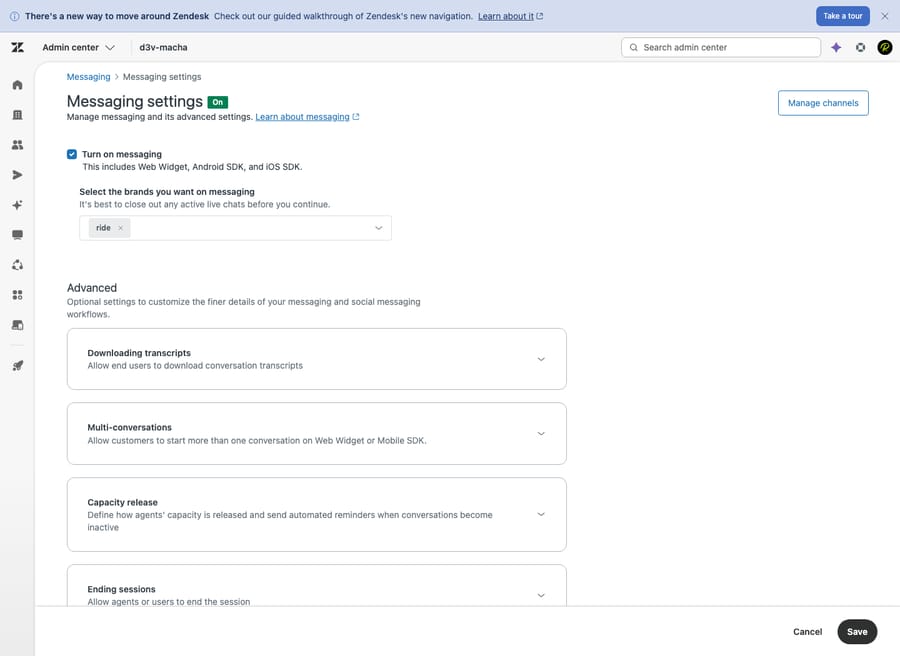
2. Messaging isn't turned on, the widget isn't published, or it's not tied to the brand
If the snippet is on the page but nothing loads, the channel itself may be inactive on Zendesk's side.
Confirm it: In Admin Center → Channels → Messaging and social → Messaging, check that messaging is on and that the specific widget exists and is enabled. For multi-brand accounts, verify the widget is assigned to the brand whose pages you're testing: a widget bound to Brand A won't appear on Brand B's site.
Fix it: Turn messaging on, confirm the widget is active, and assign it to the correct brand. If you've never enabled messaging at all, start with our step-by-step messaging setup guide. The snippet you copied is generated by that channel, so the order matters.
3. It's set to show only during business hours or only when agents are online
A widget that "disappears" at 6pm or on weekends isn't broken. It's behaving as configured. This bites Classic Web Widget / Chat setups especially.
Confirm it: Check whether operating hours (for Chat / Classic) are enabled. With operating hours on, any agent signed in to Chat outside the scheduled hours is set to Invisible, and if they switch to Online it's set back to Invisible (Zendesk: creating a schedule with operating hours). A Classic Web Widget with no agent online and no contact form or offline form configured can end up showing nothing.
Fix it: Either test during business hours with an agent online, or change the behavior. For messaging, set up a business-hours schedule with an out-of-hours response so the widget stays visible and sets expectations instead of vanishing (Zendesk: configuring messaging responses and business hours). For Classic, add a contact/offline form so there's always something to show.
4. Caching or a CDN is serving an old page
You added the snippet, but the page your browser (or visitors') loads is a cached copy from before you added it.
Confirm it: The widget shows in a fresh incognito window but not your normal one, or it shows for you but not customers. View source on the live URL: if the snippet is missing there but present in your CMS editor, you're being served a stale page.
Fix it: Purge the cache at every layer that has one: your CDN (Cloudflare, Fastly, Akamai), your CMS or page cache (WordPress cache plugins are frequent offenders), and your browser (hard-refresh with Cmd/Ctrl+Shift+R). Re-test in incognito to confirm.
5. An ad-blocker, privacy setting, or strict CSP is blocking the widget
The widget loads assets from static.zdassets.com and connects to Zendesk and Smooch (Sunshine Conversations) domains. Anything that blocks those stops it cold.
Confirm it: The console shows entries like blocked by client, a CSP violation, or refused connections to *.zdassets.com, *.zendesk.com, or *.smooch.io. The incognito test from triage is the fast signal for browser extensions; strict browser tracking protection (Firefox's Enhanced Tracking Protection, for example) can block it too.
Fix it: You can't control visitors' ad-blockers, but you can fix your own Content Security Policy, which is a self-inflicted version of the same block. Zendesk's CSP doc recommends Google's strict-CSP approach: add a server-generated nonce attribute to the widget snippet. If you write a custom policy instead, Zendesk lists these hosts for default-src: https://*.zdassets.com, https://*.zendesk.com, https://*.smooch.io, https://*.ingest.*.sentry.io, https://*.twilio.com, wss://*.zendesk.com, wss://api.smooch.io and wss://voice-js.roaming.twilio.com, plus img-src entries including https://*.zdusercontent.com and https://media.smooch.io. If you set script-src or connect-src separately, add the same hosts there. Also confirm a corporate firewall isn't blocking those domains on your network; Zendesk's install guide calls this out too.
6. The snippet key is wrong, or the widget was deleted/disabled
A snippet from a deleted, disabled, or different widget will silently do nothing.
Confirm it: Compare the key= value in your page's snippet against the current code in Admin Center → your widget → Installation. If they don't match, or the widget no longer exists in Admin Center, that's your answer.
Fix it: Recopy the current snippet and replace the old one everywhere it's installed. Watch for stale copies hard-coded into a theme, a tag manager container, or a cached layout from an old install.
7. A JavaScript error or conflicting script is breaking the page
If another script throws an error before the Zendesk snippet runs, the widget may never initialize.
Confirm it: The console shows an unrelated red error high up, or errors that reference your own bundle, jQuery, or another third-party tool, and the Zendesk script appears in the Network tab but never executes. Conflicts with other chat widgets or older Zendesk embeds are common.
Fix it: Resolve the upstream JS error, and make sure you're not loading two chat widgets (e.g. Classic and messaging, or a competitor tool) that fight over the same launcher. Remove the duplicate, then re-test.
8. Classic Web Widget vs. messaging Web Widget mismatch
Zendesk has two different widgets: the legacy Web Widget (Classic) under Channels → Classic, and the messaging Web Widget under Channels → Messaging and social. They use different snippets and different admin pages.
Confirm it: Decide which one you actually want, then check you're configuring and installing that same one. A frequent failure: someone enables messaging but the site still has the Classic snippet (or vice versa), so the thing they configured never appears.
Fix it: Pick one widget, copy its snippet from its admin location, and remove the other's code from the page. For new setups, messaging is the current path; see how to set up Zendesk messaging.
9. A consent manager (GTM / cookie banner) is blocking it until consent
If you load the widget through Google Tag Manager or behind a consent/cookie manager, it may be suppressed until the visitor accepts cookies, so it correctly "doesn't show" for anyone who hasn't consented (or for you, mid-test).
Confirm it: The snippet exists in your GTM container or is wrapped in a consent gate, and the widget appears only after you accept the cookie banner. Check whether the tag is set to fire only on a consent trigger.
Fix it: Decide intentionally. Either accept consent to verify it works, classify the widget under the right consent category so it fires when appropriate, or install the snippet directly in the page rather than via a consent-gated tag if your policy allows. Also note: loading via GTM adds a dependency. If GTM itself is blocked or misconfigured, the widget goes with it.
How do you confirm the widget is actually fixed?
Don't trust a single reload. Verify properly:
- Hard-refresh in incognito on the exact live URL (not your editor preview). The launcher should appear within a second or two.
- Open it and send a test message. Confirm the panel opens and the message reaches your Agent Workspace as a conversation/ticket.
- Check a second page and a second device, ideally one outside your office network, to rule out caching and local blocking.
- Re-open the console and confirm there are no remaining
zdassets/CSP/connection errors.
If isolating the problem is hard, paste your snippet alone into a blank test page (jsfiddle.net or a stripped HTML file). If the widget appears there but not on your real site, the problem is interference or placement on your site, not the widget itself.
Is there a checklist to run top to bottom?
Run top to bottom; stop at the first failure.
- [ ] Snippet present? View source → search
static.zdassets.com/snippet.js. Missing → reinstall (cause 1). - [ ] Placed before
</body>on this page? Wrong spot or only on some pages → fix placement (cause 1). - [ ] Messaging on, widget active, assigned to the right brand? (cause 2)
- [ ] Business/operating hours or agent-online gating? Test during hours with an agent online (cause 3).
- [ ] Stale cache? Hard-refresh + purge CDN/CMS; re-test in incognito (cause 4).
- [ ] Console errors? CSP /
ERR_INSECURE_RESPONSE/ blocked → fix CSP, SSL, firewall (cause 5). - [ ] Incognito with extensions off? Works there only → ad-blocker/privacy (cause 5).
- [ ] Snippet
key=matches current Admin Center code? (cause 6) - [ ] Any unrelated JS errors or a second chat widget? (cause 7)
- [ ] Configuring the same widget you installed (Classic vs messaging)? (cause 8)
- [ ] Loaded via GTM/consent: does it fire pre-consent? (cause 9)
- [ ] Another device/network confirms it's not local.
How do you stop the widget disappearing again?
- Install once, centrally. Put the snippet in a shared layout/template (or one well-managed GTM tag) so every page inherits it, instead of pasting per-page and forgetting some.
- Allowlist Zendesk's domains in your CSP from day one, including
*.zdassets.com,*.zendesk.comand*.smooch.io, or use the nonce approach, so a future security tightening doesn't silently kill the widget. - Document which widget you use (Classic vs messaging) and its
key, so a teammate doesn't install the wrong one later. - Add a post-deploy smoke test: after any site release or CSP/cache change, load the homepage in incognito and confirm the bubble appears. Deploys are when widgets quietly disappear.
- Set an out-of-hours response instead of hiding the widget after hours, so "it's gone at night" never becomes a support ticket.
Who answers the conversations once the widget works?
Getting the widget back on the page is step one. A visible widget is an open door; someone (or something) still has to answer what walks through it. Once your Zendesk messaging widget is loading reliably, an AI agent can handle the conversations it brings in.
That's the layer Macha adds. Macha isn't a help desk and it isn't a Zendesk replacement. It runs on top of your existing Zendesk messaging channel. When a customer opens that now-working widget, Macha reads the actual question, pulls from your connected knowledge base and past tickets, and resolves it inside the same thread, escalating to a human agent with full context whenever it isn't confident. The honest caveats: it's one more integration to configure, and it's only as good as the knowledge you connect. On cost, Macha bills per ticket (a chat is one conversation, charged once however many messages it takes to draft, tag and route), from $299 a month for 750 tickets, not per resolution, so the bill never hangs on an outcome definition you don't control. If your widget traffic is mostly repeat questions your help center could answer, that's the line worth exploring. You can try it free with $50 of free usage, no credit card required.
Frequently asked questions
Why is my Zendesk widget not showing on my website? Most often the code snippet isn't installed on that page, or it's in the wrong place: it must sit before the closing </body> tag on every page where you want it. Other frequent causes: messaging isn't turned on or the widget isn't assigned to that brand, operating/business hours are hiding it, a stale cache is serving an old page, or a CSP / ad-blocker / firewall is blocking static.zdassets.com. View your page source first to confirm whether the snippet is even there.
The Zendesk chat widget isn't showing but the snippet is on the page. Why? The script is present but blocked or misconfigured. Open the browser console: a CSP violation or refused connection to *.zdassets.com / *.zendesk.com / *.smooch.io points to a Content Security Policy or firewall block; an ERR_INSECURE_RESPONSE points to an SSL certificate problem. Also check that the widget is active in Admin Center, assigned to the right brand, and that no operating-hours rule is hiding it.
My Zendesk web widget is not appearing only on some pages. What's wrong? The snippet likely isn't on those specific pages. Zendesk can install it on your Help Center with one checkbox, but pages outside it (your marketing site, app, landing pages) need the code added manually. Put it in a shared layout/template so every page inherits it, and purge any cache that might be serving older versions of those pages.
Why does my Zendesk widget disappear after business hours? That's expected behavior if operating hours (Chat) are enabled or no agent is online with no contact/offline form configured. For messaging, set up a business-hours schedule with an out-of-hours response so the widget stays visible and tells customers when you'll reply, instead of vanishing.
Why isn't my Zendesk widget loading after I switched to messaging? Likely a Classic-vs-messaging mismatch. The legacy Web Widget (Classic) and the messaging Web Widget are different channels with different snippets and admin pages. If you enabled messaging but your site still has the Classic snippet (or vice versa), the widget you configured won't appear. Copy the messaging snippet from Admin Center → Channels → Messaging and social → Messaging → your widget → Installation, and remove the old Classic code.
Could an ad-blocker stop the Zendesk widget from showing? Yes. Ad-blockers and strict privacy settings (including Firefox Enhanced Tracking Protection) can block the widget's scripts. You can't control visitors' extensions, but test in an incognito window with extensions off to confirm, and make sure your own Content Security Policy and firewall allow Zendesk's domains so you're not blocking it yourself.
Which domains does a Content Security Policy need for the Zendesk widget? Zendesk's CSP doc lists *.zdassets.com, *.zendesk.com, *.smooch.io, *.twilio.com and Sentry ingest hosts, plus websocket connections to wss://*.zendesk.com and wss://api.smooch.io. The simpler route it recommends is a nonce on the snippet under Google's strict-CSP approach.
Causes and fixes checked against Zendesk's official documentation, September 2026. Zendesk updates its product periodically; confirm labels and settings in your own account before relying on them.
Add AI agents to your Zendesk
Macha reads the ticket, drafts the reply and takes the action, inside the Zendesk you already run.





