





 Shopify
 Stripe
 Slack
Slack Notion
 Google Workspace
 Confluence

How Do You Connect Any REST API to an AI Support Agent?


Every support team has at least one system no vendor has a connector for, like an internal orders service or a homegrown loyalty API. A Macha custom tool turns any REST endpoint into an action an agent can call mid-ticket, with no code to host.
Key takeaways
- A Macha custom tool lets an agent call any HTTP endpoint with GET, POST, PUT, PATCH or DELETE, authenticating by API key, bearer token or basic auth, without hosting code.
- Write tools, anything that creates, updates or deletes, require user confirmation in chat before they execute, while Read tools run freely.
- In Macha's worked example, mapping the response to data.order shrank a 3.1 KB API envelope to about 280 bytes for the agent.
- Custom API tools are included on every Macha plan, from $299 a month for 750 tickets, and a tool call never adds to the per-ticket bill.
- The AI Tool Builder, part of Macha Experiment Labs, discovers an API's endpoints from a description and credentials, then proposes grouped tools for review.

To connect any REST API to a Macha agent, create a custom tool: set the method (GET, POST, PUT, PATCH or DELETE), the URL with {{param}} placeholders, one of four auth options, the parameters, and a response mapping, then assign the tool to an agent. A custom tool lets an agent call any HTTP API endpoint during a conversation (to look up a record, check a status, or write a change back) even when Macha has no native connector for that service. You define the endpoint once, wire up authentication, describe the parameters in plain language, and assign the tool to whichever agents need it. From then on the agent decides when to call it, fills in the arguments, and reads back the response.
| Field | What you set | Why it matters |
|---|---|---|
| Type | Read or Write | Write tools need user confirmation in chat before they run |
| Method and URL | GET/POST/PUT/PATCH/DELETE, URL with placeholders | The agent fills the placeholders at call time |
| Authentication | None, API Key, Bearer Token or Basic Auth | Credentials are encrypted and never shown to the model |
| Parameters | Name, type, description, required flag | Descriptions steer the model toward correct arguments |
| Response mapping | Dot path such as data.results | The agent sees only the payload it needs |
You can fill that form by hand or let the AI Tool Builder configure a whole API from a conversation. Custom API tools are included on every Macha plan, and a tool call never adds to the bill.

What is a custom tool in Macha?
A custom tool is an organization-level resource, not an agent-level one. You create it once, and it becomes available to assign to any agent in your org. That separation matters: a "Look up order by ID" tool you build for your triage agent is the same object your WISMO agent and your billing agent can reuse, and you maintain its URL and credentials in one place.
When an agent uses a custom tool at runtime, the loop is exactly what you'd expect from function calling: the model reads the conversation, decides the tool is relevant, produces the arguments as structured values, Macha makes the HTTP request you configured, and the response comes back into the agent's context so it can answer or take the next step. The difference from raw function calling is that you never write or host any code. You fill in a form.
Each tool carries three things worth getting right from the start: a clear label, a precise description, and a sharp definition of its inputs and outputs. The description is the most underrated field on the page. It's not documentation for humans — it's the instruction the model uses to decide when to call the tool. "Looks up the current shipping status for an order using the internal logistics API. Use when a customer asks where their order is or when it will arrive" will fire at the right moments; "order tool" will not.
How do you build a custom tool manually?
From the Custom Tools page, click New tool. The builder asks for a handful of fields, and each one maps directly to part of the HTTP request the agent will eventually make.

Basic information
- Label — a human-readable name like "List Postmark Templates." Include the service and the resource so it's unambiguous in the agent's tool list.
- Description — what the tool does and when to use it (see above — this is the field that earns its keep).
- Type — Read or Write. This is a safety control, not a cosmetic label. Read tools only fetch data and run freely. Write tools — anything that creates, updates, or deletes — require user confirmation before execution in chat, so an agent can't silently mutate a record without a human seeing it first. We unpack this distinction (and why the confirmation step is non-negotiable for autonomous agents) in Read vs Write tools, and why confirmations matter.
Request configuration
- Method —
GET,POST,PUT,PATCH, orDELETE. - URL — the endpoint, with
{{param}}placeholders for dynamic values. For example:https://api.example.com/users/{{userId}}. At call time the agent suppliesuserIdand Macha substitutes it into the path.
Authentication
Pick how the tool authenticates with the API:
| Method | What it sends |
|---|---|
| None | No auth — for open endpoints |
| API Key | A key in a custom header (e.g. X-API-Key: your-key) |
| Bearer Token | Authorization: Bearer your-token |
| Basic Auth | A username and password as HTTP Basic Authentication |
The detail that matters for security review: credentials are encrypted at rest and never exposed to the AI model. The agent decides to call the tool and supplies the business parameters; it never sees the API key or token. That boundary is what makes it safe to hand an agent access to an authenticated internal system.
Parameters
Define the inputs the AI should provide. Each parameter has a name (used in your URL and body placeholders), a type (string, number, boolean…), a description so the model knows what value to put there, and a required flag. Good parameter descriptions do the same job as good tool descriptions — they steer the model toward correct arguments.
Body template
For POST, PUT, and PATCH, define a JSON body template with the same {{param}} placeholders, which get filled with the agent's parameter values:
{
  "name": "{{customerName}}",
  "email": "{{customerEmail}}",
  "priority": "{{priority}}"
}
Response mapping
This is the field people skip and later wish they hadn't. APIs love to wrap the useful payload in envelopes. If your endpoint returns:
{ "data": { "results": [ ... ] } }setting the response mapping to data.results (dot-path notation) means the agent only sees the results array — not the metadata, pagination cruft, and nesting around it. Trimming the response keeps the model focused and the round-trip fast. A custom tool that dumps a 4 KB JSON blob into context on every call is both noisier and slower than one that returns the three fields the agent needs.
Can the AI Tool Builder configure the tools for you?
Filling in five fields per endpoint is fine for one tool. For a whole API with a dozen endpoints, the AI Tool Builder is faster. Click Build with AI on the Custom Tools page, then:
- Describe the API you want to connect and paste your credentials.
- The AI discovers available endpoints and tests your credentials against them.
- It proposes a set of tools — each with the right method, parameters, auth, and descriptions already filled in.
- You review and confirm, and the tools are created and grouped automatically.

A few things it does quietly that save real time: it captures credentials from the successful test request and applies them to every tool in the session (no re-pasting per endpoint), and it auto-detects the tool type — POST/PUT/PATCH/DELETE endpoints are marked as Write operations requiring confirmation, while GETs come through as Read. The interface is conversational, so you can ask it to add an endpoint, adjust a description, or regroup the tools mid-session.
The biggest lever on quality here is context. Give it the API documentation URL or paste a few example requests, and the tools it builds are noticeably better — accurate parameter names, sensible descriptions, correct auth. The AI Tool Builder is currently part of Macha Experiment Labs. We walk through a full build conversation, screen by screen, in The AI Tool Builder: connect any API by pasting credentials and chatting.
How do you test a custom tool before going live?
Before assigning a tool to a live agent, test it. Open the tool's edit modal, hit the Test button, enter sample values for each parameter, run it, and check the response. This catches the boring failures — a wrong header for auth, a typo'd URL, a malformed body template — before they ever reach a customer-facing conversation. It's a thirty-second habit that prevents the worst kind of bug, the one an agent hits silently in production.
What we tested, and what broke. Building this post, we wired a "Look up order by ID" tool against a small in-house orders API (GET https://orders.internal.example/api/v1/orders/{{orderId}}, Bearer auth). The first Test run came back 401 — we'd pasted the token with a leading Bearer prefix into the credential field, which Macha then prepended again, producing Authorization: Bearer Bearer …. Lesson: the auth method already adds the scheme, so the credential field takes the bare token. Second run returned 200, but the response was a 3.1 KB envelope wrapped in { "data": { "order": {…}, "_links": {…}, "meta": {…} } }. We set the response mapping to data.order, re-tested, and the agent now sees a tight ~280-byte object — status, ETA, and line items — instead of the pagination and HATEOAS cruft. End-to-end the Test panel returned in roughly 400–700 ms against that endpoint; the call adds nothing to the bill — the whole conversation is one ticket, charged once however many tools the agent decides to call. The two failures above are the exact two that bite people in production — both surfaced in under a minute in the Test panel. If you want the same rigor across a whole agent rather than one tool, run a full test run on real tickets before going live.
A couple of robustness niceties are built in: empty optional parameters are automatically stripped from request URLs (so APIs that reject empty query values don't choke), and the edit modal shows a masked hint of the configured API key so you can confirm which credential is wired up without exposing the secret.
How do tool groups show up on the Connectors page?
Related tools can be organized under a tool group with a shared name, emoji, and color — all your Postmark endpoints under a "Postmark" group, for instance. This is more than tidiness: tool groups appear as custom connectors on the Connectors page, sitting right alongside Macha's built-in integrations. Your team gets one visual map of every connected service, native or homemade. You can upload a custom square icon for any group from the Custom Tools page.

How do you assign custom tools to agents?
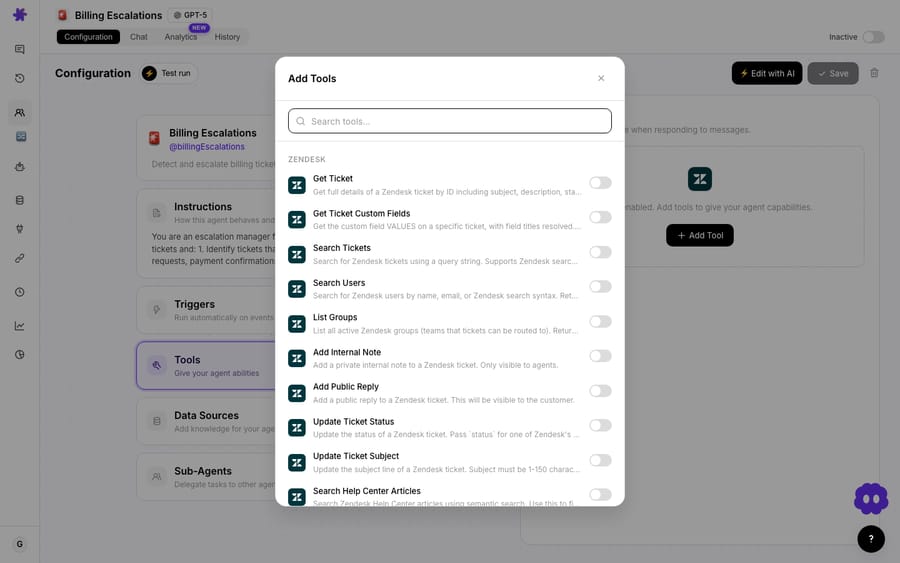
Custom tools are created at the org level but used per agent. Open the agent's Tools tab and assign the tools it should have; they appear alongside built-in connector tools in the same picker. Crucially, an agent can only use tools explicitly assigned to it — there's no ambient access. A billing agent gets the refund-API tool; your general triage agent doesn't, unless you say so. Combine custom tools with triggers and the agent can fire autonomously on a ticket event and call your API as part of the run.
Should you build a custom API tool or an MCP server?
If you've researched this at all, you've seen the Model Context Protocol (MCP) framing — expose your API as an MCP server (often by pointing something like FastMCP at an OpenAPI spec) and let any MCP-aware agent consume it. It's a legitimate pattern, and worth understanding so you pick the right tool:
- Reach for a custom API tool when you have a straightforward REST endpoint, or a handful of them, and you want simple request-response actions: look up an order, check a loyalty balance, create a ticket in an internal system. This is the 80% case for support teams, and you can stand it up in minutes with no server to host.
- Consider MCP when you need a large, stateful, interoperable tool ecosystem spanning many services and multi-step workflows — and you have engineering capacity to run and maintain the server.
Most teams start with custom API tools for the quick wins and only graduate to a heavier integration layer if and when the surface area demands it. For the systems behind a typical support queue, a custom tool is almost always the faster, lower-maintenance answer.
When shouldn't you use a custom tool?
Custom tools are powerful, which is exactly why a few honest caveats belong here:
- Price isn't the reason to hold back. Custom API tools are included on every plan, and the trial ($50 of usage, no credit card) has the full platform. Agents and seats are unlimited. You pay per ticket, from $299 a month for 750 tickets: one conversation, charged once, however many tool calls it takes. See the pricing page for the tiers.
- Write tools deserve respect. They require confirmation in chat for a reason. Before you let an agent
DELETEorPATCHanything in a system of record, test exhaustively, scope the endpoint as narrowly as you can, and prefer the most surgical method available. An over-broad write tool is the one mistake that turns a helpful agent into a liability. - A flaky API makes a flaky agent. If the upstream endpoint is slow, rate-limited, or returns inconsistent shapes, the agent inherits all of it. Custom tools don't add resilience the API doesn't have — point them at stable, well-behaved endpoints, and lean on the response mapping to normalize what the agent sees.
- Don't build a tool when a connector already exists. If Macha already has a native integration for the system — Zendesk, Stripe, Shopify, Slack — use it. The built-in connectors are deeper, maintained for you, and handle auth refresh and edge cases a hand-rolled tool won't. Reserve custom tools for the genuinely uncovered systems.
- Tool calls don't add to the bill. They run as part of an agent's run, and the whole conversation is one ticket — charged once however many calls it makes. A tool that returns a bloated payload still drags on every downstream model step — another reason response mapping pays for itself.
FAQ
Can my agent call any REST API? Yes, any HTTP endpoint reachable over the internet, with GET/POST/PUT/PATCH/DELETE, configurable headers and body, and API key, bearer token, or basic auth. If Macha doesn't have a built-in connector for the service, a custom tool is how you reach it.
Does the AI ever see my API keys? No. Credentials are encrypted at rest and never exposed to the model. The agent decides to call the tool and supplies the business parameters; Macha attaches the auth on the server side.
What's the difference between a Read tool and a Write tool? Read tools only fetch data and execute freely. Write tools (anything that creates, updates, or deletes) require explicit user confirmation before they run in chat, so an agent can't mutate a record unattended.
How is this different from MCP? A custom tool is the fastest path for a single endpoint or a small set of them, with no server to host. MCP suits large, stateful, multi-service tool ecosystems and needs engineering to run. Most support teams want custom tools.
Which plans include custom tools? All of them. Macha has one plan priced by ticket volume, from $299 a month for 750 tickets, and custom API tools, unlimited agents and seats, and setup by the Macha team are included at every tier. The free trial has the full platform too. See pricing.
Do I have to configure each tool by hand? No. The AI Tool Builder can discover and configure a whole API from a description plus your credentials, and group the resulting tools automatically. Manual configuration is there when you want precise control.
Where should you start?
If there's a system your team checks by hand on every other ticket, that's the first custom tool to build. Start a free trial ($50 of usage, no credit card required), open the Custom Tools page, and either fill in the form or let the AI Tool Builder do it from your API docs — then assign the tool to an agent and watch it pull live data into a real conversation. The full field-by-field reference lives in the Custom Tools docs.
Written by Abbas (Customer Support & AI, Macha) · Reviewed by Ankeet Guha (Co-founder & CTO) · Published 2026-06-24 · Last updated 2026-09-24.






