





 Shopify
 Stripe
 Slack
Slack Notion
 Google Workspace
 Confluence

What Moves in a Freshdesk Migration, and What Do You Rebuild?


Moving to Freshdesk copies your tickets, contacts, companies, agents, attachments and knowledge base articles, but every automation, SLA policy, routing rule and report has to be rebuilt by hand. The records half is largely automated by migration tools; the configuration half is a fresh Freshdesk implementation.
Key takeaways
- A Freshdesk migration moves tickets with full history, contacts, companies, agents, attachments and knowledge base articles, while automations, SLA policies, routing rules and reports must be rebuilt by hand.
- Help Desk Migration's free Demo Migration copies 20 random tickets with their contacts and companies and 20 random knowledge base articles, so teams can check field mapping before paying.
- Freshdesk's Parent-Child Ticketing, included on the Pro and Enterprise plans, can make a migration fail because the relation field is mandatory for Task tickets, so admins turn it off first.
- Teams moving to Freshdesk should disable automations before import and re-enable them one at a time afterward, so old rules do not email customers about historical tickets.
- Migration tools match contacts by a unique identifier, usually email, so an existing Freshdesk contact is updated rather than duplicated during import.

A Freshdesk migration moves your records (tickets with their full conversation history, contacts, companies, agents, attachments and knowledge base articles) but not your configuration: automations, SLA policies, routing rules, views and reports all have to be rebuilt by hand inside Freshdesk. A paid tool such as Help Desk Migration handles the records, and its free demo copies 20 random tickets and 20 knowledge base articles so you can check the mapping first.
| Artifact | Ports as data? | Ports as working config? | Reality |
|---|---|---|---|
| Tickets & conversations | Yes | n/a | Full history migrates |
| Contacts & companies | Yes | n/a | Matched by email, no duplicates |
| Knowledge base articles | Yes | n/a | HTML body + metadata migrate |
| Agents | Yes | n/a | Profiles come across |
| Attachments | Yes | n/a | Inline images become attachments |
| Automations / triggers | No | No | Rebuild in Freshdesk's engine |
| SLA policies | No | No | Re-enter targets, reminders, escalations |
| Routing & assignment rules | No | No | Rebuild by group/skill |
| Views & ticket filters | No | No | Recreate per agent/team |
| Dashboards & reports | No | No | Rebuild; historical metrics reset |
| Notification rules & bots | No | No | Reconfigure from scratch |
Why do records move but configuration doesn't?
Every artifact in your current help desk falls into one of two buckets, and the split is cleaner than most people expect.
Records are the historical facts of your support operation — the tickets, the people, the articles, the attachments. These are rows of data, and rows of data move. A migration tool reads them out of the source system's API and writes them into Freshdesk's, preserving the relationships between them.
Configuration is the logic that acted on those records — the automations that routed tickets, the SLA policies that timed them, the dashboards that measured them. This is behaviour, not data, and it does not transfer. Freshdesk's automation engine is structured differently from your old platform's, so even a "matching" rule has to be rebuilt in Freshdesk's own grammar. There's no export file that turns a Zendesk trigger into a Freshdesk automation.
Hold onto that distinction and the rest of migration planning falls into place.
Which records move cleanly to Freshdesk?
Per Help Desk Migration's Freshdesk documentation (a widely used third-party migration service, also listed on the Freshworks Marketplace), the following records port with their structure intact:
- Tickets, in any status including closed and resolved, with their full conversation history: public replies, internal notes, ID, subject, tags, status, priority, due date, CC recipients, and custom fields.
- Contacts (customers) with name, email, phone, company, language, timezone, and custom fields — matched by a unique identifier (usually email), so an existing contact gets updated rather than duplicated.
- Companies / organizations, including their descriptions, domains, and — importantly — the associations linking each company to its contacts and tickets.
- Agents, so your team structure comes across.
- Attachments and inline images (embedded visuals arrive as attachments), plus call recordings and multilingual translations.
- Knowledge base articles, folders, and categories — titles, HTML body content, SEO metadata, attachments, and publication status.
- Canned responses and scenario automations, a more recent addition, and custom objects (things like assets or warranties) with their relationships preserved.
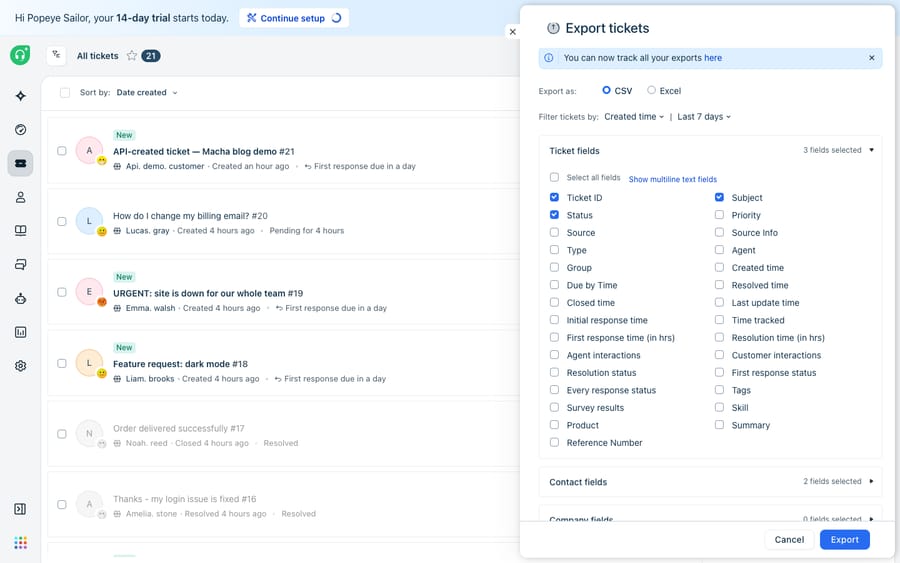
The field mapping for standard attributes — subject, status, priority — is largely automatic, and you map your custom fields to Freshdesk's during setup. This is the "boring in the best way" half.
What do you have to rebuild from scratch?
Here's the half that surprises people. Automations and triggers, SLA policies, routing and assignment rules, views and ticket filters, dashboards and reports, and notification rules and bots: none of these ports as live configuration (see the table at the top). You recreate all of it inside Freshdesk after the records land.
The reason reports deserve their own row: even though the underlying tickets migrate, your historical analytics are computed inside the old platform's reporting layer. Once tickets land in Freshdesk, trend lines and CSAT dashboards recalculate from Freshdesk's own data model — so budget for a reporting "cold start" while you rebuild dashboards and let fresh data accumulate. If historical satisfaction matters, CSAT ratings can be brought in separately, but they won't repopulate your old charts.
The practical takeaway: treat the configuration rebuild as a fresh implementation of Freshdesk, not a copy-paste. It's often the larger of the two efforts, and it's the one worth doing deliberately rather than replicating every quirk of a system you're leaving for a reason. Our Freshdesk migration checklist walks the full sequencing.
Should you use native CSV import or a paid migration tool?
Freshworks supports two honest paths, and the right one depends on volume and fidelity.
Native import uses CSV files (and the API) to bring in contacts and companies, and it's free. Freshworks' own migration guidance notes that "using an API or CSV files can greatly improve the migration process," provided your old system can export the data. This is fine for a clean list of contacts and companies. Where it gets thin is ticket history: reconstructing threaded conversations, internal notes, timestamps, and attachments from flat CSVs is painful and error-prone at any real scale.
A paid migration tool — Help Desk Migration is the one on the Freshworks marketplace — automates the ticket-history reconstruction and preserves relationships. Its free Demo Migration, per Help Desk Migration's getting-started guide, "imports a small portion of data: 20 random tickets along with associated contacts and companies and 20 random knowledge base articles," keeping the category and folder structure. That is a genuinely useful way to sanity-check field mapping before you pay. It also offers delta migration (transfer only records created or updated after your initial full run) and interval migration (pause and resume in chunks), both of which matter when you can't freeze your queue.
A fair rule of thumb: if you're moving a few hundred contacts and no ticket history worth keeping, native CSV is fine. If you're moving years of threaded tickets with attachments and associations, a paid tool almost always pays for itself in engineering time saved — and in tickets that don't arrive mangled.
How much downtime does a Freshdesk migration cause?
Good news first: a modern migration is not a lights-out event. Because tools read from one API and write to another, your old system keeps serving customers while records copy across, and delta migration lets you catch the stragglers created during the run. There's no mandatory blackout window.
The real risk isn't downtime — it's your automations firing on historical data. When you import thousands of old tickets, any active Freshdesk rule can wake up and email customers about resolved tickets from two years ago, or reassign closed work. Help Desk Migration's preparation checklist warns that automations, workflows and scenario rules "can trigger unintended actions, like sending notification emails, reassigning agents, or changing ticket statuses" as records are created. The fix has a sequence:
- Before import, disable automations. Turn off your ticket-creation and ticket-update rules, pause time triggers, and disable scenario automations so historical records don't trigger notifications or changes. Admin menu labels vary by plan, so search Admin for "Automations" if the path differs.
- If you can't disable them, use the tool's option to add a tag (for example "imported") to migrated tickets during data mapping, then update your Freshdesk rules to exclude tickets carrying that tag.
- Watch the plan-specific traps. Parent-Child Ticketing, which Freshdesk includes on its Pro and Enterprise plans, can make a migration fail because the relation field is mandatory for Task tickets. Turn it off under Admin → Support Operations → Advanced Ticketing first.
- Verify, then re-enable one at a time. After the migration is complete and spot-checked, switch automations, SLAs, and notifications back on gradually — not all at once — so you can catch a misfiring rule before it hits every ticket.
That "one at a time" discipline on the way back up is what separates a calm cutover from a support team fielding angry replies to ghosts.
Where does an AI agent fit once the migration is done?
Here's the reframe worth sitting with. The most laborious part of migration is rebuilding all the behaviour — the automations and routing that used to run your queue. If you're rebuilding that logic from scratch anyway, it's the ideal moment to ask whether every rule needs to be a brittle if-this-then-that automation, or whether some of that work belongs to an AI agent that reasons over the ticket instead.
That's the seam where an AI agent layer fits, and it's worth weighing the build-versus-buy tradeoff before you commit. Macha is one such layer: it runs on top of the Freshdesk you've just migrated into as a native connector — it does not replace your help desk, and it isn't a Freshdesk alternative. You connect Macha to Freshdesk with your subdomain and API key, and it reads and writes the same tickets you migrated: drafting or posting grounded replies from the knowledge base that came across, triaging by intent so the right team gets the right ticket, and looking up order or account status through a custom tool that turns a REST API into something the agent can call. It's the difference between porting your queue and actually automating Freshdesk once you're there. (Macha's connector is for Freshdesk specifically — not Freshchat, Freshservice, or Freshcaller. And billing is per ticket — one conversation, charged once however many messages it takes — never per resolution; see the pricing breakdown.)
The clean division: let the migration tool move your records, rebuild the SLA and routing config that genuinely has to be deterministic, and let an agent take the reasoning-heavy work that used to eat your agents' day.
FAQ
Does a Freshdesk migration move my automations and SLA policies? No. Automations, triggers, SLA policies, routing rules, views, and dashboards are configuration, not records — they don't transfer between platforms and must be rebuilt inside Freshdesk after your tickets and contacts land. Only historical data (tickets, contacts, companies, agents, knowledge base, attachments) migrates.
Will migrating to Freshdesk cause downtime? Not inherently. Migration tools read from your old system's API and write to Freshdesk's, so your existing help desk keeps serving customers during the copy, and delta migration catches records created mid-run. The bigger risk is active Freshdesk automations firing on imported historical tickets — disable them before import and re-enable one at a time.
Can I migrate to Freshdesk for free with CSV import? Yes for contacts and companies — Freshworks supports native CSV and API import at no cost. But reconstructing threaded ticket history, internal notes, timestamps, and attachments from flat CSVs is error-prone at scale, which is why most teams with real ticket history use a paid migration tool like Help Desk Migration.
How do I stop old tickets from triggering emails during migration? Disable your automations before importing (ticket-creation rules, time triggers, and scenario automations), and turn off Parent-Child Ticketing if you are on Pro or Enterprise. If you can't, tag migrated tickets during data mapping and exclude that tag in your rules. Re-enable everything gradually after you've verified the import.
Can I add AI to Freshdesk after migrating without replacing it? Yes. An AI agent layer like Macha connects to Freshdesk as a native connector and runs on top of your migrated help desk — it doesn't replace Freshdesk. It resolves tickets using the knowledge base you brought across and triages by intent, while Freshdesk stays the system of record.
Just moved to Freshdesk and rebuilding your automation from scratch? Start a free trial of Macha and connect it to your Freshdesk in minutes.






