





 Shopify
 Stripe
 Slack
Slack Notion
 Google Workspace
 Confluence

How Are Freshdesk Solutions Categories, Folders and Articles Organized? (2026)


Freshdesk Solutions keeps every article inside a folder and every folder inside a category, and only the Enterprise plan lets you nest folders up to five levels deep. Whether a customer sees an article depends on two settings at once: the folder's visibility scope and the article's Draft or Published status.
Key takeaways
- Freshdesk Solutions uses a fixed hierarchy where categories hold folders and folders hold articles, so an article can never sit directly under a category.
- Freshdesk's flexible hierarchy nests folders up to five levels deep under a category, but only on the Enterprise plan at $89 per agent a month billed annually.
- Freshdesk folders use a Visible to control with 7 scopes: All users, All agents, Logged in users, Companies, Contact segments, Company segments and Bot.
- A Freshdesk article reaches a customer only when its folder's visibility scope includes that audience and the article itself is Published rather than Draft.
- Moving a Freshdesk article to another category only works when the destination category already contains at least one folder for the article to land in.

Freshdesk Solutions stores every knowledge base article in a fixed three-level chain: categories hold folders, folders hold articles, and an article can't sit directly under a category. Only the Enterprise plan ($89 per agent a month, billed annually) adds the flexible hierarchy that nests folders up to five levels deep. Who sees an article is then decided by two separate settings: the folder's "Visible to" scope and the article's Draft or Published status.
| Question | Answer | Source |
|---|---|---|
| Levels on Growth and Pro | Three: Category → Folder → Article | Freshdesk docs |
| Levels on Enterprise | Six: a category plus up to five nested folder levels | Freshdesk docs and pricing page |
| Plan prices (billed annually) | Growth $19, Pro $55, Enterprise $89 per agent a month | freshworks.com/freshdesk/pricing |
| Where visibility is set | On the folder, with 7 "Visible to" scopes | Freshdesk docs |
| Who sees drafts | Agents only; customers see Published articles | Freshdesk docs |
How are categories, folders and articles related in Freshdesk?
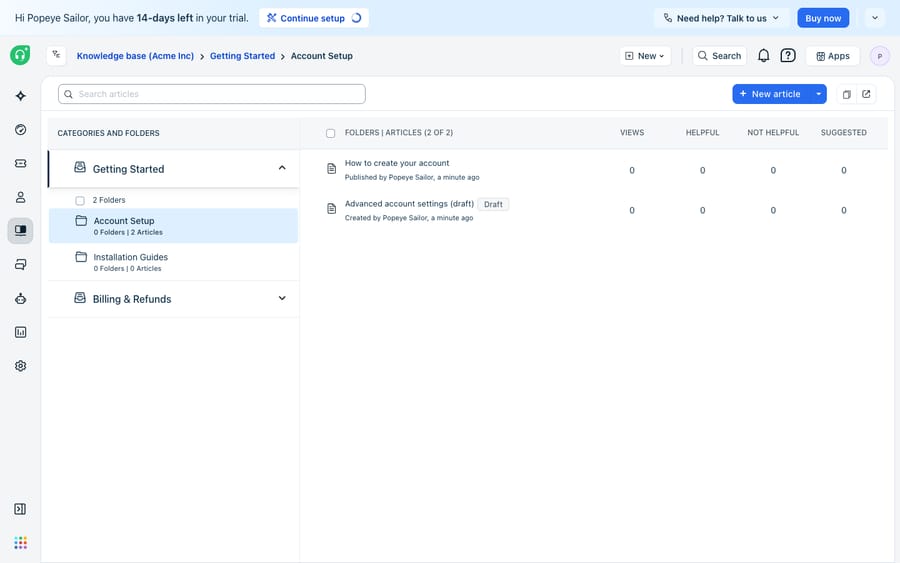
Everything in Solutions lives inside a fixed parent-child chain. A category is the top level, a broad grouping like "Getting Started" or "Billing & Refunds." Inside a category you place folders, the mid-level buckets that group related articles ("Account Setup," "Installation Guides"). And inside a folder you place the articles themselves: the how-tos and FAQs your customers read.
The constraint that trips people up is that an article cannot live directly under a category. It must sit inside a folder. Freshworks makes this explicit in its Manage your Knowledge Base documentation: when you move an article to a different category, the destination category must already contain at least one folder, or there's nowhere for the article to land. So the mental model is simple. Categories are shelves, folders are the boxes on those shelves, and articles are what you pull out.
Where you create each level. Per Freshworks' Create and organize your Knowledge Base guide, you build all three from the Solutions page. From Solutions → New Article, you get options for New Category, New Folder, and a new article. You can also open an existing category or folder and create the child item from inside it. Folders always ask you to pick a parent, which is what keeps the hierarchy intact.
How many folder levels does Freshdesk allow, and on which plan?
For most teams the structure stops at three levels: category, folder, article. Freshdesk also offers a flexible knowledge base hierarchy that nests folders inside folders, up to five nested folder levels. Combined with the category, that gives a six-level structure. It's useful when a single product line needs "Product → Feature Area → Sub-feature → Version" depth rather than a flat list.
The plan cost is the catch. Freshdesk's setup guide says the multi-level hierarchy is available only on the Enterprise plan, and the pricing page (checked 24 September 2026) marks "Flexible knowledge base hierarchy" as Enterprise-only too. Enterprise is $89 per agent a month billed annually, against $55 for Pro and $19 for Growth. On Growth and Pro you work with the classic Category → Folder → Article model. That's not a knock: three levels is plenty for most help centers, and going deeper often hurts findability more than it helps. But if your content plan assumes four levels of nesting, price in the Enterprise upgrade before you design around it.
What do Freshdesk's folder visibility scopes control?
This is where Solutions gets granular, and where mistakes are most common. Visibility is set at the folder level (and can be bulk-applied to articles), using a "Visible to" control. The seven scopes Freshdesk lists are:
- All users: customers, agents, and bots. This is your fully public content.
- All agents: visible to agents only, hidden from customers entirely. This is how you keep internal SOPs, escalation playbooks, and canned-response source material out of the public help center.
- Logged in users: only customers who have signed in to your portal can see it. Good for content you'll show to registered users but not anonymous visitors or search engines.
- Companies: restrict a folder to contacts belonging to specific companies (for example, a named-account runbook).
- Contact segments and Company segments: scope by dynamic groups defined on criteria like plan tier, region, or subscription.
- Bot: surface the folder to bots only.
The practical upshot: a single category can mix a public "All users" folder, an internal "All agents" folder, and a gated "Logged in users" folder side by side. Freshworks lists these options in the same Create and organize your Knowledge Base guide. Because visibility is a real access boundary, treat it the way you'd treat any other permission model in your help desk. The same care you'd apply to ticket statuses and workflow states applies here.
Category visibility is a separate lever. Categories are mapped to portals. If you run more than one product portal, you choose which portal(s) a category appears on. So a folder can be perfectly public and still be invisible to a given audience simply because its category isn't published to that audience's portal.
Why can't a customer see an article that looks published?
Two different mechanisms decide whether a person sees an article, and conflating them causes most "why can't the customer see this?" tickets.
The first is the visibility scope above (all users, agents-only, logged-in, and so on). The second is the article's status: an article is either a Draft or Published. Draft articles are visible on the agent portal but never to customers, so an agent searching from inside a ticket can pull up a half-finished draft as reference while the public help center shows nothing until you hit Publish. Freshdesk gives you dedicated list views, All drafts, My drafts, and Published articles, to manage this pipeline.
So an article reaches a customer only when both conditions are true: its folder's visibility scope includes that audience, and the article itself is Published. A published article inside an "All agents" folder is still invisible to customers; a public folder full of drafts still shows customers nothing. When you're auditing a "missing" article, check both dials, then check the category's portal mapping.
How do you move, reorder and bulk-edit knowledge base content?
Once content exists, Freshdesk's two-pane view is where you reshape it. From there you can run bulk actions: Move To (relocate articles or folders to another category or folder), reorder articles within a folder, and change the visibility of multiple articles at once. The one rule to remember from the Manage your Knowledge Base docs: when moving an article into a different category, that destination category must already own at least one folder, because an article has nowhere to live directly under a bare category.
A sensible way to organize from day one:
- Create categories around top-level customer intents, not internal team names ("Billing," not "Finance Ops").
- Inside each, create folders per task or feature, and set folder visibility deliberately: public "All users" for self-serve, "All agents" for internal-only.
- Keep works-in-progress as drafts so agents can reference them while you finish, then publish in a batch.
- Reserve the nested (Enterprise) hierarchy for deep product trees; otherwise stay flat for findability.
What can't Freshdesk Solutions do on its own?
Freshdesk Solutions is a well-structured knowledge base. The hierarchy is clear, the visibility model is granular, and the draft/published split is a proper editorial workflow. As a place to store and organize answers, it does the job.
But a knowledge base is a library, not a librarian. It holds the answers; it doesn't read the customer's specific ticket, decide which of your 300 articles is the right one, and write a tailored reply. Freshdesk's portal search surfaces articles, but it still asks the customer (or the agent) to do the matching and the synthesis. Structure and visibility scopes govern who can see what; they don't govern whether the right answer reaches the person who needs it, phrased for their situation. And an agents-only folder full of perfect internal SOPs still relies on a human remembering it exists mid-conversation.
That's the gap an AI agent layer fills, and it's worth understanding what AI agents for customer service actually do before reaching for one. Macha is one such layer: it runs on top of the Freshdesk you already use as a native connector, and it doesn't replace your help desk, your Solutions content, or its visibility rules. You connect Macha to Freshdesk with your subdomain and API key, and the agent gets a Search Articles action over your Solutions content, alongside ticket actions such as Get Ticket, Add Public Reply and Add Internal Note. It then drafts or sends answers on real tickets, matching the customer's question to the right article. It complements Freshdesk's own automations rather than competing with them, and the broader pattern of automating Freshdesk with AI is exactly this: keep your knowledge base as the organized source of truth, and add a layer that turns it into answers. Where an answer needs live data, such as an order status or an account tier, a custom tool lets the agent call your own API instead of guessing. (Macha's connector is for Freshdesk specifically, not Freshchat, Freshservice, or Freshcaller.)
On cost, the incentive is worth naming. Macha bills per ticket: one conversation, charged once however many messages it takes, never per resolution. The plan starts at $299 a month for up to 750 tickets, with setup and monitoring by the Macha team included; the pricing page lists the higher tiers.
The division of labor is clean: keep Freshdesk Solutions as the organized library of categories, folders, visibility scopes and draft-then-publish, and put an agent on top as the librarian that reads each ticket and delivers the right article as a real answer.
FAQ
What is Freshdesk Solutions? Solutions is Freshdesk's built-in knowledge base. It organizes self-service content into a three-level hierarchy: categories hold folders, and folders hold the articles customers and agents read.
Can I put an article directly under a category in Freshdesk? No. Articles must live inside a folder. When you move an article to a different category, that destination category has to already contain at least one folder, or there's nowhere for the article to go.
How many folder levels does Freshdesk support? The standard structure is Category → Folder → Article (three levels). The flexible hierarchy adds up to five nested folder levels (a six-level structure overall), but only on the Enterprise plan, at $89 per agent a month billed annually.
What are the folder visibility options in Freshdesk? Folders use a "Visible to" control with seven scopes: All users, All agents, Logged in users, Companies, Contact segments, Company segments and Bot. Category visibility is set separately, per portal.
What's the difference between a draft and a published Freshdesk article? Draft articles are visible on the agent portal but never to customers, so agents can reference works-in-progress. An article only reaches a customer when it's Published and its folder's visibility scope includes that audience.
Is the nested folder hierarchy on the Pro plan? No. As of 24 September 2026, Freshdesk's pricing page lists the flexible knowledge base hierarchy on Enterprise only. Growth and Pro keep the three-level Category → Folder → Article model.
Want your organized Solutions content turned into answers on every ticket? Start a free trial of Macha with $50 of usage and no credit card, and connect it to your Freshdesk.






