





 Shopify
 Stripe
 Slack
Slack Notion
 Google Workspace
 Confluence

How Do You Migrate from Freshdesk to Salesforce Service Cloud? Field Mapping and Steps (2026)


A Freshdesk to Salesforce Service Cloud migration moves your records cleanly with the right tool, but every automation, SLA and report has to be rebuilt in Salesforce. Plan for the object mapping, the audit dates and the rebuild, not just the data transfer.
Key takeaways
- A Freshdesk to Salesforce Service Cloud migration maps Tickets to Cases, Contacts to Contacts, Companies to Accounts, and Agents to Salesforce Users.
- Freshdesk's default statuses, Open, Pending, Resolved and Closed, do not line up one to one with Salesforce Cases' default New, Working, Escalated and Closed.
- Salesforce can keep original ticket dates only if the Set Audit Fields upon Record Creation permission is on at insert, because audit fields cannot be changed later by update or upsert.
- Help Desk Migration quotes 1-2 weeks for a Freshdesk to Service Cloud data migration, including preparation and post-migration checks, and prices by record volume rather than publishing a starting price.
- Freshdesk automations, SLA policies, macros, routing rules and reports do not transfer and must be rebuilt as Salesforce Flows, Entitlements, Omni-Channel routing and Reports.

To migrate from Freshdesk to Salesforce Service Cloud, map Freshdesk Tickets to Cases, Contacts to Contacts, Companies to Accounts and Agents to Users, move the records with a migration tool or middleware, then rebuild your automations, SLAs and reports in Salesforce, because none of those carry over. Help Desk Migration, one of the main tools for this route, quotes a 1-2 week timeline covering preparation, the migration and post-migration checks.
| Freshdesk | Salesforce Service Cloud | Moves with a tool? |
|---|---|---|
| Tickets | Cases | Yes |
| Contacts | Contacts | Yes |
| Companies | Accounts | Yes |
| Agents | Users (licences provisioned first) | Yes |
| Knowledge base articles | Knowledge articles | Yes |
| Automations, SLAs, routing, reports | Flows, Entitlements, Omni-Channel, Reports | No, rebuild |
Which Freshdesk records become which Salesforce objects?
Freshdesk and Salesforce Service Cloud model support data differently, so the first thing to get straight is which Freshdesk entity becomes which Salesforce object. The two products don't share a schema — Freshdesk is a ticket-centric help desk, while Service Cloud sits on top of Salesforce's relational CRM data model, where a support interaction is a Case hanging off a Contact and, usually, an Account.
According to Help Desk Migration's Freshdesk-to-Salesforce mapping, the standard object mapping looks like this:
- Freshdesk Tickets → Salesforce Cases (the heart of the migration)
- Freshdesk Contacts → Salesforce Contacts
- Freshdesk Companies → Salesforce Accounts
- Freshdesk Agents → Salesforce Users
- Knowledge Base Categories → top-level categories/folders, and Articles → Salesforce Knowledge Articles
At the field level, a ticket carries more than its subject line. Per Help Desk Migration's Salesforce Service Cloud data-migration documentation, a migrated ticket can bring across its ID, subject, tags, status, source, priority, due date, created/updated/closed timestamps, and its full comment thread including public replies, internal notes, and attachments. Contacts carry name, email, phone, company, language, time zone, and any custom fields you've defined.
Why do statuses and created dates go wrong after migration?
Two mapping details cause most of the post-migration surprises, and they're worth calling out before you start.
Statuses don't line up one-to-one. Freshdesk ships with Open, Pending, Resolved, and Closed; Salesforce Cases default to New, Working, Escalated, and Closed. You have to decide the translation explicitly — for example, Freshdesk Open and Pending mapping to Salesforce New and Working. Get this wrong and your reporting on "how many tickets are actively being worked" will be nonsense on day one.
Audit fields need special handling. By default, Salesforce stamps CreatedDate and CreatedById at the moment a record is inserted — which, during a migration, is today, not the day the ticket originally opened. To preserve real history you have to set the audit fields (CreatedDate, CreatedById, LastModifiedDate, LastModifiedById) deliberately. That means turning on the org setting for "Set Audit Fields upon Record Creation", then giving the migration user that permission. It works on insert only: you cannot fix the dates later with an update or upsert, so it has to be right on the first load (Arkus explains the setup). This is the single most common thing teams forget.
What are the ways to move the data?
There isn't one canonical way to move. There are three, and they trade cost against control.
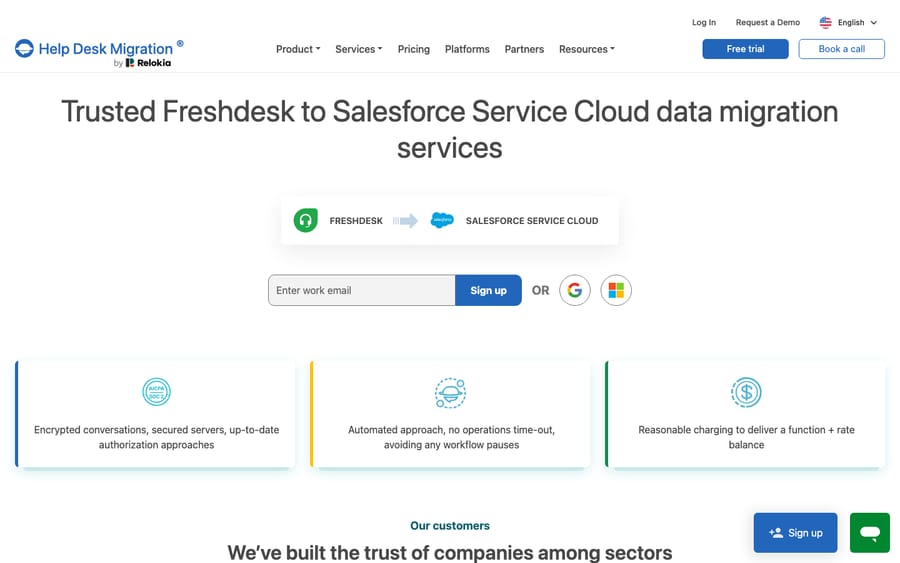
- A dedicated migration tool (SaaS wizard). Services like Help Desk Migration (built by Relokia) connect to your Freshdesk source and your Salesforce target, let you map fields in a UI, run a free demo migration on a data sample, and then execute the full run. This is the fastest path for a standard ticket-and-contact move. The HDM wizard itself lives behind a signup wall, but its public page shows the directional Freshdesk → Salesforce Service Cloud setup.
- Middleware / ETL tooling. Tools like Dell Boomi, Talend, Dataloader.io, or Salesforce's own Data Loader give you low-level control over transformations and are the usual choice when you have heavy custom-field logic or need to reshape data mid-flight. Exalate is a common pick when you want bi-directional sync (running both systems in parallel during a phased cutover) rather than a one-time lift, and its scripting engine handles status and audit-field remapping.
- A partner-led implementation. For enterprise moves with custom objects, complex routing, or regulated data, a Salesforce implementation partner runs the migration as part of a broader Service Cloud build-out. Slower and pricier, but appropriate when the migration is the small part of a large re-platforming.
For most mid-market teams, the SaaS-wizard route handles most of the volume, and you reserve middleware only for the fields it can't express. If you're weighing this move against staying in the Fresh ecosystem or going elsewhere, our Freshdesk-to-Zendesk migration guide covers the comparable lift for that target.
What moves, and what do you have to rebuild?
This is the table to internalise before you scope the project. Record data ports; operational logic does not. Every automation, SLA, and report you rely on has to be re-authored natively in Service Cloud, because the two platforms express those rules in completely different languages.
| Data / object | Moves with a migration tool? | Notes |
|---|---|---|
| Tickets → Cases | Yes | Subject, status, priority, source, tags, timestamps, full comment thread |
| Contacts → Contacts | Yes | Name, email, phone, language, time zone, custom fields |
| Companies → Accounts | Yes | Name, domains, description, custom fields |
| Agents → Users | Yes | Requires matching Salesforce user licences provisioned first |
| Ticket attachments & inline images | Yes | Inline images typically convert to attachments |
| Knowledge base articles | Yes | Categories map to folders/top-level categories |
| Automations & workflow rules | No — rebuild | Re-author as Salesforce Flows |
| SLA policies | No — rebuild | Re-create as Service Cloud Entitlements & Milestones |
| Macros / canned responses | No — rebuild | Re-create as Quick Text / Macros in Service Cloud |
| Dispatch'r / routing rules | No — rebuild | Re-create with Omni-Channel routing |
| Business hours & holidays | No — rebuild | Re-create as Business Hours in Setup |
| Reports & dashboards | No — rebuild | Re-build in Salesforce Reports/Dashboards |
The reason none of the bottom half moves is structural, not a tool limitation: a Freshdesk automation rule is a Freshdesk object with no equivalent JSON to hand Salesforce. Even Exalate and the enterprise ETL tools can only reconstruct logic by re-authoring it — they don't teleport it. Budget real hours for this; it's where honest migration timelines double.
How long does it take, and will there be downtime?
Reputable migration tools advertise zero downtime, and for the data move itself that's largely true: they run a staged background sync from your live Freshdesk into Salesforce while both systems keep serving customers, then you cut over. Help Desk Migration also offers a free demo migration on a data sample and a Delta migration to catch records that changed after the full run started — which is exactly what saves you from losing the tickets created during a multi-day migration.
But be clear-eyed about a few things. First, timelines: Help Desk Migration's Freshdesk-to-Service Cloud page puts the whole data migration at 1-2 weeks, split across preparation, the migration itself and post-migration checks. Heavy custom-field logic or a partner-led build adds to that. Second, the real downtime isn't the data — it's the cutover of operations: the window where automations, SLAs, and routing exist in Salesforce but haven't been fully tested, so tickets can fall through gaps. Third, cost is quote-based: Help Desk Migration publishes no starting price and prices by record volume, complexity and the options you enable, so a "free" tool still carries a real bill on large datasets. Native Freshdesk export (CSV) is genuinely free but gives you flat files with none of the object relationships intact — fine for archival, useless for a working Service Cloud instance. Weigh the paid tool's relationship-preserving import against the DIY spreadsheet slog before you assume free means cheaper.
Where does an AI agent layer fit before and after the move?
A re-platforming is a natural moment to rethink automation, and it's worth separating two decisions: which help desk you run on, and what does the reasoning-heavy work on top of it. The category of AI agents for customer service exists to handle the triage-and-draft work that neither Freshdesk nor Service Cloud does natively, and there's a real build-versus-buy tradeoff in how you add it.
Here's the part teams miss: you don't have to wait for the migration to finish to get value from automation. Macha runs as an AI agent layer on top of the Freshdesk you already use — it connects to Freshdesk as a native connector (with your subdomain and API key), reads and writes the same tickets, and can automate your Freshdesk queue with AI while you're still on it. That means you can deflect volume and clean up your ticket data before you move, so you're migrating a leaner, tidier dataset into Service Cloud rather than dragging years of noise across. Macha connects to Freshdesk specifically — not Freshchat, Freshservice, or Freshcaller — and it looks up order or account status through a custom tool that turns a REST API into something an agent can call, so replies are grounded in your real systems. Macha bills per ticket, one conversation charged once however many messages it takes, starting at $299 a month for 750 tickets; the pricing page lists every tier.
Macha is a layer on top of your help desk, never a replacement for it: it doesn't compete with Freshdesk or Salesforce, it does the work the ticket engine can't. One limit to plan around: Macha runs on Zendesk, Freshdesk, Gorgias, Front, HubSpot or Intercom. Salesforce Service Cloud is not on that list, so Macha helps you on Freshdesk before the move rather than inside Service Cloud after it.
FAQ
What do Freshdesk tickets become in Salesforce Service Cloud? Tickets map to Salesforce Cases. Contacts map to Contacts, Companies map to Accounts, and Agents map to Salesforce Users. Knowledge base categories become folders/top-level categories and articles become Salesforce Knowledge articles.
Does a migration move my Freshdesk automations, SLAs, and reports? No. Migration tools move record data — tickets, contacts, companies, articles, attachments — but automations, SLA policies, macros, routing rules, business hours, and reports do not port. You re-author them natively in Service Cloud (Flows, Entitlements/Milestones, Omni-Channel routing, and Salesforce Reports).
Will I have downtime during the migration? The data move itself is typically zero-downtime — tools run a staged background sync while both systems stay live, with a Delta migration to catch records changed mid-run. The riskier window is the operational cutover, when your rebuilt automations and SLAs go live and need testing.
How long does a Freshdesk to Salesforce migration take? Help Desk Migration quotes 1-2 weeks for the data migration, including preparation and post-migration checks; volume and custom-field complexity move it either way. Rebuilding automations and reports is usually the longer half of the project.
Can I automate Freshdesk with AI before I even migrate? Yes. An AI agent layer like Macha connects to your existing Freshdesk and can triage and draft replies while you're still on it — so you migrate a cleaner, lower-volume dataset into Service Cloud. It's a layer on top of your help desk, not a replacement for Freshdesk, and it does not run on Service Cloud itself.
Still on Freshdesk while you plan the move? Start a free trial of Macha and connect it to your Freshdesk in minutes.






