





 Shopify
 Stripe
 Slack
Slack Notion
 Google Workspace
 Confluence

How Does Front Live Translation Work? Inbound, Outbound and Limits (2026)


Front's live translation detects the language of an incoming message, translates it with one click, and translates your own draft into the customer's language before you send. It's included on Starter, Professional and Enterprise, with a daily cap on requests per teammate.
Key takeaways
- Front's live translation shows a "[Language] detected" banner on inbound messages and translates agent drafts in the composer before sending, on the Starter, Professional and Enterprise plans.
- Front's pricing page lists Translate at up to 200 requests per teammate per day, while Front's help article says 1,500, so teams should plan around the lower figure.
- Translated messages in Front appear in a banner that stays available to every teammate with access to the conversation, rather than staying private to one agent.
- Front translation works on email, SMS, WhatsApp, Facebook Messenger, Front Chat and custom channels, and the Never translate setting stops the banner for chosen languages.
- Lokalise Messages for Front adds neural machine translation across 100+ languages, but Front lists the app for Professional and Enterprise plans only.

Front's live translation detects the language of an incoming message, shows a "[Language] detected" banner with a one-click Translate button, and lets you translate your own draft into the customer's language in the composer before you send. It's included on all three current Front plans (Starter, Professional and Enterprise), and each teammate has a daily cap on translation requests: Front's pricing page lists 200 a day, while its help article says 1,500.
| Question | Answer (Front docs and pricing page, checked 24 September 2026) |
|---|---|
| Inbound | Auto-detects the language, shows a "[Language] detected" banner, translates on click |
| Outbound | Write in your language, translate in the composer, then send |
| Who sees it | Every teammate with access to the conversation |
| Channels | Email, SMS, WhatsApp, Facebook Messenger, Front Chat, custom channels |
| Plans | Starter, Professional, Enterprise (plus legacy Growth and Scale) |
| Daily limit | 200 requests per teammate (pricing page) or 1,500 (help article) |
| Settings | "Always translate to" and "Never translate" |
What does "live translation" mean in Front?
Front's translation feature is AI-powered, and it runs in two directions. Per Front's help article on translating messages using AI, the feature automatically detects the language of a message by comparing it to the preferred language set in your OS or browser, and it works on both inbound and outbound messages.
The design detail that matters: a translation in Front is shared, not private. When you translate an inbound message, the translated text appears in a banner above the original and stays available to any teammate with access to the conversation. That fits Front's whole model. The shared inbox is collaborative, so a translation one agent triggers becomes context the whole team can see rather than something living in one person's browser tab.
Translation is one of Front's AI features, and it's enabled the same way the others are: from the Front AI tab in company settings. Once it's on, the controls appear in-line where you're already working, so you don't leave the conversation.
How do you translate an inbound message in Front?
Inbound is the half you'll use most, because it's where a language barrier actually blocks you: a customer writes in French, German or Japanese and you need to understand the request before you can help.
How it surfaces. When Front detects that an incoming message is in a language other than your preferred one, it shows a "[Language] detected" banner on the conversation. Clicking Translate produces the translation in a banner above the original message, and an arrow icon lets you collapse or expand it so you can flip between the original and the translation without losing either.
Because the translated text is attached to the conversation, a teammate who picks the ticket up later sees the same translation you did and doesn't redo the work. That's the quiet advantage of translation living in a shared inbox rather than in a personal browser plugin.
How do you translate a reply before sending it?
Outbound is where the composer comes in. The workflow Front recommends is deliberately human-in-the-loop: write your reply in the language you're fluent in, then translate it to the customer's language before you send, so you never fire off text you can't read back.
In the composer, the AI-assist row exposes a Translate control alongside the other assist actions (Adjust tone, Fix grammar, Expand, Shorten). Open it, pick a target language from the dropdown, and Front rewrites your draft in that language in place. You send it like any other reply.
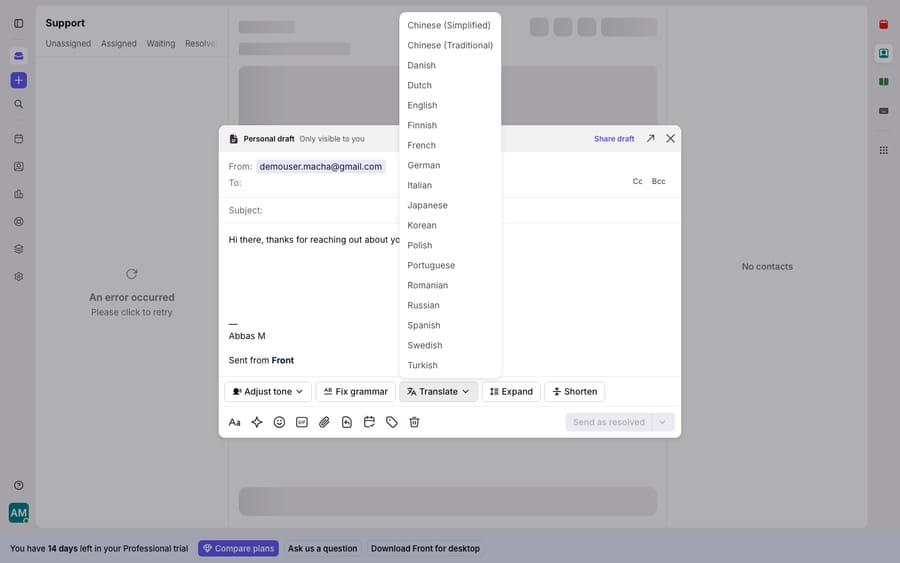
The dropdown above is the composer Translate control on a fresh compose draft, which is the same control you get when replying. We shot it from a new compose window because the shared-inbox conversation list was throwing a transient backend error at capture time; the composer and translation UI are identical either way. The visible list (Chinese Simplified and Traditional, Danish, Dutch, English, Finnish, French, German, Italian, Japanese, Korean, Polish, Portuguese, Romanian, Russian, Spanish, Swedish, Turkish and more) gives a fair sense of what a support team gets out of the box.
Which channels, languages and settings does Front translation support?
Channels. Translation isn't email-only. Front documents it for email channels and chat-like channels: SMS, WhatsApp, Facebook Messenger, Front Chat and custom channels. A global team running support across email and messaging gets the same detect-and-translate behavior everywhere.
Languages. Front's composer handles more than the translate dropdown shows. Front's reference on languages supported in messages and composer says Front aims to display any inbound language, and that the composer supports both left-to-right and right-to-left scripts (Hebrew, Arabic, Persian, Urdu) with automatic direction detection plus a manual direction toggle in the formatting toolbar. One caveat from the same doc: tables stay left-to-right and don't mirror under RTL. (That page returned an error when we re-checked it on 24 September 2026, so treat these details as last confirmed earlier.)
Settings. Behind a gear icon, translation has two controls worth knowing:
- Always translate to: sets the output language translations default to.
- Never translate: excludes chosen languages from detection. Set English here and the translate banner won't appear on English messages, so agents aren't prompted to translate what they already read fine.
How many translations can each teammate make per day?
Front publishes two different numbers. The help article says each teammate account has a limit of 1,500 requests per day, separate from the limits on Front's other AI features. The pricing page (checked 24 September 2026) lists Translate at up to 200 total requests per teammate per day, the same cap it shows for Compose actions and manual summaries. Plan around 200 until Front reconciles the two. For most agents that's still plenty; for a high-volume multilingual queue, a teammate translating every inbound message and every reply could reach it in a busy shift.
Where does Front's translation stop being enough?
Front's built-in translate is useful. It's included on Starter, Professional and Enterprise (and the legacy Growth and Scale tiers), with Starter at $25 a seat a month, it's one click, and because translations are shared, the whole team benefits from one agent's action. For reading an inbound message and shipping a translated reply, it does the job.
But notice the ceiling. Translation converts language; it doesn't resolve the ticket. A translated French message is now a readable English one, and the agent still has to understand the request, look up the order and compose the answer. The outbound flow is human-in-the-loop by design: an agent writes every reply, then translates it. That's the right default for accuracy, but it speeds up a conversation without reducing how many conversations a person has to touch.
There's also a coverage seam. Teams needing very broad language coverage or fully automatic two-way translation often add a marketplace app like Lokalise Messages for Front, which uses neural machine translation across 100+ languages. Front lists it as available on Professional and Enterprise only, so Starter teams can't use it, and it's an extra tool with its own cost.
This is the seam an AI agent layer is built for. The broader category of AI agents for customer service exists to do the reasoning a translate button can't. Macha is one such layer, and it runs on top of the Front you already use through the live Macha–Front connector. It doesn't replace Front, your inboxes or Front's own translation. The division of labor is simple: Front's translate makes a foreign-language message readable; a Macha agent reads the intent (in any language, without a separate translate step), pulls the customer's real order or account status through a custom tool that turns your REST API into something the agent can call, and drafts or sends a grounded reply in the customer's language. If you want the mechanics, connecting Front to Macha to route conversations to AI walks through it. Macha bills per ticket, from $299 a month for 750 tickets, charged once per conversation however many translations, lookups and replies it takes, and setup and monitoring by the Macha team are included. For how Front's own tiers gate features, see Front pricing explained.
FAQ
Is Front's live translation free / which plans include it? It's included, not a paid add-on, on the Starter, Professional and Enterprise plans, plus the legacy Growth and Scale tiers. You enable it from the Front AI tab in company settings. Broader automatic coverage (100+ languages) generally needs a marketplace app such as Lokalise Messages for Front, which Front lists for Professional and Enterprise.
How do I translate an inbound message in Front? When Front detects a message in a language other than your preferred one, it shows a "[Language] detected" banner on the conversation. Click Translate and the translation appears in a banner above the original, with an arrow to collapse or expand it. The translation stays available to every teammate with access to the conversation.
How do I translate my reply before sending? Draft your reply in your own language, open the Translate control in the composer's AI-assist row, pick the target language from the dropdown, and Front rewrites your draft in that language in place before you send.
Which channels and languages does Front translation support? Email plus chat-like channels: SMS, WhatsApp, Facebook Messenger, Front Chat and custom channels. The composer handles left-to-right and right-to-left scripts (including Hebrew, Arabic, Persian and Urdu) with automatic direction detection, though tables stay left-to-right.
Is there a daily translation limit in Front? Yes. Front's pricing page lists up to 200 translation requests per teammate per day; its help article says 1,500. Plan around the lower number.
Can I add AI that answers in the customer's language without replacing Front? Yes. An AI agent layer like Macha connects to Front as a live connector and runs on top of your existing inboxes without replacing Front or its translation. The agent reads intent in any language, pulls real customer data through a custom tool, and drafts or sends a grounded reply in the customer's language.
Ready to turn "translated and understood" into "actually answered"? Start a free trial of Macha and connect it to your Front in minutes.






