





 Shopify
 Stripe
 Slack
Slack Notion
 Google Workspace
 Confluence

How Do Front Shared Drafts Work? Sharing, Co-Editing and Approvals


Front turns a reply in progress into a team object: teammates can see a shared draft, comment on it and edit it before the customer gets it. Here is how sharing, co-editing and informal approval work, and where the feature stops.
Key takeaways
- A Front shared draft is a reply in progress that teammates can see, comment on and edit, while a personal draft stays private in your Drafts folder.
- Front shares drafts automatically when a reply is composed inside a shared inbox, and shares a personal draft when you click Share draft, pick teammates and click Add.
- Front lets only one teammate edit a shared draft at a time, with a gray banner naming the editor until someone clicks Take over and confirms.
- Front has no native Approve or Reject gate for replies, so teams build review habits from shared drafts, comments and @mentions instead.
- Front's Drafts folder tags personal drafts as Draft and drafts shared with you as Shared draft, so the two states are easy to tell apart.
A Front shared draft is a reply in progress that teammates can see, comment on and edit before it is sent: drafts written in a shared inbox are shared automatically, and a personal draft becomes shared when you click Share draft and pick teammates. Only one person edits at a time, a gray banner shows who holds the draft, and anyone else can click Take over to become the editor (help.front.com, checked 24 September 2026).
| Personal draft | Shared draft | |
|---|---|---|
| Who can see it | Only you | Teammates with inbox access, or the teammates you picked |
| How it is created | Any reply you start in your own inbox | Automatically in a shared inbox, or by clicking Share draft |
| Drafts folder label | "Draft" | "Shared draft" |
| Editing | You alone | Live edits, one editor at a time, Take over to switch |
| Discussion | None | Comments and @mentions beside the draft |
| Approval gate | None | None built in; teams review by convention |
What is the difference between a personal draft and a shared draft in Front?
Every reply you start in Front begins as a personal draft: visible only to you, auto-saved as you type, and waiting in your Drafts folder until you send or discard it. That much matches any email client. What makes Front different is that a draft does not have to stay private.
A shared draft is a reply in progress that other teammates can see, comment on and edit. Front creates shared drafts two ways. If you compose a reply inside a shared inbox or a shared conversation, the draft is automatically visible to everyone with access to that inbox, with no button required. And if you start a personal draft in your own inbox, you can deliberately hand it off by clicking Share draft. Per Front's help center, your Drafts folder labels the two states differently: a "Draft" tag for your personal drafts and a "Shared draft" tag for ones explicitly shared with you (help.front.com).
This is a Front-shaped idea. In a classic ticketing tool, a reply is a private textarea until you hit send; collaboration happens after the fact, through internal notes or reassignment. Front inverts that: collaboration happens before the send, on the draft itself. If you are new to how Front's model differs from a ticket queue, our explainer on what Front actually is and the deeper dive on the Front shared inbox explain why shared drafts feel native here and foreign elsewhere.
How do you share a personal draft for review in Front?
Say you have written a delicate reply (a refund decision, a security disclosure, a big sales follow-up) and you want a second pair of eyes before it goes out. Here is the flow from Front's documentation.
- Compose your reply as normal, either a new message or a reply in an existing thread. It starts as a personal draft and auto-saves as you write.
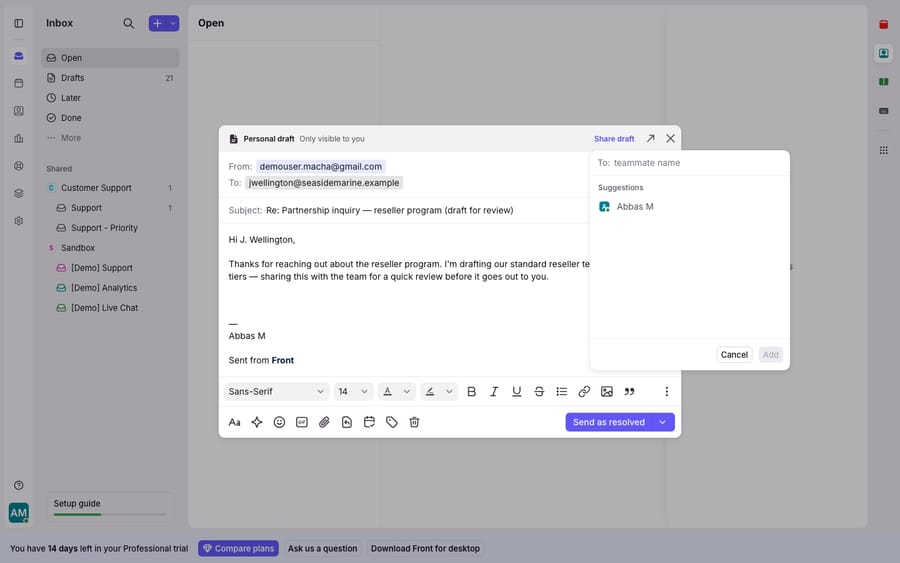
- Click "Share draft" at the top of the composer window.
- Select the teammates who need access. You can add an optional comment in the same step to say what you need: "can you sanity-check the tone here?" or "approve before I send?"
- Click "Add." Front notifies the teammates you picked, and the draft now lives as a shared draft they can open, read and edit.
Once a draft is shared, the conversation becomes a workspace. You can @mention a specific teammate in a comment to pull them in; Front notifies them and the conversation surfaces in their Subscribed section. You can hold a back-and-forth in comments about the draft without any of it touching the customer-facing reply. Front's own launch post names three use cases: ask a teammate for feedback, give a hand to a colleague stuck on a tough email, or have your boss check the reply before it ships (front.com).
Can two people edit the same Front draft at once?
Two people can watch the same draft at once, but only one can type in it. The part that surprises people coming from plain email is that teammates co-edit the same draft and see the changes land as they happen.
- Real-time edits. As a teammate types into a shared draft, their changes appear live on your screen, the same experience you would expect from a shared document, applied to an email reply.
- One editor at a time. Front allows only one teammate to edit a draft at any given moment. That avoids two people overwriting each other.
- The gray banner. When someone else is editing, a gray banner shows who is in the draft and when they last made a change, so you know whether it is safe to jump in.
- "Take over." If you need to make the edit yourself, click Take over on that banner. Front asks you to confirm, then hands you the pen.
That single-editor-with-handoff model is what makes shared drafts trustworthy. Everyone sees the same live version, nobody clobbers anybody's words, and "who is editing right now" always has a visible answer.
Does Front have an approval workflow for replies?
Front does not ship a gated approval workflow with an Approve/Reject button and an audit trail. A Front community answer from February 2025 confirms there is no native approval process and suggests building one from inboxes and rules (community.front.com). What Front does ship is the raw material: shared drafts plus comments plus @mentions, which teams assemble into their own review habit. In practice that looks like:
- An agent composes the reply and clicks Share draft, adding the reviewer.
- The agent @mentions their lead in a comment: "ready for review, ok to send?"
- The reviewer reads it and either edits directly (via Take over) or leaves comments requesting changes.
- When the reviewer is happy, they reply in the comment thread ("looks good, send it") and the agent or the reviewer hits send.
For support teams onboarding new agents, this is a soft quality gate: junior teammates share every customer-facing reply for a week or two, and the lead approves in-thread. For sales, it is deal-desk review on a high-stakes quote. For ops, it is a second signature on a policy-sensitive email. Pair shared drafts with Front rules to route the right conversations to the right reviewer, and Front tags to mark which threads still need sign-off, and the informal workflow starts to feel structured without custom tooling.
Where do Front shared drafts fall short?
Shared drafts are one of the differentiated things Front does, and there is no clean ticketing equivalent: the pre-send, real-time, collaborative reply is a shared-inbox idea that most help-desk tools lack.
The edges are still real. First, it is collaboration, not automation: a shared draft coordinates humans around a reply and never writes the reply. Someone still stares at a blank composer and produces the first version. Second, the approval flow is convention, not enforcement: with no Approve/Reject gate, nothing technically stops an agent from sending an unreviewed reply. The discipline lives in your team's habits, not in a lock. Third, at scale, review is a throughput tax: every draft that needs a second pair of eyes waits on a reviewer, and that queue grows with volume.
Can AI write the first draft inside Front?
Yes, and that is the seam where an AI agent layer fits. Weigh the build-versus-buy tradeoff before you reach for one. The broader category of AI agents for customer service exists to do the reasoning-and-drafting work that a shared draft assumes a human will do. Macha is one such layer, and the Macha–Front integration is live: it runs on top of the Front you already use and does not replace Front, your shared inboxes or your drafts. Connected to a Front conversation, Macha can read the thread, ground itself in your knowledge base, and draft a first reply directly into the conversation, so your team's job shifts from writing from scratch to reviewing, editing via Take over, and approving, the parts Front's shared drafts handle well. Macha bills per ticket: one conversation, charged once however many drafts and lookups it takes. You can meter it against the volume you want assisted; the pricing page has the full breakdown.
The division of labour: let Front own the collaborative, human-in-the-loop review of a reply, and let an AI layer own the blank-page first draft that review depends on. One coordinates people; the other removes the cold start.
FAQ
What is the difference between a draft and a shared draft in Front? A draft is personal: visible only to you and stored in your Drafts folder. A shared draft is visible to teammates, who can comment on it and co-edit it before it is sent. Drafts inside a shared inbox are shared automatically; a personal draft becomes shared when you click Share draft and pick teammates.
How do I share a draft in Front? Compose your reply, click Share draft at the top of the composer, select the teammates who need access (adding an optional comment), and click Add. Front notifies them and the draft becomes collaborative. This flow is documented in Front's help center.
Can two people edit the same Front draft at once? Teammates see edits in real time, but only one person can edit at a time. A gray banner shows who is currently editing and when they last changed the draft; click Take over (and confirm) to become the active editor.
Does Front have a formal approval workflow for replies? Not a gated one with an Approve/Reject button. Front provides the building blocks (shared drafts, comments and @mentions) that teams use to run an informal review-and-approve process in-thread. Enforcement is a matter of team habit, not a hard lock.
Can I use AI to draft Front replies without replacing Front? Yes. An AI layer like Macha connects to Front as a native integration and drafts a grounded first reply into the conversation, leaving your team to review, edit and approve using Front's own shared-draft and comment features. It runs on top of Front rather than replacing it.
Want your team reviewing and approving instead of writing from a blank composer? Start a free trial of Macha and connect it to your Front in minutes.






