





 Shopify
 Stripe
 Slack
Slack Notion
 Google Workspace
 Confluence

How Do You Change Your Freshdesk Portal URL to a Custom Domain?


You change a Freshdesk portal URL by entering your own domain under Admin, Portals, then pointing a CNAME record at Freshdesk and waiting up to 24 hours for the automatic SSL certificate. The setup takes minutes, but agents get logged out and old ticket and knowledge base links break, so plan the redirects before you switch.
Key takeaways
- Changing the Freshdesk portal URL starts at Admin, Portals, where you enter the custom address and copy the CNAME record Freshdesk generates for your DNS host.
- The Freshdesk custom portal URL is available on the Growth, Pro and Enterprise plans, priced at $19, $55 and $89 per agent per month billed annually.
- Freshworks provisions the SSL certificate automatically after DNS verification, and the new custom URL stays inaccessible for up to 24 hours until it activates.
- A Freshdesk custom domain stuck on pending usually comes down to a proxied CNAME, a Cloudflare Zone Hold on subdomains, or CAA records missing pki.goog and letsencrypt.org.
- Moving the Freshdesk portal logs out signed-in agents, breaks existing ticket-status and knowledge base links, and can stop old inline ticket images from rendering.

To change your Freshdesk portal URL to your own domain, go to Admin → Portals, edit the portal, enter an address like support.acme.com in the Portal URL field, then add the CNAME record Freshdesk generates at your DNS host. Freshworks provisions the SSL certificate for you, which can take up to 24 hours, and the feature needs the Growth, Pro or Enterprise plan.
| Step | Where | What to expect |
|---|---|---|
| 1. Enter the custom URL | Freshdesk: Admin → Portals → Edit → Portal Settings | Freshdesk generates a CNAME record and value |
| 2. Add the CNAME | Your DNS host (GoDaddy, Cloudflare, Route 53) | TTL of 30 minutes to 1 hour, or blank; verification is mandatory |
| 3. Wait for SSL | Automatic, run by Freshworks | Up to 24 hours; the custom URL is unreachable until then |
| 4. Clean up | Mailboxes, webhooks, widget, links | Agents are logged out and some old links break |
Which "URL" are you actually changing?
Freshdesk has two different things people call the portal URL, and they aren't the same job. The first is your base Freshdesk URL, the company.freshdesk.com subdomain Freshdesk assigns you. The second is a custom portal URL (also called a vanity URL): a domain you own, like support.acme.com, that you map onto Freshdesk so customers never see the freshdesk.com address.
This article covers the second one, because that's what almost everyone means by "changing the portal URL": putting your support portal on your own brand. Renaming the freshdesk.com subdomain itself is a separate flow with heavier consequences, and Freshworks documents the fallout in Customizing your helpdesk URL. The most important of those consequences also apply to a custom domain, so they're folded into the "what breaks" section below.
What do you need before you start?
A domain you control and access to its DNS. You need to add a CNAME record at your DNS host: GoDaddy, Cloudflare, Namecheap, Route 53, or wherever your domain lives. If someone else manages DNS, loop them in first, because the record is the load-bearing step.
A supported plan. Per Freshworks' documentation, the custom portal URL is available on Growth, Pro and Enterprise (and on the older Estate and Forest plans), not on the Free plan. The current Freshdesk pricing page lists Growth at $19, Pro at $55 and Enterprise at $89 per agent per month, billed annually. It no longer shows a free plan at all; Freshworks runs a separate Free program for up to 2 agents for 6 months. So if you want a branded portal, you're on a paid tier.
Admin rights. You need to be logged in as an administrator to reach the Portals settings.
How do you add the custom URL in Freshdesk?
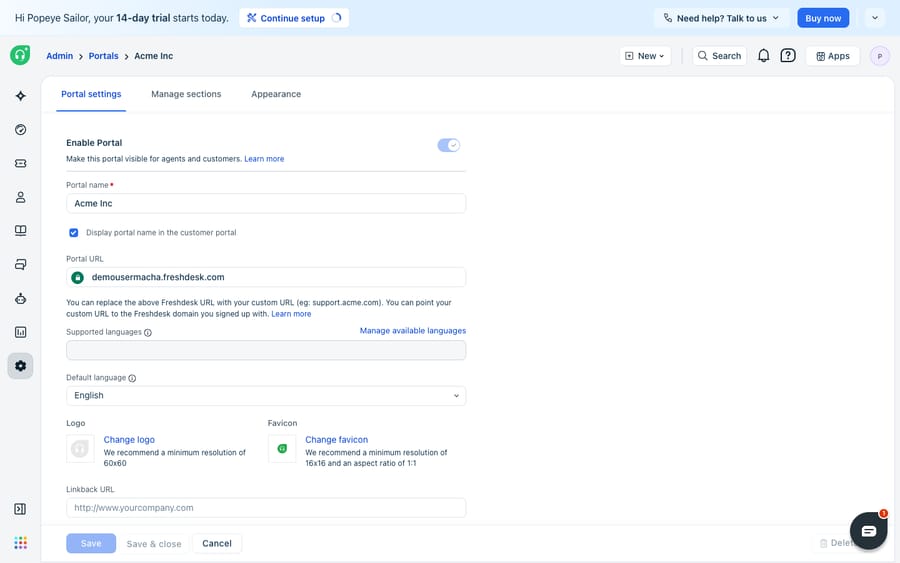
Everything starts inside Freshdesk. Per the official Use a custom portal URL and verify DNS guide, the path is:
- Log in as an Admin and go to Admin → Portals.
- Hover over the portal you want to change and click the Edit icon.
- On the Portal Settings tab, find the Portal URL field.
- Enter your custom support URL, for example
support.acme.com, and save.
If you run multiple portals (one per product or brand), each portal has its own URL field, so you set the custom domain per portal rather than once for the whole account.
How do you point the CNAME record at Freshdesk?
Once you save the custom URL, Freshdesk generates a CNAME record and its value. Copy both. Then, in your domain's control panel:
- Open your DNS Manager (on GoDaddy, for example, this is Admin tools → DNS Manager → Add CNAME record).
- Create a CNAME record where the host is your subdomain (
support) and the value is the target Freshdesk gave you. - For TTL, Freshworks suggests a value between 30 minutes and 1 hour, or you can leave it blank.
- Save the record.
Don't skip the verification. Back in Freshdesk, DNS verification is a mandatory gate. Per the documentation, "Without DNS verification, you cannot proceed further." Propagation can take anywhere from a few minutes to a few hours depending on your host and the TTL, so if verification fails on the first try, wait and retry before assuming something is wrong.
How long does the SSL certificate take?
This is the step that surprises people. After your CNAME is verified, Freshworks automatically requests an SSL certificate for your custom domain. You don't buy or upload one. The catch is timing and access:
- SSL verification may take up to 24 hours to activate.
- Until the certificate is issued, your portal on the custom URL is inaccessible. The old freshdesk.com URL keeps working, but the branded one won't serve traffic until the certificate lands.
Because of that window, finish steps 1 to 3 before you publish the new URL anywhere: your website's help link, email signatures, marketing. Get the padlock first, then announce the address.
Why is my custom domain stuck on "pending"?
Most failed custom-domain setups die at DNS, not in Freshdesk. Freshworks documents three causes:
- Proxying on the CNAME. If your DNS provider activates a proxy on the record, the custom domain can stay pending indefinitely. On Cloudflare this is the orange-cloud toggle; set it to DNS only (grey cloud) for the support subdomain.
- Cloudflare Zone Hold. If you use Cloudflare, go to Overview → Quick Actions → Zone Hold and uncheck "Also prevent subdomains," or the hold blocks the subdomain Freshworks needs.
- CAA records. If your domain has CAA records restricting which certificate authorities may issue for it, add
pki.googandletsencrypt.orgfor your subdomain, or the automatic SSL request is refused.
If your domain sits in "pending" for more than a day, walk this list before opening a support ticket. It's almost always one of these three.
What breaks when the portal URL changes?
Moving a web address has consequences. Freshworks is candid about this for URL changes generally, and it's worth knowing before you flip the switch:
- Agents get logged out. Anyone signed in hits a "We couldn't find the URL" error and must log back in at the new address. Warn your team before, not after.
- Old inline images stop rendering. Images embedded in existing tickets can stop displaying, though new tickets after the change are fine.
- Existing ticket-status links break. Ticket-status URLs you've already sent in replies and notifications become invalid.
- Knowledge base links break. Links to solution articles and forum posts you've shared with customers point at the old address.
Then run the reconfiguration checklist: confirm your email "Forwarded to" address still converts mail into tickets, reauthorize any custom mailbox so it doesn't disconnect, update webhook callback URLs in your automations, replace the feedback widget code on your site, and reconfigure third-party integrations that pointed at the old address.
How do you protect SEO when the portal moves?
If your old support portal was indexed by Google, treat this like any domain migration. The cleanest fix is a 301 redirect from the old portal path to the new one so existing rankings follow the move. Freshdesk's hosted portal doesn't give you server-level redirect control, so for a heavily indexed knowledge base, coordinate with whoever owns your DNS and web infrastructure, submit the new URL in Google Search Console, and update your sitemap and internal links. That's the limit of the native feature: Freshdesk gets your portal onto a custom domain and secures it, but the redirect-and-reindex housekeeping is on you.
Where does an AI layer fit after the move?
Changing your portal URL is infrastructure work. It doesn't change how many tickets land or how fast they get answered. Once the domain is settled, the real question is throughput: can your team keep up with the volume arriving at the new address?
That's a different problem from DNS, and it's where an AI agent layer earns its place. Macha runs on top of the Freshdesk you already use as a native connector. It isn't a replacement portal or a competing help desk, and it doesn't care what URL your customers see. You connect Macha to Freshdesk with your subdomain and API key, and it reads and writes the same tickets: drafting grounded replies, resolving repetitive questions, and looking up order or account status through a custom tool that turns a REST API into something the agent can call. If you're weighing whether to build that yourself or adopt a platform, the build-versus-buy tradeoff is worth reading first, and the mechanics live in how to automate Freshdesk with AI. (Macha connects to Freshdesk specifically, not Freshchat, Freshservice or Freshcaller.)
Macha bills per ticket: one conversation, charged once however many messages it takes, not per resolution. Plans start at $299 a month for 750 tickets, with setup and monitoring by the Macha team included; the pricing page has the tiers. Per-resolution pricing means a vendor earns more the more tickets it claims to close, while a per-ticket price stays fixed whatever the outcome.
The division of labor is clean: Freshdesk owns the portal and its address, and an agent layer on top handles the answering. Timing is a separate lever, so it's worth understanding how your business hours shape when work gets done once traffic is flowing.
FAQ
Where do I change the portal URL in Freshdesk? Log in as an Admin, go to Admin → Portals, hover over the portal and click the Edit icon, then open the Portal Settings tab and enter your custom address in the Portal URL field. Freshdesk then generates a CNAME record for you to add at your DNS host.
Which Freshdesk plans support a custom portal URL? Growth, Pro and Enterprise, plus the older Estate and Forest plans. The Free plan doesn't include it.
Do I need to buy an SSL certificate? No. After you verify the CNAME, Freshworks requests and provisions the SSL certificate for your custom domain. It can take up to 24 hours to activate, and your custom URL is inaccessible until it does, so set it up before you publish the new address anywhere.
Why is my custom domain stuck on "pending"? The usual causes are DNS-side: a proxy enabled on the CNAME record (set Cloudflare to DNS only), a Cloudflare Zone Hold with "Also prevent subdomains" checked, or CAA records that don't allow pki.goog and letsencrypt.org. Fix those and re-verify.
Will changing the URL break my existing ticket and knowledge base links? Yes. Existing ticket-status links in past replies and notifications, shared solution-article and forum links, and inline images in old tickets can all break. Plan a 301 redirect from the old portal to the new one, update the links you control, then resubmit the new URL in Google Search Console.
Can I add AI to my Freshdesk portal without replacing it? Yes. Macha connects to Freshdesk as a native connector and runs on top of your existing portal, whatever URL it lives on, drafting and resolving tickets while Freshdesk stays the system of record.
Want your team's throughput to match the new portal? Start a free trial of Macha with $50 of free usage and no credit card, and connect it to your Freshdesk.






