Intercom
 Shopify
 Stripe
 Slack
Slack Notion
 Google Workspace
 Confluence

How Do You Configure Business Hours in Zendesk? (Step by Step, 2026)


Zendesk business hours live in a schedule under Admin Center, Objects and rules, Business rules, Schedules, which holds your time zone, weekly hours and holidays. SLAs, triggers and reports all read from it, so a missing or wrong schedule is the usual cause of overnight SLA breaches.
Key takeaways
- Zendesk business hours are set under Admin Center, Objects and rules, Business rules, Schedules, where you add a schedule with a time zone, weekly hours and holidays.
- Suite Growth, Suite Professional and Support Professional allow only one Zendesk schedule, while Enterprise allows multiple schedules routed to tickets with Ticket: Set schedule triggers.
- Zendesk weekly hours adjust in 15-minute increments, each interval must be at least 1 hour long, and an interval cannot cross midnight.
- Zendesk lets you schedule holidays up to two years in advance, and business-hours SLAs treat the team as closed during a holiday.
- The first schedule in a Zendesk account's list is the default and applies to every ticket that a trigger has not moved to another schedule.

To configure business hours in Zendesk, go to Admin Center → Objects and rules → Business rules → Schedules, click Add schedule, set the time zone, draw your weekly hours in 15-minute increments, add holidays and save. Growth and Professional plans get one schedule, which becomes the default for every ticket; Enterprise gets multiple schedules, routed to tickets with a Ticket: Set schedule trigger. Then set your SLA targets to business hours so they pause when you close.
| Plan | Schedules | How tickets get a schedule |
|---|---|---|
| Suite Growth | One schedule | Default schedule applies to all tickets |
| Suite Professional / Support Professional | One schedule | Default schedule applies to all tickets |
| Enterprise | Multiple schedules | Default, plus Ticket: Set schedule triggers |
Every step below is checked against Zendesk's own documentation (24 September 2026). If you want the reasoning behind schedules (business vs. calendar hours, design trade-offs), the companion guide Business hours & schedules in Zendesk goes deeper. You need admin access, because schedules live in the Admin Center.
Step 1: Where is the Schedules page in Zendesk?
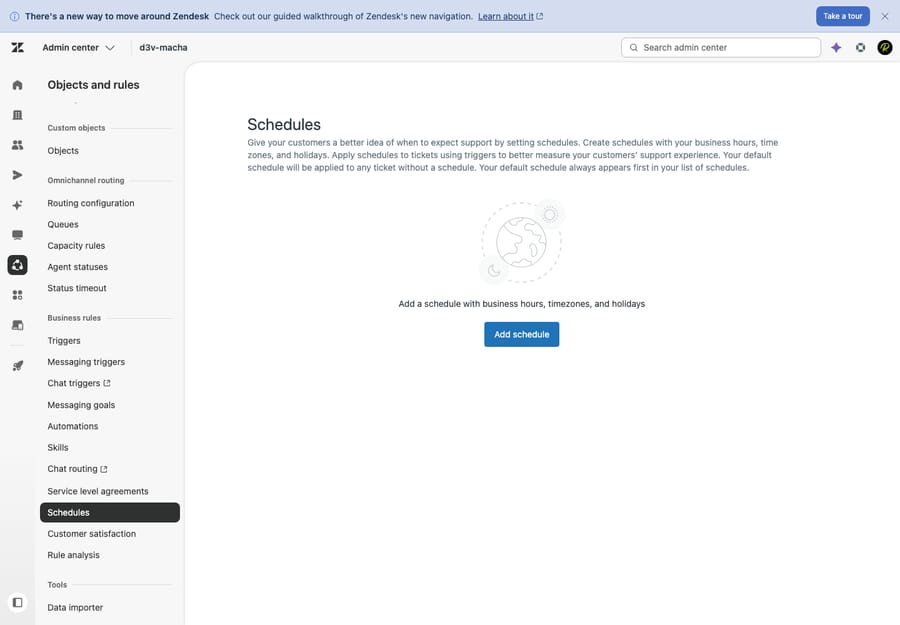
In the Admin Center, click Objects and rules in the sidebar, then Business rules → Schedules, and click Add schedule.
If you mostly work in the agent interface: the Admin Center is the settings area, not the Support agent workspace. Schedules sit under Business rules alongside triggers, automations and SLAs.
Step 2: How do you name the schedule and set its time zone?
Give the schedule a clear name, such as US Support (ET), EU Support or Billing 9-5, not "Schedule 1." On a multi-schedule account you will pick it from a trigger dropdown later.
Then set the time zone. It is the most important field on the page: every business-hours and holiday calculation is measured against it. A "9 to 5" means nothing until Zendesk knows which 9 to 5. Choose the zone your team mainly works in, and set it before you draw your hours, because the hours are read in this zone.
Step 3: How do you set weekly business hours?
Define your open window for each day on the weekly grid. Hours and start times adjust in 15-minute increments:
- Click and drag to paint a block of open hours on a day, for example 9:00 a.m. to 5:00 p.m. Monday through Friday.
- Adjust an existing block by dragging the whole block to move it, or dragging its top or bottom edge to change the start or end time.
- Leave a day blank to mark it closed (typical for weekends).
- Split a day into two blocks if you close for lunch, e.g. 9:00-12:30 and 1:30-5:00.
Two limits: each interval must be at least 1 hour long, and an interval can't cross midnight. For an overnight shift, define two intervals, one on each calendar day. Set the hours your team actually covers, not the hours you wish you covered; the SLA clock takes them literally.
Step 4: How do you add holidays to a schedule?
Scroll to the holidays section and add each closure: a public holiday, a company shutdown, the week between Christmas and New Year. For each one:
- Give it a name (e.g.
Thanksgiving,Winter shutdown). - Pick a start date, then click the second date field to pick an end date. Use the same date for both to mark a single day, or a range for a multi-day closure.
Zendesk lets you schedule holidays up to two years in advance, so add this year and next in one sitting rather than editing the schedule every December. During a holiday, business-hours SLAs and "within business hours" logic treat your team as closed.
Step 5: Save
Click Save. The schedule is now live. On a single-schedule plan it automatically becomes the default and starts governing every ticket, so you can skip to Step 7 to wire it into your SLAs.
Step 6: Which schedule does a ticket use, and how do you apply a different one?
The rule that trips people up: the first schedule in your list is the default, and it applies to all tickets that have not been given another one. Every ticket gets a schedule whether you do anything or not.
To put specific tickets on a different schedule (Enterprise only, since only Enterprise can have more than one), use a trigger:
- Go to Admin Center → Objects and rules → Business rules → Triggers and create a new trigger.
- Add conditions that match the tickets you want, e.g. Organization is EU-Customers, Group is Billing, or Brand is ….
- Add the action Ticket: Set schedule and choose the schedule from the dropdown.
Create one trigger per schedule you route to. If conditions and actions are new to you, Zendesk triggers explained walks through them. On a multi-schedule account, a second schedule does nothing until a Ticket: Set schedule trigger moves tickets onto it.
Step 7: How do you connect the schedule to SLAs and out-of-hours replies?
A schedule is only useful once something reads from it. The two main consumers:
SLA targets. In an SLA policy, each target (first reply, next reply, resolution) can be measured in business hours or calendar hours. Calendar hours count all elapsed time around the clock; business hours count only the time inside your schedule, pausing when you close and resuming when you reopen. A ticket arriving at 4:45 p.m. with a 4-hour business-hours first-reply target is due mid-morning the next working day, not at 8:45 p.m. while the office is dark. Set the relevant targets to business hours; calendar hours ignore the schedule. This is why most teams build a schedule, so check it on your highest-priority policies.
Out-of-hours auto-replies. Triggers can branch on the condition Ticket: Within business hours? (true/false). Send a normal "we've got it" during hours and an honest "our team is offline until 9 a.m. Monday" outside them. It is one of the cheapest CSAT wins available.
Step 8: What if you need different hours for different teams on one schedule?
Check the plan table at the top before you design anything region-specific. Zendesk's documentation says Suite Growth, Suite Professional and Support Professional allow only one schedule, and Enterprise plans allow multiple. On a one-schedule plan with teams in several regions, you either pick the most representative window and accept some imprecision, or upgrade. Confirm the limit in your own Admin Center before committing to a multi-schedule design.
What are the best practices for Zendesk schedules?
- Set the time zone first, and double-check it. A schedule in the wrong zone is off by hours for every ticket, and the error is hard to spot from breach numbers alone.
- Match reality. Set the hours you truly staff. The SLA clock believes whatever you enter.
- Load holidays a year ahead. Add the full calendar in one pass so the clock doesn't run through long weekends and shutdowns.
- Name schedules clearly. On Enterprise you'll pick them from trigger dropdowns;
EU SupportbeatsSchedule 2. - Revisit at least yearly. Hours change, offices move, regions get added. Refresh the schedule whenever you touch your SLAs, and roll holidays forward before they lapse.
What mistakes break business-hours SLAs?
- Business-hours SLAs with no correct schedule. Targets set to "business hours" against a schedule that doesn't match your real hours, so time counts when nobody is there and you collect phantom overnight and weekend breaches.
- Forgetting holidays. The most common ongoing failure: the clock runs through every public holiday, and the team returns to a wall of breached tickets.
- A second schedule with no routing trigger. On Enterprise, every ticket stays on the default until a
Ticket: Set scheduletrigger moves it. - Assuming Chat hours follow Support hours. Support business hours (the schedule above) are a separate setting from Chat/messaging operating hours. If you run live chat, configure both.
- Setting SLA targets to calendar hours by accident. Calendar-hour targets ignore your schedule. If you want pausing, the target has to say business hours.
What can't a schedule do for after-hours customers?
Schedules keep your metrics honest about your hours, but they don't extend them. Out of hours, the customer still waits for a human. That gap is where an AI agent layer fits. Macha runs on top of Zendesk (it is not a help desk and not a Zendesk replacement) and answers from your knowledge base and connected systems 24/7, so a customer who writes in at 2 a.m. on a holiday can get a real answer to a routine question instead of a "we're closed" auto-reply. Anything it can't handle stays a normal ticket for your team when the schedule reopens. The schedule still governs your human SLAs and reporting; the AI reduces how much has to wait for working hours. Macha bills per ticket (one thread with one person, charged once however many messages, lookups and drafts it takes), from $299 a month for up to 750 tickets, and it only performs as well as the knowledge you connect to it. If after-hours volume is your problem, see how to automate Zendesk with AI, or try it free with $50 of free usage and no credit card required.
Frequently asked questions
Where do I set business hours in Zendesk? In the Admin Center, go to Objects and rules → Business rules → Schedules and click Add schedule. A schedule holds your time zone, weekly business hours and holidays. Support business hours are separate from Chat/messaging operating hours, which are configured elsewhere.
How do I set the time zone for my Zendesk schedule? Set it on the schedule itself, near the name field, before you draw your hours, because the hours you enter are read in that zone. It is the reference clock for every business-hours and holiday calculation.
How do I add holidays to a Zendesk schedule? Open the schedule, go to the holidays section, give each holiday a name, then pick a start date and an end date (the same date for a single day, or a range for a multi-day closure). You can add holidays up to two years in advance.
How does a ticket get a schedule in Zendesk? Every ticket uses the default schedule (the first one in your list) unless a trigger assigns a different one. On Enterprise accounts with several schedules, create a trigger whose conditions match the target tickets and use the action Ticket: Set schedule. See Zendesk triggers explained.
Can I have different business hours for different teams or regions? Only on Enterprise. Suite Growth, Suite Professional and Support Professional allow one schedule; Enterprise allows multiple. With multiple schedules you build region- or team-specific schedules and route tickets to them with Ticket: Set schedule triggers, so each ticket's SLAs pause and resume against the right local clock.
Can a business-hours block run past midnight? No. Zendesk says an interval can't overlap a date boundary, so an overnight shift is two intervals, one on each calendar day.
Why are my Zendesk SLAs breaching outside business hours? Almost always because the SLA target is set to calendar hours, or because the schedule's hours, time zone or holidays are wrong for a business-hours target to pause against. Set the relevant targets to business hours and fix the schedule. Details in Zendesk SLA explained.
What is the short version?
Create a schedule, set the time zone first, paint your weekly hours in 15-minute blocks, add a year of holidays, and save. On Growth and Professional that one schedule becomes the default automatically; on Enterprise you can run several and route tickets with Ticket: Set schedule triggers. The payoff lands once you wire it in: set your important SLA targets to business hours so they pause overnight, and branch your auto-replies on Within business hours?. For the concepts behind this, see business hours & schedules explained; for what reads from your schedule, see SLAs and triggers.
Procedure checked against Zendesk's official documentation on 24 September 2026. Zendesk updates its product and packaging periodically, so confirm specifics in your own Admin Center.
Add AI agents to your Zendesk
Macha reads the ticket, drafts the reply and takes the action, inside the Zendesk you already run.