Intercom
 Shopify
 Stripe
 Slack
Slack Notion
 Google Workspace
 Confluence

How Do You Create a Custom View in Zendesk? 8 Steps (2026)


You create a custom Zendesk view from Admin Center > Workspaces > Agent tools > Views by clicking Create view, setting conditions, access, columns and sort order, then saving. This walkthrough builds one real team queue, a Billing view sorted oldest first, one control at a time.
Key takeaways
- Creating a custom Zendesk view starts at Admin Center > Workspaces > Agent tools > Views, where the Create view button opens a single form for every setting.
- Every Zendesk view needs at least one core property in its conditions, such as Status, Group, Assignee, Type or Requester.
- A Zendesk view can display up to 15 columns in any order, although multi-select custom fields cannot be used as columns.
- Zendesk's documentation says the Views list shows the first 100 shared views and the first 10 personal views, up from an older default of 12 shared and 8 personal.
- Setting Who has access to Agents in specific groups keeps a team queue, such as a Billing view, out of every other team's sidebar.

To create a custom view in Zendesk, open Admin Center > Workspaces > Agent tools > Views, click Create view, name it, add conditions that include at least one core property (such as Status or Group), choose who has access, pick up to 15 columns, set the sort order, preview and save. It takes about two minutes once you know where the controls are. The steps below follow Zendesk's own documentation, checked again in September 2026. If you want the concepts first (what a view is, how it differs from search, and which queues every team needs), read Zendesk views explained.
| Setting | Options | Limit or rule |
|---|---|---|
| Where | Admin Center > Workspaces > Agent tools > Views | Shared views need admin permission |
| Conditions | Meet all (AND), meet any (OR) | At least one of Status, Status category, Type, Group, Assignee, Requester or Support type |
| Who has access | Any agent, Agents in specific groups, Only you | Only you = personal view |
| Columns | Any ticket field except multi-select custom fields | Up to 15 |
| Views list | Shared and personal | First 100 shared and first 10 personal views shown |
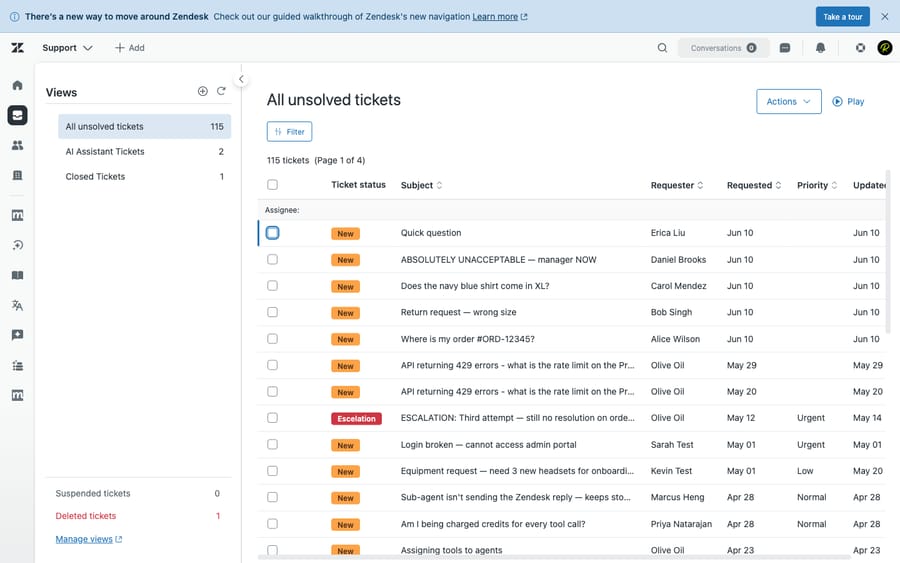
What view are we building in this example?
We'll build a view called "Billing: unsolved, oldest first": one queue of every open ticket assigned to the Billing group, sorted so the oldest ticket sits at the top and gets cleared first. It's a realistic everyday queue, and building it touches every control you need: conditions, sharing, columns and sort order. Swap in your own team's specifics as you go.
One prerequisite: you create and edit shared views in the Admin Center, which requires admin permission. Agents can create personal views for themselves from the Views list, but the full management screen lives in Admin Center.
Step 1: Where do you create a view in Zendesk?
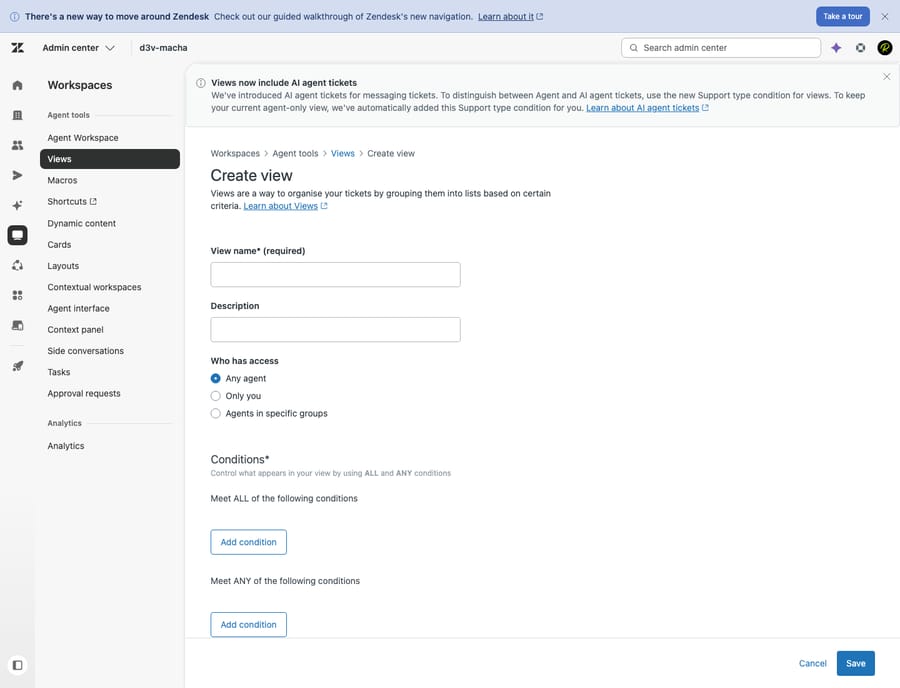
In your Zendesk account, open the Admin Center (the gear icon, or yoursubdomain.zendesk.com/admin). In the sidebar, go to Workspaces > Agent tools > Views. This is the master list of every shared view in your account.
On the Views list page, click the Create view button in the top corner. That opens the form titled Create view, the single screen where everything below happens.
Step 2: What should you name the view?
The name at the top is exactly what agents read in the sidebar, so make it self-explanatory. For our example: Billing: unsolved, oldest first. A name like that tells an agent the team, the scope and the sort at a glance; "View 7" or "Copy of All unsolved" tells them nothing. The optional description field is useful for recording why a view exists, especially if someone else will maintain it later.
Step 3: How do "meet all" and "meet any" conditions work?
Conditions are the filter that decides which tickets appear. Zendesk gives you two blocks:
- Tickets must meet all of these conditions: AND logic. Every condition has to be true.
- Tickets can meet any of these conditions: OR logic. The ticket appears if it matches any one of them.
One rule to remember: your conditions must include at least one core ticket property (Status, Status category, Type, Group, Assignee, Requester or Support type) so the view always has something concrete to anchor on.
For "Billing: unsolved, oldest first," put these in the meet all block:
- Group is Billing
- Status is less than Solved (the standard way to capture "unsolved": it includes New, Open, Pending and On-hold, but not Solved or Closed)
That's enough for a clean queue. To widen one dimension, say to also surface High or Urgent priority, add those as a meet any block. One caveat from the docs: a few time-based conditions like "Hours since…" aren't available in the "any" block, only in "all." For how conditions, triggers and automations relate, see the Zendesk business rules guide.
Step 4: Who should be able to see the view?
Under Who has access, set the view's availability. There are three options:
- Any agent: a shared view everyone in the account sees.
- Agents in specific groups: a shared view scoped to one or more teams. This is what you usually want for a team queue. Set it to the Billing group so only billing agents carry it in their sidebar and nobody else's list gets cluttered.
- Only you: a personal view, visible only to you. Good for a private "things I'm watching" list, not for team process.
Rule of thumb: if more than one person needs it, make it a shared, group-scoped view. Save personal views for individual workflow quirks. For our example, choose Agents in specific groups → Billing.
Step 5: How many columns can a view have?
Columns control what each ticket row displays. Zendesk lets you add up to 15 columns and drag them into any order, but four or five well-chosen columns scan far faster than a cluttered fifteen. Multi-select custom fields can't be used as columns.
For a billing queue, a sensible set is:
- Subject: what the ticket is about
- Requester: who it's for
- Priority: so urgent items stand out
- Status: New vs. Pending at a glance
- Request date (or "Latest update"): to back up the oldest-first sort
Add the columns your team actually scans for and drop the rest.
Step 6: How do you group and sort the tickets?
Two controls shape the layout of the list:
- Group by clusters rows under headers (by priority, status or assignee), turning a long list into tidy sections. For our example you could group by Priority so Urgent billing tickets sit in their own block, or leave grouping off for a single flat list.
- Order by sets the sort within the view, ascending or descending. This is where "oldest first" comes from: set Order by → Request date → Ascending, so the longest-waiting ticket rises to the top and gets worked first.
If you'd rather triage by urgency, order by Priority descending. Grouping and sort encode how the team should attack the queue, so set them on purpose.
Step 7: How do you check the view before saving?
Use the Preview pane. It shows the tickets currently matching your conditions, with your columns and sort applied. An empty preview means your conditions are too narrow (often conditions that can never all be true at once); a flooded one means they're too loose. Tweak, preview again, and when it looks right, click Save.
Your new view now appears in the Views list, and the agents you scoped it to see it in their sidebar.
Step 8: How many views can you have, and where should the new one sit?
Placement matters. The Views sidebar is finite and ordered, and in practice the views near the top get worked while the ones buried at the bottom get ignored. Back on Admin Center > Workspaces > Agent tools > Views, drag your most-used views toward the top so they're the first thing agents reach for.
On limits: Zendesk's documentation (checked September 2026) says the Views list shows the first 100 shared views and the first 10 personal views, up from the old default of 12 shared and 8 personal. On Enterprise plans, admins can use custom roles to restrict agents back to that 12/8 cap. Either way, prune views nobody uses and keep the active set short and well ordered. Zendesk adjusts these limits, so confirm them on your own plan.
Which habits keep views useful?
A few habits separate teams whose views help from teams whose views are noise:
- Don't over-create. A sidebar with 40 views is one nobody reads. Build the handful the team actually works and stop.
- Build team-based, group-scoped views, not one view per person. Scope shared views to groups; use personal views for individual quirks.
- Always have an SLA-breach view. A queue of tickets approaching or past their SLA target is an early warning that stops urgent work from slipping.
- Name views for what they are. "Billing: unsolved, oldest first" tells an agent everything; "Copy of View 3" tells them nothing.
- Revisit every quarter. Prune dead views and re-order the live ones.
What mistakes break a Zendesk view?
- Forgetting a core property. A view needs at least one of Status, Group, Assignee, Type and the rest. Build around one of those, then refine.
- Mixing up "all" and "any." Putting "Status is Open" and "Status is Pending" in the all block returns nothing, because a ticket can't be both at once. Alternatives belong in the any block.
- Confusing a view with routing. A view shows tickets; it never assigns or moves them. If your "Unassigned" view is always full, that's a routing problem (fixed with triggers and the ticketing setup underneath), not a view problem.
- Column overload. Fifteen columns is the ceiling, not the goal.
- Leaving new views at the bottom. An unordered sidebar buries your best queue. Reorder after you create.
Can AI shrink the queues your views show?
Even a well-built set of views assumes a human opens each queue and works tickets down by hand. An AI agent layer like Macha sits on top of your existing Zendesk (it isn't a help desk and doesn't replace one). Connected to your tickets and knowledge, it can triage and route incoming tickets and resolve routine ones outright, so fewer tickets reach a manual queue. Your custom views still exist for everything that needs a person; they just stay shorter.
The trade-offs: it's another integration to manage, and it only performs as well as the knowledge and rules you connect to it. On cost, Macha bills per ticket: one conversation, charged once however many automated steps it takes (triage, tag, route, look up data, draft or resolve) and whichever model runs it. It never bills per resolution, so the bill doesn't hang on an outcome definition you don't control. Pricing starts at $299 a month for 750 tickets, about $0.40 each, with setup and monitoring by the Macha team included. You can try it with $50 of free usage and no credit card.
Frequently asked questions
How do I create a view in Zendesk? In the Admin Center, go to Workspaces > Agent tools > Views, click Create view, name it clearly, set the conditions (including at least one core property such as Status or Group), choose who has access (Any agent, Agents in specific groups, or Only you), pick your columns and sort/group order, preview the matched tickets, and save. Managing shared views requires admin permission; agents can create personal views from the Views list in the Agent Workspace.
What conditions can I use in a Zendesk view? Almost any ticket property: Status, Group, Assignee, Priority, Type, Tags, Requester, hours since update, custom fields and more. Conditions split into a "meet all" (AND) block and a "meet any" (OR) block, and a view must include at least one core property: Status, Status category, Type, Group, Assignee, Requester, or Support type.
How many columns can a Zendesk view have? Up to 15 columns, which you can drag into any order. Multi-select custom fields can't be used as columns. In practice, four or five well-chosen columns make a queue far easier to scan.
What's the difference between a shared view and a personal view? Shared views are created by admins (or permitted agents) and are available to all agents or to specific groups: your team's standard queues. Personal views are created by an individual agent for their own use and aren't visible to anyone else.
How many views can I have in Zendesk? Per Zendesk's documentation in September 2026, the Views list shows the first 100 shared views and the first 10 personal views; the older default cap was 12 shared and 8 personal, and Enterprise admins can restrict roles back to that limit with custom roles. Because the list is finite and ordered, keep your most-used views near the top, and confirm the current limit on your plan.
What does a finished setup look like?
A small set of well-named, group-scoped views like "Billing: unsolved, oldest first," plus one SLA-breach view, ordered so the queues that matter sit at the top of the sidebar. That's eight decisions per view: location, name, conditions, access, columns, grouping and sort, preview, and placement. For the concepts behind all of this, see Zendesk views explained; to understand the tickets your views filter, start with the Zendesk ticketing system.
View-creation flow checked against Zendesk's official documentation in September 2026. Zendesk updates its product periodically, so confirm view limits and button labels in your own account.
Add AI agents to your Zendesk
Macha reads the ticket, drafts the reply and takes the action, inside the Zendesk you already run.