





 Shopify
 Stripe
 Slack
Slack Notion
 Google Workspace
 Confluence

How Do You Customize the Freshdesk Customer Portal? Themes, Domain and CSS (2026)


Freshdesk lets you brand the customer portal in three layers: no-code colors and fonts, whole themes, and a CSS and JavaScript editor on Pro and Enterprise. A custom domain like support.acme.com needs the Growth plan or above, and its SSL certificate can take up to 24 hours.
Key takeaways
- Freshdesk's customer portal is customized under Admin > Portals, where the Appearance tab controls colors, fonts and themes and the Portal Settings tab controls the custom URL.
- Freshdesk ships every new portal with the Marina theme, and swapping its brand color and logo on our demo portal took under five minutes with no code.
- A custom Freshdesk portal domain needs the Growth, Pro or Enterprise plan, and Freshworks says SSL verification can take up to 24 hours after the CNAME record is added.
- Freshdesk's advanced code editor for custom CSS and JavaScript covers 17 portal pages and is available only on Pro at $55 and Enterprise at $89 per agent a month.
- Macha connects to Freshdesk as a native connector using a subdomain and API key, and bills per ticket rather than per resolution, starting at $299 a month.

To customize the Freshdesk customer portal, go to Admin → Portals, click edit on the portal, and use the Appearance tab: brand colors and fonts need no code on any plan, a custom domain such as support.acme.com needs Growth ($19 per agent a month billed annually) or above, and the CSS and JavaScript code editor needs Pro ($55) or Enterprise ($89). Freshdesk ships every new portal with the Marina theme, and for most teams a color, logo and font pass on Marina is the whole job.
| Layer | What it changes | No code? | Plan | Best for |
|---|---|---|---|---|
| Appearance | Logo, colors, fonts, portal name | Yes | All plans | Most teams |
| Themes | Clone, swap, download or import whole designs | Mostly | All plans (basic) | Structural, reusable looks |
| Custom domain | Portal on your own URL, plus SSL | Yes (DNS) | Growth, Pro, Enterprise | Removing the vendor URL |
| Advanced CSS/JS | Layout of 17 portal pages, raw CSS/JS | No | Pro, Enterprise | Bespoke design needs |
Plan prices are from Freshworks' Freshdesk pricing page, checked 24 September 2026. Freshdesk no longer sells a free plan there; new accounts get a 14-day Enterprise trial.
What are the three layers of portal customization?
Freshdesk stacks customization in three distinct layers, and you rarely need all three. The basic appearance layer handles brand color, logo, fonts, and portal name with no code at all. This is what most teams actually need. The theme layer lets you clone the default design, swap in a different look wholesale, or import one someone else built. And the advanced layout layer opens a code editor for custom CSS, JavaScript, and page-level structural changes when the first two aren't enough.
Each layer sits deeper than the last, and each carries different plan requirements. Start at the top and only descend when a genuine need pulls you down. A surprising number of "we need custom CSS" requests turn out to be solvable with the no-code color picker.
How do you brand the portal without code?
This is where the majority of the visible impact comes from, and it requires no developer. Per Freshworks' Customizing your customer portal documentation, the default Freshdesk portal ships with the Marina theme, and you tune its look in the theme editor.
- Go to Admin → Portals and click edit next to the portal you want to change.
- Switch to the Appearance tab. To change the live theme, click Clone & Edit theme; for a theme that isn't live, click Edit theme.
- On the Customise portal tab, set the primary color. Freshdesk applies it to headers, buttons, and navigation. Set your logo and portal name as well.
- Adjust the finer color slots if you need them: body elements (body, link and hover colors), header and footer, and under More colors, cards, tabs, and form elements. You can pick a palette color or paste a hex code.
- Under Portal Fonts, pick your heading and body fonts, then preview on desktop, tablet, and mobile before you click Save and Publish.
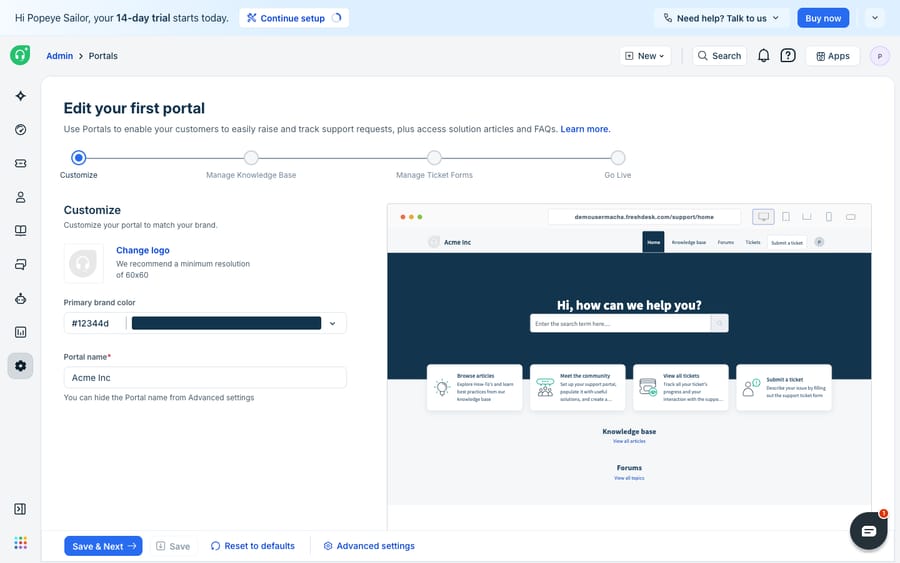
The before/after on our own demo portal was stark: swapping the stock Freshworks blue for a single brand color and dropping in a logo took under five minutes and moved the portal from "clearly a Freshdesk tenant" to "looks like it belongs to us." Freshworks notes that Marina's default colors and font sizes follow WCAG recommendations, so check contrast when you swap them. For most teams, this step alone is the whole job.
When should you change the theme or import a new one?
If color and logo tweaks aren't enough, say you want a materially different layout for the home page or knowledge base, you move up to themes. The portal's Appearance tab lists your current live theme (Marina by default) alongside the other available themes, with a preview pane on the right.
- Clone & edit the current theme when you want to keep Marina's structure but make deeper, code-level changes safely on a copy rather than the live design.
- Import a theme to apply one you've built or acquired. Freshworks accepts only
.zipfiles, and there's a small ecosystem of third-party theme shops (for example, Breezythemes) that sell ready-made Freshdesk themes if you'd rather not build from scratch. - Download any theme from the three-dot menu. Freshdesk emails it to you as a
.zip, which is useful for version-controlling your portal design or reusing it on a new portal.
One trap for older accounts: the classic Mint theme uses different layout, elements and classes from Marina, so CSS written for Mint won't work after you switch. Freshworks says to redo those customizations in the code editor. Themes are the right tool when the change is structural and reusable. If you just want your colors on the existing layout, stay with the no-code editor.
How do you put the portal on your own domain?
A branded portal on a yourcompany.freshdesk.com URL still leaks the vendor's name in the address bar. A custom domain such as support.yourcompany.com closes that gap. Per Freshworks' custom portal URL and DNS guide, the flow is:
- Go to Admin → Portals, click edit on the portal, and open the Portal Settings tab.
- Under Portal URL, enter your custom support URL (for example
support.acme.com). - Freshdesk generates a CNAME record. Copy the record and its value.
- In your DNS manager (GoDaddy, Cloudflare, Route 53, and so on), add the CNAME record pointing your subdomain at Freshdesk.
- Save and wait for DNS to propagate, then for Freshworks to procure the SSL certificate.
Three honest gotchas here. First, SSL verification can take up to 24 hours, and the portal isn't usable on the custom URL until it completes, so don't cut over in the middle of a busy support day. Second, if your DNS provider proxies the CNAME (Cloudflare's orange cloud is the classic culprit), the domain can hang in a pending state; disable proxying on that record. Cloudflare users should also check Zone Hold and untick Also prevent subdomains until the domain is created. Third, if you use CAA records, add pki.goog and letsencrypt.org for the subdomain so the certificate can actually be issued. Custom URLs are available on Growth, Pro and Enterprise, not on Free.
When do you need advanced CSS and layout changes?
When basic appearance and themes still can't express your design, Freshdesk's advanced portal customization opens a code editor for custom CSS and JavaScript. Per the Customize Portal Layout and Pages documentation, this layer covers 17 customizable portal pages in four groups: General (portal home, login, signup, search results), Solutions (the knowledge base home, category, article list and article view), Discussions, and Tickets (new ticket, ticket list and ticket details).
The important caveat: advanced customization with custom CSS and JavaScript is available only on Pro and Enterprise. On Free and Growth, the code editor is off the table, so if editing raw CSS is a hard requirement, budget for Pro at $55 per agent a month billed annually. This is also the layer to approach with the most care. Hand-written CSS and JS on top of Freshworks' markup can break when the platform updates its templates (the Mint-to-Marina switch is the precedent), so keep changes in a cloned theme and version-control your .zip exports.
What can't Freshdesk's portal customization do?
The native tooling is capable across all four layers in the table above. But notice what customizing the portal doesn't touch: it changes how support looks, not how fast or how well it answers. A polished, on-brand portal with a slow queue behind it is lipstick on a wait time. The portal can present a knowledge base well, but it can't read a customer's typed question, work out intent, and surface (or write) the right answer. The customer still has to search, guess the right article, or give up and file a ticket that a human then works from scratch.
Where does an AI layer pick up?
This is the seam where an AI agent layer fits, and it's worth thinking through the build-versus-buy tradeoff before reaching for one. The broader category of AI agents for customer service exists to do the reasoning your portal template can't: understanding a question in plain language and returning a grounded answer instead of a list of blue links.
Macha is one such layer, and to be clear about the boundary: it runs on top of the Freshdesk you already use as a native connector. It does not replace your help desk, your portal, or its themes. You connect Macha to Freshdesk with your subdomain and API key, and it works the same tickets and knowledge base your portal already exposes: answering portal questions from your solution articles, drafting or posting grounded first replies so tickets resolve faster, and looking up order or account status through a custom tool that turns a REST API into something the agent can call. If you want the full picture of automating the workflow behind the portal, we cover it in how to automate Freshdesk with AI, and the SLA policies that govern speed sit right alongside it.
The clean division of labor: use Freshdesk's portal customization to own the look and the front door, and layer an agent on top for the part the template can't do, which is actually answering. Macha's connector is for Freshdesk specifically, not Freshchat, Freshservice, or Freshcaller. Macha bills per ticket, one conversation charged once however many messages it takes, never per resolution: $299 a month covers up to 750 tickets, and the pricing page lists the higher tiers.
FAQ
Where do I customize the Freshdesk customer portal? Go to Admin → Portals and click edit next to your portal. The Appearance tab holds the themes; click Clone & Edit theme to reach the color and font controls. The Portal Settings tab holds the custom URL.
What is the default Freshdesk portal theme? The default theme is Marina. You can keep it and just change colors and your logo, clone it to make deeper edits safely, or import an entirely different theme as a .zip file. The older Mint theme is no longer offered to new signups.
Can I use my own domain for the Freshdesk portal? Yes. Under Admin → Portals → Edit → Portal Settings → Portal URL, enter a custom URL like support.acme.com, then add the generated CNAME in your DNS manager. Freshworks procures the SSL certificate itself, and verification can take up to 24 hours. Custom URLs require Growth, Pro or Enterprise.
Which plans allow custom CSS on the Freshdesk portal? Advanced portal customization with custom CSS and JavaScript is available on Pro and Enterprise only. Basic appearance changes (logo, colors, fonts) and theme cloning are available more broadly, so confirm the exact behavior against your own plan.
Can I add AI to the portal without replacing Freshdesk? Yes. An AI agent layer like Macha connects to Freshdesk as a native connector and runs on top of your existing portal and knowledge base. It doesn't replace them. It answers portal questions from your solution articles and drafts grounded replies, while Freshdesk stays the system of record for your content and design.
Ready to put a fast, accurate answer behind that freshly branded front door? Start a free trial of Macha, with $50 of free usage and no credit card, and connect it to your Freshdesk in minutes.






