





 Shopify
 Stripe
 Slack
Slack Notion
 Google Workspace
 Confluence

How Do You Export All Tickets from Freshdesk in 2026? Full History, Conversation Text and Scheduled Exports


Freshdesk's Export button gives you ticket fields only, with no replies and no archived tickets, so a complete history has to come through the API. The API returns only the last 30 days by default and stops at 300 pages per query, so a full pull is a windowed walk with updated_since.
Key takeaways
- A complete Freshdesk ticket export needs the API, because GET /api/v2/tickets returns only the past 30 days by default and at most 300 pages, or 30,000 tickets, per query.
- Freshdesk's UI export from the Tickets tab gives ticket fields in CSV or Excel but leaves out replies, private notes and archived tickets.
- Passing include=conversations to the Freshdesk API returns only the first ten conversations and costs two API calls, so full threads need the per-ticket conversations endpoint.
- Freshdesk's Tickets List endpoint has a sub-limit of 40 calls a minute on Growth, against an account limit of 100, which turns a 20,000-ticket backfill into an overnight job.
- Scheduled Freshdesk exports are built in Analytics under Settings > Data Exports on a Daily, Weekly or Monthly schedule, and need the Pro or Enterprise plan.

To export all tickets from Freshdesk, including full history and conversation text, use the REST API: GET /api/v2/tickets with updated_since set to your earliest date, restarting the query before its 300-page (30,000-ticket) ceiling, then GET /api/v2/tickets/{id}/conversations for each thread. The Tickets tab Export button is faster but gives only ticket fields, no replies and no archived tickets. If an export came back empty or short, it's one of two gotchas: the ticket list's time frame has to be wider than the Export window's, and the API returns only the last 30 days unless you ask for more.
Which ways are there to export tickets from Freshdesk?
| Path | Format | Best for | Plan |
|---|---|---|---|
| UI ticket export | CSV or Excel | A quick filtered pull of ticket fields | All plans, Admin or Supervisor |
| Analytics export | CSV, PDF, XLSX | Metrics and recurring reporting | Scheduled exports need Pro or Enterprise |
| Ticket activities export | JSON | An event stream for a BI tool | Pro or Enterprise, and deprecated |
| REST API | JSON | Everything, including conversations | All plans with API access |
The rule of thumb: UI export for a one-off spreadsheet, Analytics for a report a manager reads every Monday, the activities feed only if you already run it, and the API whenever the word "all" is in the request.
How do you export tickets from the Freshdesk UI, and why does it come back empty?
Per Freshworks' How do I export my tickets from Freshdesk? article, modified 16 February 2026:
- Go to the Tickets tab and select the All tickets view.
- Apply your filters: created time, agents, groups, type, status, custom fields.
- Click Export, top right.
- In the slider, pick CSV or Excel, tick the fields you want, and expand Show multiline text fields if you need the description.
- Click Export. Freshdesk emails a download link when the file is ready.
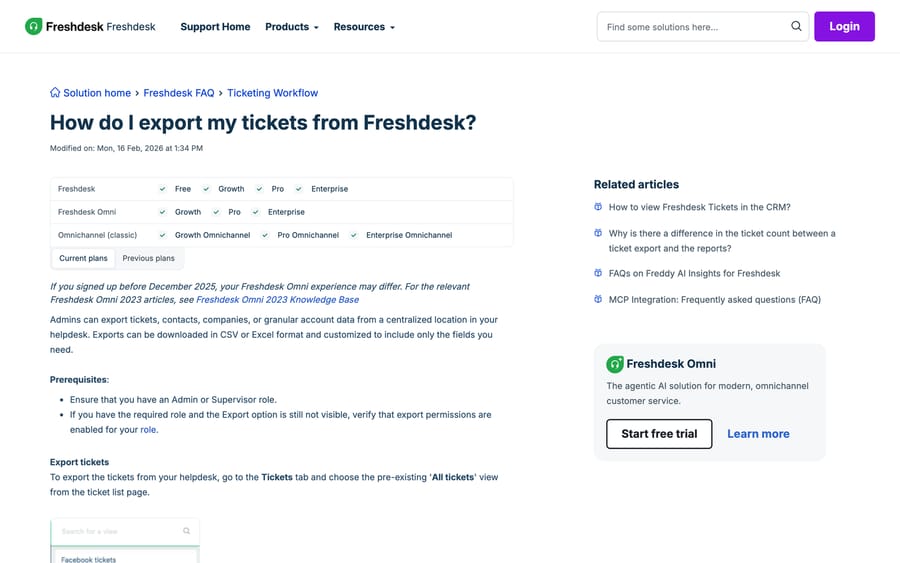
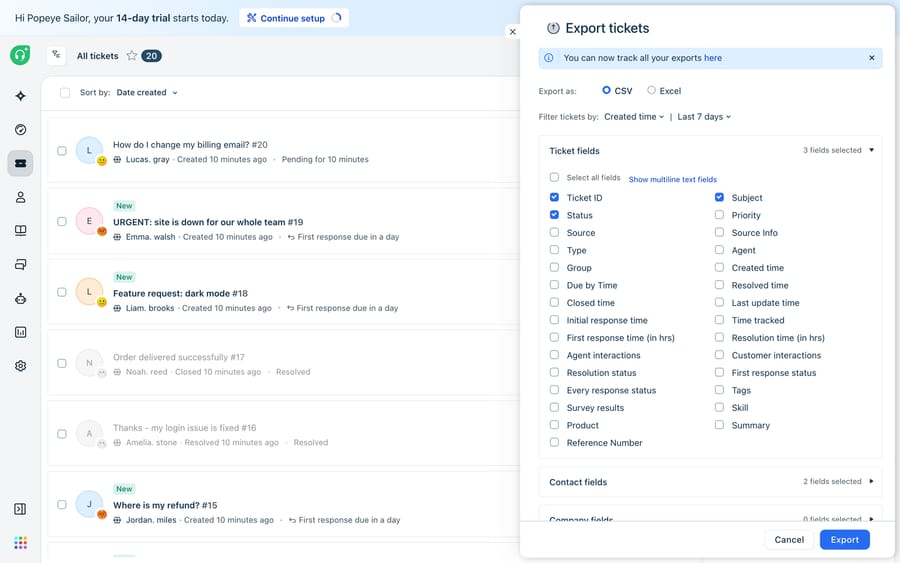
You need Admin or Supervisor with export permission. If the Export button isn't there, an admin has restricted it in a custom role. Past exports and their status live at Admin > Accounts exports.
The gotcha that produces an empty file. Freshworks states that the time frame set on the ticket list page has to be greater than the time frame set in the Export window. Filter the list to last 7 days and then ask the export for last 30 and you get nothing useful back. Widen the list view first, narrow in the export second. Our guide to the list filters themselves is Freshdesk ticket views explained.
What this export leaves behind. Two things, and both are the usual reason people end up on the API:
- The conversation. You get ticket fields and the description if you tick multiline. The replies and private notes do not come.
- Archived tickets. Excluded. Freshworks points you to an account export for archived tickets and complete conversation histories.
How do you schedule a recurring Freshdesk export?
If what you want is metrics rather than rows, export from Analytics, which shapes and aggregates before the data leaves. One-off: open the report or widget, click the export icon, pick CSV, PDF or XLSX.
For a recurring file, go to Analytics > Settings (gear) > Data Exports and create a schedule: Daily, Weekly or Monthly, with a time. Freshdesk delivers it to your mailbox on that cadence, and you can bundle associated contact and company fields so a BI tool has context. Scheduled Analytics exports need Pro or Enterprise. Large exports take several minutes to compile before they send.
This is the path the community's Automating Data Export in Freshdesk thread, at about 2,300 views, is looking for. More on the reporting side in Freshdesk reports and analytics explained and how to schedule reports in Freshdesk.
Should you still use the daily ticket activities feed?
This one isn't a spreadsheet. It's a machine feed: an Account Admin enables Admin > Account > Scheduled Exports > Daily export of ticket activities, clicks Edit to reveal an API URL, and pastes that URL into a BI tool. Each day's JSON file holds every event across all tickets from the previous day, automation actions included. Files stay available for 30 days, and you can fetch an older day by appending ?created_at=YYYY-MM-DD.
It's Pro and Enterprise, and it's deprecated alongside Legacy Reports. It still works where it was already enabled. Don't build anything new on it; use the Analytics export or the API.
How do you pull every ticket through the Freshdesk API?
The API is the only route to a complete history, and it has three constraints that have to be handled together.
Constraint one: the 30-day default. GET /api/v2/tickets returns only tickets created in the past 30 days unless you pass updated_since. A script that pages happily through results and stops is usually not hitting a bug; it's reading one month of data.
Constraint two: the 300-page ceiling. A maximum of 300 pages, which at per_page=100 is 30,000 tickets, comes back from the list endpoint per query. Above that you don't get an error, you get a stopping point.
Constraint three: no descriptions by default. For accounts created after 30 November 2018, the list endpoint omits the ticket body unless you pass include=description, and each include costs an extra 2 API credits.
Put together, a full-history pull is a windowed walk rather than a page walk:
GET /api/v2/tickets?updated_since=2019-01-01T00:00:00Z
    &per_page=100&order_by=updated_at&order_type=asc&include=description
Page forward. As you approach 300 pages, restart the query with updated_since set to the updated_at of the last ticket you received, and keep going until a page comes back short. That loop is what the community's Load of tickets more than 30,000 using Freshdesk REST API v2 thread works out the hard way.
Two more notes. The Filter Tickets endpoint, /api/v2/search/tickets, is capped harder: 30 results per page, 10 pages, 512 characters of query. It's for targeted queries, not for bulk. And archived tickets are excluded from both endpoints, the same blind spot as the UI export.
The auth, the rate limits and the per-endpoint ceilings are in how to use the Freshdesk API. The one that bites a backfill: Tickets List has its own sub-limit of 40 calls a minute on Growth, well below the account's 100. On Pro it's 100 of 400, and on Enterprise 200 of 700.
How do you export the actual conversation text?
This is the most-viewed unanswered export question in the Freshworks forum: How can I export the content (body text) of all my tickets?, at about 2,900 views. Here is the real answer, in three steps of increasing completeness.
include=description gets you the first message. That's the customer's opening text, and for a lot of analysis it's enough. It is not the thread.
include=conversations gets you ten. Freshworks documents this explicitly: it returns up to ten conversations sorted by created_at ascending, and it consumes two API calls. For a support queue where most tickets are two or three messages long, ten covers nearly everything. For escalations, it silently truncates exactly the tickets you most want to read.
The conversations endpoint gets you all of them. GET /api/v2/tickets/{id}/conversations returns 30 per page by default and up to 100 with per_page, and pages normally.
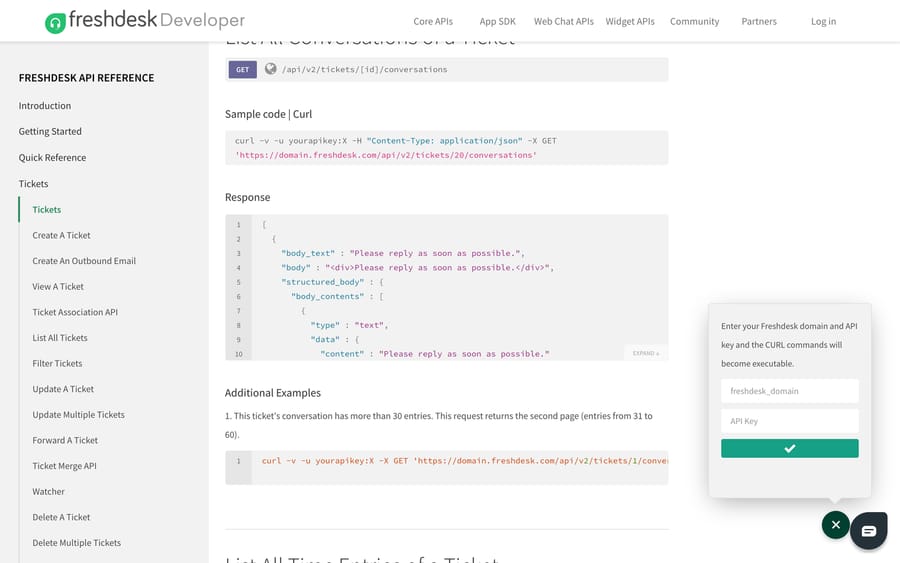
Each conversation object carries body (HTML) and body_text (plain text), plus private, incoming, from_email and attachments. Use body_text for anything you're going to analyze and body if you need the formatting preserved.
The cost of doing this properly is one extra API call per ticket, which is where the rate limits stop being theoretical: at 40 Tickets List calls a minute on Growth and a separate call per ticket for conversations, a 20,000-ticket archive is an overnight job, not an afternoon one. Write it to resume from where it stopped.
Worth naming the incentive behind that shape. Freshworks' developer docs note that an account can purchase additional API calls to raise its rate limit, so the throughput you need to get all your data out is itself a thing the vendor sells. Every help desk has some version of this, and none of them is optimized for a clean exit. Plan the bulk pull as a slow background job you run once, and keep a copy, so you never have to do it again under time pressure.
What does a complete Freshdesk archive take?
For a migration or a legal archive, no single button gives you everything. The working combination is:
- An account export for the full dump, which Freshworks names as the route to archived tickets and complete conversation histories.
- A windowed API pull with
include=descriptionfor current ticket fields and first messages. - A per-ticket conversations pull for the threads that matter, which for most teams is a subset defined by tag, group or date rather than everything.
- Attachments separately, by following the URLs in the conversation objects.
Stitching those together is real engineering work, and anyone who tells you a CSV export covers it hasn't tried to read one afterward.
How we researched this
We checked every path, cap, plan gate and field name in this post against Freshworks' own support articles and developer reference in a browser on 20 September 2026, re-checked the API caps and rate limits on 24 September 2026, and captured two of the three screenshots in that session; the Export dialog shot is carried over from the previous version of this page. Community view counts come from our crawl of community.freshworks.com, where the API and export clusters hold about 115 threads between them. We don't run a Freshdesk account, so no export was run and no API call in this post was executed against a live help desk. Row limits on the UI export aren't documented, so we don't state one.
What if you export the same tickets every week?
Every path above moves data out so someone can look at it later. None of them changes what happens inside the help desk. If you're exporting weekly to answer "how many of these were order-status questions" or "which of these could we have deflected", the export is measuring a problem it can't fix.
Macha is an AI agent layer that runs on top of the Freshdesk you already have. It reads the same tickets your exports pull from and acts on them in place: answering an order-status question through a custom API tool instead of counting it in a spreadsheet later, and triaging by intent as tickets arrive instead of tagging them retrospectively. It doesn't replace Freshdesk, its reporting or its exports, and it isn't a help desk. The connector is for Freshdesk specifically, not Freshchat, Freshservice or Freshcaller.
It suits teams whose weekly export keeps showing the same three question types. It's the wrong fit if your exports are for finance or compliance, where the point is the record rather than the handling. Pricing is one plan on monthly ticket volume, from $299/month for 750 tickets, about $0.40 per ticket at every tier, with setup and monitoring by the Macha team, included on every plan. A ticket is one thread between Macha and one person, charged once no matter how many messages it takes. The trial is $50 of free usage (about 125 tickets), no credit card, no time limit. See Macha on Freshdesk and the pricing page.
Frequently asked questions
How do I export all tickets from Freshdesk? The UI export covers a filtered slice of ticket fields, and for genuinely everything you use the API: GET /api/v2/tickets with updated_since set back to your earliest data, per_page=100, and a restart of the query each time you approach the 300-page ceiling. Archived tickets need a separate account export.
Why does my Freshdesk export only show the last 30 days? Two different causes. In the API, the list endpoint returns only tickets created in the past 30 days unless you pass updated_since. In the UI, the time frame on the ticket list page has to be greater than the time frame you pick in the Export window, or the export comes back short.
Does the Freshdesk ticket export include the conversation? No. The UI export gives you ticket fields, plus the description if you tick Show multiline text fields. Replies and private notes do not come with it, and neither do archived tickets.
How do I export the body text of Freshdesk tickets? Through the API. include=description returns the first message. include=conversations returns up to ten conversations and costs two API calls. For the complete thread, call GET /api/v2/tickets/{id}/conversations, which pages at 30 by default and 100 at most, and read the body_text field on each conversation.
Can I schedule a recurring export in Freshdesk? Yes, from Analytics. Go to Analytics > Settings > Data Exports and create a Daily, Weekly or Monthly schedule with a delivery time, optionally bundling contact and company fields. Scheduled Analytics exports need Pro or Enterprise.
Where do I find past exports in Freshdesk? Admin > Accounts exports, which shows the history, the progress of anything still compiling, and the download links.
What is the maximum number of tickets the Freshdesk API returns? The list endpoint returns at most 300 pages, which is 30,000 tickets at 100 per page, per query. The search endpoint is capped much lower at 30 results per page and 10 pages. Neither returns archived tickets.
Which Freshdesk plan do I need to export tickets? Freshworks' export article lists the UI export on Free, Growth, Pro and Enterprise, for Admin and Supervisor roles, though the pricing page no longer sells a Free plan (a Free program covers up to 2 agents for 6 months). Scheduled Analytics exports need Pro or Enterprise. The API rate-limit table covers Growth (100 calls a minute), Pro (400) and Enterprise (700).
Sources:
- How do I export my tickets from Freshdesk? (Freshworks support, modified 16 Feb 2026)
- List All Tickets (Freshdesk API)
- Freshdesk API reference
- Importing and Exporting customer data (Freshworks support)
- Freshdesk plans and pricing
- Community: How can I export the content (body text) of all my tickets?
- Community: Load of tickets more than 30,000 using Freshdesk REST API v2
- Community: Automating Data Export in Freshdesk
- Community: How to integrate with Power BI






