





 Shopify
 Stripe
 Slack
Slack Notion
 Google Workspace
 Confluence

How to Integrate Freshdesk with Microsoft Teams (2026 Setup Steps)


Freshdesk connects to Microsoft Teams through a free app Verified by Freshworks: install it from the Marketplace, add the Freshdesk bot in Teams, then route tickets to channels with automation rules. It works on Growth, Pro and Enterprise, and it lets people without a Freshdesk seat create and update tickets from Teams.
Key takeaways
- Freshdesk integrates with Microsoft Teams through a free Marketplace app Verified by Freshworks on Growth, Pro and Enterprise, installed twice: the app in Freshdesk, by an admin who is also a Teams Azure admin, and the Freshdesk bot inside Teams.
- Freshdesk sends tickets to Teams only through automation rules on ticket creation or ticket update events that use the Push to MS Teams action.
- Teams channels whose names contain emojis get no Freshdesk automation notifications, and direct messages are skipped when the ticket creator and assigned agent are the same person.
- Approval workflows such as a manager approving a refund card are not part of the native Freshdesk Teams app and need Power Automate Adaptive Cards or middleware like Zapier.
- An AI agent layer such as Macha answers the tickets behind those Teams cards, billed per ticket from $299 a month for 750 tickets, with setup by the Macha team and a dedicated success manager included.

To integrate Freshdesk with Microsoft Teams, install the free Microsoft Teams app from the Freshworks Marketplace (Admin → Apps), add the Freshdesk bot inside Teams, pick the channels, then create an automation rule with the Push to MS Teams action. The app works on Freshdesk Growth, Pro and Enterprise, and the Freshdesk admin who installs it must also be an admin in your Microsoft Teams Azure portal.
| Requirement | Detail |
|---|---|
| App | Microsoft Teams, Verified by Freshworks, version 1.0, free, about 5.3k installs |
| Freshdesk plans | Growth ($19), Pro ($55), Enterprise ($89) per agent/month billed annually; also Freshdesk Omni Growth, Pro, Enterprise |
| Permissions | Installer is a Freshdesk admin and a Teams/Azure admin who can grant consent |
| Installs needed | Two: the Marketplace app in Freshdesk and the Freshdesk bot in Teams |
| Notification events | Ticket create and ticket update automations only |
What does the Freshdesk Microsoft Teams app actually do?
The integration is a free, first-party app published and Verified by Freshworks. Its listing on the Freshworks Marketplace shows version 1.0, about 5.3k installs, and support for Freshdesk and Freshdesk Omni. The listing says the app was last updated almost four years ago, so expect the behaviour described here to be stable rather than growing. Its job is cross-team collaboration: bring the people who don't have a Freshdesk seat (engineering, billing, logistics, ops) into the support loop without buying them agent licenses.
It works in two directions, but not symmetrically. From Freshdesk to Teams, the app pushes ticket events into channels or direct messages as cards: ticket assignments, priority changes, customer replies, and public or private notes. From Teams back to Freshdesk, agents and collaborators can create tickets, view them, update properties like status, priority, group and assignee, and post notes or replies. Those actions carry a "via MS Teams" note so you can see where they came from. What it is not is a deep, field-by-field two-way sync between two systems of record. It's a collaboration bridge, and that distinction matters later.
How do you install the app in Freshdesk?
Everything starts on the Marketplace side. Per Freshworks' The Microsoft Teams App documentation:
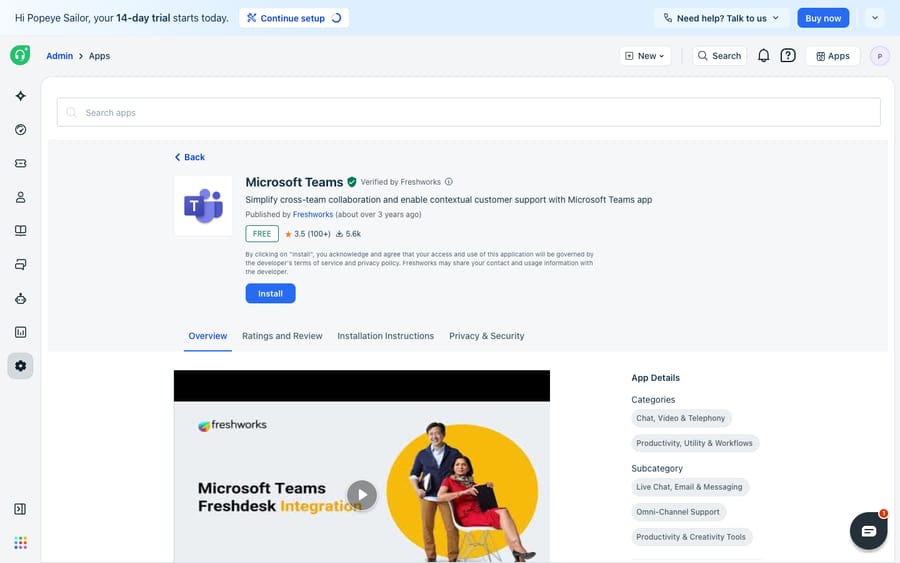
- In Freshdesk, click the Freshworks Marketplace icon in the top-right corner, then choose Marketplace Apps, or go to Admin → Apps, which lands on the same page.
- Search for Microsoft Teams and click Install.
- Grant the requested permissions when prompted.
- On success you'll see "Microsoft Teams installed successfully."
One prerequisite trips teams up, so read it before you start: the Freshdesk admin performing the install must also be an admin in your Microsoft Teams Azure portal. Freshworks' doc says agents without that access cannot complete authorization, because the consent step needs someone who can approve the requested permissions. If the person installing in Freshdesk isn't an Azure/Teams admin, line that person up first. Also check your plan: the doc lists the app for Growth, Pro and Enterprise, so an account on the old Free or Sprout plans won't see it work.
Do you also need an app inside Microsoft Teams?
Yes. The Freshdesk side alone isn't enough. To let people act on tickets from Teams, you also install the Freshdesk bot app inside Microsoft Teams: search the Teams app catalogue for Freshdesk and add it. This is what surfaces the ticket cards and gives collaborators the buttons to create, view and update tickets. In short, two installs, one in each product, and both are required for the round trip to work.
How do you choose which Teams channels receive tickets?
Back in the Freshdesk app configuration, click Add channel and pick a team and channel from the dropdowns. A useful detail from the docs: when you add a team, all channels under that team sync to Freshdesk, so you choose the scope of collaboration in one move rather than wiring channels one at a time.
One hard constraint to flag up front: channel names must not contain emojis. Freshworks' doc says automations won't be supported on those channels. If a channel isn't lighting up later, check its name first.
How do you route the right tickets into Teams?
Pushing everything into one channel is noise. The point of the integration is to route the right tickets to the right channel: the shipping team sees logistics tickets, finance sees refund requests. You do that with Freshdesk's own automation engine, the same one covered in how to automate Freshdesk with AI.
- Go to Admin → Automations.
- Choose an event: Ticket Creation or Ticket Updation. These are the only two events the Push to MS Teams action supports.
- Set your conditions (for example, subject contains "refund", group is Logistics, or priority is Urgent).
- For the action, select Push to MS Teams, then choose the target channel or DM.
- Add a custom message using placeholders for ticket, company and contact fields so the card is readable at a glance.
- Save and test with a matching ticket.
Two behaviours to know so you don't chase phantom bugs. Direct-message notifications aren't sent when the ticket creator and the assigned agent are the same person. And because these are automation rules, notifications only appear when a ticket's fields actually match your conditions. A ticket that never hits a rule never shows up in Teams.
What can people do with tickets from inside Teams?
With both apps installed, collaborators without a Freshdesk seat can still do real work from Teams. From a ticket card or the Freshdesk bot they can create a new ticket, view an existing one, and update properties: status, priority, group, agent, plus public replies and private notes. Anything they add is stamped "via MS Teams" in the ticket history, so your audit trail stays clean and agents can see that the note came from Karen in finance rather than from the support desk.
This is the useful heart of the integration. A subject-matter expert answers a private-note question in the channel they already have open, and the answer lands on the ticket for the agent to relay. No license, no context switch, no lost thread.
Should you use the native app, middleware or an AI layer?
The native app is the right starting point, but it's not the only way to bridge the two tools, and it isn't built for automated approvals. Here's the decision table.
| Approach | Best for | Sync direction | Approvals / logic | Cost |
|---|---|---|---|---|
| Native Freshdesk MS Teams app | Channel notifications + collaborators acting on tickets | FD → Teams cards; Teams → FD actions | Automation rules only | Free (on Growth and above) |
| Power Automate / Zapier / middleware | Custom flows, approval steps (Adaptive Cards), multi-app chains | Configurable both ways | Yes, you build it | Paid tiers / per-task |
| AI agent layer (e.g. Macha) | Resolving the ticket, not just routing it | Reads/writes Freshdesk directly | Agent reasoning + tool calls | Per ticket (from $299/mo for 750), setup and a dedicated success manager included |
If your need is "notify a channel and let people update tickets," the free native app is enough. If you need a real approval workflow, such as a manager clicking Approve/Reject on a refund card before the ticket proceeds, that isn't native. You build it with Power Automate Adaptive Cards or a middleware like Zapier, and that lives on paid tiers. The same is true if you want richer two-way field mapping than the app's ticket cards provide.
Where does the native app stop, and where does an AI layer pick up?
Give the native app its due: it's free, first-party, and it removes a real friction. But it routes and displays tickets and lets humans act on them. It doesn't answer them. A card in a Teams channel is still a task waiting for a person to read the customer's question, find the answer and type a reply. The integration makes collaboration faster; it doesn't reduce the volume of work.
It also inherits whatever triage your intake did. If a ticket is mislabelled, your automation rules push it to the wrong channel, and the app faithfully routes the wrong thing. And when the underlying question is "where is order #4471?", neither Freshdesk nor Teams can fetch that from your order system on its own; a human still goes and looks.
That gap is where an AI agent layer fits, and it's worth understanding the build-versus-buy tradeoff before reaching for one. The broader category of AI agents for customer service exists to do the reasoning-heavy work a notification card can't. Macha is one such layer: it runs on top of the Freshdesk you already use as a native connector (it also runs on Zendesk, Freshdesk, Gorgias, Front, HubSpot or Intercom). It does not replace your help desk, and it isn't a Teams competitor either. You connect Macha to Freshdesk with your subdomain and API key, and it reads and writes the same tickets your Teams cards point at: triaging by intent so the right ticket reaches the right team, drafting or posting grounded replies so a card in Teams is answered rather than merely announced, and looking up order or account status through a custom tool that turns a REST API into something the agent can call. Macha's connector is for Freshdesk specifically, not Freshchat, Freshservice or Freshcaller. Billing is per ticket (one conversation, charged once however many messages it takes), never per resolution, starting at $299 a month for 750 tickets, and setup is done for you: the Macha team builds the agent on your Freshdesk, tests it on a sample of your past tickets, and runs it in safe mode, with drafts as internal notes, until the replies are right. About $0.40 a ticket also covers a dedicated success manager who handles your changes afterwards, such as new categories, instruction changes or new tools. See the pricing page.
The clean division of labour: let the native Microsoft Teams app be your collaboration bridge, keep Freshdesk as the system of record, and put an agent on top for the part neither can do, which is resolving the ticket before anyone has to open the card in Teams. If Slack is your other messaging home, the same pattern applies through the Freshdesk Slack integration.
FAQ
Is the Freshdesk Microsoft Teams integration free? Yes. The Microsoft Teams app is published and Verified by Freshworks on the Freshworks Marketplace and is free to install. It needs a Freshdesk Growth, Pro or Enterprise plan (or the same Freshdesk Omni tiers); Freshdesk itself has no free plan on its pricing page.
How do I install it? Install in two places. In Freshdesk, open the Marketplace (Marketplace icon → Marketplace Apps, or Admin → Apps), search for Microsoft Teams, and click Install. The admin doing this must also be an admin in your MS Teams Azure portal to grant consent. Then install the Freshdesk companion app inside Microsoft Teams to enable ticket actions.
Does it sync tickets both ways? Partly. Freshdesk pushes ticket events (assignments, priority changes, replies, notes) into Teams as cards, and from Teams collaborators can create, view and update tickets. It's a collaboration bridge, not a deep field-by-field two-way sync between two systems of record.
Can I set up approval workflows in Teams? Not with the native app alone. Its automations route notifications and let people update tickets, but a true Approve/Reject step is built with Power Automate Adaptive Cards or a middleware like Zapier, typically on paid tiers.
Why aren't my Teams notifications firing? Common causes: the channel name contains an emoji (automations won't run), no automation rule's conditions matched the ticket, the rule uses an event other than ticket creation or update, or a direct-message notification was skipped because the ticket creator and the assigned agent are the same person.
Which Freshdesk events can push to Teams? Only ticket creation and ticket update. Freshworks' doc lists those two events for the Push to MS Teams action, so build your rules under them.
Want those Teams cards answered instead of piling up? Start a free trial of Macha with $50 of free usage and no credit card, and connect it to your Freshdesk in minutes.






