





 Shopify
 Stripe
 Slack
Slack Notion
 Google Workspace
 Confluence

How Do You Integrate WhatsApp With Freshdesk in 2026? Setup, Cost and Limits


WhatsApp is a native Freshdesk channel you connect under Admin on the Growth plan or above, and each message costs Meta's rate plus a 20% Freshworks markup. Standalone Freshdesk accounts also need to move to Freshdesk Omni 2025 to keep receiving messages from customers who use a WhatsApp username.
Key takeaways
- Freshdesk's WhatsApp channel needs the Growth, Pro or Enterprise plan, and a paid account can connect up to 50 numbers against one on a trial account.
- Freshworks adds a 20% markup to Meta's per-message WhatsApp rate, which varies by template category and by the recipient's country calling code.
- From 1 October 2026, each WhatsApp business phone number gets 1,000 free service messages a month, and utility replies inside the service window become chargeable.
- Freddy's AI Agent for WhatsApp auto-replies comes with 500 free sessions once per account, not monthly, and then costs $49 per 100 sessions.
- Assigning a Freddy AI Agent to a WhatsApp channel forces its threading interval to 0 minutes, so each follow-up message creates a new Freshdesk ticket.
You integrate WhatsApp with Freshdesk by connecting a number under Admin > Channels > WhatsApp on the Growth, Pro or Enterprise plan; there's no Marketplace app to install. Setup is a twenty-minute job, the cost is Meta's per-message rate plus a 20% Freshworks markup, auto-replies mean linking an AI Agent to the number, and from 1 October 2026 service messages are free only up to 1,000 a month per number.
| Question | Answer | Source (checked 24 Sept 2026) |
|---|---|---|
| Plan needed | Growth, Pro or Enterprise | Freshworks connect article |
| Numbers allowed | 1 on a trial account, up to 50 on a paid account | Freshworks connect article |
| Message cost | Meta's per-message rate plus a 20% markup | WhatsApp Pricing Model article |
| Free service messages | 1,000 per number per month from 1 October 2026 | WhatsApp Pricing Model article |
| Auto-replies | Freddy AI Agent linked to the number: 500 free sessions once per account, then $49 per 100 | Freshdesk pricing page |
| Standalone Freshdesk | Migrate to Freshdesk Omni 2025 to keep username-based messages | Identity model article |
Is WhatsApp a Freshdesk app or a built-in channel?
WhatsApp doesn't appear in the Freshworks Marketplace and you don't install it. It's a channel on the messaging layer that also powers Freshchat, so it shows up under Admin > Channels > WhatsApp on a plan that supports it, and conversations arrive as ordinary Freshdesk tickets.
That has two consequences. Your plan sets availability, and no install does: Freshworks documents the WhatsApp channel on Growth, Pro and Enterprise. The Freshdesk pricing page no longer lists a free plan at all. The rules that govern what you can send come from Meta's WhatsApp Business Platform, which is why templates and time windows behave the way they do.
There is now a harder dependency, with a date attached. Freshworks' Upcoming changes to WhatsApp identity model article, modified 19 May 2026, describes Meta moving from phone-number identity to a hybrid model in which a customer can message a business from a WhatsApp username and the business receives a Business-Scoped User ID instead of a phone number. Rollout began in test countries on 15 June 2026 and went global on 1 July 2026. The article's instruction to standalone Freshdesk accounts is to migrate to Freshdesk Omni 2025, or lose messages from username-based users. Freshdesk Omni 2023 and 2025 and Freshchat already handle both. Classic Omnichannel gets upgraded automatically, and its bots and workflows that key off a phone number need reviewing.
If you run plain Freshdesk with a WhatsApp number, that is the single most important paragraph on this page. Our companion piece on the two-product setup is how to integrate Freshchat with Freshdesk, and the wider Omni upgrade checklist sits in the best Freshdesk integrations guide.
What do you need before you connect WhatsApp?
- A Freshdesk plan on Growth, Pro or Enterprise.
- A Meta Business Manager account, used to verify your business and to hold the WhatsApp Business Account.
- A WhatsApp Business Account (WABA) and a phone number you can receive an OTP on. The number can't already be registered to the personal WhatsApp app.
Number limits: a trial account can connect one number, and a paid account up to 50.
How do you connect a WhatsApp number to Freshdesk?
Per Freshworks' Connect your WhatsApp number with Freshdesk article, modified 16 July 2026:
- Go to Admin > Channels > WhatsApp.
- Click Connect number.
- You're handed to Meta's embedded signup. Sign in to Meta Business Manager and grant Freshworks the permissions it asks for.
- Select or create the business portfolio and the WhatsApp Business Account, then pick the phone number.
- Verify by OTP, over SMS or voice call, and finish setup.
- Back in Freshdesk the number appears as a WhatsApp channel and incoming messages start creating tickets.
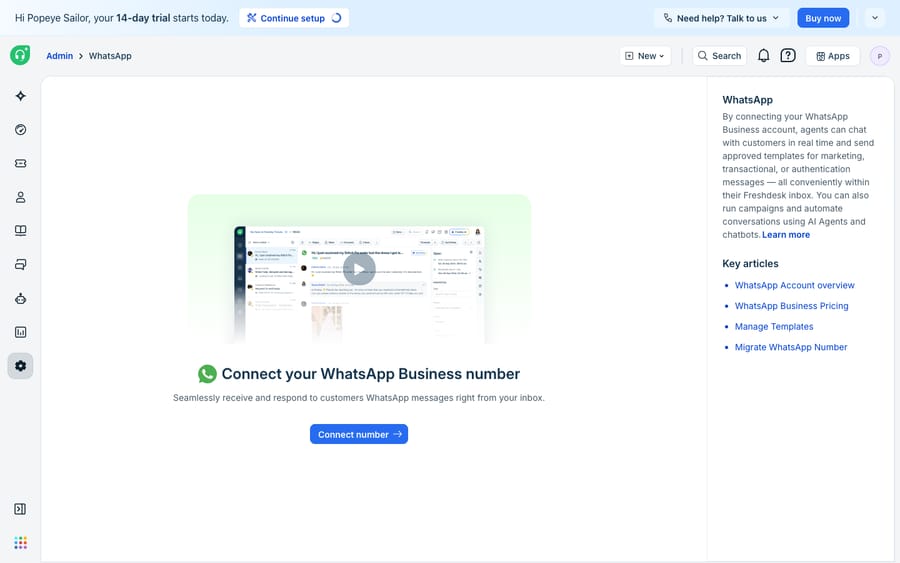
If the number already sits with another Business Solution Provider, there's a migration path rather than a fresh registration. It's support-assisted and slower than a clean setup, so start it before you need it.
How do you set up WhatsApp auto-replies in Freshdesk?
This is the most-asked configuration question on the channel, and the answer has changed. Freshworks' connect article now documents setting up and linking an AI Agent to a WhatsApp number so it responds to customer queries immediately, with agent-group assignment after the AI hands off. That's the native auto-reply, and it's Freddy's AI Agent rather than a simple away-message toggle.
Two things to weigh before you switch it on.
The threading side effect. Freshworks' Understand Threading Logic article states that when AI Agents are assigned to channels, the threading interval can no longer be configured at the channel level and defaults to 0 minutes. A zero-minute interval means every follow-up message opens a new ticket instead of reopening the last one. On WhatsApp, where a customer sends three short messages in a row as a matter of habit, that turns one conversation into three tickets. Check your ticket counts in the week after you enable it. The mechanics are in Freshdesk closed vs resolved.
The metering. Freddy's AI Agent is billed in sessions. Growth, Pro and Enterprise get 500 free sessions to try it, once per account and not every month, and after that it's $49 per 100 sessions on the Freshdesk pricing page. Sessions and WhatsApp messages are separate meters, and the threading default above increases one of them. Naming the incentive plainly: the setting that splits conversations into more tickets is the one you get by default when you turn on the product that's sold by the session. We have no evidence that's deliberate, and Freshworks documents the behavior openly, so treat it as a number to watch and nothing more. Our breakdown of the Freddy meters is Freshdesk Freddy AI explained.
If you want an away message rather than an answering agent, the honest position is that Freshworks' WhatsApp articles don't document a greeting or away-message toggle on this channel. What's documented is templates for proactive messages and an AI Agent for instant replies.
What can you send inside and outside the 24-hour window?
Inside the customer service window, opened when a customer messages you, you can reply with ordinary non-template messages: text, images, whatever the conversation needs. Outside it, or when you want to start a conversation, you can only send a pre-approved template.
Meta's three template categories, as Freshworks lists them:
- Marketing: awareness, offers, retargeting.
- Utility: follow-ups on a user action, such as an order update.
- Authentication: one-time passcodes and identity verification.
Templates are created and submitted for approval in Meta Business Manager, and review takes time you don't control. Agents apply an approved template in Freshdesk from the Reply button, and template replies are available from Growth upward. Get your core templates approved before launch, because the first out-of-window follow-up you need will otherwise be blocked.
How much does WhatsApp cost on Freshdesk?
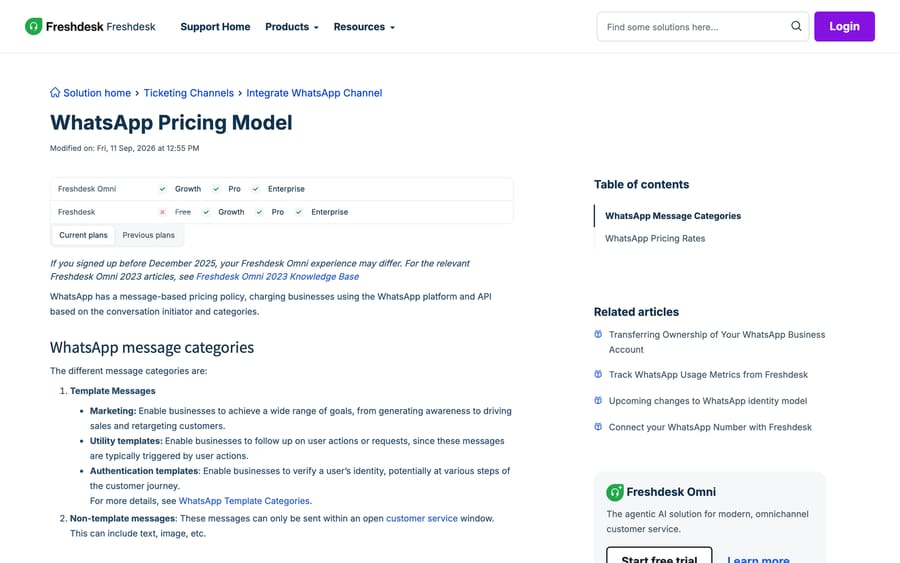
Freshworks' WhatsApp Pricing Model article, modified 11 September 2026, sets out four things worth knowing before you budget:
- Billing is per message since 1 July 2025, replacing the older per-conversation model. Rates vary by template category and by the recipient's country calling code, with lower volume-based rates on utility and authentication templates. Freshworks doesn't reproduce the per-country rate card, so that part comes from Meta.
- Freshworks applies a 20% markup to the total WhatsApp cost billed from Meta. Your real number is Meta's rate times 1.2, on top of your Freshdesk subscription.
- The free entry point window. All messages, template messages included, are free for 72 hours when sent inside an open free entry point window. That's the click-to-WhatsApp path from an ad or a website button, and it's the cheapest way to start a conversation by a wide margin.
- From 1 October 2026, service messages change. Each business phone number gets a monthly allowance of 1,000 free service messages, and messages above that are charged. If your WhatsApp volume is mostly inbound support, that allowance is the number to model against, per number, per month. The same article adds that from October, utility messages sent in reply inside an open 24-hour customer service window are charged per message too.
The fourth point is the one to act on this quarter. A team handling a few hundred WhatsApp conversations a month has been paying nothing for the service side and will keep paying nothing. A team handling several thousand messages a month on one number is about to have a line item that didn't exist, and the fix is either a second number or fewer, longer messages.
Where does an AI agent layer fit on top of the WhatsApp channel?
The native channel is transport. It delivers the message, creates the ticket and enforces Meta's rules. It doesn't read what the customer asked or write the reply, and WhatsApp raises the stakes on that gap: a two-hour email turnaround feels normal and the same delay on WhatsApp feels broken.
Macha is an AI agent layer that runs on top of the Freshdesk you already have. You connect it with your subdomain and API key, and it works on the tickets your channels create: drafting or posting a grounded reply, triaging by intent, and looking up an order or account through a custom API tool, so a "where's my order" that arrived over WhatsApp gets answered inside the window instead of queued.
Two boundaries, stated plainly. Macha connects to Freshdesk, not to Freshchat, Freshservice or Freshcaller, and it is not a WhatsApp gateway: it works on WhatsApp tickets once they're in Freshdesk, not on the WhatsApp channel itself. It suits teams whose WhatsApp volume is mostly repeat questions with a lookup attached; it's the wrong fit if your WhatsApp traffic is low or mostly sales conversations, where a person should be answering anyway.
Pricing is one plan on monthly ticket volume, from $299/month for 750 tickets, about $0.40 per ticket at every tier, with setup and monitoring by the Macha team, included on every plan. A ticket is one thread between Macha and one person, charged once no matter how many messages it takes, so a WhatsApp thread with a dozen short messages is one charge. The trial is $50 of free usage (about 125 tickets), no credit card, no time limit. See Macha on Freshdesk and the pricing page.
How we researched this
We checked every step, plan gate, price rule and date in this post against Freshworks' own current support articles in a browser on 20 September 2026, and re-checked the pricing article, the connect article and the Freshdesk pricing page on 24 September 2026, and we captured the pricing-article screenshot in that session; the in-product setup shot is carried over from the previous version of this page. We used the modified dates on those articles instead of trusting older summaries, which is how the 11 September 2026 pricing update and the identity-model change surfaced. We don't run a Freshdesk account or a WhatsApp Business Account, so no step here was clicked through. One thing we deliberately don't state: the per-country per-message rates, which Meta sets and Freshworks doesn't publish on this page.
Frequently asked questions
Which Freshdesk plan do I need for WhatsApp? Growth, Pro or Enterprise, on both Freshdesk and Freshdesk Omni. The pricing page doesn't list a free plan, so there's no free tier to run WhatsApp on. A trial account can connect one number; a paid account can connect up to 50.
How do I connect WhatsApp to Freshdesk? Admin > Channels > WhatsApp, then Connect number. You're handed to Meta's embedded signup to authorize Freshworks against your Meta Business Manager, select or create the WhatsApp Business Account and number, and verify by OTP over SMS or voice.
How much does WhatsApp cost on Freshdesk? Meta bills per message, by template category and the recipient's country code, and Freshworks adds a 20% markup on top of Meta's total. Messages inside an open free entry point window are free for 72 hours. From 1 October 2026 each business phone number gets 1,000 free service messages a month and pays for the rest, and utility templates sent inside an open service window become chargeable per message.
Can Freshdesk send automatic replies on WhatsApp? Yes, by setting up an AI Agent and linking it to the WhatsApp number, which Freshworks documents on the connect page. Freddy's AI Agent comes with 500 free sessions once per account, then $49 per 100. It answers immediately and can hand off to an agent group. Be aware that assigning an AI Agent to a channel sets that channel's threading interval to 0 minutes, so follow-up messages create new tickets rather than reopening the old one.
What is the 24-hour window in WhatsApp? The customer service window that opens when a customer messages you. Inside it you can reply with ordinary messages. Outside it, and for any conversation you start, you can only send a template that Meta has approved in one of three categories: marketing, utility or authentication.
Do I need Freshchat to use WhatsApp with Freshdesk? Not as a separate purchase, because WhatsApp is a channel on the shared messaging layer. But Meta's new username-based identity model means Freshworks now tells standalone Freshdesk accounts to migrate to Freshdesk Omni 2025 to avoid losing messages from users who contact you by username instead of phone number.
Can I move an existing WhatsApp number from another provider to Freshdesk? Yes. There's a migration path for a number already registered with another Business Solution Provider, so you don't deregister and start again. It's support-assisted and takes longer than a clean setup, so start it well before your cutover date.
Why is one WhatsApp conversation creating several Freshdesk tickets? Check the channel's threading interval. A reply within the interval reopens the existing ticket and a reply after it creates a new one, and assigning an AI Agent to the channel forces that interval to 0 minutes, which makes every follow-up a new ticket.
Sources:
- Connect your WhatsApp number with Freshdesk (Freshworks support, modified 16 Jul 2026)
- WhatsApp Pricing Model (Freshworks support, modified 11 Sep 2026)
- Upcoming changes to WhatsApp identity model (Freshworks support)
- Migrate your existing WhatsApp number to Freshworks
- Understand Threading Logic (Freshworks support)
- Freshdesk plans and pricing






