Intercom
 Shopify
 Stripe
 Slack
Slack Notion
 Google Workspace
 Confluence

How Do You Merge Tickets in Zendesk? Steps, Bulk Merge and Auto-Merge (2026)


To merge two Zendesk tickets, open the duplicate, choose Ticket options > Merge into another ticket, pick the ticket to keep and click Confirm and merge. The duplicate closes with the tag closed_by_merge, and Zendesk says merges are permanent and can't be undone.
Key takeaways
- Zendesk merges a duplicate ticket through Ticket options, then Merge into another ticket, then Confirm and merge, and the duplicate is set to Closed with the closed_by_merge tag.
- Zendesk ticket merges are permanent, and only tickets less than Solved can be merged, so Closed, shared and AI agent tickets are all excluded.
- Tags, Type, Priority and Status are not carried over from the closed ticket, so agents should merge into the ticket that is already set up correctly.
- Bulk merge works from any Zendesk view by selecting tickets and clicking Merge in the toolbar, then choosing the destination ticket number.
- Zendesk merge suggestions need the Copilot add-on on Suite and Support Professional plans and above, and a human still confirms every suggested merge.

To merge tickets in Zendesk, open the duplicate ticket, click Ticket options in the upper-right corner, choose Merge into another ticket, pick the ticket you want to keep, and click Confirm and merge. The duplicate is set to Closed with the tag closed_by_merge, and the merge can't be undone. Every step below follows Zendesk's own documentation, checked on September 24, 2026; Zendesk revises its UI now and then, so confirm the labels in your own account. For how tickets, statuses and the queue fit together, see our guide to the Zendesk ticketing system.
| Question | Short answer |
|---|---|
| Which plans can merge? | Suite Team, Growth, Professional, Enterprise, Enterprise Plus; Support Team, Professional, Enterprise |
| Which tickets can be merged? | Less than Solved (Open, Pending). Not Closed, shared or AI agent tickets |
| Can a merge be undone? | No. Zendesk: "Merges are permanent and can't be undone." |
| Do fields carry over? | No. Tags, Type, Priority and Status stay on the closed ticket |
| Can I merge several at once? | Yes, select tickets in a view and click Merge in the toolbar |
| Can Zendesk merge automatically? | Not natively. Merge suggestions need the Copilot add-on; full auto-merge needs an app or the API |
Why merge tickets in the first place?
Merging exists for one core scenario: two or more tickets that are really the same conversation. The usual culprits:
- A customer replies from a different email address, or starts a fresh email instead of replying to the existing thread, spawning a second ticket.
- The same person reaches you across channels (a web form and a chat and an email) about one issue.
- A customer gets impatient and re-submits before the first ticket is answered.
When you merge, you stop two agents from working the same problem in parallel, you keep the full context in one place, and you keep your metrics honest, because duplicate tickets quietly inflate volume and skew your reporting. The goal is one customer, one issue, one thread.
Who can merge tickets, and which tickets can't be merged?
Two quick checks save a lot of frustration:
- Permissions. Agents can merge tickets by default. On Enterprise, agents in custom roles need the merge permission granted in their role, so if you don't see the option, ask an admin to grant it.
- The tickets must be mergeable. You can only merge tickets that are less than Solved (Open, Pending, or a custom status in those categories). You cannot merge a Closed ticket: once a ticket is Closed it's locked, and a merge can't touch it. You also can't merge shared tickets or AI agent tickets. (For a refresher on what each status means, see Zendesk ticket statuses explained.)
One useful nuance: while the ticket you merge from must be less than Solved, you can merge an unsolved ticket into a Solved one, and doing so will not reopen the Solved ticket.
Which ticket should you keep?
Before you click anything, pick your target, the ticket that survives. The other ticket is the one that gets closed. A good rule of thumb: keep the ticket with the most useful context (the longer thread, the right assignee/group, the correct fields) and merge the thinner duplicate into it.
This matters because ticket fields don't carry over. Tags, Type, Priority and Status from the ticket being closed are not copied to the survivor. Only the fields already filled in on the target ticket are kept. So make the ticket you want to keep the one that's already set up correctly.
Step 1: Open the ticket you want to merge from
Open the duplicate, the ticket you're willing to close. In Zendesk's Agent Workspace, the merge action lives on the ticket itself, not in any admin page.
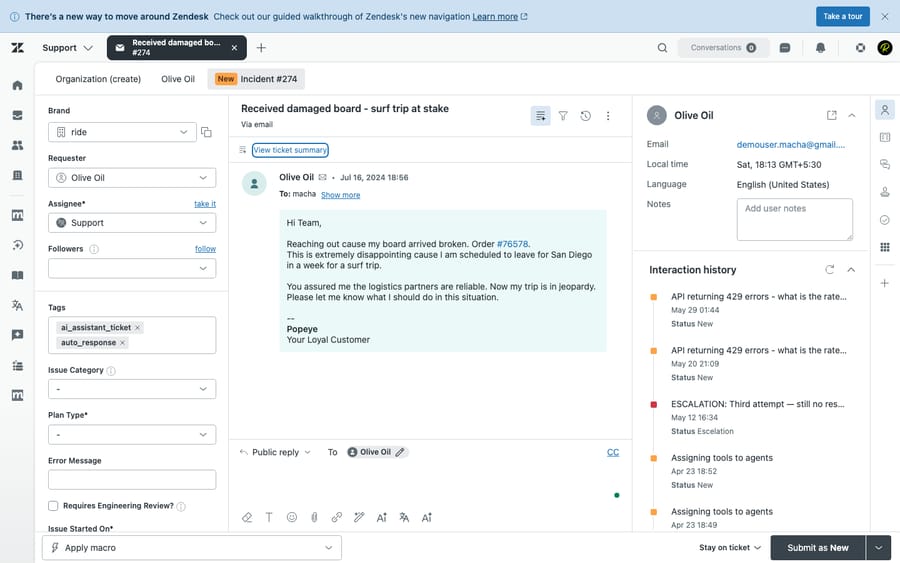
A small but important framing point: you merge from the ticket you're viewing into another ticket. So whatever ticket is open when you start the merge is the one that gets closed. If that feels backwards, just remember: open the throwaway, send it into the keeper.
Step 2: Open the ticket options menu and choose "Merge into another ticket"
In the upper-right corner of the open ticket, click the Ticket options menu (the "more" menu, the icon with the three dots or arrow). From the dropdown, select Merge into another ticket.
This opens the merge dialog, where you'll identify the target and review what's about to happen. Nothing is committed yet, so it's safe to open it and look.
Step 3: Find and select the target ticket
In the merge dialog, point Zendesk at the ticket you want to keep. You have three ways to do it:
- Enter the ticket number directly and click Merge. Fastest if you already know it.
- Select from the requester's open tickets. Handy when the same customer has more than one ticket open.
- Select from your recently viewed tickets. Convenient if you just had the keeper open.
Pick whichever fits, and Zendesk loads a preview of the merge so you can confirm you've got the right target.
Step 4: Clear the warning if requesters, brands, or orgs differ
If the two tickets have different requesters, brands, or organizations, Zendesk shows a warning before it lets you continue. This is a deliberate guardrail: merging tickets from two different people means one person's conversation gets attached to another's.
Read the warning, make sure you're not about to expose one customer's details to another, and if it's genuinely correct, click Continue Merge. (A common, legitimate case is two different email addresses that belong to the same human.) Note that to merge tickets with different requesters, your account needs ticket CCs enabled.
Step 5: Review (and trim) the auto-added private comments
Zendesk automatically adds a comment to both tickets explaining the merge and linking them together, so the trail is never a mystery later. Before you confirm, review them:
- By default these merge comments are private (internal notes). If you want the requester to not see the merge note, leave "Requester can see this comment" deselected.
- You can edit the comment text. If you empty the comment box entirely, Zendesk falls back to displaying the merged ticket's most recent comment instead.
This is the moment to decide how visible the merge should be. For an internal cleanup of two duplicates, keeping the notes private is usually right.
Step 6: Confirm and merge
When everything looks right, click Confirm and merge.
That's it: the merge runs immediately. Before you click, take this seriously: a merge cannot be undone. There is no "un-merge" button in Zendesk. If you target the wrong ticket, the only remedy is manual cleanup, and the closed ticket stays closed.
What happens to both tickets after a merge?
Once you confirm, here's the exact result:
- The ticket you merged from is set to Closed. It's no longer editable, and it picks up the system tag
closed_by_merge, so you (and your reports) can identify merged-away tickets later. - A linking comment is added to both tickets, so each one points to the other.
- The requester of the closed ticket becomes a CC on the surviving ticket, so they stay in the loop on the conversation that continues.
- Only the most recent public comment from the closed ticket transfers across with the merge link (and note that HTML formatting is lost in transferred content, which comes over as plain text).
- The requester is notified per your settings. Whether the customer sees anything depends on how you set the comment visibility in Step 5 and your account's notification triggers.
The surviving ticket keeps its own fields and assignee; you continue the conversation there as normal.
How do you merge several tickets at once?
The six steps above merge one ticket. Zendesk also documents a bulk merge from a view, which teams miss because it lives in the bulk-editing article rather than the merging one.
- Open a view and select the tickets you want to merge, individually or with the select-all checkbox.
- Click Merge in the toolbar.
- Enter the destination ticket number, or pick it from the options offered.
- Click Next, edit the merge comments if you want to.
- Click Merge tickets.
Plans: Zendesk's bulk-management article lists the same plans as merging itself: Suite Team, Growth, Professional, Enterprise and Enterprise Plus, and Support Team, Professional and Enterprise. The same permanence rule applies, in Zendesk's words: "Ticket merges are final. You cannot undo or revert a ticket merge." Worth knowing that the 100-ticket ceiling documented for bulk editing is a bulk update limit, not a documented merge cap.
Why does a merge take seven to ten seconds?
Agents who merge a lot report each one costing several seconds, and this is not their laptop. A merge is not a single database write. Zendesk's own API reference for the merge endpoint, POST /api/v2/tickets/{ticket_id}/merge, says it plainly: "This endpoint returns a job_status JSON object and queues a background job to do the work." The interface merge goes through the same machinery, so the click enqueues a job, the job runs the ticket data through your active triggers, updates the relationships, copies attachments, writes the audit trail and applies permissions. There is a queue between your click and the result, which is also why a heavy trigger set makes merging noticeably slower: every trigger that evaluates on that update is work the job has to do before the merge lands.
Do the arithmetic on your own volume before deciding whether to care. At 200 merges a day and 10 seconds each, that is 33 minutes a day, or close to three hours a week across the team. At 10 merges a day it is under two minutes and not worth automating.
Four ways to spend less time on it
1. The customer context panel (free, every plan). Open a ticket and the context panel lists the requester's other recent tickets. Spot the duplicate there and merge it before you start typing. No setup, but you are still doing the clicking and still paying the queue latency.
2. Merge suggestions (Copilot add-on). Zendesk surfaces a Related tickets section in the context panel with tickets it believes are duplicates, flagged with a red badge when new suggestions land. You can hover to preview a suggested ticket before committing. This catches the cases a "recent tickets" list misses: the same request arriving on a different channel, or worded differently. Zendesk's documentation puts merge suggestions on "Suite and Support Professional plans and above, with a usage allowance that resets monthly", and it needs the Copilot add-on. A human still confirms every merge.
3. A marketplace app that merges in the background. Three that are live as of September 20, 2026:
| App | Matches on | Price | Notable |
|---|---|---|---|
| Knots Merge Tickets | Requester, subject, order number, ticket ID or any custom field | Free, all Support plans | Matches on field values only, not message content |
| Swifteq Merge Tickets | Subject, description, or a value extracted from either (an order ID, say) | From €59/month | Can merge across different requesters sharing one identifier; sells a one-off backlog cleanup from €199 |
| Playlist Auto Merge | Any ticket field, plus patterns in the subject line | 14-day free trial, then paid | Scheduled jobs merge an existing backlog, not just new arrivals |
Prices checked September 20, 2026 on each vendor's own page. Note the incentive: every one of these makes money from a problem Zendesk has chosen not to solve natively, which is also why their marketing frames duplicates as an emergency. Read the matching rules, not the time-saved claims.
4. Triggers plus the merge API (build it yourself). Store the requester's latest ticket ID in a custom user field, then have a trigger fire a webhook that calls the merge endpoint when a new ticket arrives from that user. It works, and it is crude: a customer who writes in about two genuinely different problems gets them merged into one thread unless you add conditions. This route is community technique rather than a documented Zendesk workflow, so treat it as something you own and monitor. Merges are irreversible, which makes an over-eager rule expensive.
Prevention beats cleanup
Most duplicate volume is created upstream. A visible "you already have an open ticket" check at intake, requiring sign-in on the form, and an internal first-reply SLA that stops customers chasing all cut the number of duplicates that ever reach the queue. Fixing the intake is usually cheaper than automating the cleanup.
Where an AI agent layer fits
Recognizing that two tickets are the same conversation is pattern matching, which is what an AI layer is good at. Macha runs on top of the Zendesk you already have, rather than replacing it: it reads the incoming ticket, notices it looks like an open issue from the same customer, and flags the likely duplicate for an agent to confirm instead of merging silently, because a merge cannot be undone. It handles the tagging and triage around those tickets too.
It bills per ticket: one thread with one person is one charge however many replies it takes, from $299 a month for 750 tickets on published pricing, with setup and monitoring by our team included and $50 of free usage to start. It fits teams whose duplicate volume is measured in hours a week. It is the wrong answer if you merge a handful a day, where the context panel and a human eye are the right amount of machinery, and the honest caveat holds either way: a person should still own the irreversible click.
What mistakes should you avoid when merging?
- Merge into the better-set-up ticket. Fields don't carry over, so make the survivor the one with the correct assignee, group, tags, and priority. The classic mistake is keeping the bare-bones duplicate and losing the context.
- Double-check the requester before clicking Continue Merge. Merging two different people's tickets exposes one customer's thread to another. Only do it when you're sure it's the same human.
- Don't treat merge as "undo-able." It isn't. If you're unsure, link the tickets or add a note first, and confirm the target twice before you commit.
- Decide comment visibility deliberately. Leaving the merge note public when it should be private can send an internal-sounding message to the customer.
- Catch duplicates early. A ticket that's already Solved or Closed can't be the source of a merge, so clean up duplicates while they're still Open or Pending, not days later.
Frequently asked questions
How do I merge two tickets in Zendesk? Open the duplicate ticket (the one you'll close), click the Ticket options menu in the upper-right corner, and select Merge into another ticket. Identify the target (by ticket number, from the requester's open tickets, or from recently viewed tickets), review the auto-added private comments, then click Confirm and merge.
Can I merge a closed ticket in Zendesk? No. A Closed ticket is locked and can't be merged. The ticket you merge from must be less than Solved (Open or Pending). You can, however, merge an unsolved ticket into a Solved ticket, and it won't reopen the Solved one.
Can you un-merge tickets in Zendesk? No. A merge is permanent and can't be undone. There's no un-merge button. If you merge into the wrong ticket, the closed ticket stays closed and you'd have to recreate context manually, so confirm the target carefully before clicking.
What happens to the ticket I merge from? It's set to Closed, becomes uneditable, and gets the closed_by_merge tag. A comment links it to the surviving ticket, its requester is added as a CC on that ticket, and its most recent public comment carries over with the merge link.
Can I merge tickets from two different customers? Yes, but Zendesk warns you first, and you must click Continue Merge to proceed. Without ticket CCs enabled, Zendesk only lets you merge two tickets from the same requester. Only do it when the two requesters are genuinely the same person (e.g. two of their email addresses).
Why don't my tags and fields carry over after a merge? By design. Ticket fields, including Tags, Type, Priority and Status, are not copied from the ticket being closed. Only the fields already filled in on the surviving ticket are kept, which is why you should merge into the ticket that's already set up correctly.
Can you merge multiple tickets at once in Zendesk? Yes. Select the tickets in a view, click Merge in the toolbar, enter the destination ticket number, click Next, then Merge tickets. Zendesk documents bulk merge under managing tickets in bulk, which lists Suite Team through Enterprise Plus and Support Team, Professional and Enterprise.
Why is merging tickets in Zendesk so slow? Because it is asynchronous. Zendesk's merge endpoint "returns a job_status JSON object and queues a background job to do the work", and that job runs the ticket through your active triggers, updates relationships, copies attachments and writes the audit trail. Several seconds per merge is the architecture, not your connection.
Can Zendesk merge duplicate tickets automatically? Not natively. Zendesk offers merge suggestions with the Copilot add-on, on Suite and Support Professional and above, but a human confirms each one. Fully automatic merging comes from marketplace apps such as Knots, Swifteq or Playlist, or from a trigger and webhook calling the merge API yourself.
Does Zendesk have merge suggestions, and what do they cost? Yes, in the Related tickets section of the context panel, flagged with a red badge when new suggestions arrive. They need the Copilot add-on and, per Zendesk's documentation, are "available on Suite and Support Professional plans and above, with a usage allowance that resets monthly".
What is the short version?
Merging tickets in Zendesk is quick: open the duplicate, use the Ticket options → Merge into another ticket menu, pick the ticket you want to keep, review the private linking comments, and click Confirm and merge. The ticket you merged from goes to Closed with a closed_by_merge tag, its requester is added as a CC on the survivor, and the two threads are linked. For a stack of duplicates, select them in a view and use the toolbar's Merge button instead. The one rule to burn into memory: a merge can't be undone, and Closed tickets can't be merged, so pick the right survivor, double-check the requester, and confirm before you commit. For how merging fits the wider workflow, see our Zendesk ticketing system guide and the breakdown of ticket statuses.
Sources: Merging tickets · Managing tickets in bulk · Merging related tickets based on suggestions · Merge Tickets into Target Ticket (API reference)
Merge steps, the bulk-merge flow, the merge-suggestion plan gate and the three app prices were checked against the vendors' own pages on September 20, 2026, and the Zendesk plan and permission details again on September 24, 2026. Zendesk revises its interface periodically, so confirm the labels in your own account before relying on them.
Add AI agents to your Zendesk
Macha reads the ticket, drafts the reply and takes the action, inside the Zendesk you already run.