



 Intercom
 Shopify
 Stripe
 Slack
Slack Notion
 Google Workspace
 Confluence

How Do You Migrate to Freshdesk? Step-by-Step Guide (2026)


Freshdesk imports contacts and companies from a CSV, but tickets need the REST API or a migration service, and knowledge base articles go by CSV to Freshdesk support. Below are the six steps in order, the status and priority codes to map, and the failures that break real migrations.
Key takeaways
- Freshdesk has no native CSV import for tickets, so contacts and companies import via CSV while tickets need the REST API or a third-party migration service.
- Freshdesk codes ticket statuses as 2 for Open, 3 for Pending, 4 for Resolved and 5 for Closed, and priorities as 1 Low through 4 Urgent.
- Freshdesk's contact importer needs Name plus Email or Name plus Phone on every row, and Freshdesk says the account must hold at least 10 tickets first.
- Help Desk Migration lists 100+ platforms it can move to or from Freshdesk and offers a free demo migration on a sample of real data.
- Freshdesk knowledge base articles migrate by emailing a CSV of the current knowledge base to [email protected], where a Freshdesk agent processes the import.

To migrate to Freshdesk, import contacts and companies with Freshdesk's native CSV importer, then move tickets through the Freshdesk REST API or a third-party migration service, because Freshdesk has no native ticket import. Knowledge base articles go a third way: you email a CSV to [email protected] and Freshdesk's team runs the import. Configuration (macros, automations, SLAs) does not migrate at all; you rebuild it. If you are leaving Freshdesk instead, start with how to migrate from Freshdesk, and if you are standing up a new instance with no data to move, pair this with how to set up Freshdesk.
| Data type | Import path | Effort |
|---|---|---|
| Contacts and companies | Native CSV or Excel import | Low |
| Tickets, replies, attachments | REST API or migration service | High |
| Knowledge base articles | CSV emailed to [email protected], or migration service | Medium |
| Custom fields | Recreate by hand first, then map | Medium |
| Macros, automations, SLAs | Not migrated; rebuild | Medium |
Why do teams move to Freshdesk?
Most migrations to Freshdesk trace back to one of a few reasons:
- Cost. Teams leaving Zendesk or another incumbent often cite per-agent pricing creep. Freshdesk's paid plans start at $19 per agent per month on Growth, with Pro at $55 and Enterprise at $89 (Freshdesk pricing, checked 24 September 2026). There is no free plan on the pricing page; new accounts get a 14-day trial of Enterprise.
- Simplicity. Smaller support teams find Freshdesk faster to administer than heavier enterprise suites.
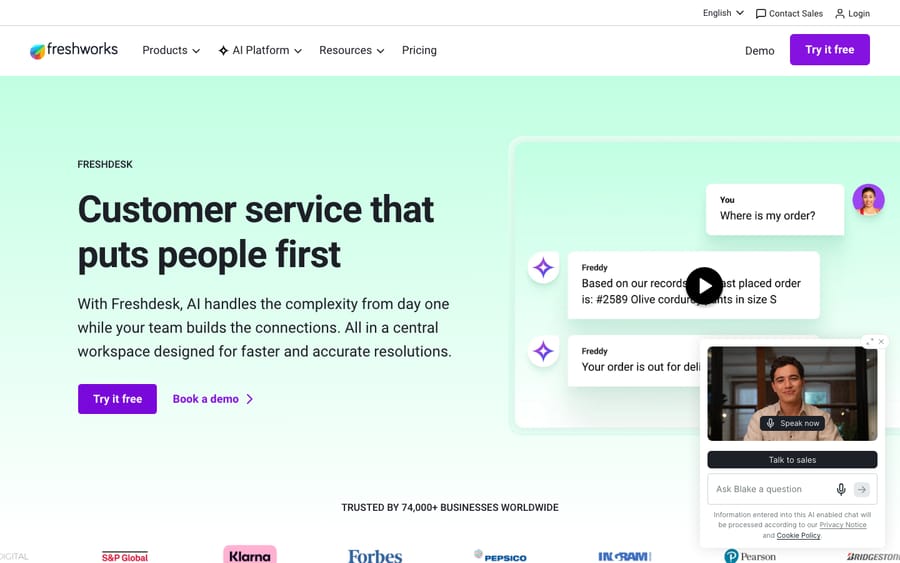
- The Freshworks ecosystem. If you already run Freshsales, Freshchat, or Freshservice, consolidating on one vendor and one bill is appealing, and Freshdesk Omni brings ticketing, chat, and bots into a single omnichannel workspace.
- Channel coverage out of the box. Email, portal, chat, phone (Freshcaller), and social in one place, without a long list of paid add-ons.
Whatever the trigger, the migration mechanics are the same. Start with what you are actually moving.
What data should you bring, and what should you leave behind?
Inventory your source data before you touch Freshdesk. The usual list:
| Data type | Bring it? | How it imports to Freshdesk |
|---|---|---|
| Contacts | Yes | Native CSV/Excel import (Contacts page) |
| Companies | Yes | Native CSV/Excel import (Companies page) |
| Agents | Yes | Added/invited manually, or via API for large teams |
| Tickets (open + recent history) | Selectively | API or a migration service; no native CSV import |
| Ticket conversations/replies | With tickets | API or migration service (watch threading limits) |
| Attachments | With tickets | API or migration service |
| Knowledge base / solution articles | Yes | Email a CSV to Freshdesk support, or migration service |
| Custom fields | Yes | Recreate in Freshdesk first, then map on import |
| CSAT / satisfaction history | Optional | Migration service only; often left behind |
| Macros / automations / SLAs | Rebuild | Not migrated; reconfigure natively |
Two judgment calls are worth making early. First, how much ticket history do you actually need? Migrating five years of closed tickets is slow, expensive on per-record migration tools, and rarely useful. Many teams import only open and pending tickets plus the last 3 to 12 months of closed ones, and keep a read-only export of the rest as an archive. Second, don't try to migrate configuration. Macros, automation rules, SLA policies, and dispatch'r workflows don't port cleanly between platforms. Rebuild them natively in Freshdesk using your old setup as a reference. Treat migration as data, and the new instance as a fresh, better-organized configuration.
Step 1: How do you set up the Freshdesk destination first?
Migrate into a configured instance, not an empty one. Before importing a single record:
- Create your Freshdesk account and pick the plan you'll actually run on. The 14-day trial runs on Enterprise, so confirm that the features your import and automations rely on are in the plan you will pay for (see our API guide for auth and rate limits).
- Add your agents and groups so tickets have someone to be assigned to.
- Recreate your custom fields under Admin → Support Operations → Ticket Fields and Customer Fields. This is mandatory: Freshdesk's docs say custom fields in your CSV must be added to Freshdesk before you import.
- Set up your email channel (forwarding/mailbox) and business hours, but leave outbound notifications and automations off until after the import (the reason is under pitfalls below).
The full walkthrough lives in how to set up Freshdesk; do that first, then come back here for the data.
Step 2: How do you map fields before you export anything?
Mapping is where migrations succeed or fail. Build a simple spreadsheet that lines up every source field with its Freshdesk equivalent. The fields that always need attention:
- Statuses. Freshdesk's defaults are integer-coded:
2 = Open,3 = Pending,4 = Resolved,5 = Closed. Decide how each of your source statuses maps in (for example Zendesk's "Solved" → Resolved, "Pending"/"On-hold" → Pending). - Priorities. Freshdesk uses
1 = Low,2 = Medium,3 = High,4 = Urgent. Map your source scale onto those four. - Agents. Match by email address. Every imported ticket and reply needs to resolve to a real Freshdesk agent, so create the agents first and keep an email-to-email lookup.
- Custom fields. Map each one to the field you created in Step 1; note the data type (text, dropdown, number) so values import cleanly.
- Companies/organizations. Decide whether company associations come in via the contact import (Freshdesk auto-creates a company if the name doesn't exist) or are pre-loaded via the Companies import.
Write this mapping down. It becomes the spec for both your CSV columns and any migration tool's field-mapping screen.
Step 3: How do you import contacts and companies?
This is the easy, well-supported part. Freshdesk has built-in CSV and Excel import for both, per its docs:
- Log in as an administrator and go to the Contacts page (or Companies) and click Import.
- Upload your CSV/Excel file. The first row must be column headers, and CSVs should be UTF-8.
- Map columns to Freshdesk fields, including any custom fields you created in Step 1.
- Review the alignment and run the import. If a contact already exists, Freshdesk updates that record with the file's data.
- Check the confirmation of imported contacts.
A few rules that trip people up, straight from Freshdesk:
- Each contact row must have Name + Email, or Name + Phone; rows missing both are skipped.
- Freshdesk's article says your account needs at least 10 tickets before a contact import succeeds, so a brand-new, empty instance can fail here. Create a few test tickets first.
- Custom fields must already exist in Freshdesk before import (Step 1).
- Format phone numbers with the country code (for example
+14088481234) so the phone channel recognizes them. - If a row's company name doesn't exist yet, Freshdesk creates it. That is handy, but it means typos spawn duplicate companies. Clean your data first.
- Freshdesk's articles don't publish a file size or row limit, so split very large lists into batches and check each result before running the next.
Import companies first (or include a clean company column on the contact file), then contacts, so associations land correctly.
Step 4: How do you import tickets into Freshdesk?
Here's the part that surprises people: Freshdesk has no native CSV or bulk import for tickets. The Contacts/Companies importer doesn't cover them. You have two real options (confirmed in Freshworks' community):
Option A: the Freshdesk REST API. Write a script that reads your exported tickets and creates them via POST /api/v2/tickets, then adds each reply or note via the conversations endpoint. This gives you full control and no per-record fee, but it's a real engineering task. See how to use the Freshdesk API for auth, endpoints, and rate limits. Know these limitations before you commit:
- You generally can't set arbitrary created/updated timestamps on imported tickets via the regular API, so imported tickets tend to carry their import date, not the original date.
- You can't post agent replies as anyone other than the agent whose API key you're using, so multi-agent conversation history collapses onto one author unless you loop credentials.
- The regular API may send notification emails to customers when you create replies, which is exactly what you don't want during a bulk backfill.
Option B: a migration service. Help Desk Migration is a third-party service that lists 100+ platforms it can move to or from Freshdesk, including Zendesk, Jira Service Management, HubSpot, and Salesforce Service Cloud (supported list). It moves tickets, conversations, contacts, companies, agents, knowledge base, attachments, and custom fields, and offers a free demo migration on a real sample of your data before you commit. Services like this handle the threading, attachments, agent mapping, and timestamp preservation that the raw API struggles with. Pricing is typically by record volume, so get a quote for your ticket count; for anything beyond a few hundred tickets it usually beats weeks of scripting. (Other established services like Import2 do the same job.)
Rule of thumb: a few hundred tickets and an engineer on hand → the API may be fine. Thousands of tickets, multiple agents, attachments, and timestamp fidelity that matters → use a migration service.
Step 5: How do you import your knowledge base?
Solution (KB) articles have their own path. The official route, per Freshdesk, is to email a CSV of your current knowledge base to [email protected]; one of their agents checks the data and processes the import. Freshdesk's article doesn't list required columns, so include title, body, category, folder, status, and tags, and confirm the format with the support agent who picks up your request. For larger or richer knowledge bases, the migration services from Step 4 move articles, folders, and categories, including HTML body, attachments, and publication status, automatically. Either way, plan to re-check internal links between articles afterward, since URLs change with the platform.
Step 6: How do you validate before you cut over?
Run a test migration on a sample first if your tool supports it (most do). Then validate against your source:
- Counts match: tickets, contacts, companies, and articles within expected tolerances.
- A handful of spot-checked tickets show the right requester, agent, status, priority, full conversation thread, and attachments.
- Custom field values carried over and landed in the right fields.
- Agent assignments resolve to real Freshdesk agents (no orphaned tickets).
- KB articles render correctly and inter-article links work.
Fix mapping issues and re-run rather than patching by hand.
What goes wrong in Freshdesk migrations?
These are the failure modes that show up again and again:
- Threading. API-created conversations can flatten multi-party threads. Verify reply order and authorship on sample tickets; this is the single biggest reason teams choose a migration service over the raw API.
- Timestamps. Imported tickets often show the import date, not the original. If "when did this come in" matters for reporting or SLA history, you need a tool that preserves original timestamps; the regular API generally won't.
- Agent/ID mapping. Tickets reference agents by ID; if an agent doesn't exist in Freshdesk yet, the ticket lands unassigned or fails. Create all agents first and map by email.
- Notification storms. Importing replies through the live API can fire customer emails. Disable outbound notifications and automations during the import window, then re-enable.
- Custom fields missing. Import drops values for fields you didn't pre-create. Build them in Step 1.
- Empty-account contact import. The 10-ticket minimum above catches teams who import contacts on day one. Seed a few tickets first.
- Downtime / dual-running. Decide your cutover model: a hard switch (freeze the old system, migrate, go live) or a parallel period (run both briefly). Communicate the support email or portal change to customers either way.
- Duplicate companies. Auto-creation on typo'd company names spawns duplicates, so clean source data before import.
What should you add once you're on Freshdesk?
Once your tickets, contacts, and knowledge base are settled in Freshdesk, the next lever isn't another data move. It's drafting and resolving the repetitive tickets automatically. Freshdesk's own Freddy AI Agent comes with a one-time allowance of 500 sessions per account, then charges $49 per 100 sessions. An AI agent layer like Macha is the other route. Macha isn't a help desk and isn't a Freshdesk replacement: it runs on top of the help desk you already use (Zendesk, Freshdesk, Gorgias, Front, HubSpot or Intercom, Freshdesk included), using its API plus your freshly migrated knowledge base to triage, draft, and resolve routine tickets, while anything it's unsure about stays a normal ticket for a human with full context attached. See Macha on Zendesk for how the model works on one desk. The trade-offs: it's another integration to configure, and it's only as good as the KB you point it at, which is why right after a migration, with clean articles, is a good time to evaluate it. Billing is per ticket: one conversation, charged once however many steps it takes, never per resolution. You can try it free with $50 of free usage, about 125 tickets, no credit card required.
What belongs on a pre/post go-live checklist?
Before cutover:
- [ ] Destination configured: plan chosen, agents + groups added, custom fields created, email channel set up.
- [ ] Field mapping spreadsheet complete (statuses, priorities, agents, custom fields).
- [ ] Source data cleaned (dedupe contacts/companies, format phone numbers).
- [ ] At least 10 tickets in the account, then contacts + companies imported and spot-checked.
- [ ] Ticket import method chosen (API vs. service) and test migration validated.
- [ ] KB articles imported; inter-article links checked.
- [ ] Outbound notifications/automations disabled for the import window.
At/after cutover:
- [ ] Full ticket import run and validated (counts, threads, timestamps, attachments, assignments).
- [ ] Notifications/automations, SLA policies, macros, and dispatch rules rebuilt and re-enabled.
- [ ] Email forwarding / portal pointed at Freshdesk; customers notified of any new support address.
- [ ] Agents trained on the new workspace; a few live tickets handled before announcing widely.
- [ ] Old system kept read-only as an archive for an agreed window.
- [ ] Reporting/dashboards rebuilt; AI layer evaluated against the migrated KB if relevant.
Frequently asked questions
Can I import tickets to Freshdesk from a CSV? No. Freshdesk's native importer covers contacts and companies, but not tickets. To bring tickets in you use the Freshdesk REST API (POST /api/v2/tickets) or a third-party migration service such as Help Desk Migration. The API has limits around timestamps, multi-agent replies, and customer notifications, so most teams with more than a few hundred tickets use a service.
How do I migrate from Zendesk to Freshdesk? Recreate your configuration in Freshdesk first (agents, custom fields, channels), import contacts and companies via CSV, then move tickets and KB articles with a migration service. Help Desk Migration lists Zendesk to Freshdesk as a supported route, with agent mapping and a free demo migration. Map Zendesk statuses and priorities to Freshdesk's (Solved → Resolved, etc.) before you start.
Does Freshdesk import contacts and companies natively? Yes. From the Contacts or Companies page, click Import, upload a CSV or Excel file, and map columns. Each contact needs Name + Email or Name + Phone, custom fields must exist beforehand, existing contacts get updated, and the account needs at least 10 tickets for the contact import to succeed.
How do I import my knowledge base into Freshdesk? The official method is to email a CSV of your current knowledge base to [email protected], and a Freshdesk agent checks the data and processes the import. For larger or richer knowledge bases, a third-party migration tool can move articles, folders, HTML content, attachments, and publication status automatically.
Will my ticket timestamps and history be preserved? Not reliably via the raw API: imported tickets often carry the import date, and agent replies can collapse onto a single author. A dedicated migration service is designed to preserve original timestamps and per-agent authorship, which is why it's the safer choice when history matters.
How long does a Freshdesk migration take? Contacts and companies take minutes to hours. Tickets depend on volume and method: a scripted API import is gated by rate limits (and your engineering time), while a migration service runs in the background over hours to a few days for large datasets, with a test run first. Plan a maintenance window for the final cutover.
What's the short version?
Migrating to Freshdesk is two different jobs in one project. Contacts, companies, and the knowledge base have supported import paths: native CSV for the first two, a support-assisted CSV (or migration tool) for the third. Tickets are the hard part: there's no native import, so you either script against the Freshdesk API (fine for small volumes, with real limits on timestamps and threading) or use a migration service for anything serious. Do the boring prep (configure the destination, build your field mapping, clean your data, run a test migration) and the cutover is calm instead of chaotic. Heading the other way instead? See how to migrate from Freshdesk. Starting fresh? See how to set up Freshdesk.
Freshdesk import details checked against Freshdesk's support documentation, the Freshdesk pricing page, and Help Desk Migration's Freshdesk page on 24 September 2026. Freshworks updates its tooling, plans, and limits periodically, so confirm import options and field requirements in your own account before relying on them.
Add AI agents to your Freshdesk
Macha reads the ticket, drafts the reply and takes the action, inside the Freshdesk you already run.





