



 Intercom
 Shopify
 Stripe
 Slack
Slack Notion
 Google Workspace
 Confluence

How Do You Set Up Freshdesk? A Step-by-Step Guide (2026)


Setting up Freshdesk means connecting your support email, adding agents and groups, and setting business hours and SLAs before you add automations and a knowledge base. The basics take under an hour and the full setup takes about an afternoon.
Key takeaways
- Setting up Freshdesk starts with a 14-day Enterprise trial, then connecting your support email with DKIM under Admin, Channels, Email before adding agents and groups.
- Freshdesk's pricing page lists Growth at $19, Pro at $55 and Enterprise at $89 per agent per month billed annually, with no free plan shown.
- Freddy AI Copilot is a $29 per agent per month add-on on Freshdesk Pro and Enterprise, and skill-based routing is Enterprise only.
- Freshdesk SLA policies live under Admin, Workflows, SLA Policies, with an example target of first response within 1 hour and resolution within 24 hours.
- Freshdesk's Priority field is fixed at Low, Medium, High and Urgent because SLA timers key off it, while Type remains a customizable dropdown.

To set up Freshdesk, start a 14-day trial (it opens on the Enterprise plan), connect your support email with DKIM under Admin → Channels → Email, add agents and groups, then set business hours, SLA policies, ticket fields, two automation rules and a starter knowledge base before you run a go-live test. The basics take under an hour; the full list below is an afternoon.
The order follows Freshworks' own admin getting-started guide: the few things you can't skip first, then the polish once tickets are flowing. Freshdesk renames menus and reshuffles plans fairly often, so treat the paths as a map and confirm the exact labels in your own account.
| Freshdesk plan (Sept 2026) | Price, billed annually | What it adds for setup |
|---|---|---|
| Growth | $19/agent/month | Core ticketing, email, portal, knowledge base, automations |
| Pro | $55/agent/month | Group-specific business hours, round-robin assignment, Freddy AI Copilot as a $29/agent/month add-on |
| Enterprise | $89/agent/month | Skill-based routing, plus everything in Pro |
| Freshdesk Omni | $29 / $79 / $119 per agent/month | Omnichannel inbox (chat, phone, social) on Growth, Pro and Enterprise tiers |
Prices are from the Freshdesk pricing page on 24 September 2026. There's no free plan on that page.
If you're still deciding whether Freshdesk is the right tool, start with what is Freshdesk. If you already know it is, read on.
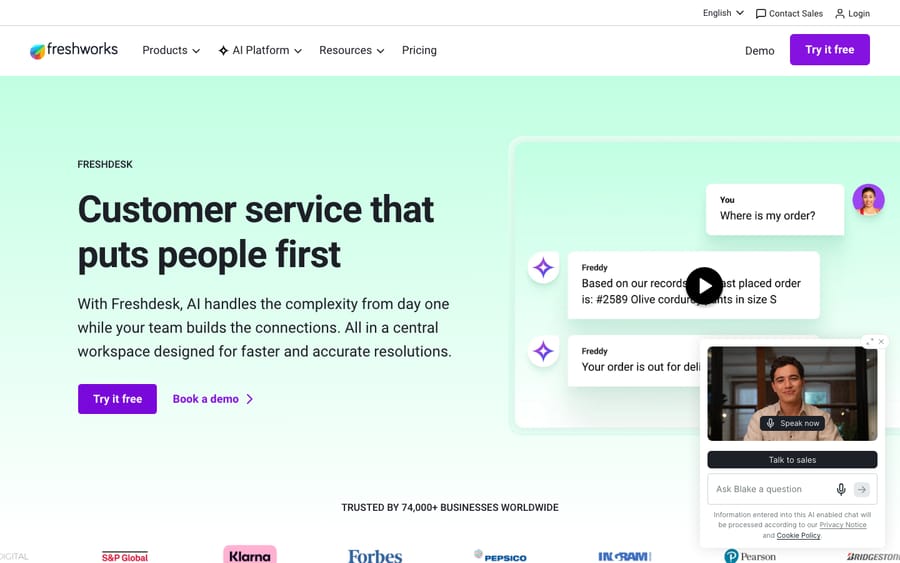
Step 1: Which plan should you start on?
Sign up at freshworks.com/freshdesk and you get 14 days on the Enterprise plan, so you can test the paid features, on a yourcompany.freshdesk.com subdomain. Two early decisions matter:
- Your subdomain. It's baked into your URLs and is awkward to change later, so pick the real company name, not a test string.
- Your plan. The core support tiers are Growth, Pro and Enterprise (table above), with the omnichannel-plus-AI experience sold separately as Freshdesk Omni. The pricing page shows no free plan; Freshworks does run a Free program for up to 2 agents for 6 months. Several features in this guide are plan-gated: multiple business-hour calendars and round-robin assignment need Pro, skill-based routing needs Enterprise, and Freddy AI Copilot is an add-on on Pro and Enterprise. Don't over-buy on day one; Growth is plenty to learn on, and you can upgrade once you hit a wall.
You don't have to lock the plan in before configuring anything else — set up the basics on the trial, then choose.
Step 2: How do you connect your support email?
This is the single most important step, because for most teams email is still the number-one source of tickets. The goal: every message sent to [email protected] becomes a Freshdesk ticket automatically.
- Go to Admin → Channels → Email. You'll see a default support email Freshdesk created at signup (something like
[email protected]). - Click New support email, choose your setup, and pick the Freshworks mail server (the simplest option to start).
- Enter a support email name and your email alias — the
[email protected]address customers will see as the reply-to. - Freshdesk generates a long forwarding address. Copy it, then add a forwarding rule in your real mailbox (Gmail, Microsoft 365, etc.) so inbound mail to
[email protected]is auto-forwarded into Freshdesk. - Complete verification, which includes a DKIM step. DKIM signs your outgoing mail so it isn't flagged as spoofed — skipping it is the most common reason replies land in junk folders.
You can also pick the group that new email tickets get assigned to (set this once you've made groups in Step 4), and add multiple mailboxes later for different products or brands. Details are in Freshdesk's set up your support email and email channel overview docs. Send yourself a test email and confirm a ticket appears before moving on.
Step 3: Set up your support portal and Help Center
Your support portal is the customer-facing site where people search for answers and submit tickets. Even a lightly branded portal makes a real difference to trust. From Admin → Portals (Freshdesk's portal setup and customization area), do the essentials:
- Set a custom portal URL like
support.yourcompany.com(a CNAME) so it doesn't read as a generic Freshdesk subdomain. - Add your logo, favicon, and brand colors, and set your primary language (add more if you support international customers).
- Confirm the "Submit a ticket" form is enabled and shows the fields you want (more on fields in Step 6).
Higher tiers unlock a developer-friendly code editor for full CSS/HTML control of the layout — useful later, but skip it for go-live. The colors-and-logo pass is enough to look professional from day one.
Step 4: How should you organize agents into groups?
Agents are your team members; groups are the queues you route work to (Billing, Tier 1, Technical). Get this in place before you tune automations, because almost everything routes to a group.
- Invite agents under Admin → Team → Agents. Assign each a role (agent vs. admin) and the groups they belong to. If some people only handle tickets occasionally, Freshdesk's occasional agent seat type can save money over full seats.
- Create groups under Admin → Team → Groups → New Group. Give each a name and description, then add agents. On Pro and up, you can attach group-specific business hours here — handy if Billing works 9–5 but Tier 1 covers nights (organize agents into groups).
A simple starting structure — one "General Support" group plus one specialist group like Billing — beats an elaborate org chart you'll outgrow opinions on by week two.
Step 5: How do business hours and SLA policies work together?
These two work together: SLA targets are measured against your business hours, so set hours first.
- Business hours live at Admin → Team → Business hours. Define your working days and times (and time zone). The default calendar is fine for one region; running multiple business-hour calendars for different teams or geographies is a higher-plan feature (configuring multiple business hours; business vs. calendar hours).
- SLA policies live at Admin → Workflows → SLA Policies → Add policy. An SLA sets targets like "first response within 1 hour, resolution within 24 hours," measured per priority (understanding SLA policies). Two things to internalize: SLA timers key off the priority field (so consistent triage is what makes SLAs meaningful), and they pause while a ticket is Pending (so you're not penalized for time spent waiting on the customer). Add escalation rules so an at-risk ticket notifies a lead before it breaches.
Start with one SLA policy covering all tickets; add priority-specific or company-specific policies later.
Step 6: Set up ticket fields and forms
Ticket fields capture the data you route and report on; a ticket form is the set of fields a customer or agent fills in. Freshdesk ships sensible defaults — Status, Priority, Type, Group, Agent — but you'll usually add a few of your own (order number, plan tier, product line) under Admin → Ticket Fields.
- Keep the customer-facing form short — every required field is friction on the submit form.
- Type is a customizable dropdown (Question, Incident, Refund, etc.); Priority is fixed at Low/Medium/High/Urgent because it's wired to SLAs.
- On Pro and up, dynamic sections reveal extra fields only when a certain dropdown option is chosen — e.g. show "order number" only when Type = Refund — keeping forms tidy.
We cover the full anatomy of these fields in the Freshdesk ticketing system explained; for setup, just get the must-have fields onto the form.
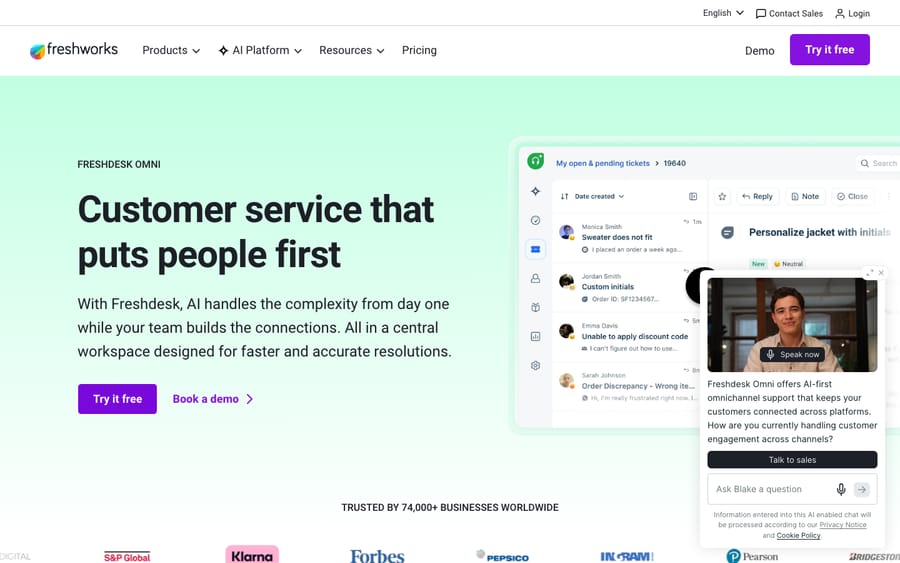
Step 7: Which automations should you add first?
Now that tickets, groups, and fields exist, automate the repetitive triage. Freshdesk's rules are organized by when they run — at creation (classically Dispatch'r), on updates (Observer), and on a schedule (Supervisor) — under Admin → Workflows → Automations. For go-live, two rules earn their keep immediately:
- Route on creation. A "Ticket creation" rule: if subject or description contains "refund"/"invoice" → set Group = Billing, set Type = Refund, add tag
billing. This empties most of your unassigned queue automatically. - Auto-assign within a group. Turn on automatic assignment so new tickets spread across available agents instead of landing on whoever grabs them first. Round-robin needs Pro or Enterprise, and skill-based routing is Enterprise only, per the pricing page.
Resist building a dozen rules on day one. Start with routing and assignment, then add escalation and auto-close once you see real patterns. The full playbook — with example rules, the Dispatch'r/Observer/Supervisor distinction, and pitfalls — is in how to create tickets and automations in Freshdesk.
Step 8: Create canned responses
Canned responses are saved, reusable replies for common questions ("here's how to reset your password…"). Set up a handful under Admin → Canned Responses (or agents can create them on the fly). They're the building blocks of fast replies and of Scenario Automations — one-click bundles an agent applies to run several actions at once. Even five good canned responses noticeably speed up a new team's first week.
Step 9: Seed your knowledge base
A knowledge base does double duty: it deflects tickets and feeds any AI you add later. Freshdesk structures it as categories → folders → articles (setting up your knowledge base).
- Create a few top-level categories that mirror how customers think — Getting Started, Billing, Troubleshooting.
- Publish your 10 most-asked questions as articles before go-live. Don't wait for a perfect library; ship the FAQs you answer daily and grow from there.
- Confirm published articles show on your portal so the search box actually returns results.
For the deeper structure-and-SEO treatment, see the Freshdesk knowledge base explained.
Step 10: Connect additional channels
Email and the portal cover most teams at launch. Add the rest under Admin → Channels as demand warrants:
- Chat / messaging — embed the widget on your site or app so live conversations become tickets.
- Phone — Freshdesk telephony logs calls and voicemails as tickets.
- Social — connect Facebook, Instagram, and WhatsApp so messages and mentions flow into the same queue.
The full omnichannel-plus-AI experience is packaged as Freshdesk Omni, priced separately from the core support plans, so what's available depends on your product and tier. Add channels one at a time and confirm each creates tickets correctly before announcing it to customers.
Step 11: What should you test before go-live?
Before you point customers at your new support address, walk this list:
- [ ] Send a real test email to
[email protected]and confirm a ticket is created and assigned to the right group. - [ ] Reply from inside Freshdesk and confirm it reaches the customer's inbox (not spam — DKIM verified).
- [ ] Submit a test ticket through the portal form and confirm field values save correctly.
- [ ] Trigger your routing rule with a keyword and confirm the ticket lands in the right group.
- [ ] Check an SLA is attached and the timer behaves (and pauses on Pending).
- [ ] Confirm agents can log in, see their queues/views, and tell Reply (public) from Note (private) apart.
- [ ] Verify the portal shows your branding and that knowledge base search returns articles.
- [ ] Set the default group on your support mailbox so nothing lands unassigned.
Once these pass, you're live.
Where does an AI agent fit after setup?
Once Freshdesk is configured, the natural next question is how much of the queue a human still has to touch. Freshdesk's native Freddy AI helps here: Freddy AI Copilot (agent-assist, a $29/agent/month add-on on Pro and Enterprise) drafts replies, summarizes threads, and suggests fields, while the Freddy AI Agent deflects common questions. The 500 Freddy AI Agent sessions are a one-time allowance per account, then $49 per 100 sessions. Useful — but Copilot still leaves a human to approve and resolve most tickets, and the self-service bot mostly deflects with article content rather than resolving a specific account question end to end.
That's the honest gap an AI agent layer like Macha fills. Macha isn't a helpdesk and isn't a Freshdesk replacement — it runs on top of the Freshdesk you just set up. Connected to your tickets and the knowledge base from Step 9, agents can auto-triage incoming tickets, draft replies for approval, and resolve routine tickets autonomously inside the same ticket — while anything they can't confidently handle stays a normal ticket for a human, with full context attached. The fair caveats: it's another integration to configure, and it's only as good as the knowledge you connect to it. On cost, Macha bills per ticket — one conversation, charged once however many steps the agent takes to finish it — not per resolution. Macha runs on Zendesk, Freshdesk, Gorgias, Front, HubSpot or Intercom; Macha on Zendesk shows how the layer works in practice. Plans start at $299 a month for 750 tickets, with setup and monitoring by the Macha team included, and the trial is $50 of free usage with no credit card required.
What are the common setup mistakes?
A few things that separate a smooth Freshdesk launch from a frustrating one:
- Verify DKIM before go-live. Skipping it is the top reason agent replies land in spam.
- Don't over-engineer groups or rules on day one. Two groups and two automation rules beat an elaborate setup you can't reason about when something misfires.
- Set priority deliberately. If everything is "Medium," your SLAs and escalations are meaningless — let a creation rule set priority from real signals.
- Keep a small, agreed tag vocabulary. Free-for-all tagging breaks the rules and reports that read them.
- Don't assume every feature is on your plan. Multiple business-hour calendars, round-robin, dynamic sections, and Freddy Copilot are gated to higher tiers — confirm before designing around them.
- Seed the knowledge base early. Ten real FAQs deflect tickets immediately and become the foundation for any AI you add later.
Frequently asked questions
How long does it take to set up Freshdesk? The basics — account, support email, a couple of agents, and one group — take well under an hour. A production-ready setup with branded portal, business hours, SLAs, custom fields, automations, and a starter knowledge base is realistically an afternoon. You can launch on the essentials and layer the rest in over the first week.
How do I connect my support email to Freshdesk? Go to Admin → Channels → Email → New support email, choose the Freshworks mail server, enter your support email name and your [email protected] alias, then copy the forwarding address Freshdesk generates and add a forwarding rule in your mailbox (Gmail, Microsoft 365). Complete verification, including DKIM, so outgoing replies aren't flagged as spoofed.
What plan do I need to set up Freshdesk? You can run a complete basic setup on Growth ($19/agent/month billed annually). Pro ($55) adds multiple business-hour calendars, round-robin assignment and the Freddy AI Copilot add-on; Enterprise ($89) adds skill-based routing. There's no free plan on the pricing page, though Freshworks runs a Free program for up to 2 agents for 6 months. The fully omnichannel-plus-AI bundle is sold separately as Freshdesk Omni. Confirm current packaging in your account, as Freshworks adjusts plans periodically.
What's the difference between agents and groups in Freshdesk? An agent is an individual team member who works tickets; a group is a team/queue you route tickets to (e.g. Billing, Tier 1). You assign agents to one or more groups, then route incoming tickets to a group first and to a specific agent second — automatically with assignment rules, or manually.
Do I have to set up business hours before SLAs? It's strongly recommended. SLA targets (first response and resolution times) are measured against your business hours and pause while a ticket is Pending, so defining hours first makes your SLA timers behave as you expect.
Is there a free Freshdesk trial? Yes. New accounts get the Enterprise plan for 14 days, which is long enough to run every step here and the go-live checklist before you pick a paid tier.
Can I set up Freshdesk without coding? Yes. Email, portal branding, agents, groups, business hours, SLAs, fields, automations, canned responses, and the knowledge base are all configured through the Admin UI — no code required. The optional advanced portal code editor exists for teams that want pixel-level control, but it's not needed to go live.
What order should you do it all in?
Setting up Freshdesk is a sequence, not a single switch: create the account and pick a plan, connect your support email (DKIM and all), brand the portal, add agents and groups, set business hours and SLAs, shape your ticket fields, add a couple of automations, save some canned responses, seed a starter knowledge base, and connect channels as you need them — then run the go-live checklist before you announce the new address. Do the basics deliberately and add polish over your first week, rather than trying to perfect everything before you launch.
Once it's running and you start eyeing how much of the queue an agent still has to touch by hand, that's where an AI layer on top of Freshdesk earns its place. From here, go deeper on what Freshdesk is, tickets and automations, and the Freshdesk knowledge base.
Setup flow verified against Freshworks' documentation in June 2026; plans and prices re-checked against the pricing page on 24 September 2026. Freshworks revises its UI, menu paths, and plan packaging periodically — confirm specifics in your own account before relying on them.
Add AI agents to your Freshdesk
Macha reads the ticket, drafts the reply and takes the action, inside the Freshdesk you already run.





