Shopify
 Stripe
 Slack
Slack Notion
 Google Workspace
 Confluence

How to Set Up SSO in Freshdesk (Azure AD / SAML)


Single sign-on turns "one more password for the help desk" into a login your team already has — sign in through Azure AD, Okta, or any SAML identity provider, and Freshdesk trusts that identity instead of storing its own credentials. It is the difference between offboarding an agent in one place versus chasing every SaaS tool they touched, and between enforcing your company's MFA policy everywhere versus hoping people opted in. This guide walks through enabling Freshworks SSO, wiring up an Azure AD SAML app end to end, doing the same with a generic SAML 2.0 provider, swapping metadata when a certificate rotates, and handling the one gotcha that trips most first-time setups: how agents and contacts get provisioned differently.

Where SSO actually lives now
The first thing to know is that Freshdesk SSO is no longer a per-product setting buried in the Freshdesk admin. It moved up to the Freshworks Organization Admin Center, which governs login for every Freshworks product you run under one org. You reach it through the Freshworks Switcher → Admin, then Security → Agents & Employees → Default Login Methods.
That location matters for a practical reason: only Organization Admins can configure SSO. As Freshworks' own documentation states plainly, "Organization Admins are the only ones who can configure SSO." A regular Freshdesk account admin — even one who can build every automation and SLA in the product — will not see the SAML configuration form. If the fields below aren't visible to you, that's the reason, and the fix is a role change, not a settings hunt.
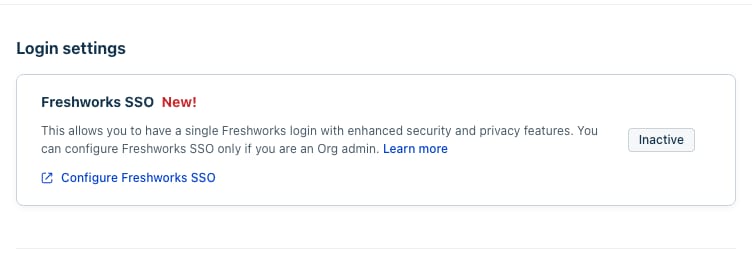
Inside Freshdesk itself, the entry point you can see as an account admin is the Admin → Security page, where "Freshworks SSO" appears as a login method you can point people toward. The card below is that real screen on our demo Freshdesk account.
The SAML fields you'll be mapping
SAML SSO is a handshake between your identity provider (IdP — Azure AD, Okta, OneLogin) and Freshworks as the service provider (SP). Every setup, regardless of vendor, comes down to exchanging the same handful of values. It helps to know them before you start, because the labels differ slightly on each side:
- SAML SSO URL (also called the Login URL) — the IdP endpoint Freshworks redirects users to for sign-in.
- Logout URL — where the IdP sends users after they sign out.
- Entity ID / Metadata ID — the issuer identifier that names each party in the exchange.
- ACS URL (Assertion Consumer Service) — the Freshworks endpoint the IdP posts the signed SAML response back to.
- Security Certificate — the IdP's x.509 public certificate (often pasted as Base64), used to verify that the assertion really came from your IdP. Some IdPs ask you to match a SHA-256 fingerprint of this certificate instead of the full body.
Freshworks can also generate its own metadata file from the SSO configuration page, which you download and import into the IdP so you don't have to type the SP-side values by hand. We come back to metadata in the certificate-rotation section, because it's the cleanest way to keep both sides in sync.
For a plain-English tour of what SSO does and doesn't cover before you touch any of these fields, our Freshdesk SSO explained primer is a gentler starting point.
Set up SSO with Azure AD (Microsoft Entra ID)
Azure AD — now branded Microsoft Entra ID — has a pre-built Freshworks app in its gallery, which makes it the smoothest path. Per Freshworks' Azure AD SAML guide, the flow is:
- In the Azure portal, open Microsoft Entra ID → Enterprise Applications → New application, search the gallery for Freshworks, and add it to your tenant.
- In the app, open Single sign-on → SAML. Under Basic SAML Configuration, set the Identifier (Entity ID) to the SP Entity ID from your Freshworks security settings, the Reply URL to the Freshworks ACS URL, and the Sign-on URL to
https://<your-freshworks-domain>/login. - Under User Attributes & Claims, set the Unique User Identifier (Name ID) to
user.mail— Freshworks expectsNameIdFormat:emailfor SSO, so email must be the identifier, not the Azure object ID. - In the SAML Signing Certificate section, download the Base64 certificate. Note the Login URL and the Azure AD Identifier from the setup panel — you'll need both.
- Back in the Freshworks Admin Center → Security, paste the Azure AD Identifier into Entity ID Provided by the IdP, paste the Login URL into SAML SSO URL, set Signing Options to Only Signed Assertions (the default), and paste the Base64 certificate contents into the Security Certificate box. Save.
- In Azure, assign the people who should have access under the Freshworks app's Users and groups — or toggle User assignment required to No to open it to the whole directory.
Once saved, hit Sign in with SSO on the Freshworks login page to test the round trip before you roll it out to the team.
Set up SSO with a generic SAML 2.0 provider
If your IdP isn't in the gallery — a homegrown ADFS, PingOne, Shibboleth, or anything else that speaks SAML 2.0 — the mechanics are identical; you just copy the values manually. Following Freshworks' SAML 2.0 configuration guide:
- In the Freshworks Admin Center → Security → Agents & Employees → Default Login Methods, choose SAML as the login protocol and pick Others / Custom if your IdP isn't listed.
- Copy the SP-side values Freshworks shows you — the ACS URL and SP Entity ID — into the corresponding fields in your IdP's SAML app. Or download the Freshworks metadata file and import it into the IdP in one step.
- Register a new SAML app in your IdP. Set its audience/entity ID and ACS to the Freshworks values, and configure the Name ID to release the user's email address.
- Copy the IdP-side values back into Freshworks: the SAML SSO URL (login URL), the Logout URL, the Entity ID, and the Security Certificate (or its SHA-256 fingerprint, if that's what your IdP exposes).
- Set Signing Options to Only Signed Assertions and Save, then test with Sign in with SSO.
The single most common mistake here is a mismatched Name ID format. Freshworks keys the user off email, so if your IdP releases a UPN, a persistent GUID, or an unspecified identifier that isn't the email, the login will succeed at the IdP and then fail at Freshworks. Fix the claim, not the certificate.
Swapping metadata and rotating certificates
SAML certificates expire — usually every one to three years — and when a certificate rolls, SSO breaks hard: every login fails at once because the assertion signature no longer validates. Two habits keep this painless.
First, prefer metadata over hand-typed fields wherever your IdP supports it. A metadata URL or file carries the entity ID, endpoints, and certificate together, so when the IdP publishes a new certificate the details flow through without you re-pasting anything. Freshworks lets you both download SP metadata for the IdP and, on the IdP side, many providers offer a federation metadata URL you point Freshworks at.
Second, when you are pasting a raw certificate, schedule the swap. Get the new Base64 certificate (or SHA-256 fingerprint) from the IdP before the old one expires, update the Security Certificate field during a quiet window, and keep a non-SSO org-admin login available as a break-glass account. If you get locked out, that fallback admin is how you get back into the Admin Center to fix the field.
The honest limits — and where an AI layer picks up
Freshworks SSO is solid, standards-based infrastructure, and it does its job well: it authenticates the right people and keeps credentials out of Freshdesk entirely. But it's worth being clear about its edges.
The biggest one is role-gating. Because SSO configuration lives in the Org Admin Center and is restricted to Organization Admins, a Freshdesk account admin genuinely cannot set it up — which is a security-sensible choice, but a real friction point if your Freshworks org admin sits in a different team. Second, provisioning is asymmetric: contacts (requestors) auto-create on their first SSO login, but agents must already exist in Freshdesk before their first login — SSO authenticates, it does not create agent seats. Add the agent first, then let them sign in. Third, native SSO is JIT authentication, not full lifecycle sync; for automated deprovisioning you'll typically layer SCIM on top rather than rely on SAML alone. And plan gating applies — the SAML/custom-IdP options sit on higher Freshworks tiers, so confirm your plan exposes them.
None of that is a knock on Freshdesk — SSO is exactly the deterministic, verifiable layer you want handling identity. What SSO can't do is anything about the work waiting on the other side of the login. It gets an agent securely into the queue; it doesn't help them clear it. That's a different problem, and it's where the broader category of AI agents for customer service comes in — and where it's worth weighing the build-versus-buy tradeoff before you commit.
Macha is one such layer: it runs on top of the Freshdesk you already use as a native connector — it does not replace your help desk, and it has nothing to do with how your people authenticate. You connect Macha to Freshdesk with your subdomain and API key, and it reads and writes the same tickets your agents now reach through SSO: drafting grounded replies, triaging by intent, and looking up order or account status through a custom tool that turns a REST API into something the agent can call. If you want the automation side of the picture in depth, how to automate Freshdesk with AI walks through it. (Macha's connector is for Freshdesk specifically — not Freshchat, Freshservice, or Freshcaller. And credits are consumed per AI action, not per resolution — see the pricing breakdown.) The clean split: let Freshworks SSO own who gets in, and let an agent layer help with what happens once they're there.
FAQ
Where do I configure SSO for Freshdesk? In the Freshworks Organization Admin Center, not the per-product Freshdesk admin. Open the Freshworks Switcher → Admin → Security → Agents & Employees → Default Login Methods. Only Organization Admins can configure it; the entry point visible inside Freshdesk itself is Admin → Security → Freshworks SSO.
Which Azure AD values map to which Freshworks fields? Paste the Azure AD Identifier into Entity ID Provided by the IdP, the Azure Login URL into SAML SSO URL, and the Base64 signing certificate into Security Certificate. In Azure, set the Reply URL to the Freshworks ACS URL and the Unique User Identifier to user.mail.
Why does my SSO login fail even though Azure says it succeeded? Almost always a Name ID mismatch. Freshworks expects the identifier to be the user's email (NameIdFormat:email). If your IdP releases a UPN or object GUID instead, authentication succeeds at the IdP and then fails at Freshworks. Fix the claim mapping.
Do agents get created automatically on first SSO login? No. Requestors/contacts auto-create on their first login, but agents must be added to Freshdesk before their first SSO login. SSO authenticates existing agent seats; it does not provision them.
Can I add AI to Freshdesk without touching how people log in? Yes. An AI agent layer like Macha connects to Freshdesk as a native connector and works on the same tickets your SSO-authenticated agents handle. It's independent of your identity provider — SSO owns authentication, Macha helps with the work once agents are in.
Ready to help your agents clear the queue, not just log into it? Start a free trial of Macha and connect it to your Freshdesk in minutes.
Add AI agents to your Freshdesk
Macha reads the ticket, drafts the reply and takes the action, inside the Freshdesk you already run.