



 Intercom
 Shopify
 Stripe
 Slack
Slack Notion
 Google Workspace
 Confluence

How Do You Set Up Zendesk AI Agents (Formerly Answer Bot) in 2026?


Zendesk Answer Bot is now Zendesk AI agents, and you set one up from the AI agents workspace dashboard with Create AI agent, choosing messaging, email or voice. The legacy bot builder, AI agents Essential and email autoreplies with articles all stop working on December 10, 2026.
Key takeaways
- Zendesk AI agents are created from the AI agents workspace by clicking Dashboard, then Create AI agent, and choosing messaging, email or voice as the channel.
- Zendesk removes AI agents Essential, the legacy bot builder and email autoreplies with articles on December 10, 2026, and any AI agent left on them stops working.
- Zendesk's May 11 to June 12, 2026 rollout removed the Essential and Advanced split, putting agentic AI agent capabilities into every Suite and Support plan.
- Each Zendesk AI agent works on only one channel type, and email AI agents must use generative procedures because dialogues are not available on email.
- Zendesk bills AI agents per automated resolution after a monthly allowance of $2, $5 or $10 per agent seat, depending on the Suite plan.

To set up a Zendesk AI agent (the product that replaced Answer Bot), open the AI agents workspace, click Dashboard, then Create AI agent and pick the channel it serves: messaging, email or voice. From there you connect a brand's help center, name the agent and set its tone, customize the greeting and escalation replies, test it, and activate it on the channel. Everything below is checked against Zendesk's own documentation as of September 2026, because this is a topic where most of what's online is out of date: the old Answer Bot-era tools, including the rule-based bot builder, AI agents Essential and email autoreplies with articles, are all removed on December 10, 2026.
| Step | Where | What you do |
|---|---|---|
| 1. Prepare knowledge | Help center | Clean up the articles the agent will answer from |
| 2. Set up the channel | Admin Center (messaging, email, web form, voice) | The channel must exist before the AI agent can use it |
| 3. Create the AI agent | AI agents workspace → Dashboard → Create AI agent | Brand and knowledge, name, tone, languages, system replies |
| 4. Add use cases and procedures (optional) | AI agent settings | Topics, generative procedures or dialogues, actions, API integrations |
| 5. Test and activate | Creation flow, then the live channel | Test replies and the handoff, then turn it on |
| 6. Measure | AI agents reporting dashboard | Automated resolutions, CSAT, escalations |
What happened to Zendesk Answer Bot?
A 60-second history, because the names genuinely matter when you're clicking through the admin:
- Answer Bot (2017–2024) was Zendesk's article-suggestion bot. It matched a customer's question to your help-center content and replied with relevant articles. Useful, but it deflected; it didn't converse.
- AI agents is the current umbrella term. In 2024 Zendesk consolidated Answer Bot and its rule-based bot builder into the "AI agents" branding. The rule-based "bot builder, answers, and intents" experience (what many people called Flow Builder) was marked legacy on February 2, 2025, and email autoreplies with articles followed on July 31, 2025.
- Until 2026 there were two flavors, Essential and Advanced. That split is now gone, but you'll still see it in older tutorials:
| AI agents — Essential | AI agents — Advanced | |
|---|---|---|
| What it is | The included/bundled bot — the direct descendant of Answer Bot + Flow Builder | A more autonomous bot, powered by Ultimate (the vendor Zendesk acquired, announced March 13, 2024) |
| How it works | Grounded in your help center; suggests articles + scripted/generative replies | Agentic dialogues, multi-step procedures, actions and API integrations |
| Status in 2026 | Legacy since May 11, 2026; removed December 10, 2026 | Capabilities now included in every Suite and Support plan |
| Cost | Included with Suite/Support plans | Historically a paid add-on |
What changed in 2026. In a March 30, 2026 announcement, "Announcing expanded access to AI agent capabilities for all Zendesk customers," Zendesk said it was removing the Essential/Advanced split and bundling Advanced capabilities (agentic reasoning, generative procedures, external API integrations) into Suite and Support plans. The rollout ran from May 11 to June 12, 2026. A June 23, 2026 announcement then set the end dates for the old stack: development stopped on August 31, 2026 (maintenance mode, critical fixes only), and on December 10, 2026 AI agents Essential, the bot builder and autoreplies with articles are removed, and any AI agent still on that technology stops working. Since May 11, 2026, only accounts that already had an Essential agent can open it at all. Net effect: if you're setting up today, you're building on the newer agentic AI-agent experience, and all newly created AI agents use agentic AI by default.
For the bigger picture of what Zendesk's AI does across the product, see our explainer on Zendesk AI.
What do you need before you start?
A few things save you a mid-setup detour:
- The right role. You must be a client admin in the AI agents workspace to create an AI agent.
- A populated knowledge source. AI agents answer from a brand's help center or an external knowledge base (a web crawler works too). If your knowledge base is thin or written in internal jargon, the agent has nothing good to say. Clean, customer-language articles are the single biggest lever on answer quality.
- A channel to put it on. The channel has to exist first: a messaging channel (Web Widget or mobile SDK), an email address, an API or web form channel, or a phone line for voice (which needs a Zendesk voice plan). If you haven't turned messaging on yet, do that first; our Zendesk messaging setup guide covers it.
- A supported plan. AI agent functionality is available across Zendesk Suite (Team, Growth, Professional, Enterprise, Enterprise Plus) and Support (Team, Professional, Enterprise).
How do you create a Zendesk AI agent?
Each AI agent works on one type of channel. One agent can't cover both messaging and email, so a team that wants both builds two. The creation flow is the same shape for each:
- Open the AI agents workspace and click Dashboard in the sidebar.
- Click Create AI agent and choose for Messaging, for Email or for Voice.
- On Power your AI agent with knowledge, select one brand. That brand's knowledge base connects automatically.
- On Personalize your AI agent, set the name (it defaults to "<brand> AI agent" and shows at the top of the Web Widget), a one- or two-sentence business profile, the tone of voice and the supported languages.
- Customize the system replies: the greeting and the default reply, and tick Add option to talk to a human and escalate so a handoff exists from day one.
- Test it, then activate it on the channel, or save and close to configure more before going live.
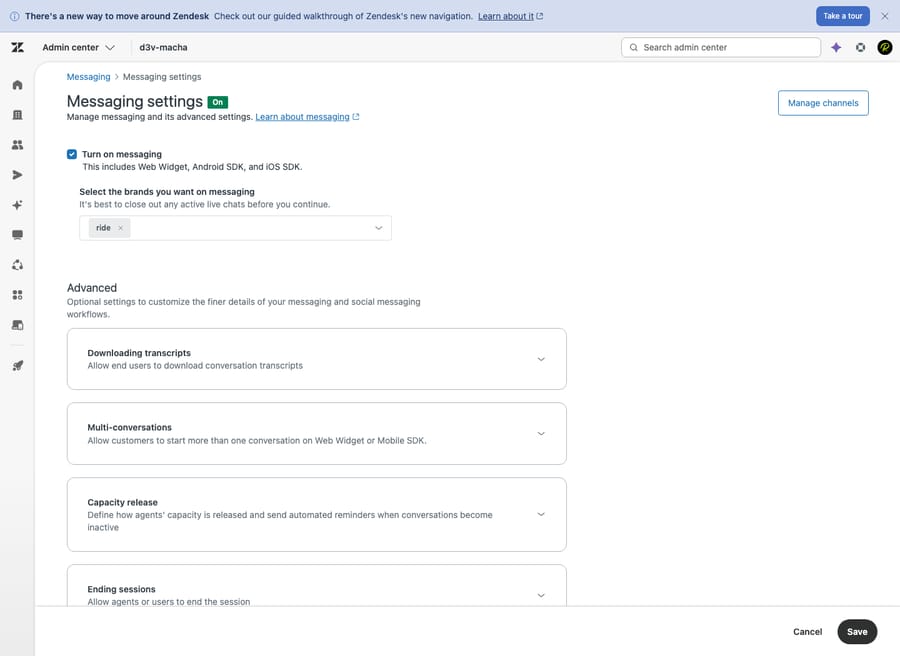
Older guides send you to Admin Center → Channels → AI agents and say that turning on messaging creates a default AI agent automatically. Both describe the legacy Essential experience. On a new setup, start from the AI agents workspace dashboard.
How do you build the conversation flow?
An agent built with only the creation flow already answers questions with AI-generated replies from your knowledge base. The extra configuration is what turns it from a smart search box into something that resolves requests. The pieces, in Zendesk's order:
- The greeting. The first message a customer sees. Make it specific: "Hi! Ask me about orders, returns, or your account" beats "How can I help?" because it primes better questions and signals what the agent can actually do.
- Use cases. These are the topics customers need help with, such as order returns or refund requests. The agent uses them to recognize what a customer is asking and pick the right flow. With no use cases, it answers only from your knowledge sources.
- Generative procedures or dialogues. For each use case, choose a generative procedure (a written, flexible flow the agent adapts to the conversation while following your policy) or a dialogue (a scripted, branching flow with buttons and fixed steps). Procedures need less setup and maintenance; dialogues give more control. Email AI agents can't use dialogues, only procedures.
- Actions and API integrations. Actions let the agent do things during a conversation, like read session or CRM details, and API integrations let it look up or update data outside Zendesk, such as an order status. This is how you handle "track my order" end to end.
- Business hours. Branch on whether your team is online. Off-hours, set the right expectation ("We're away until 9am, leave your email and we'll follow up") instead of implying a human is standing by.
- Handoff to a human. The most important branch. Define when the agent gives up, through a "talk to a person" option or an automatic escalation when it can't answer, so the conversation transfers to an agent and lands as a ticket with the full transcript attached. An AI agent that can't gracefully hand off is worse than no bot.
A note on the old rule-based builder: the legacy "answers and intents" Flow Builder still runs for accounts that already use it, but it's in maintenance mode and disappears on December 10, 2026. Don't build anything new there.
How do you connect the AI agent to messaging and email?
An AI agent only does something once it's active on a channel, and the two main surfaces behave differently.
Messaging (Web Widget and mobile SDK). This is the conversational agent. Only one AI agent can be active on a given messaging channel at a time. For multi-brand accounts, each brand can run its own AI agent with its own greeting and flows. (Setting up the underlying Web Widget and mobile channels is covered in the messaging setup guide.)
Email, API and web form. This is the part people forget. You create a separate AI agent for Email, attach it to one address or web form, and it replies to incoming tickets itself, using generative procedures, before a human picks them up. It replaces the old autoreplies with articles, which only suggested up to three help-center articles and is removed on December 10, 2026. If a chunk of your volume still arrives by email, an email AI agent is where the Answer Bot habit of "reply with a link" grows into an actual answer.
The payoff of connecting both: the same knowledge base powers your widget conversations and your email replies, so customers get consistent answers regardless of how they reached you.
How do you test a Zendesk AI agent before launch?
Never announce a bot you haven't broken yourself. Run the full loop:
- Test in the creation flow. Zendesk offers a test step while you create the agent. Ask it the five questions you get most and check the answers against your articles.
- Test on the live channel. Load the Web Widget on a staging or live page, open it, and ask a question the agent should handle. Confirm it answers correctly and cites the right content.
- Force a handoff. Ask something deliberately out of scope. Verify the agent escalates, the conversation becomes a ticket in the Agent Workspace, and it's routed to the right group with the transcript attached. (If you're fuzzy on how tickets are created and routed, see how the Zendesk ticketing system works.)
- Check off-hours behavior. If you set business-hours branching, test it outside your hours so the away message actually fires.
Most "the bot isn't working" reports trace back to three things: the widget snippet isn't on the page, the help center the agent draws from is empty, or the handoff was never configured.
How do you measure what the AI agent resolves?
A live agent isn't a finished agent. Zendesk's AI agents reporting dashboard shows automation metrics and the value of AI agent outcomes, so you can tell deflection theater from real resolution.
- Automated resolutions. This is the headline metric and, importantly, the billing unit. Zendesk replaced the old per-bot and monthly-active-user "Answer Bot resolutions" model with automated resolutions: requests the AI agent resolved without escalating to a human. (Zendesk's "Moving to automated resolutions" guidance covered the conversion; it now sits behind a Zendesk sign-in.)
- CSAT. Track satisfaction on AI-handled conversations specifically. An agent can "resolve" a ticket by exhausting the customer's patience; CSAT is the honesty check.
- Handoff and escalation rate. How often the agent punts. Rising escalations usually mean a knowledge gap you can close with a new article or procedure.
How much do Zendesk AI agents cost?
This is where teams get surprised. Zendesk's pricing page says AI agents are included in every Suite and Support plan and billed per automated resolution. Its plan comparison table lists the included allowance as a count, 5 automated resolutions per agent a month on Support Team and Suite Team and 10 on Suite Professional (up to 10,000 a year). Zendesk's help center describes the same allowance in dollars, in place since May 18, 2026: $2 per agent seat on Suite Team, $5 on Suite Growth and Professional, and $10 on Suite Enterprise (Support plans get $2), capped at $5,000 a year. You spend it on any resolution tier, then pay for the rest. (Source: Zendesk's Managing resolution allowances.)
The rate is on the same pricing page: the plan comparison table lists $1.50 per automated resolution on a committed plan and $2.00 pay-as-you-go. Earlier analyses, such as eesel AI's setup-and-costs guide, cited lower figures, so confirm the number in your own quote. Do the arithmetic for a 10-seat Suite Professional team: the allowance is 100 included resolutions a month in the pricing table, or $50 a month in the help center's dollar terms, and your account's usage summary shows how much of it you have used. Past that, your cost scales with the number of issues the agent closes. Notice the incentive: the vendor earns more the more tickets its bot claims as resolved, so how "resolved" is defined matters. Model it against your conversation volume before you commit.
Where does Macha fit in?
Now the direct part, since you're here for AI specifically. Zendesk's AI agent is good at two things: answering from your help center, and running the procedures and dialogues you've written ("track my order," "reset password"). Where it tends to stall is the long tail: questions whose answer lives in a past ticket, a policy doc or another system, and that don't map to a tidy use case. Those still escalate.
That's the gap Macha is built for, and it's worth being precise about what Macha is and isn't. Macha is not a help desk and not a Zendesk replacement. It's an AI agent layer that runs on top of Zendesk, Freshdesk, Gorgias, Front, HubSpot or Intercom, another integration you connect, plainly. Instead of only answering from articles or escalating, it reads the actual question, pulls from your connected knowledge and past tickets across channels, and resolves the issue inside the same thread. It then does the ticket housekeeping (tagging, status, routing) and hands off to a human, with context attached, when it isn't confident.
The pricing model differs too. Zendesk bills per automated resolution. Macha bills per ticket: one conversation, charged once, however many steps it takes (drafting a reply, tagging, routing, looking something up, resolving), not per automated resolution. Most automation isn't one clean "resolution," so a flat charge per conversation is easier to forecast than a bill that hangs on an outcome definition you don't control. Whether that's cheaper for you depends on your volume. Pricing starts at $299 a month for up to 750 tickets, about $0.40 each, with setup and monitoring by the Macha team included, so model both.
The honest caveat: Macha is only as good as the knowledge you connect, and it's one more thing to configure and maintain. If your volume is mostly repetitive questions your help center could answer, Zendesk's built-in agent may be plenty. If you keep hitting its ceiling, that's the line where a layer like Macha earns its place. You can try it free: $50 of free usage, no credit card required.
What are the common setup mistakes?
- Fix your help center first. An agent grounded in thin or jargon-heavy content will confidently give wrong answers. Knowledge quality is the ceiling on answer quality.
- Configure the handoff before the greeting. Everyone perfects the welcome message; the escalation path is where setups actually fail. Test it first.
- Build an email AI agent, not just messaging. If email is a big channel for you, one agent on the widget leaves most of your volume untouched, and legacy autoreplies stop on December 10, 2026.
- Watch automated resolutions and CSAT together. A high resolution count with sinking CSAT means the agent is closing tickets by frustrating people, not helping them.
- Migrate off the legacy stack now. Anything still on the bot builder, Essential or autoreplies with articles stops working on December 10, 2026. Rebuild it in the current AI agents workspace.
- Model the billing before you scale. Per-resolution pricing is cheap at low volume and material at high volume. Know your number.
Frequently asked questions
Is Zendesk Answer Bot still a thing? Not under that name. Answer Bot was Zendesk's 2017 article-suggestion feature; it was folded into AI agents in 2024, and the old rule-based bot builder became legacy on February 2, 2025. Its last descendants, AI agents Essential and email autoreplies with articles, are removed on December 10, 2026. If a tutorial tells you to enable "Answer Bot," create an AI agent from the AI agents workspace dashboard instead.
Where do I set up a Zendesk AI agent? In the AI agents workspace: click Dashboard, then Create AI agent, and choose messaging, email or voice. You need to be a client admin in AI agents, and the channel must already exist.
What's the difference between AI agents — Essential and Advanced? Essential was the included bot grounded in your help center (the Answer Bot/Flow Builder descendant). Advanced was the more autonomous, Ultimate-powered add-on with dialogues, actions and API integrations. Zendesk removed the split in its May 11 to June 12, 2026 rollout: Advanced capabilities are now in every Suite and Support plan, and Essential is removed on December 10, 2026.
Is the Zendesk bot free? AI agent functionality is included across Suite and Support plans, but usage is billed by automated resolution. Each seat earns a monthly allowance ($2 on Suite Team, $5 on Growth and Professional, $10 on Enterprise), and resolutions beyond it are paid. So it's "included" up to a point, then metered.
How is Zendesk's AI agent billed? Per automated resolution, a request resolved without a human, which replaced the older per-bot/MAU model. Zendesk's pricing page lists the rate: $1.50 committed and $2.00 pay-as-you-go.
Can the AI agent answer email, not just chat? Yes. Create a separate AI agent for Email and attach it to an address or web form; it replies with generative procedures (dialogues aren't available on email). The old autoreplies with articles, which only suggested up to three articles, are being removed.
What does a good Zendesk AI agent setup look like?
Setting up a Zendesk "Answer Bot" today means setting up an AI agent: prepare your help center, set up the channel, create the agent from the AI agents workspace dashboard (brand, name, tone, greeting and escalation), add use cases and procedures for your common requests, test the full loop (especially the escalation), activate it on messaging and email, then measure automated resolutions and CSAT while keeping an eye on per-resolution billing. Get the naming straight, move off the legacy tools before December 10, 2026, and the built-in agent will handle a real share of your volume. When you hit the wall on the questions it can only deflect or escalate, that's where an on-top layer like Macha extends what Zendesk's agent starts.
Verified against Zendesk's official documentation, September 2026. Confirm labels, plan inclusions and pricing in your own account before relying on them.
Add AI agents to your Zendesk
Macha reads the ticket, drafts the reply and takes the action, inside the Zendesk you already run.





