Intercom
 Shopify
 Stripe
 Slack
Slack Notion
 Google Workspace
 Confluence

How Do You Set Up Multilingual Support with Zendesk Dynamic Content? (Step by Step)


Zendesk dynamic content lets you write a reply once, attach a translated variant for every language you support, and insert it everywhere through a single placeholder. The setup takes seven steps, from turning on languages in Localization to exporting CSV files for your translators.
Key takeaways
- Zendesk dynamic content is set up by adding languages under Localization, creating an item under Workspaces > Agent tools > Dynamic content, adding variants, then referencing the placeholder.
- Zendesk dynamic content is available on Suite Growth, Professional, Enterprise and Enterprise Plus and on Support Professional and Enterprise, but not on Suite Team or Support Team.
- When a customer's language has no active variant, Zendesk silently serves the item's default variant instead of showing an error or a blank message.
- Dynamic content placed in the body of a Notify URL target action always renders the default variant, ignoring the requester's language.
- The Dynamic content admin page lets teams export items as CSV files for translators and import the completed files back in one pass.
To set up multilingual support with Zendesk dynamic content, turn on your languages under Admin Center > Account > Appearance > Localization, create an item under Workspaces > Agent tools > Dynamic content, add one variant per language, then paste the item's placeholder into your macros, triggers and automations. Dynamic content is available on Suite Growth and above and on Support Professional and Enterprise, not on Suite Team or Support Team. Every step below is checked against Zendesk's own documentation (24 September 2026); Zendesk revises its UI periodically, so confirm labels in your own account.
| Step | Where in Zendesk | What you do |
|---|---|---|
| 0. Add languages | Admin Center > Account > Appearance > Localization | Turn on every additional language you support |
| 1-2. Create an item | Admin Center > Workspaces > Agent tools > Dynamic content | Add item: title, default language, default text |
| 3. Add variants | The item's page | One Active variant per supported language |
| 5. Reference it | Macros, triggers, automations, notifications, field labels | Paste the {{dc.name}} placeholder |
| 6. Set the language | Triggers and automations | Detect it, or use "Set requester's language to" |
| 7. Translate in bulk | Dynamic content page | Export CSV, translate, import CSV |
What is Zendesk dynamic content?
Dynamic content is a reusable, multi-language text snippet. Each item has two parts:
- A default version (in your default language), and
- A variant for each additional language you support.
Instead of typing the text directly into a macro or trigger, you insert the item's placeholder — Zendesk generates one for every item, shown right below the title, in the form {{dc.<name>}} (for example, {{dc.password_help}}). At send time, Zendesk looks at the user's language and inserts the matching variant. The placeholder is the same everywhere; only the rendered text changes per recipient.
The "dynamic" part cuts both ways: the correct variant is shown to the end user based on their language, and it's shown to the agent in the same language as the end user — so an agent applying a macro doesn't need to know which language version to pick.
Plan check: Dynamic content is available on all Zendesk Suite plans (Growth, Professional, Enterprise, and Enterprise Plus) and on Support Professional and Enterprise. It is not on Suite Team or Support Team. Verify your plan before you build a workflow around it. (Confirmed in Zendesk's dynamic content and dynamic content list docs.)
For the broader concept — how placeholders and dynamic content fit together across Zendesk — see our explainer on placeholders and dynamic content in Zendesk. The steps here are the hands-on version, focused on multilingual support.
Which languages do you need to add first?
Dynamic content variants can only be created for languages your account already supports, so this is genuinely step zero. If you skip it, you'll open the editor and find you can't add the variant you need.
- In Admin Center, go to Account → Appearance → Localization.
- Under Additional languages, click Add active languages.
- Select every language you want to support and save.
Your account has one default language (the baseline), and everything else you switch on here is an additional (supported) language. Those supported languages become the menu of variants you can attach to a dynamic content item later. (See Zendesk's Adding multiple languages to Zendesk.)
A quick decision worth making now: keep your default language the one your fallback should be in. As you'll see below, anytime Zendesk can't match a customer's language, it serves the default variant — so the default isn't just "language #1," it's your safety net.
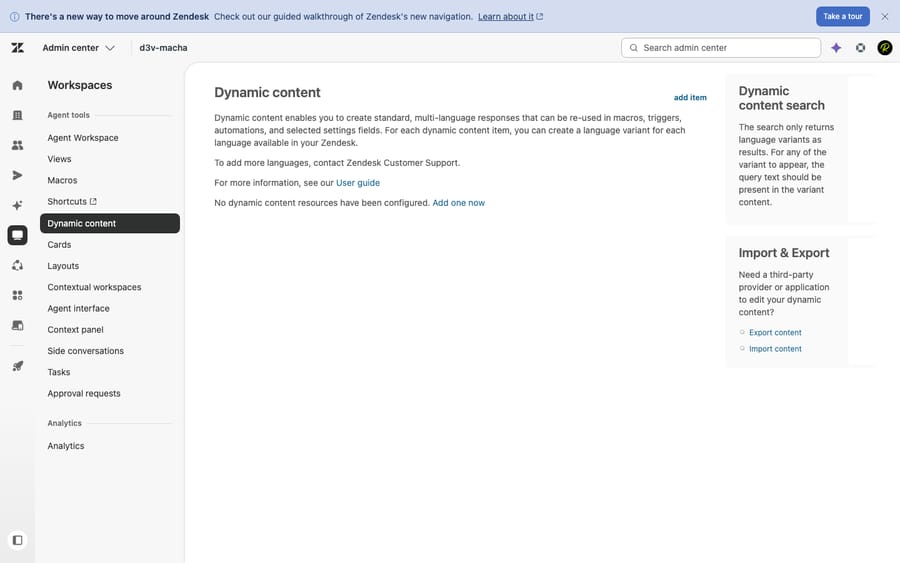
Step 1: Where is the Dynamic content page?
All dynamic content lives in one place:
Admin Center → Workspaces → Agent tools → Dynamic content.
This page lists every item with its title, placeholder name, default language, last updated date, and status, plus a search bar and a category filter. From here you can create, edit, delete, and — importantly for translation workflows — import and export items. This is the screen you'll live in while building out a multilingual setup.
Step 2: How do you create a dynamic content item?
Now create your first reusable snippet. A classic candidate is an order-status reply or a password-reset instruction — anything you say often, in every language.
- On the Dynamic content page, click Add item.
- Enter a title (e.g.
Order status update). Keep titles descriptive and consistent — they drive the auto-generated placeholder. - Select the default language for this item. The list is limited to your default language plus the additional languages you turned on earlier.
- Enter the default text — the wording in your default language.
- Save.
Two things to notice. First, Zendesk generates the placeholder for the item and displays it just below the title — something like {{dc.order_status_update}}. That's the token you'll paste into macros, triggers, automations, and email. Second, dynamic content can itself contain other placeholders — ticket and user properties such as {{ticket.id}} or {{ticket.requester.first_name}} work inside a variant, so you can personalize the localized text, not just translate it.
A note on naming
Because the placeholder is derived from the title, treat titles like code: lowercase-friendly, no near-duplicates, and grouped by purpose (refund_*, shipping_*). A messy title list becomes a messy placeholder list, and you'll be hunting for {{dc.order_status}} vs. {{dc.order_status_2}} six months from now.
Step 3: How do you add a variant for each language?
The default text alone isn't multilingual yet — it's just one language behind a placeholder. To make it speak every language, add variants:
- Open the item you just created.
- Click Add variant.
- Choose the language for the variant (one of your supported languages).
- Paste in the translated text — keeping any inline placeholders like
{{ticket.requester.first_name}}intact so personalization survives the translation. - Set the variant's status to Active, then save.
- Repeat for every language you support.
Each variant has an Active/Inactive status. This matters more than it looks: an inactive variant is treated as if it doesn't exist, so a user whose language maps to an inactive variant gets the default text instead. Use Inactive deliberately — for instance, to stage a translation you're still proofreading without exposing a half-finished variant to customers.
Step 4: What happens when a language has no variant?
This is the single most important rule to internalize, because it determines what your customers actually see:
If the end user's language is not one of your supported languages — or maps to a variant that's inactive — Zendesk serves the item's default variant.
In other words, nobody ever gets a blank or broken message; worst case they get your default language. That's reassuring, but it also means a missing or inactive variant fails silently. A French customer won't see an error — they'll just quietly receive English. So when you add a new supported language, audit your existing items and add the matching variant to each, or those customers keep landing on the default.
Step 5: Where can you use dynamic content placeholders?
Once an item exists, drop its {{dc.<name>}} placeholder anywhere placeholders are allowed. Per Zendesk's documentation, dynamic content can be referenced in:
- Macros — so one macro localizes itself to the customer's language instead of you maintaining one macro per language.
- Triggers and automations — e.g. the "Notify requester of received request" trigger sends each customer the confirmation in their own language from a single rule.
- Email notifications and system messages — confirmations, satisfaction surveys, and the like.
- Ticket field names (system and custom), custom drop-down field labels, ticket statuses, and ticket form names.
- Agent signature, help center, and sign-up messages.
- Custom (unified) agent statuses — themselves translatable via dynamic content.
- Other dynamic content — you can nest one item's placeholder inside another.
Practically, this is where the maintenance win lands. Update the wording or fix a typo in one dynamic content item, and every macro, trigger, automation, and field label that references it updates everywhere, in every language, at once.
One caveat to remember: dynamic content placed in the body of a Notify URL target action always uses the default variant, per Zendesk's docs, so language switching doesn't apply there. If you push localized text to an external system via a target, handle the language on that system's side.
Step 6: How does Zendesk know each customer's language?
Dynamic content can only pick the right variant if Zendesk knows the requester's language. There are a few ways that gets set or detected:
- Automatic detection. For many channels, Zendesk detects the end user's language (e.g. from their help center / browser locale or profile) and dynamic content follows it without any extra configuration.
- Set it with a business rule. Triggers and automations have a "Set requester's language to" action, letting you stamp a language based on conditions (such as the brand, the address it came in on, or a form selection).
- Branch on it. The condition Ticket > Requester > Language lets you build language-specific rules — for example, route Spanish tickets to a Spanish-speaking group.
There's also the placeholder {{ticket.requester.language}} (case-sensitive), which renders the requester's current language and is handy for testing or for advanced Liquid markup logic when you'd rather branch inside one notification than maintain many. For the full mechanics, see Zendesk's Using a requester's language in your business rules and the placeholder reference for business rules.
The takeaway: dynamic content handles which words; the requester's language setting handles which variant. Both have to be right.
Step 7: How do you export and import variants for translators?
You rarely translate everything inside Zendesk by hand. The Dynamic content page lets you export items as CSV files, hand them to a translation agency (or run them through your localization tool), then import the completed CSVs back in — and all the language variants are added in one pass. (See the dynamic content multilingual guide.)
A workflow that holds up:
- Build all items in your default language first.
- Export to CSV.
- Send for translation (keep inline placeholders like
{{ticket.id}}untouched in the source so translators don't mangle them). - Import the translated CSVs.
- Spot-check a few items in the UI, then flip variants to Active.
This is also how you scale: adding a new language later is "export, translate, import" rather than re-opening dozens of items by hand.
What doesn't dynamic content cover?
Dynamic content handles the operational text — macros, triggers, automations, notifications, field labels. It does not translate your help center / Guide articles; multilingual knowledge base content is a separate system where you publish per-language versions of articles under a single source article. If your goal includes a localized self-service center, set that up alongside dynamic content — start with Zendesk's Localizing help center content. And if you're newer to how all these pieces (tickets, fields, rules) hang together, our Zendesk ticketing system explained primer is a good base.
Where does an AI agent fit alongside dynamic content?
Dynamic content is the right tool for static, pre-written text: you author each variant, a human translates it, and Zendesk serves the matching one. It's reliable and predictable — and that's also its ceiling. It only knows the languages you've added and the exact strings you've written. A customer who asks something your variants didn't anticipate, in a phrasing you didn't script, still hits the default text or a human.
This is where an AI agent layer complements — not replaces — dynamic content. Macha isn't a help desk and it isn't a Zendesk replacement; it runs on top of your existing Zendesk. Where dynamic content serves a fixed, pre-translated snippet, an AI agent can understand the customer's question in their own language and respond natively from your connected knowledge — going beyond the handful of variants you've pre-written, while still doing the ticket housekeeping (tagging, routing, status) and escalating to a human with full context when it isn't confident.
The honest framing: the two work together. Keep dynamic content for the deterministic stuff — order-confirmation wording, legal disclaimers, field labels — where you want byte-for-byte control. Lean on an AI agent for the open-ended questions no static variant can cover. On cost, Macha bills per ticket (one thread with one person, charged once however many replies, tags and translations it takes), not per resolution, so the bill never hangs on an outcome definition you don't control. If your multilingual volume is mostly unscripted questions rather than repeating the same ten messages, that's the line where pre-written variants stop scaling. You can try it free — $50 of free usage, no credit card required. See how it works on Macha for Zendesk.
What are the common dynamic content mistakes?
- Add languages before you build. Variants can only target supported languages — turn them on in Localization first.
- Treat your default variant as the safety net. Everything unmatched falls back to it, so make it complete and correct.
- Audit items when you add a language. Missing variants fail silently to the default — no error, just the wrong language.
- Keep inline placeholders intact in translations.
{{ticket.requester.first_name}}must survive the round-trip to your translation agency. - Use Inactive deliberately. It's a staging tool; remember an inactive variant means that user sees the default.
- Name items like code. The title generates the placeholder; sloppy titles make an unsearchable mess.
- Remember the target caveat. Dynamic content in a Notify URL target body always uses the default variant.
Frequently asked questions
What is Zendesk dynamic content? It's a reusable text snippet with a default version plus a variant for each language you support, referenced by an auto-generated placeholder like {{dc.password_help}}. When you use that placeholder in a macro, trigger, automation, email, or supported setting, Zendesk inserts the variant matching the user's language — so you maintain one item instead of one copy per language.
Which Zendesk plans include dynamic content? All Zendesk Suite plans (Growth, Professional, Enterprise, Enterprise Plus) and Support Professional and Enterprise. It isn't available on Suite Team or Support Team. Verify against your current plan.
Where do I find dynamic content in Zendesk? Admin Center → Workspaces → Agent tools → Dynamic content. That page lists every item and lets you add, edit, delete, import, and export them.
What happens if a customer's language has no variant? Zendesk serves the item's default variant. The same applies if the matching variant is set to Inactive. Nobody gets a blank message, but they may quietly get your default language instead of theirs.
Can I use dynamic content in macros and triggers? Yes — that's the main use. Reference the item's {{dc.<name>}} placeholder in macros, triggers, automations, email notifications, ticket/field labels, statuses, agent signature, help center, and more. Note that dynamic content in a Notify URL target body always uses the default variant.
How do I translate a lot of dynamic content at once? Export your items as CSV files from the Dynamic content page, send them for translation, then import the completed CSVs — all the language variants are added back in one pass.
Does dynamic content translate my help center articles? No. Knowledge base/Guide articles use a separate multilingual system where you publish per-language versions under a single source article. Dynamic content covers operational text (macros, triggers, notifications, labels), not Guide content.
What is the full setup sequence?
Setting up multilingual support with Zendesk dynamic content is a clean sequence: turn on your languages in Admin Center → Account → Appearance → Localization, open Dynamic content under Workspaces → Agent tools, create an item with a default language and text, add a variant per language, then reference its {{dc.<name>}} placeholder across your macros, triggers, automations, email, and settings. Make sure each requester's language is set or detected so the right variant fires, lean on the export/import CSV flow for translators, and remember the golden rule — anything unmatched falls back to the default variant, silently. Dynamic content is the durable way to manage pre-written multilingual text in one place; pair it with a localized help center for self-service, and with an AI agent for the open-ended questions no static variant can answer.
Setup steps verified against Zendesk's official documentation, 24 September 2026. Zendesk updates its product periodically — confirm labels in your own account before relying on them.
Add AI agents to your Zendesk
Macha reads the ticket, drafts the reply and takes the action, inside the Zendesk you already run.