Shopify
 Stripe
 Slack
Slack Notion
 Google Workspace
 Confluence

How Do You Integrate Freshdesk with HubSpot? The Three Apps, Sync Direction and Cost (2026)


Freshdesk connects to HubSpot through three apps that do different jobs: a free one-way contact pull, a paid Freshworks connector with a direction you choose, and HubSpot's own free two-way sync that also carries tickets. Pick the one that matches which system should own the customer record.
Key takeaways
- Freshdesk connects to HubSpot through three separate apps: the free Freshdesk-Hubspot app, the paid Hubspot Connector App, and HubSpot's own Freshdesk Data Sync app.
- The paid Hubspot Connector App is billed under Freshworks' connector-app tasks at $80 per 5,000 tasks, and its recipe fires roughly every 12 hours.
- HubSpot's Freshdesk Data Sync app is free and syncs companies, contacts and tickets two ways in real time, but custom field mappings need Data Hub Starter or Professional.
- Searching the Freshworks Marketplace for "HubSpot CRM Connector" surfaces a Freshservice listing, so Freshdesk teams should install the Hubspot Connector App, version 7.0, instead.
- Macha's native HubSpot connector lets an AI agent on Freshdesk read contacts, deals and tickets and log notes, on a plan from $299 a month for 750 tickets.

Freshdesk connects to HubSpot through three separate apps: the free Freshdesk-Hubspot app (HubSpot marketing contacts into Freshdesk, one way), the paid Hubspot Connector App (contacts and accounts, billed at $80 per 5,000 connector tasks), and HubSpot's own free Freshdesk Data Sync app, the only one that syncs tickets two ways. Which one you install decides which system becomes the source of truth.
| App | Built by | Syncs | Direction | Cost |
|---|---|---|---|---|
| Freshdesk-Hubspot | Freshworks | Marketing contacts | HubSpot → Freshdesk | Free |
| Hubspot Connector App | Freshworks | Contacts, accounts | One direction you choose | $80 per 5,000 connector tasks |
| Freshdesk Data Sync | HubSpot | Companies, contacts, tickets | Two-way, real time | Free; custom field mappings need Data Hub Starter or Professional |
Below: the setup, the gotchas, and the newer route for teams who want more than a synced field, which is giving an AI agent live HubSpot lookups inside the ticket.
What are the three Freshdesk HubSpot apps?
The first thing that trips people up: there isn't a single "HubSpot integration" for Freshdesk. There are three ways in, and they do genuinely different things.
The Freshdesk-Hubspot app on the Freshworks Marketplace is the simplest. It's verified by Freshworks, free, version 2.0 with 300+ installs, and it does exactly one thing: it pulls marketing contacts from HubSpot into your Freshdesk contacts. One-way, HubSpot to Freshdesk, so your agents see who a person is without leaving the ticket. No ticket sync, no field-mapping UI, no direction choice.
The Hubspot Connector App is the heavier tool. It syncs contact and account information between the two systems, lets you choose the direction, and gives you a field-mapping tab. It's a paid add-on, billed under Freshworks' connector-app tasks at $80 per 5,000 tasks on the Freshdesk pricing page (checked 24 September 2026), and Freshworks' connector documentation says its recipe fires roughly every 12 hours.
Install the right one. Searching the Marketplace for "HubSpot CRM Connector" surfaces a listing whose supported product is Freshservice, not Freshdesk, which is an easy and expensive mistake. The Freshdesk-supporting paid listing is the Hubspot Connector App, version 7.0, verified by Freshworks and listed for Freshdesk and Freshdesk Omni. Check the supported-products line on any listing before you click Install.
Freshdesk Data Sync, on HubSpot's own App Marketplace, is built by HubSpot and costs nothing beyond your two subscriptions. It syncs companies, contacts and tickets two ways in real time. Default field mappings work out of the box; custom mappings need a Data Hub Starter or Professional plan. If you want two-way ticket visibility inside HubSpot, this is usually the one you're actually looking for.
Which record should be the source of truth?
Before you install anything, answer one question: when the same person exists in both systems with different data, who wins? That single decision drives everything else.
| Freshdesk-Hubspot app (free) | Hubspot Connector App (paid) | HubSpot-side data sync | |
|---|---|---|---|
| Publisher | Freshworks (verified) | Freshworks (verified) | HubSpot |
| Records synced | Marketing contacts | Contacts + accounts | Companies, contacts, tickets |
| Direction | One-way (HubSpot → Freshdesk) | Selectable, one at a time | Two-way |
| Field mapping | None | Field Mapping tab | Defaults; custom on Data Hub |
| Sync cadence | On install/update | ~Every 12 hours | Real time |
| Cost | Free | $80 / 5,000 connector tasks | Free; custom mappings need Data Hub Starter or Professional |
| Best for | "Just show me who this is" | Contact and account enrichment | True ticket + CRM sync |
The pattern to notice: on the Freshdesk side, free means one-way. The moment you want two systems to agree in both directions, you either pay for the connector or configure HubSpot's own free sync, and either way you have to pick a winner per field, or you'll create a loop where each system keeps overwriting the other.
How do I install the HubSpot app in Freshdesk?
For the Freshdesk-side apps the install path is the same:
- Log in to Freshdesk and go to Admin → Apps (the Marketplace section).
- Search for HubSpot. You'll see the free Freshdesk-Hubspot app and the paid connector. Check the supported-products line before choosing.
- Click Install on the one that matches the job from the table above.
- When prompted, enter your Freshdesk domain (
yourcompany.freshdesk.com) and your API key, then click Authenticate account.
Your API key lives under your Freshdesk profile settings. Treat it like a password: it grants full read and write access to your tickets and contacts, which is exactly why the connector can write records back.
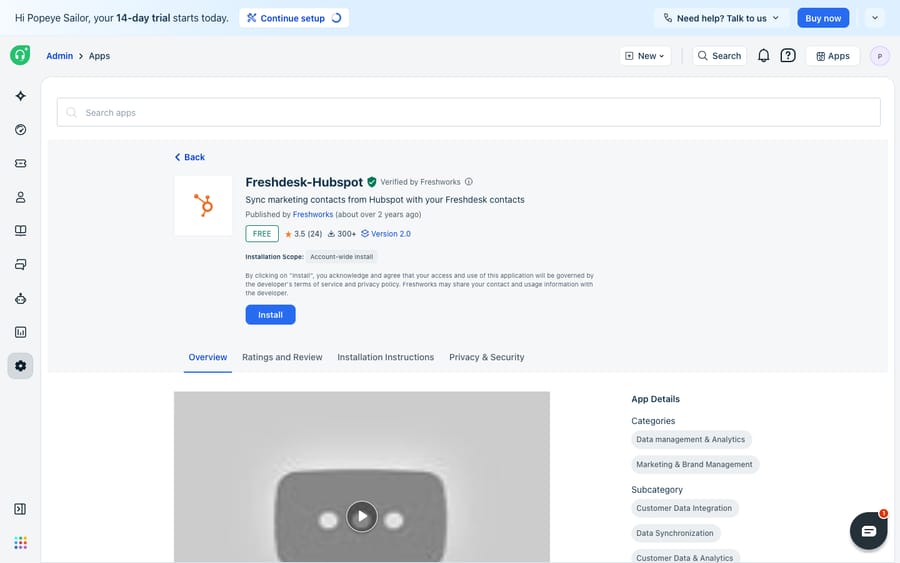
The listing above is the free app. Note how the description scopes it tightly to marketing contacts and one direction. That's a useful tell in general: if a Marketplace app doesn't advertise field mapping or a direction toggle, it doesn't have one.
Which sync direction should I choose?
This step only exists on the paid connector, and it's the one that matters most. During setup you decide whether records flow from Freshdesk to HubSpot or from HubSpot to Freshdesk. This is where you encode your source-of-truth decision:
- If HubSpot is your system of record for who a contact is — marketing owns the identity — sync HubSpot → Freshdesk so support always sees the canonical profile.
- If Freshdesk captures new people first, because customers email support before they're ever in the CRM, sync Freshdesk → HubSpot so sales and marketing inherit them.
- Many teams run both on different objects — HubSpot owns contact identity, Freshdesk owns ticket and interaction data — which is fine as long as no single field is written from both ends.
A note on what "two-way" means here, because the sources disagree. Freshworks' own connector documentation (support article 50000009989, which sits behind a login on support.freshdesk.com) says you pick one direction and that two-way data flow between Freshdesk and HubSpot is currently unavailable, while the Marketplace listing's blurb describes the app as bidirectional. Plan for the documentation's version — one direction per object — and confirm in your own account before designing around anything richer. Bidirectional-on-every-field is where sync loops and overwrites come from in any case.
How do I map fields without creating duplicates?
Once the connection authenticates, open the Field Mapping tab and line up each Freshdesk contact field with its HubSpot counterpart — email to email, company to company, plus any custom fields you care about. Three rules save pain later:
- Map on a stable unique key. Email is the usual one, so the connector matches existing records instead of creating duplicates.
- Only map fields you genuinely need synced. Every extra mapped field is another place the two systems can disagree.
- Test before you enable. Use Test recipe to confirm data actually flows, then flip the recipe's enable toggle to start the scheduled sync.
Remember the connector runs on a schedule — roughly every 12 hours — so a change in one system won't appear in the other immediately. That's usually fine for contact enrichment; it's a problem if you expected live, second-by-second parity.
What can't the native integrations do?
Give them credit: for what they promise, they work. The free app reliably surfaces HubSpot contacts inside Freshdesk, and the paid connector genuinely handles contact-and-account sync with a direction you choose. But name the edges before you build on them.
The free app is one-way and marketing-contacts only. It won't push a Freshdesk-created contact back to HubSpot, and it doesn't touch tickets. If you need Freshdesk to feed HubSpot, that's the paid tier.
Ticket sync isn't the Freshdesk-side story. The connector syncs contact and account information, not tickets. The companies-contacts-tickets sync lives in HubSpot's own Freshdesk Data Sync app, so "integrate Freshdesk with HubSpot" often means installing on both sides, not one. That app is free, but custom field mappings need a Data Hub Starter or Professional plan, which is where HubSpot recovers the cost.
Sync is scheduled, not instant, and cost scales with volume. Eventually consistent at a 12-hour cadence is fine for enrichment, and $80 per 5,000 tasks is fine for a small team and adds up fast for a busy one.
And a sync moves data; it doesn't act on it. Once the HubSpot record is sitting on the ticket, someone still has to read it, understand the customer's problem, and write the reply. The Freshdesk-side apps also can't reach the specific object your workflow needs, such as a live deal stage, a custom property or "is this a paying customer?", because they sync contacts and accounts and stop there.
How can an AI agent use live HubSpot data on a Freshdesk ticket?
The high-value version of this integration isn't a synced contact. It's the agent doing the work. A customer emails Freshdesk; the agent recognizes them, looks up their live HubSpot record by email, and answers based on their lifecycle stage and open deal ("I can see you're on a trial that ends this week"), grounded in HubSpot rather than a copy that's up to twelve hours old.
Macha runs on top of the Freshdesk you already use. It's an AI agent layer, not a Freshdesk or HubSpot replacement, and it connects to Freshdesk the ticketing product, not Freshchat, Freshservice or Freshcaller. There are two ways to give its agents HubSpot:
- The native HubSpot connector, authorized once with OAuth. Agents can search and read contacts, deals and Service Hub tickets, log notes on any record, and move deals or tickets through their pipeline. This covers most "who is this customer and where is their deal" lookups with no setup beyond the login.
- A Custom Tool for anything the connector doesn't expose, such as a custom object or one specific property call. It's a single action you define once and point at HubSpot's REST API. No Marketplace app, no code.
The Custom Tool route works in three steps.
1. Point it at the HubSpot API. HubSpot exposes a REST API with a private-app token or OAuth; you give Macha the endpoint and credentials. The built-in Sidekick can scaffold the request from a plain-English description if you'd rather not fill in the form.
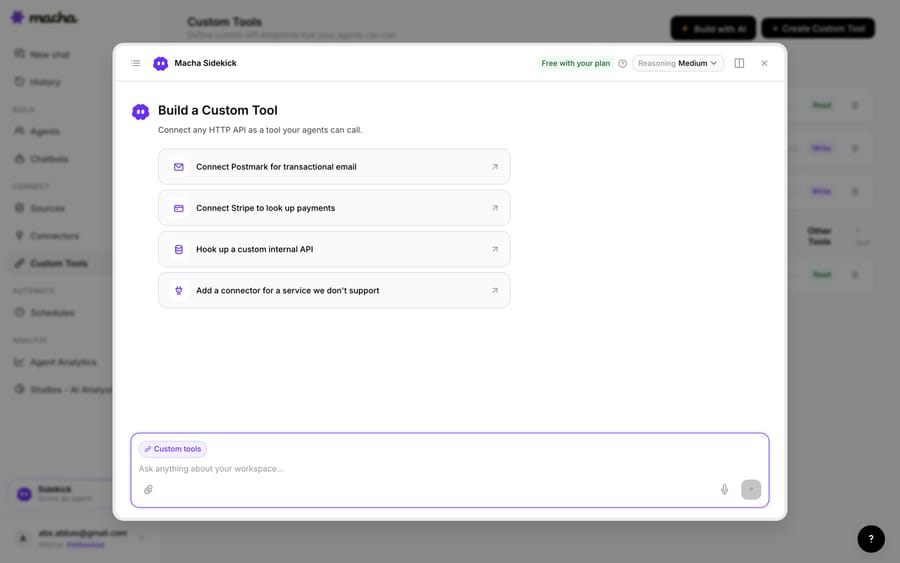
2. Define the action. Give it a label and a description the AI uses to decide when to call it ("Get the HubSpot contact's lifecycle stage and open deal by email"), set the method and URL against the HubSpot CRM API with an email placeholder, and choose Read or Write. A lookup is a Read; updating a property or logging an activity is a Write, which requires confirmation before it runs.
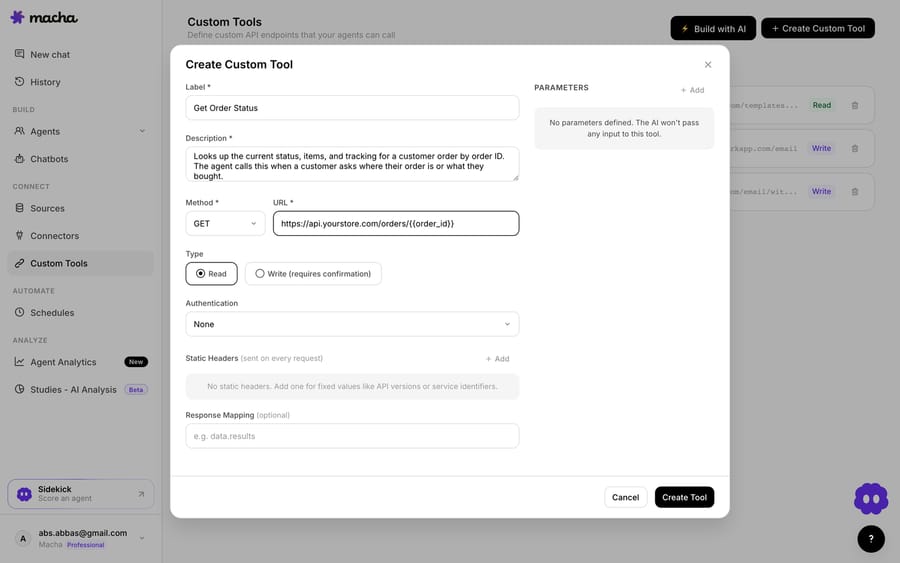
3. The agent uses it live. Once the tool exists, the agent calls it mid-ticket, passes the customer's email, and reasons over the HubSpot record it gets back, then answers the question or takes the next step.
Read vs Write, and staying safe
Read tools (lookups) run without a prompt; Write tools such as update a property, log an activity or change lifecycle stage require confirmation. Each tool is scoped to one action, permissioned per agent, and every call is audited. HubSpot's private-app token or OAuth handles credentials, so secrets never live in the conversation.
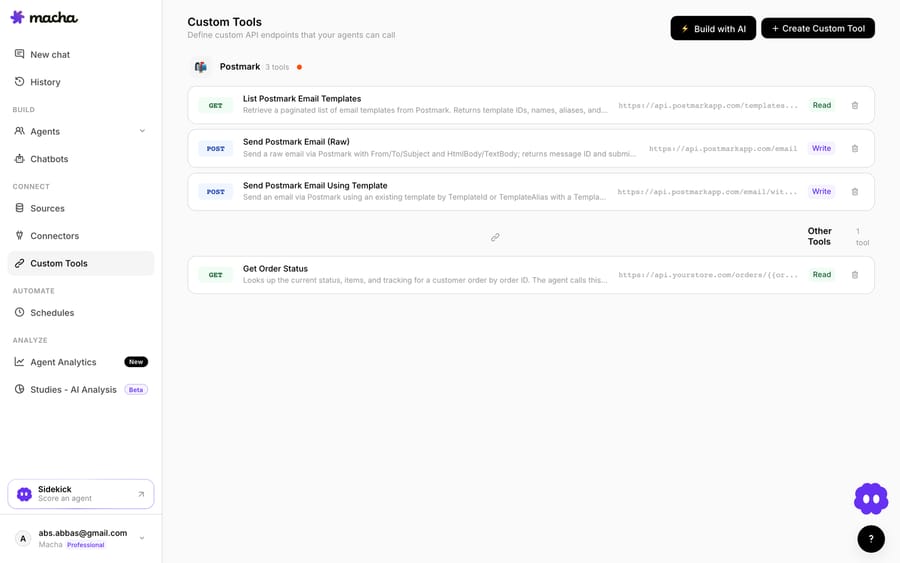
Teams usually group a few HubSpot tools (a lookup, an "update property," a "log activity") alongside tools for their other systems. Once the agent can reach HubSpot, the same pattern covers more: check lifecycle stage before answering, read the open deal and owner to route a VIP, update a property from the conversation, or log the ticket to the contact timeline. And because Custom Tools aren't HubSpot-specific, the same approach connects your billing system, data warehouse or internal API — see the integration directory, or the pillar on building custom Freshdesk integrations.
On cost: Macha is one plan priced on monthly ticket volume, from $299 a month for 750 tickets (about $0.40 a ticket at every tier), billed per ticket however many HubSpot calls the agent makes, with setup and monitoring by the Macha team included and $50 of free usage to try it. The wider category is covered in AI agents for customer service, and the setup in how to automate Freshdesk with AI.
Should I use the Marketplace apps or an AI agent?
- Use the Marketplace apps if you want contacts, accounts or tickets kept in step for human agents, and a scheduled or one-way sync covers you.
- Use an AI agent with HubSpot access when you want it to look up a live deal stage or custom property, write back from the ticket, or reach objects the Freshdesk-side apps don't sync, without being locked to one direction, one cadence, or a task-priced add-on.
They coexist happily. The clean division of labor: let the sync own what's true about the customer, and layer an agent on top for the part the sync can't do, which is turning that context into an answer.
Frequently asked questions
Does Freshdesk have a native HubSpot integration? Yes, two from Freshworks. The free Freshdesk-Hubspot app pulls HubSpot marketing contacts into Freshdesk one-way, and the paid Hubspot Connector App syncs contacts and accounts with a direction you choose and a field-mapping tab. HubSpot also builds a free Freshdesk Data Sync app on its own Marketplace for two-way ticket-level sync.
Which HubSpot app should I install for Freshdesk? Check the supported-products line on the listing first: a "HubSpot CRM Connector" listing on the Freshworks Marketplace is for Freshservice, not Freshdesk. The Freshdesk-supporting paid app is the Hubspot Connector App (Freshdesk and Freshdesk Omni). For just seeing who a contact is, the free Freshdesk-Hubspot app is enough.
Is the HubSpot Freshdesk integration free? Two of the three apps are. The Freshworks free app is one-way, HubSpot to Freshdesk, marketing contacts only. HubSpot's Freshdesk Data Sync is free and two-way, though custom field mappings need Data Hub Starter or Professional. The paid Freshworks connector, which adds direction choice and field mapping, is billed as connector-app tasks at $80 per 5,000 tasks on Freshworks' pricing page.
Does the integration sync two-way? It depends which app. The free app is strictly one-way. Freshworks' connector documentation says you choose a single direction and that two-way data flow between Freshdesk and HubSpot is currently unavailable, though the Marketplace listing describes it as bidirectional, so plan for one direction and verify in your own account. For genuine two-way, real-time syncing of companies, contacts and tickets, install HubSpot's Freshdesk Data Sync app as well.
How do I install it? Go to Admin → Apps in Freshdesk, search for HubSpot, click Install on the app you want, then authenticate with your Freshdesk domain and API key. On the paid connector you then set the sync direction, map fields under Field Mapping, run Test recipe, and enable the toggle.
How often does it sync? The paid connector runs on a recipe roughly every 12 hours, so the two systems are eventually consistent rather than live. The free contact app syncs on install and update. HubSpot's Freshdesk Data Sync runs in real time.
Does the Freshdesk HubSpot connector sync tickets? No. It syncs contact and account information. Ticket-level sync, with companies, contacts and tickets together, comes from HubSpot's Freshdesk Data Sync app, which is why a full setup often means installing on both sides.
How do I stop the sync creating duplicate contacts? Map on a stable unique key, which in practice means email, so the connector matches an existing record instead of creating a new one. Map as few fields as you actually need, and use Test recipe before enabling the toggle.
Can an AI agent look up HubSpot data from a Freshdesk ticket? Yes. Macha's native HubSpot connector lets an agent read contacts, deals and tickets, log notes and move pipeline stages, and a Custom Tool pointed at HubSpot's REST API covers anything else. Reads such as a lifecycle-stage lookup run freely; writes such as updating a property or logging an activity can require a confirmation step, and you control which agents can use them. Every call is authenticated with OAuth or a private-app token and audited.
Can I add AI on top of a Freshdesk-HubSpot setup without replacing anything? Yes. An AI agent layer like Macha connects to Freshdesk as a native connector and runs on top of your existing help desk and CRM sync; it doesn't replace them. It reads the HubSpot context synced onto tickets, drafts grounded replies, and fetches live account data through its HubSpot connector, while Freshdesk and HubSpot stay the systems of record.
Which Freshdesk HubSpot setup should I pick?
Pick the app by the job: the free Freshdesk-Hubspot app if you only need to see who a contact is, the paid Hubspot Connector App if you need contact and account fields kept in step with a direction you control, and HubSpot's free Freshdesk Data Sync if you want tickets visible in the CRM in real time. Check the supported-products line before installing, because a similarly named listing is for Freshservice. Decide your source of truth per object before you map anything, match on email, test the recipe before enabling it, and expect a roughly 12-hour cadence rather than live parity. Then, if you want the CRM context to actually get used rather than just displayed, Macha's HubSpot connector and Custom Tools put HubSpot in an AI agent's hands: live lookups and writes, decided in context, with Read/Write guardrails and an audit trail. See how Custom Tools work, or start a trial and wire up your first HubSpot tool.
Marketplace listings, supported products and versions verified on freshworks.com, the connector-task price on the Freshdesk pricing page and the Freshdesk Data Sync listing on HubSpot's marketplace, 24 September 2026. Freshworks' HubSpot connector support article is not publicly reachable, so the sync-direction behavior and 12-hour cadence are reported from it rather than linked. Confirm them in your own account.
Sources: Freshdesk-Hubspot app on the Freshworks Marketplace, Hubspot Connector App on the Freshworks Marketplace, Freshdesk connector apps collection, Freshdesk pricing, Freshdesk Data Sync on the HubSpot App Marketplace.