







 Shopify
 Stripe
 Slack
 Notion
 Google Workspace
 Confluence


How to Set Up Round Robin Ticket Assignment in HubSpot (2026), and Why It Skips People


HubSpot has two ways to assign tickets round robin. In help desk, each channel's routing settings can assign new tickets to specific users or teams with a Distribution of Round Robin, which HubSpot defines as "rotating, sequential order." In workflows, the Rotate record to owner action does the same for any ticket that meets your enrollment triggers. Both need Service Hub Professional or Enterprise, both only include users with a paid Service seat, and both skip anyone set to Away unless you clear "Assign to available users only." This guide covers the setup, when Load Balanced is the better pick, and the six reasons round robin quietly leaves someone out.
Key takeaways
- HubSpot help desk routing offers three distribution methods: Load Balanced to the user with the fewest open tickets, Round Robin in rotating sequential order, and Random.
- HubSpot's help desk routing rules require Service Hub Professional or Enterprise, and only users with a Service seat can be included in them.
- With "Assign to available users only" selected, which is HubSpot's default, a ticket stays unassigned when nobody in the rule is available.
- HubSpot's Load Balanced count includes only open help desk tickets assigned within the last 30 days, and compares tickets of the same type: calling, messaging or email.
- In HubSpot's Rotate record to owner workflow action, adding or removing owners resets the assignment counts, and only one record moves through the action at a time.

| Help desk routing | Rotate record to owner (workflow) | |
|---|---|---|
| Where | Settings > Inbox & Help Desk > Channels > the channel > Routing (chatflows: the chatflow's Chat tab) | Automation > Workflows > ticket-based workflow > CRM > Rotate record to owner |
| Runs when | A ticket arrives on that channel | A ticket meets the workflow's enrollment triggers |
| Distribution | Load Balanced, Round Robin, Random | Load balanced, round robin, random |
| Can target | Specific users and teams, Team only, assignment workflow, contact owner, no owner, customer agent | Specific users and teams, Team only, customer agent |
| Overwrite an existing owner | Not applicable (new tickets) | Your choice |
| Plan | Service Hub Pro or Enterprise, Service seat | Service Hub Pro or Enterprise, paid Pro or Enterprise seat |
How do you set up round robin in HubSpot help desk?
Help desk routing is the right place when assignment depends only on which channel a ticket came in on. The short version, per HubSpot's routing article (updated October 27, 2026): go to Inbox & Help Desk > Channels, open the channel's Routing tab (for chat, the chatflow's Chat tab), choose Specific users and teams, set Distribution to Round Robin, and save. Our HubSpot ticket routing guide walks through every channel's routing screen, skill-based routing and the other assignment options, so this section sticks to the settings that decide whether round robin behaves.
The one setting to decide on purpose is Assign to available users only. It's on by default, and it's the source of most "round robin skipped me" reports below.
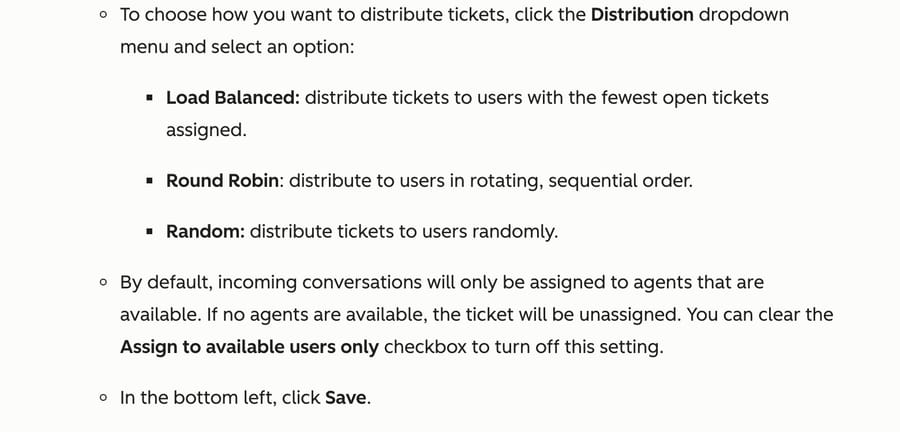
Each channel has its own rule. A team with a support email, a chatflow and a form sets round robin three times, and the three rotations don't know about each other.
How do you set up round robin with a workflow?
Use a workflow when assignment depends on something the channel doesn't know: a ticket property, the pipeline, priority, or a category set by a form or an AI agent. The steps from HubSpot's workflow assignment article (updated October 26, 2026):
- Go to Automation > Workflows and open or create a ticket-based workflow.
- Set enrollment triggers, for example "Pipeline is Support and Category is Billing."
- Click +, expand CRM and choose Rotate record to owner.
- Leave the owner property as Ticket owner, or pick another user property.
- Choose whether to overwrite an existing owner.
- Under ticket assignment, pick Specific users and teams and the distribution type, round robin.
- Save and turn the workflow on.
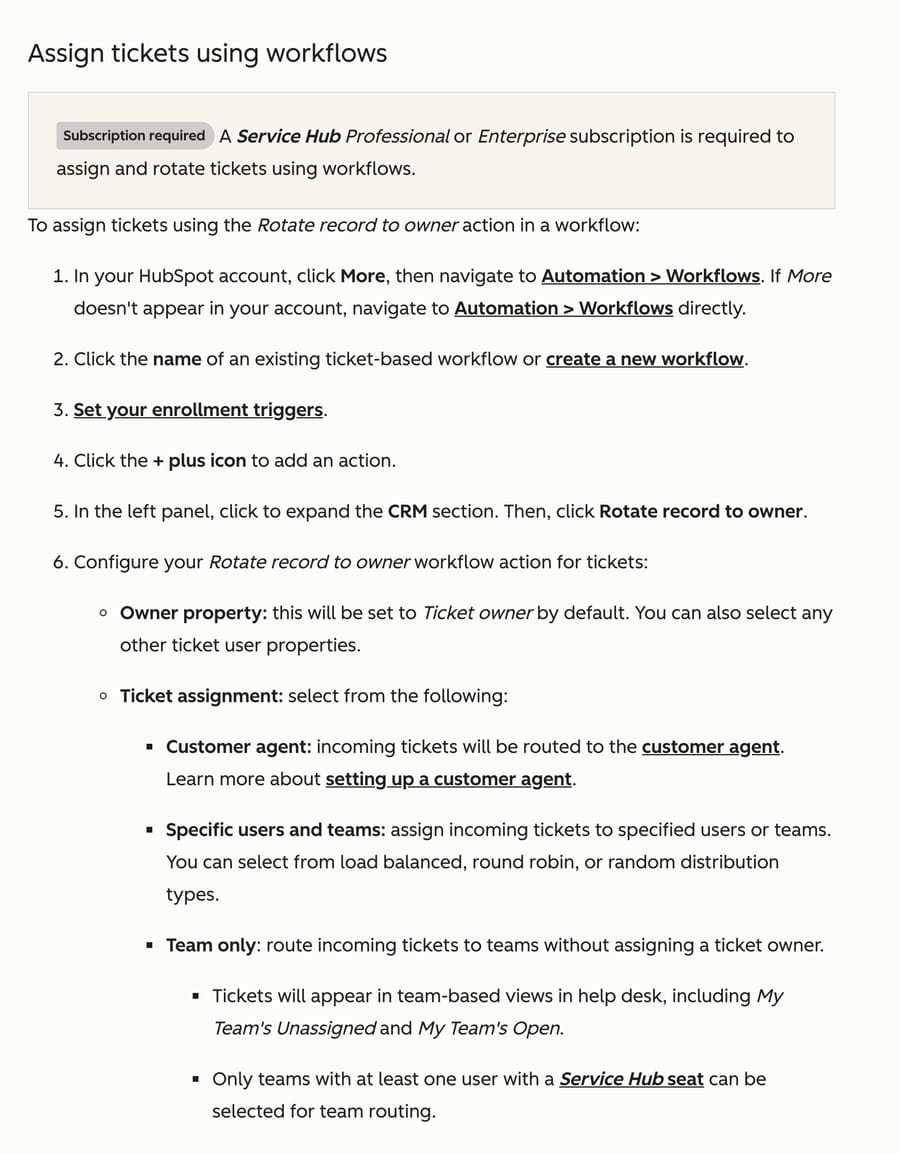
To make the help desk hand tickets to this workflow, set the channel's routing to Use assignment workflow. That keeps the logic in one place instead of split between channel rules and workflows. Our HubSpot ticket routing guide covers skill-based routing and the wider routing options on each plan.
Should you use Round Robin or Load Balanced?
They reward different behavior.
Load Balanced sends each ticket to whoever has the fewest open tickets. It sounds fair, but think about who that is. The fastest agent closes tickets quickly, so they always have the fewest open, so they get the next one. The agent who lets tickets pile up gets fewer. The method's incentive points the wrong way for people, even though it's right for queue time. HubSpot also only counts open help desk tickets assigned in the last 30 days and compares tickets of the same type (calling, messaging, email), so a rep buried in old tickets can look light.
Round Robin ignores workload and takes turns. Everyone gets the same number of new tickets, however fast they close them. In an October 2025 r/hubspot thread (thread), a poster whose team runs live chat into the help desk welcomed the new round robin option after workload-based assignment had made fair chat distribution hard to guarantee.
A sensible default: Round Robin for chat, where speed matters less than fairness and every chat is short, and Load Balanced for email queues with long-running tickets, where the backlog is the thing to balance.
Why is HubSpot round robin skipping someone?
Six causes, plus a seventh on accounts with capacity limits, all from HubSpot's own requirements.
- They're set to Away. With "Assign to available users only" on, users who are away aren't assigned tickets. Availability comes from working hours, out-of-office settings or the user's manual status. If everyone in the rule is away, the ticket stays unassigned.
- They don't have the right seat. Help desk routing includes only users with a Service seat. The workflow action needs a paid Sales or Service Hub Professional or Enterprise seat, and users with core or view-only seats, or who haven't accepted their HubSpot invite, show greyed out.
- They're not a main team member. When you rotate between a team, only main team members with a paid seat are eligible, unless the account is in HubSpot's multiple main teams beta. The team itself needs at least one paid-seat user to be selectable.
- They were deactivated or lost their seat. HubSpot's workflow assignment article says deactivated users, or users who no longer have a paid seat, show in routing rules with a red border and aren't included in assignments. Rules don't clean themselves up, so check after any seat change.
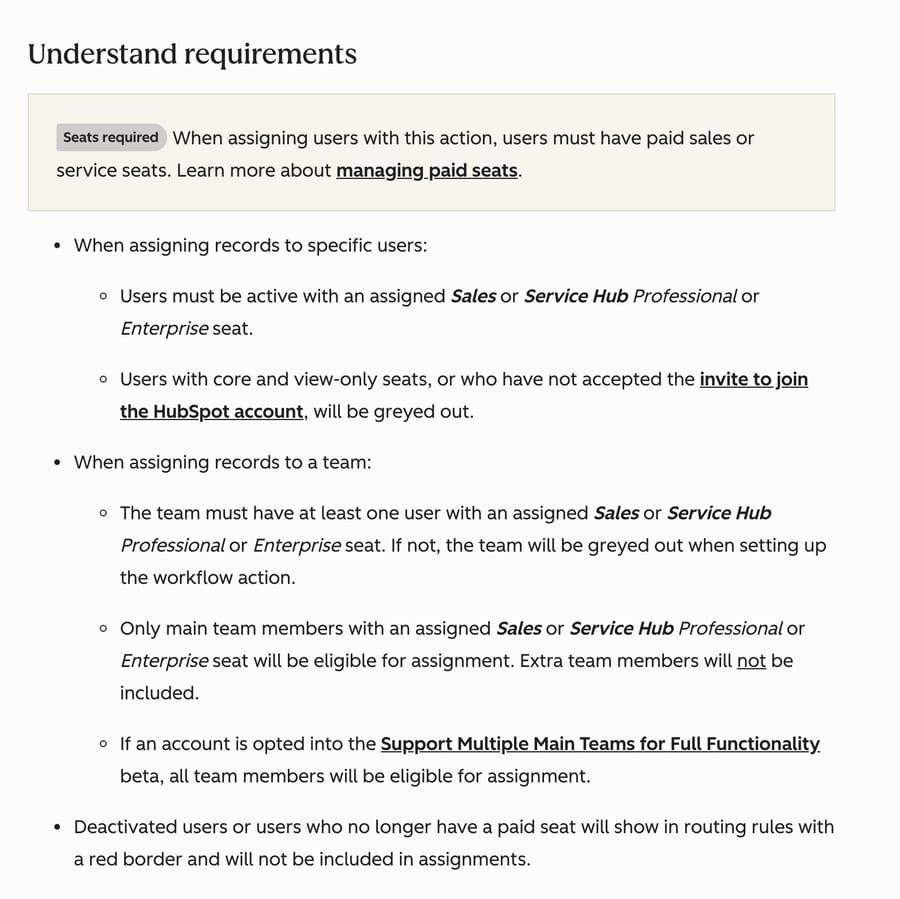
- The counts reset. Adding or removing owners in a Rotate record to owner action resets its assignment counts. Edit the list on a Monday and the rotation starts over.
- The ticket already had an owner, or was waiting its turn. If overwrite is off, a ticket that already has an owner keeps it. And only one record moves through the rotate action at a time, so a burst of tickets queues and assignments can arrive late.
A seventh, on Professional and Enterprise: ticket capacity limits. HubSpot's capacity limits article (updated September 9, 2026) says users who reach their limit are excluded from automatic assignment, the same limits apply to workflow assignment, and if everyone is at capacity the ticket stays unassigned until someone assigns it by hand. Limits count open help desk tickets by Ticket owner, and you can exclude statuses such as Waiting on contact so only active work counts.
One more that isn't a skip but looks like one: in help desk, a rep who replies to an unassigned ticket becomes its owner. If people answer from the Unassigned view, rotation never sees those tickets.
How do you check why a ticket went to a particular person?
HubSpot records the decision on the ticket itself. Open the ticket's conversation in help desk, expand Ticket activity in the right sidebar and click Assignment details. The Details section breaks the decision into four parts you can expand: Routing Rule, User Availability, Capacity Check and Assignment. That tells you which rule matched, who was available at that moment, whether anyone was over their ticket capacity, and who won.
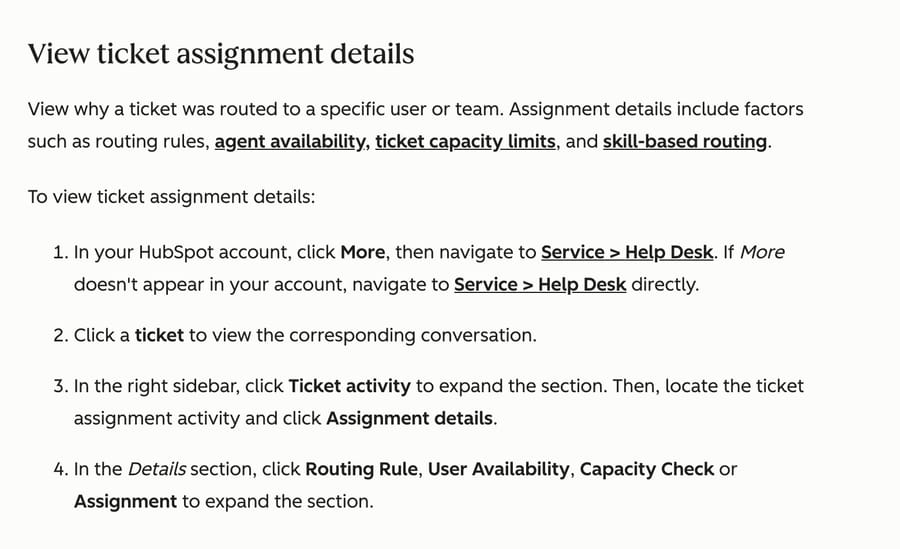
Use it before changing any rule. In our reading of HubSpot's requirements, most "round robin is broken" reports come down to one of the causes above, and the assignment details show which one in a click. A typical pattern:
| What Assignment details shows | Likely cause | Fix |
|---|---|---|
| The expected user missing from User Availability | Away status, working hours or out-of-office | Check their availability settings, or clear "Assign to available users only" |
| The user listed but filtered at Capacity Check | They hit a ticket capacity limit | Raise the limit or add people to the rule |
| A different Routing Rule than expected | Another channel or workflow matched first | Move the logic into one assignment workflow |
| No assignment at all | Nobody qualified was available | Add a fallback user or team |
Where Macha fits
Round robin decides who gets a ticket. It can't decide whether the ticket should go to a person at all, or which person has the right context. A refund question, a bug report and a "where's my invoice?" all take the next turn in the rotation.
Macha is an AI agent layer that runs inside your HubSpot account, set up and monitored by the Macha team. On a new ticket, the agent reads it, looks up the contact and their deals, and either answers it (replying to the customer, or logging a draft as a note in safe mode) or passes it on. When it passes a ticket on, it uses Update Ticket to set the owner, priority or a category property directly, or sets a category and leaves the owner empty so your HubSpot round robin or a Rotate record to owner workflow assigns it.
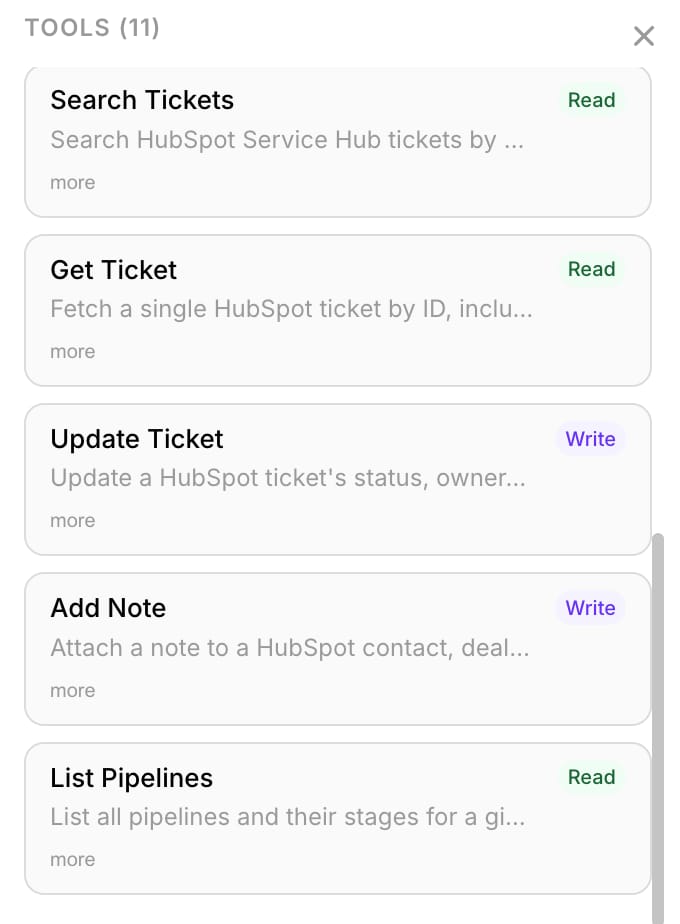
That split works well in practice: the agent handles the tickets it can answer, sets a category on the rest, and HubSpot's rotation spreads what's left fairly. Don't let both systems write the owner on the same ticket, or a routing rule and the agent will reassign each other. The Macha HubSpot integration page lists every action and trigger, and the HubSpot context use case shows the contact and deal lookup the agent does first.
Macha fits teams on Zendesk, Freshdesk, Gorgias, Front, Gladly, Crisp, HubSpot or Intercom who already have fair assignment working and want fewer tickets reaching the rotation in the first place. The Macha team analyzes your past tickets, builds the agent and runs it in safe mode, included on the trial and every plan at about $0.40 per ticket, with a dedicated success manager who handles your changes. See Macha on HubSpot, pricing and the done-for-you setup.
How we researched this
We checked HubSpot's Route tickets in help desk (updated October 27, 2026) and Assign and rotate record owners using workflows (updated October 26, 2026) on November 21, 2026 and captured the screenshots the same day. We also checked Set ticket capacity limits for users in help desk (updated September 9, 2026). Every requirement and cause in the troubleshooting list comes from those three articles. We didn't configure routing in a live HubSpot account for this post. The Reddit thread is paraphrased; its preview was truncated, so we describe the poster's complaint only as far as the visible text supports. The Macha tool panel is a capture of our HubSpot connector in the Macha Demo workspace. Seat pricing is in our Service Hub pricing guide.
Common questions
Does HubSpot have true round robin ticket assignment?
Yes. Help desk routing and the Rotate record to owner workflow action both offer Round Robin, defined as rotating, sequential order, alongside Load Balanced and Random. Both need Service Hub Professional or Enterprise.
What's the difference between round robin and load balanced in HubSpot?
Round Robin takes turns regardless of workload. Load Balanced assigns to the user with the fewest open tickets, counting open help desk tickets assigned in the last 30 days of the same ticket type.
Why are some HubSpot tickets left unassigned?
Usually because nobody in the rule was available and "Assign to available users only" is on, which is the default. Clear the checkbox, widen the team, or check working hours and out-of-office settings.
Can HubSpot round robin assign tickets to a team instead of a person?
Yes. Team only routes tickets to a team without a named owner, so they appear in team views such as My Team's Unassigned. The team needs at least one user with a Service seat.
Does round robin work on HubSpot Service Hub Starter?
HubSpot's routing and workflow assignment articles list Service Hub Professional or Enterprise for automatic ticket assignment and the Rotate record to owner action, so plan on Professional for round robin.
Can an AI agent assign HubSpot tickets?
Yes, through HubSpot's API. Macha's HubSpot connector sets the ticket owner, priority or any custom property with Update Ticket after reading the ticket, or leaves the owner empty so HubSpot's own round robin assigns it.