Shopify
 Stripe
 Slack
Slack Notion
 Google Workspace
 Confluence

How Do You Connect Jira to Intercom for an AI Agent? (2026)


A bug report lands in Intercom, but the Jira issue that tracks the fix, its status and its owner sit one tab over. Intercom's free Jira Cloud app lets a person link the two, while an AI agent needs a connector that can search, file and update Jira issues from the conversation itself.
Key takeaways
- Jira connects to Intercom through the free Jira Cloud for Intercom app for human agents, Macha's Jira connector for AI agents, or a Macha Custom Tool for Jira Data Center.
- Jira Cloud for Intercom lets human agents create and link Jira work items from the Inbox, and a paid companion app adds commenting and unlinking, but it supports Jira Cloud only.
- Macha's Jira connector gives an AI agent eight Jira actions, including JQL search, Create Issue, Add Comment and Transition Issue, plus New Issue Created and Issue Updated triggers.
- Atlassian plans to discontinue Jira Data Center on 28 March 2029, and until then a Macha Custom Tool can call a self-hosted Data Center REST API directly.
- Macha is done for you: the Macha team builds the agent and its Jira actions on Intercom and runs it in safe mode, at about $0.40 a ticket including setup and a dedicated success manager.

You can connect Jira to Intercom in three ways: the free Jira Cloud for Intercom app, which lets a human agent create and link Jira work items from the Inbox; Macha's native Jira connector, which lets an AI agent search, create, comment on and transition issues from inside an Intercom conversation; or a Macha Custom Tool pointed at Jira's REST API, for self-hosted Jira Data Center or a request the connector doesn't cover.
| Option | Who acts | What it can do | Jira deployment |
|---|---|---|---|
| Jira Cloud for Intercom app | Human agent | Create and link work items, live status updates; commenting and unlinking in a paid companion app | Jira Cloud |
| Macha Jira connector | AI agent | JQL search, read issue, create, comment, transition, update fields; new-issue and issue-updated triggers | Connects by OAuth |
| Macha Custom Tool | AI agent | Any Jira REST endpoint you define, Read or Write | Cloud or Data Center |
Framing first. Macha runs on top of the Intercom you already use. It's an AI-agent layer, not an Intercom or Jira replacement. Fin and your Inbox keep working as they do; Macha reads the conversation, reasons, and reaches into Jira to answer or act.
Want the broader picture on connecting any app to Intercom? See our pillar on building custom Intercom integrations. This piece focuses on giving your AI agent live Jira access.
What does Intercom's native Jira app do, and where does it stop?
Intercom lists a Jira Cloud app in its App Store. Per the developer's docs, Jira Cloud for Intercom is free and lets a human agent create and link Jira work items from the Inbox, with live status updates on a conversation when the linked issue changes. A paid companion app on the Atlassian Marketplace adds commenting and unlinking, and Intercom documents a separate Jira for Tickets app for its Tickets product. If all you need is a person manually linking issues to conversations, that may be enough.
Where it stops:
- A human drives it, not the AI. A person clicks to create or link an issue. An AI agent can't decide to file a bug or check a status mid-conversation and reason over the result.
- It's Jira Cloud only. If you run Jira Data Center, it's off the table. (Atlassian's current plan is to discontinue Data Center on 28 March 2029, so plenty of teams will be on it for a few more years.)
- It's fixed. You get the link-and-status flow the app provides, not the specific query or field write your workflow needs (e.g. "is there already an open issue for this?" or "add the customer's account to the ticket").
What should the AI agent be able to do in Jira?
The high-value version of this integration isn't a manual link. It's the agent doing the work. A customer reports a bug in Intercom; the agent recognizes it, checks Jira for an existing open issue, and either reports the live status back ("this is fixed in the next release") or files a new issue with the details, grounded in Jira rather than a copy-paste.
How do you connect Jira to an AI agent on Intercom with Macha?
Start with the two native connectors. Macha's Intercom connector reads conversations, looks up contacts, replies or leaves a private note, and assigns, tags and closes, with triggers on new conversations and new customer messages. Macha's Jira connector (OAuth) gives the same agent eight Jira actions: Search Issues (JQL), Get Issue, Create Issue, Add Comment, Transition Issue, Update Issue Fields, List Projects and List Transitions. Two Jira triggers, New Issue Created and Issue Updated, let an agent react when engineering changes a board, for example posting an update on the Intercom conversation when a linked bug moves to Done.
For anything the connector doesn't cover, such as a Jira Data Center instance behind your own URL or an unusual endpoint, use a Custom Tool: a single action you define once and point at Jira's REST API.
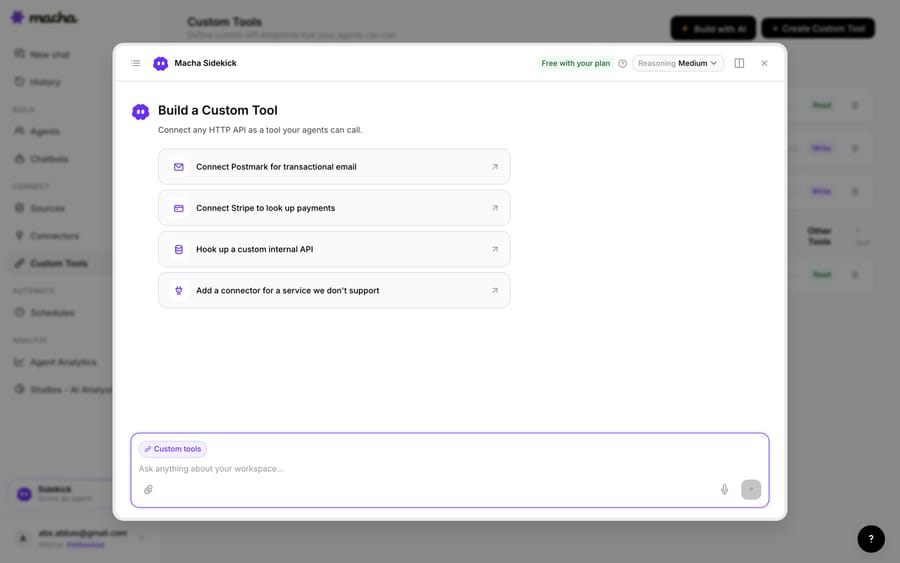
1. Point it at the Jira API. Jira exposes a REST API (with OAuth 2.0 or an API token); you give Macha the endpoint and credentials. The built-in Sidekick can scaffold the request from a plain-English description if you'd rather not fill in the form.
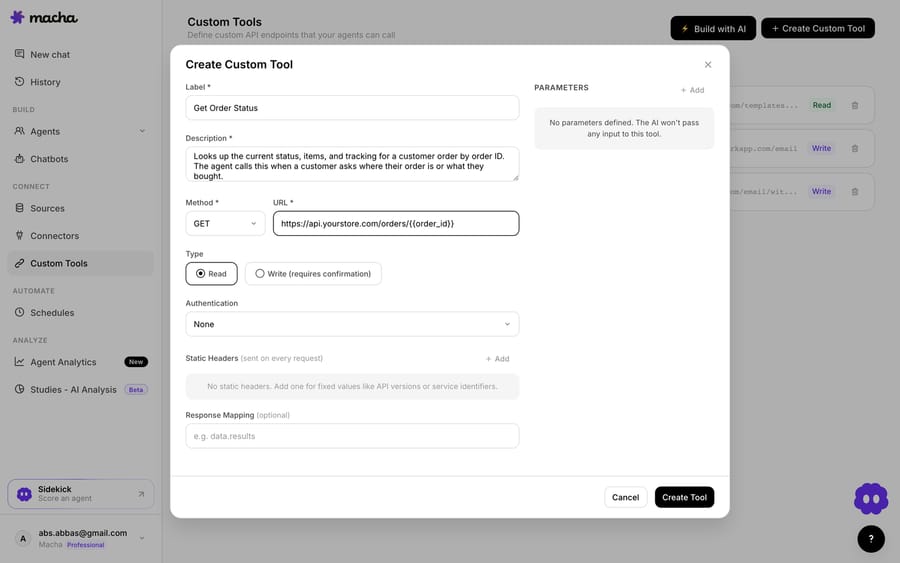
2. Define the action. Give it a label and a description the AI uses to decide when to call it, e.g. "Search Jira for an open issue matching this bug" or "Create a Jira bug report from this conversation." Set the method and URL (a JQL search or the issue endpoint, with placeholders like {{summary}}), and choose Read or Write. A status lookup is a Read; creating an issue is a Write, which requires confirmation before it runs.
3. The agent uses it live. Once the tool exists, the agent calls it mid-conversation, passes the bug details or issue key, and reasons over what Jira returns, then reports the status or files the issue.
How do Read and Write permissions keep Jira safe?
Because the agent can reach into Jira, the guardrails matter. Read tools (issue lookups, status checks) are free to call; Write tools (create an issue, add a comment, transition a status) require confirmation. Each tool is scoped to one action, permissioned per agent, and every call is audited. OAuth or a Jira API token handles credentials, so secrets never live in the conversation.
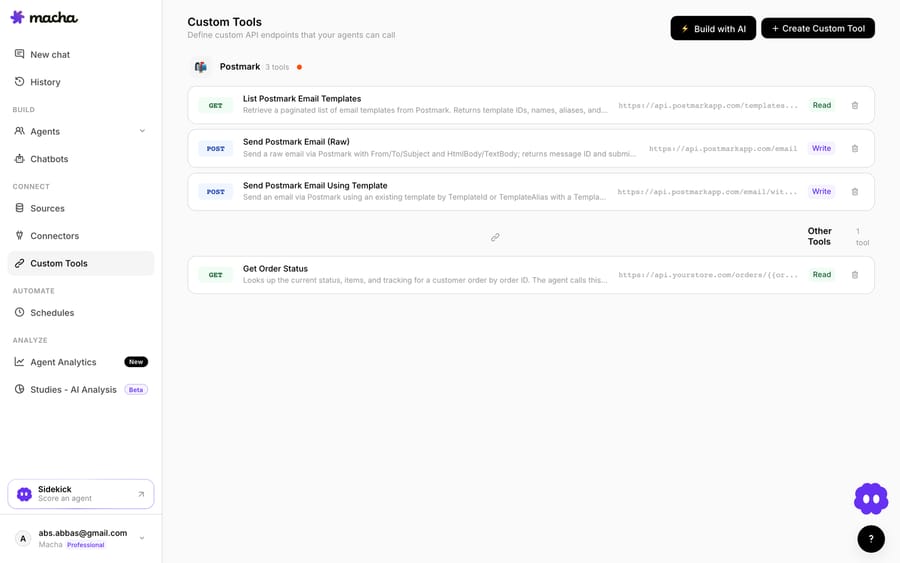
Teams usually group a few Jira tools, such as "search for existing issue," "create bug report" and "read issue status," alongside tools for their other systems.
Should you use the native app, the connector, or a Custom Tool?
- Use the native Jira app if you're on Jira Cloud and just want human agents to create and link issues to conversations with live status updates.
- Use Macha's Jira connector when you want your AI agent to search, file, comment on or transition Jira issues from the conversation, or to react when an issue changes.
- Use a Custom Tool when you run Jira Data Center or need a specific request neither the app nor the connector exposes. All three can coexist.
What else can the agent do once it reaches Jira?
The same pattern covers more: check for a duplicate before filing, read an issue's status to answer "is this fixed yet?", create a bug with the customer's account and repro steps attached, or transition an issue on resolution. Custom Tools aren't Jira-specific either, so the same approach connects your CRM, billing system, or internal API. The Custom Tools integration directory lists 210+ tools, and the pillar on building custom Intercom integrations covers the rest.
Macha fits Intercom teams whose bugs end in Jira and who want the agent, not a person, to do the lookup. Macha is done for you: you sign in to Intercom and Jira once, and the Macha team analyzes your past tickets, builds the knowledge base, the agent and any Custom Tools it needs, and runs it in safe mode, with drafts as private notes in Intercom, until the drafts are right. It's one plan priced by ticket volume, about $0.40 a ticket from $299 a month for up to 750 tickets, with custom tools and triggers included, and the price covers a dedicated success manager who handles your changes after go-live (new categories, instruction edits, new tools). See how Custom Tools work, browse the integration directory, or start a free trial and wire up your first Jira action today.
Frequently asked questions
Does Intercom have a native Jira integration? Yes. The free Jira Cloud for Intercom app lets human agents create and link Jira work items from the Inbox with live status updates, and a paid companion app adds commenting and unlinking. It's Jira Cloud only and human-driven; Macha's Jira connector or a Custom Tool adds agent-driven searches and actions.
Do I need an engineer to connect Jira to Intercom this way? No. The Jira connector is an OAuth sign-in. For a Custom Tool, you describe the action in plain English and Macha's Sidekick scaffolds the Jira request, auth, and parameters. Technical teams can go deeper with full control over the JQL query, issue fields, headers, and response mapping. Or leave it to us: on the trial and every plan, the Macha team builds and tests Custom Tools for you.
Can the agent create Jira issues, or only read them? Both. Reads (searches, status checks) run freely; writes (creating an issue, adding a comment, transitioning a status) require a confirmation step, and you control which agents can use them.
Does it work with Jira Data Center? Yes, through a Custom Tool. Unlike the native app, which is Jira Cloud only, a Custom Tool can point at any Jira REST API endpoint, including a self-hosted Data Center instance.
Can the agent react when a Jira issue changes? Yes. Macha's Jira connector has New Issue Created and Issue Updated triggers. Scope Issue Updated with a field filter so it doesn't fire on the agent's own writes.