Intercom
 Shopify
 Stripe
 Slack
Slack Notion
 Google Workspace
 Confluence

How Do You Switch Off Zendesk? A 10-Step Decommissioning Checklist (2026)


Switching off Zendesk safely means exporting and verifying your data first, redirecting every channel, and having the account owner cancel at least 30 days before the term ends. Zendesk begins irreversible deletion 90 days after cancellation, so the order of steps matters more than speed.
Key takeaways
- Switching off Zendesk safely means exporting and verifying data first, redirecting every inbound channel, revoking access, and only then cancelling at least 30 days before the term ends.
- Zendesk account data exports are off by default, so the account owner must ask Zendesk Customer Support to enable them, and the emailed download link is valid for at least three days.
- Only the Zendesk account owner can cancel, and sales-assisted accounts can't cancel online, so a departed owner or a managed contract has to be sorted out before the notice window.
- Zendesk starts permanent deletion 90 days after cancellation, removes Ticketing System data within 40 days of that start, and keeps backups up to 130 days and logs up to 365 days.
- Sunshine Conversations data follows its own Zendesk schedule: 60 days for its data and 95 days for backups after the deletion process begins.

To switch off Zendesk cleanly, export and verify your data first, redirect every inbound channel, revoke access, and only then have the account owner cancel at least 30 days before the subscription term ends. Zendesk starts permanently deleting your data 90 days after cancellation, and that process can't be reversed once it begins. These are the deadlines that decide the order:
| Deadline or rule | What Zendesk says (checked 24 September 2026) |
|---|---|
| Who can cancel | Account owner only; billing admins can't |
| Notice period | At least 30 days before the end of the subscription term |
| Sales-assisted accounts | Can't cancel online; contact Zendesk |
| Data exports | Off by default; the owner asks Zendesk Customer Support to enable them |
| Export download link | Valid for at least three days |
| Deletion starts | 90 days after cancellation (nine months after a trial ends) |
| Ticketing data gone | 40 days after deletion starts; backups 130 days; logs 365 days |
Scope matters here, because it's easy to conflate three different jobs: choosing where to go and moving your data are separate projects with their own guides — see how to migrate away from Zendesk for the full route, and what actually moves vs. what you rebuild for the data reference. This post assumes that work is done (or nearly). What's left is the offboard: get everything out for your records, redirect every inbound channel, pull access, cancel correctly, and meet your data-retention obligations. Do it in the wrong order and you can lose data you can't get back, or pay for a tool nobody's using.
A quick, honest note before the checklist. We build Macha, an AI agent layer that runs on top of Zendesk, Freshdesk, Gorgias, Front, HubSpot or Intercom, so we're not a "switch to us" pitch and there's nothing here selling you a destination. That lets us be straight about the one place AI is genuinely relevant to this decision (it's a small section near the end), and stay out of the way otherwise.
What are the steps to switch off Zendesk, in order?
The order matters more than anything else here. Export before you cancel. Redirect before you go dark. Confirm before you delete. Here's the full sequence; each step is expanded below.
- Export and archive everything — and confirm the archive is complete and stored. Full account export (JSON), knowledge base, attachments, and any reports you'll need later. Do not proceed until the export is verified and backed up somewhere outside Zendesk.
- Take a final compliance export for your records. A clean, dated copy you can defend against GDPR/retention obligations after Zendesk's data is gone.
- Redirect inbound email. Repoint MX / forwarding so
support@flows to the new tool — and send yourself a test message to confirm it lands there, not in a dead Zendesk inbox. - Remove the Web Widget / messaging snippet from your website, help center, and apps so no new conversations start in Zendesk.
- Repoint other channels — WhatsApp, Facebook Messenger, Instagram, X/Twitter, and any phone/voice numbers — to the new platform.
- Update links and redirects. Point old Help Center URLs at the new knowledge base; fix in-app, email-footer, and documentation links.
- Offboard agents and revoke access. Suspend/downgrade agents, revoke API tokens and OAuth grants, and disconnect every integration and Marketplace app.
- Communicate the cutover. Tell agents and (where relevant) customers what's changing and when; run a short parallel period.
- Cancel or downgrade the subscription correctly. Mind the 30-day notice, the annual-vs-monthly terms, and the difference between downgrade and full cancellation.
- Note the data-deletion clock and store your records. Know when Zendesk permanently deletes your data and that it can't be undone.
Each phase below expands one or two of these steps, with the current Zendesk terms linked inline.
How do you export everything from Zendesk before cancelling?
This is the irreversible-mistake phase. Once you cancel, a deletion clock starts (more on that below), and Zendesk does not offer expedited deletion or guaranteed late recovery. So the rule is simple: nothing else happens until your export is complete and stored outside Zendesk.
What to pull, and the short version of how — the full walkthrough lives in how to export data from Zendesk:
- Full account export. In Admin Center → Account → Tools > Reports → Export, request a JSON export. Zendesk offers JSON, CSV and XML: the CSV export leaves out ticket comments and descriptions, XML has a 500MB file limit, and Zendesk recommends JSON for accounts with more than 200,000 tickets (Zendesk: Exporting ticket, user, or organization data). One gotcha that catches teams at the worst possible moment: account data exports are disabled by default. The account owner has to contact Zendesk Customer Support to switch them on first. Once enabled, Zendesk emails a download link that's valid for at least three days — so grab it promptly.
- Knowledge base. There's no one-click "export Guide" button. Pull articles, categories, and sections via the Help Center API or your migration tool. (If you used a service like Help Desk Migration to move to the new platform, it likely already carried the KB — but keep an independent archive anyway.)
- Attachments. Confirm these came across in your migration; if you're keeping an archive rather than migrating, the JSON export plus API-fetched attachment files is your safety net.
- Reports and CSAT history. Explore dashboards don't migrate. Export any historical reporting you're required to keep or will want for trend comparisons later.
Then verify the archive. Open it. Spot-check a handful of old tickets, confirm attachments resolve, confirm article bodies and images are intact, and store a copy somewhere durable (cloud storage, a data warehouse, wherever your retention policy points). An export you never opened is not a backup — it's a hope.
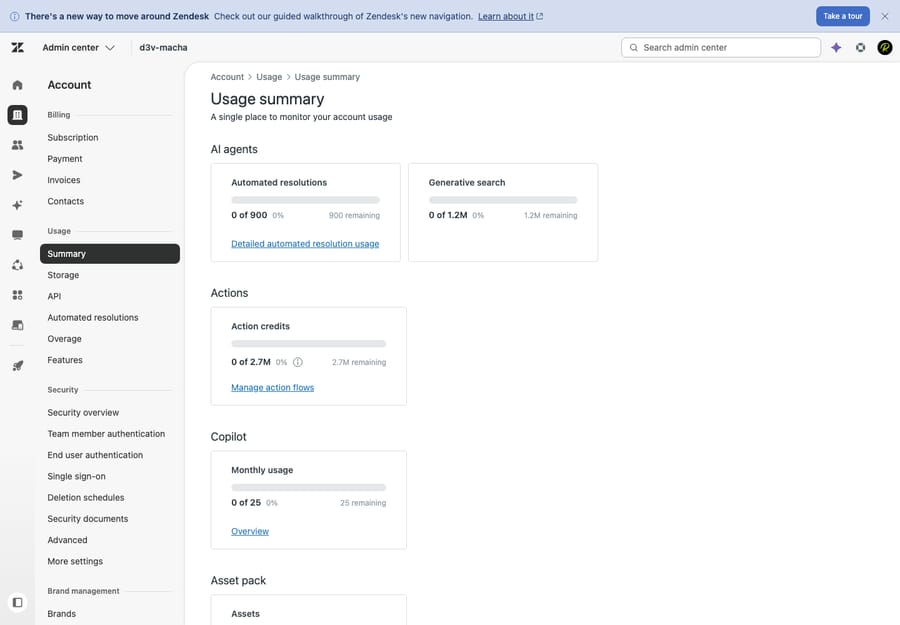
The Admin Center → Account area (Usage shown above) is where account-level data, plan, and the export tools live — the place to start before you cancel. The full export and cancellation screens themselves are described here from Zendesk's documentation rather than captured, since enabling exports and cancelling are owner-only actions on a live billed account.
What should the final compliance export contain?
Separate from the "so we can reference old tickets" archive, take a deliberate, dated compliance copy. Under GDPR and similar regimes, Zendesk is your data processor — you remain the data controller, and the legal obligation to retain (or to be able to produce) records sits with you, not Zendesk. Once Zendesk's deletion process runs, that data is gone for good on their side, so your records copy is the only one that survives.
Practically: keep the JSON full account export plus a manifest (what it contains, the date pulled, who pulled it, where it's stored) so that if you ever need to honour a data-subject request or an audit after Zendesk is switched off, you can. If your retention policy says "delete after X," store it in a way that lets you actually delete it on schedule. Be honest with yourself about what you're legally required to keep versus what's just nice to have.
How do you redirect email, chat, social and phone channels?
This is the phase that prevents the nightmare scenario: customers emailing into a Zendesk that's been cancelled, or chatting with a widget that routes nowhere. Work channel by channel.
Repoint your support address so mail flows to the new tool instead of Zendesk. Depending on how you set it up originally, that's either:
- changing the forwarding rule on
[email protected]to the new platform's inbound address, or - updating MX / DNS records if your support domain pointed at Zendesk directly.
Then send a real test email from an outside account and confirm it creates a ticket in the new tool — not in Zendesk, and not bouncing. Leave the old Zendesk address able to receive (don't delete it yet) during the parallel-run window so nothing in flight is lost.
Web Widget and messaging
Remove the Zendesk Web Widget / messaging snippet from every place it lives: your main site's <head>, your help center theme, landing pages, and any mobile app builds (the messaging SDK). If you skip this, new conversations keep starting in a Zendesk you're about to shut off. Replace it with the new tool's widget in the same spots.
Social and messaging apps
Disconnect and repoint WhatsApp, Facebook Messenger, Instagram, and X/Twitter from Zendesk to the new platform. WhatsApp in particular can be fiddly — a Business API number can usually only be connected to one platform at a time, so plan the switch for a low-traffic window and re-verify the number on the new side.
Phone / voice
If you used Zendesk Talk, port or repoint your numbers to the new voice provider. Number porting can take days to weeks, so start this early — it's often the longest pole in the tent.
Which links and redirects need updating?
Your old Help Center URLs are probably linked from emails, in-product help, Google's index, and customer bookmarks. Set up redirects from the old help-center paths to the equivalent articles in the new knowledge base so those links don't 404 after cutover. Also sweep:
- email signatures and footers ("Need help? Visit our Help Center"),
- in-app help links and contact buttons,
- documentation, onboarding flows, and saved replies that point at Zendesk URLs,
- any status page or chatbot that deep-links into Zendesk.
A quick site: search and a crawl of your own properties for the old Zendesk subdomain will surface most of these.
How do you offboard agents, API tokens and integrations?
With inbound redirected, lock the doors:
- Agents. Suspend or downgrade agent accounts so they're working in the new tool, not split across both. (Removing seats also matters for billing; see the cancellation section below.)
- API tokens and OAuth. Revoke every API token and OAuth grant in Admin Center → Apps and integrations → APIs. These are the credentials your scripts, data pipelines, and third-party tools used; leaving them live is both a security loose-end and a way for automation to keep poking a dead system.
- Integrations and Marketplace apps. Disconnect each connected app (Slack, Jira, your CRM, analytics, QA tools, etc.) and reconnect the ones you still need to the new platform. Don't assume cancelling Zendesk silently severs these — some will keep trying to sync and throw errors.
- Webhooks and SSO. Disable outbound webhooks, and if you fronted Zendesk with SSO, remove the app from your identity provider once agents are off it.
How long should Zendesk run in parallel with the new tool?
A clean technical switch still fails if people don't know it's happening.
- Tell your agents the exact cutover date, where to work from now on, and where the old Zendesk archive lives if they need to look something up. Train before cutover, not after.
- Set customer expectations if the change is visible to them (new help-center look, different chat widget, possibly a brief response-time wobble during the move). Most teams don't need a big announcement, but a heads-up on the status page and a line in auto-replies helps.
- Run a short parallel period. Keep Zendesk readable (you can downgrade rather than hard-cancel for a window) while the new tool handles all new volume. This catches stray emails to the old address and lets agents reference recent history without a full re-import. A week or two is typical; don't drag it out, because two live systems double the confusion.
How do you cancel or downgrade a Zendesk subscription?
Here's where the money is, and where the terms genuinely depend on your contract. The specifics below are from Zendesk's current documentation; confirm against your own agreement, because enterprise contracts override the self-service defaults.
- Only the account owner can cancel. Billing admins can't. If the owner has left the company, sort that out first (Zendesk: Canceling products and accounts).
- Self-service vs. sales-assisted. Self-service account owners cancel in Admin Center → Account → Billing → Subscription → Manage → Remove products or cancel account. Sales-assisted / managed accounts cannot cancel online — you must contact Zendesk Sales/Support to do it (Zendesk: Canceling products and accounts).
- The 30-day notice. Per the Zendesk Customer Agreement, you must notify Zendesk at least 30 days before the end of your subscription term of your intent to cancel. For self-service customers, that notice is given automatically when you cancel in Admin Center — but on an annual contract, missing the window can roll you into another term, so don't leave it to the last week (Zendesk: Canceling products and accounts).
- Mid-cycle = access until cycle end. If you cancel mid-billing-cycle, you keep using the account until that cycle ends, then cancellation takes effect. The cancellation article says nothing about refunds for the unused remainder, so don't budget on one; your agreement decides (Zendesk: Canceling products and accounts).
- Downgrade vs. cancel. Downgrades — dropping to a lower plan, reducing agent count, or moving to a Support-only account — generally take effect at renewal, not immediately, and some require contacting Customer Support (Zendesk: Viewing and managing plan subscriptions). A temporary downgrade can be a smart way to keep a cheap, read-only Zendesk during the parallel period instead of cancelling outright.
- Annual → monthly isn't automatic. Converting from annual to monthly billing needs Zendesk's approval and isn't guaranteed, especially if you took an annual-commitment discount (Zendesk: Can I change my subscription billing period).
Honest caveat: if you're on a negotiated enterprise contract, the documented self-service rules may not apply — your renewal date, notice period, and refund terms are whatever you signed. Pull the actual contract before you act.
When does Zendesk delete your data after you cancel?
Cancelling doesn't delete your data instantly, and that's both a safety net and a deadline.
Per Zendesk's Service Data Deletion Policy, an automated process to permanently delete your service data begins 90 days after the account is cancelled or terminated (or nine months after a trial ends). The current version took effect on 3 July 2026 for existing customers. Key points:
- It cannot be reversed once it commences, and Zendesk does not offer expedited deletion. So you can't rush it, and you can't undo it.
- Reactivation is possible during the window before deletion starts — the account owner can request it (Zendesk: reactivating or retrieving data from a canceled account). That ~90-day buffer is your insurance if you discover a gap in your export.
- Timelines vary by data type. After the 90-day start, Ticketing System data (tickets, users, attachments) is removed within 40 days and Live Chat content within 120 days. Unstructured copies take longer: Ticketing System backups 130 days, search indices 70 days, and logs up to 365 days. Sunshine Conversations is its own case: 60 days for its data and 95 days for backups.
The practical takeaway: don't treat the 90-day window as your backup plan — treat your verified export (Phase 1) as the backup, and the window as a grace period to double-check it. When you're confident the archive is complete, you can let the clock run out.
Does AI cost change the decision to leave Zendesk?
If part of why you're switching off Zendesk is bot and deflection cost — Zendesk bills its AI agents per automated resolution ($1.50 committed or $2.00 pay-as-you-go on its pricing page), and that line item is a common driver — it's worth knowing that the helpdesk and the AI layer are separable decisions.
An AI agent layer like Macha runs on top of whatever help desk you land on, including Zendesk, Freshdesk, Gorgias, Front, HubSpot or Intercom, so the AI capability isn't tied to staying on (or leaving) any one platform. It reads the customer's actual question, pulls from your connected knowledge and past tickets, and resolves inside the thread, escalating to a human with context when it isn't confident. We're not a help desk and not a migration destination — there's nothing to "switch to" here.
Two honest points. First, this only matters if AI cost or quality is your reason for leaving; if you're going because of per-seat pricing, reliability, or an outgrown data model, an AI layer changes none of that — finish the migration. Second, on cost: Macha bills per ticket (one conversation, charged once however many steps it takes to draft, tag and route), starting at $299/mo for up to 750 tickets, not per resolution, so the economics don't punish you when automation works well. If the AI gap is the real pain, it's the one thing worth checking on your new platform before assuming you've solved it. You can try it free with $50 of usage, no credit card required.
Frequently asked questions
How do I cancel my Zendesk account? Only the account owner can cancel. If you have a self-service account, you cancel in Admin Center; sales-assisted/managed accounts must contact Zendesk to cancel. Either way, plan around the 30-day notice requirement before your subscription term ends, and remember you keep access until the current billing cycle finishes (Zendesk docs).
Should I cancel or just downgrade Zendesk? A temporary downgrade (to a lower plan or a Support-only account, or reducing agent seats) is often smarter for the cutover, because it keeps Zendesk readable during your parallel-run period. Note that downgrades and seat reductions usually take effect at renewal, not immediately, and some require contacting Support. Cancel outright only once you've fully cut over and verified your export.
Will I get a refund if I cancel mid-term? Don't count on one. If you cancel mid-billing-cycle you can use the account until the cycle ends, and Zendesk's cancellation documentation doesn't mention refunds for the unused remainder. Your agreement sets the terms, so check what you signed.
How long does Zendesk keep my data after I cancel? An automated permanent-deletion process begins about 90 days after cancellation or termination, and once it starts it can't be reversed (Zendesk doesn't offer expedited deletion). You can request reactivation within that window before deletion commences. Ticketing data is gone 40 days after deletion starts, backups within 130 days (Zendesk Service Data Deletion Policy). Always take your own export before relying on this.
What do I need to do for GDPR before switching off Zendesk? Zendesk is your data processor; you're the controller, so the retention obligation is yours. Take a dated final export for your records before the deletion clock runs, document what it contains and where it's stored, and make sure you can still honour data-subject requests after Zendesk's copy is gone.
Can I get a Zendesk data export without contacting support? No, not the full account export. Exports are off by default, and the account owner has to ask Zendesk Customer Support to enable them. After that, the download link Zendesk emails is valid for at least three days.
Do I need to move my data before cancelling? Yes — export and verify everything first, because cancellation starts an irreversible deletion clock. If you're also moving to a new tool, see how to migrate away from Zendesk and what actually moves; for the export mechanics, see how to export data from Zendesk.
What is the safest order to switch off Zendesk?
Switching off Zendesk cleanly is about sequence, not heroics. Export and verify everything first (it's the only truly irreversible step), take a dated compliance copy, then redirect every inbound channel — email, widget, social, phone — so nothing new lands in a system you're shutting down. Update your links and redirects, offboard agents, revoke API tokens, and disconnect integrations. Communicate the cutover and run a short parallel period. Only then cancel or downgrade, minding the 30-day notice and your specific contract terms — and know that an irreversible deletion clock starts at roughly 90 days, which is a grace period, not a backup. The migration is the headline; the decommission is what makes it safe. Get the order right and you switch off once, with your history preserved and nothing left running in the dark.
Cancellation, billing, and data-deletion behavior verified against Zendesk's official documentation, 24 September 2026. Exact notice periods, refund, and retention terms depend on your contract — confirm against your own agreement. Zendesk updates its product and policies periodically; check current docs before relying on specifics.
Add AI agents to your Zendesk
Macha reads the ticket, drafts the reply and takes the action, inside the Zendesk you already run.