Intercom
 Shopify
 Stripe
 Slack
Slack Notion
 Google Workspace
 Confluence

How Are Zendesk Automated Resolutions Counted, and How Do You Limit Them?


Zendesk bills AI agent work in automated resolutions, and since May 18, 2026 only the Verified resolution tier draws down your monthly dollar allowance. You can let that allowance run into pay-as-you-go overage or set Zendesk to pause AI agents when it runs out.
Key takeaways
- Only the Verified resolution tier, where an LLM check confirms the request was resolved, counts against a Zendesk account's automated resolution allowance; Assisted escalation and Contained resolution do not.
- Zendesk's resolution allowance is a dollar pool per agent seat per month: $2 on Suite Team and every Support plan, $5 on Suite Growth and Professional, and $10 on Suite Enterprise and Enterprise Plus.
- Zendesk caps the automated resolution allowance at $5,000 a year on every plan, and unused monthly allowance does not carry over to the next month.
- Zendesk's pricing page lists $1.50 per committed automated resolution and $2.00 pay-as-you-go, and Zendesk's blog on outcome-based pricing also cites the $1.50 rate.
- Setting Don't allow overage in Admin Center under Account, Usage, Overage pauses Zendesk AI agent functionality once the allowance runs out instead of billing pay-as-you-go.

A Zendesk automated resolution counts against your budget only when it reaches the Verified resolution tier, and you cap spend by setting Don't allow overage under Account, Usage, Overage in Admin Center. The allowance itself is a dollar pool of $2, $5 or $10 per agent seat per month depending on plan, capped at $5,000 a year. We checked every tier, path and figure against Zendesk's documentation on September 20, 2026, and rechecked the tiers, allowances and pricing on September 24, 2026.
Which automated resolution tiers count against your allowance?
Zendesk groups automated resolutions into tiers "that reflect the value the AI agent provided". The distinction matters because two of the three are free.
| Tier | What happened | Counts against your allowance? |
|---|---|---|
| Assisted escalation | The AI agent collected data, authenticated the customer or routed the conversation, then a human resolved it | No, per Zendesk's tier table |
| Contained resolution | The AI agent handled it to completion, but an LLM check at the end could not confirm the request was satisfactorily resolved | No, per Zendesk's tier table |
| Verified resolution | The AI agent handled it and the LLM check confirmed the request was resolved | Yes |
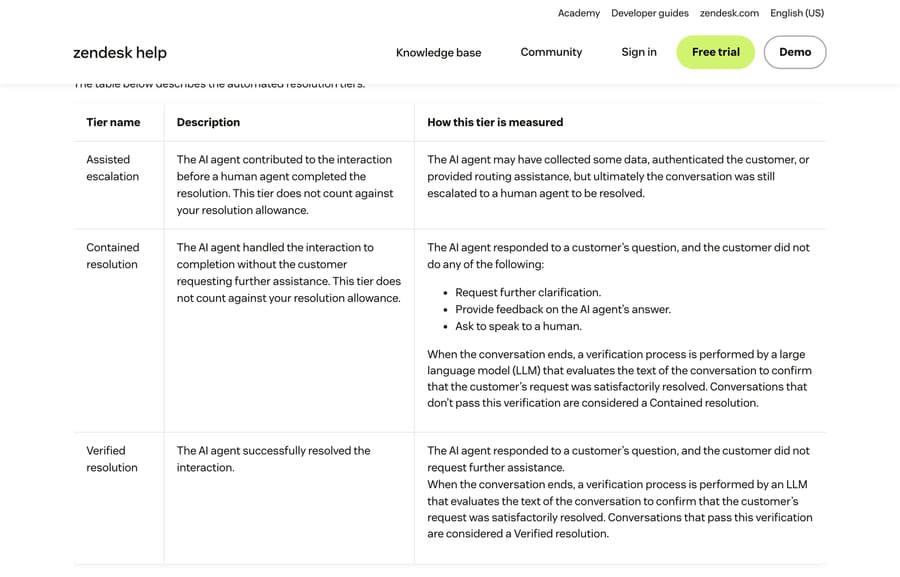
Read the mechanism rather than the labels. A conversation qualifies for the top two tiers only if the customer did not request clarification, give feedback on the answer, or ask to speak to a human. When the conversation ends, an LLM reads the transcript and decides whether the request was satisfactorily resolved. Pass, and it is a Verified resolution. Fail, and it drops to Contained.
The incentive here is unusual and worth naming: Zendesk built a billing unit where it earns nothing unless a model judges the customer was actually helped. That is a better-aligned unit than per-message or per-conversation pricing. It also means your bill depends on an LLM's judgment of your own transcripts, which is a new kind of thing to audit.
When a conversation "ends" depends on the channel
The clock matters, because nothing is scored until it stops:
- Email: 72 hours after the last email.
- Messaging: 2 hours after the last message by default, extendable up to 72 hours by contacting Zendesk support.
- Voice: immediately on hangup.
The counting edge case that confuses admins
Zendesk documents a case worth knowing before you dispute a number. In messaging, if the AI agent tries to hand off and no human agent is available to take it, the escalation cannot complete. The AI agent creates a follow-up ticket and finishes the conversation itself. The ticket then shows "Escalated to agent" as its custom resolution and "Automated resolution" as its conversation status, because no human ever joined the live conversation.
So an under-staffed messaging queue converts failed escalations into automated resolutions. That is a staffing problem with a billing symptom.
How big is your Zendesk resolution allowance?
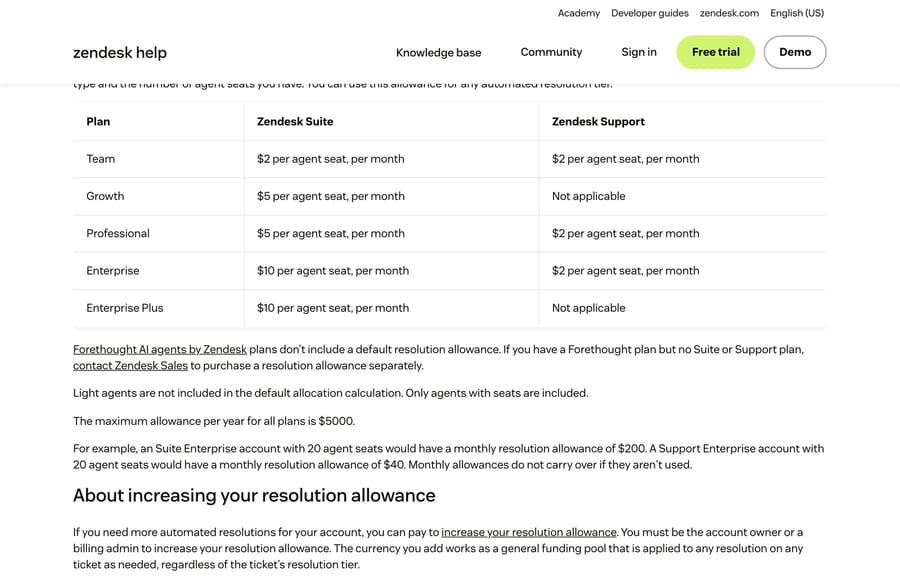
Zendesk's help center describes your resolution allowance as a dollar pool, calculated from your plan type and your number of agent seats. The plan comparison table on Zendesk's pricing page expresses the same allowance as included automated resolutions: 5 per agent a month on Support Team and Suite Team and 10 on Suite Professional, up to 10,000 a year.
| Plan | Zendesk Suite | Zendesk Support |
|---|---|---|
| Team | $2 per agent seat per month | $2 per agent seat per month |
| Growth | $5 per agent seat per month | Not applicable |
| Professional | $5 per agent seat per month | $2 per agent seat per month |
| Enterprise | $10 per agent seat per month | $2 per agent seat per month |
| Enterprise Plus | $10 per agent seat per month | Not applicable |
Four rules that change the arithmetic:
- Light agents do not count. Only agents with seats are included.
- The maximum allowance is $5,000 a year on every plan. A 500-seat Suite Enterprise account does not get $60,000 of included resolutions.
- Monthly allowances do not carry over. Unused budget is gone at the end of the month.
- Forethought AI agents by Zendesk plans include no default allowance. If you have a Forethought plan and no Suite or Support plan, you buy an allowance separately.
Zendesk's own worked examples: a Suite Enterprise account with 20 seats gets $200 a month; a Support Enterprise account with the same 20 seats gets $40.
On the rate beyond the allowance, Zendesk's pricing page lists $1.50 for a committed automated resolution and $2.00 pay-as-you-go, and its blog on outcome-based pricing also says it charges $1.50 per automated resolution. Model your budget on the basis you are actually buying, and confirm your contracted rate with your account team. Our Zendesk AI pricing breakdown goes deeper on the commercial side; the rest of this post is about control.
How do you cap automated resolution spend?
1. Set the overage response
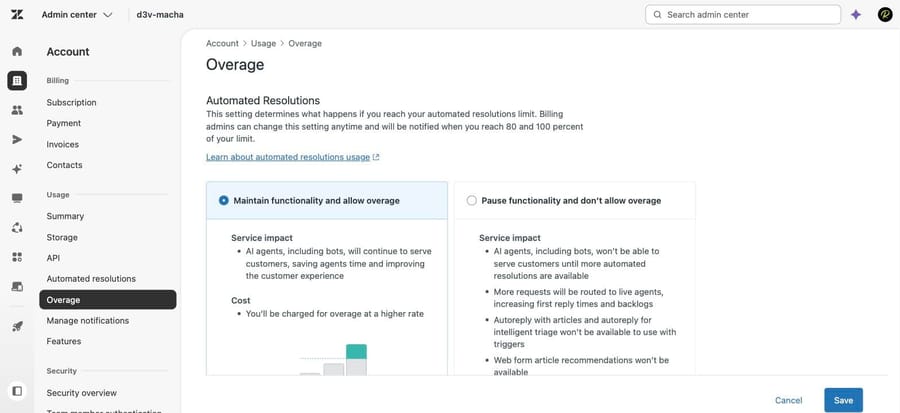
This is the single setting that turns a variable bill into a fixed one. In Admin Center, click Account, then Usage, then Overage.
- Allow overage is the default. AI agents keep working past your allowance and you are billed pay-as-you-go. Zendesk recommends it for uninterrupted support.
- Don't allow overage pauses AI agent functionality when the allowance runs out. Anything that needs a paid resolution stops working, and those requests route to human agents instead.
If you are running a pilot with a fixed budget, this is the setting you came for. One exception: on Forethought AI agents by Zendesk plans, Allow overage is selected automatically and cannot be changed.
2. Turn on usage notifications before you need them
In Admin Center, click Account, then Usage, then Manage notifications. Four notification types, and every admin is a recipient by default:
- Approaching limit, configurable at 50%, 60%, 70%, 80% or 90%.
- Reached limit at 100%.
- Exceeding limit, repeating every 10% past 100%.
- Forecast, when projected usage suggests you will exceed the allowance.
Set Approaching limit to 70% and give the Forecast notification to whoever owns the budget. A pilot that quietly ran to 300% is a conversation nobody enjoys.
3. Watch the dashboards, and know which one you can see
There are two, and the split trips people up:
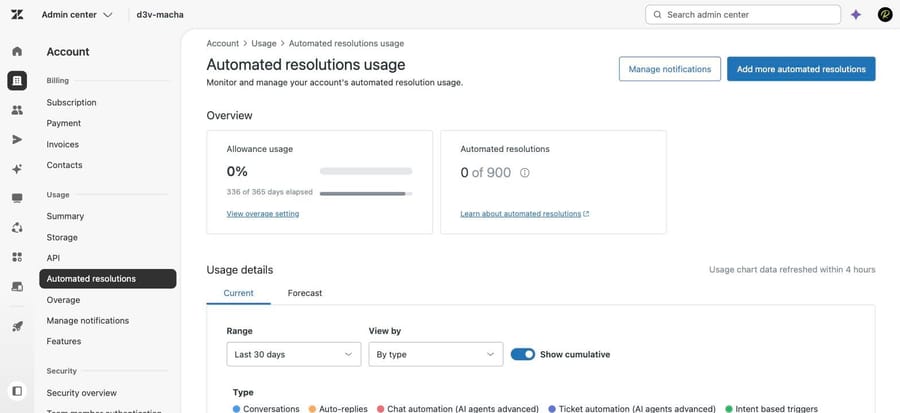
- Resolution allowance dashboard, at Account, Billing, Resolution allowance. Account owner and billing admins only. Shows total budget, included allowance, committed allowance bought as an add-on, overage, and your current overage setting. Filter usage by date range, tier, brand or channel, and drill into the tickets that contributed to the count.
- Resolution usage dashboard, the equivalent for ordinary admins.
The per-ticket drill-down is the part worth using. Filtering by channel and brand tells you which surface is spending the budget, which is what you need before you switch anything off.
Which Zendesk features consume automated resolutions?
Turning a number down means knowing what feeds it. Zendesk lists four sources, and only the first is obvious.
Messaging AI agents. Disconnect an agent from a channel in Admin Center under AI, AI agents, AI agents: open the agent, expand Channels in the Settings tab, deselect the channel, and click Publish AI agent. Configure your default messaging response first, because the channel falls back to it. Deleting an agent entirely reverts connected channels to their default responses and cannot be undone.
Autoreply triggers on email. A ticket trigger carrying the Autoreply or Autoreply with articles action consumes resolutions. Find them all at once: Admin Center, Objects and rules, Business rules, Triggers, the Ticket tab, then filter by Type Actions and Category Notify by, selecting Autoreply or Autoreply with articles. Select and Deactivate. Deactivating is enough; deleting is optional. If you are unclear on how triggers fire in the first place, Zendesk triggers explained covers the model.
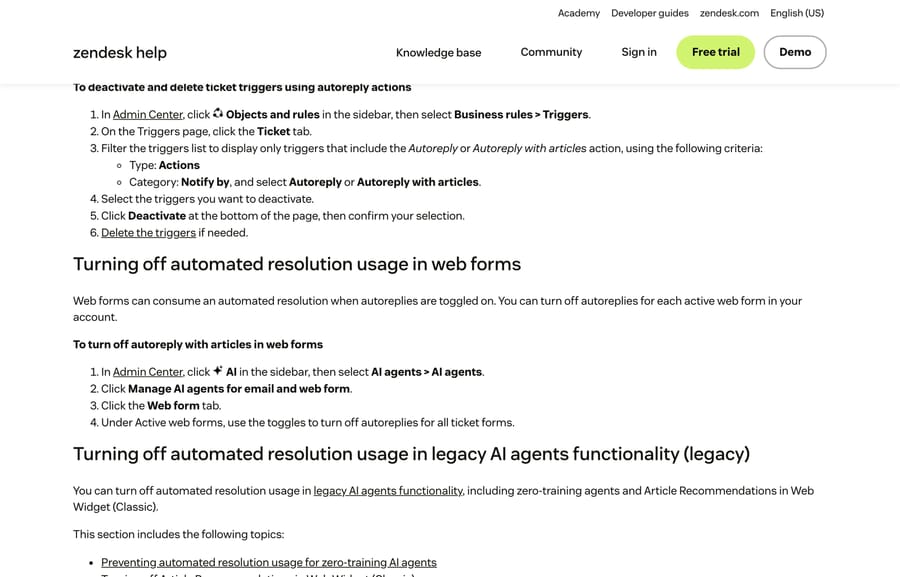
Web form autoreplies. In Admin Center, click AI, then AI agents, then AI agents, then Manage AI agents for email and web form, open the Web form tab, and toggle autoreplies off per active form.
Legacy AI agent functionality. Zero-training agents from the old AI agents - Advanced add-on, and Article Recommendations in Web Widget (Classic), both consume resolutions and are turned off separately.
Work that list in order of volume, using the dashboard's channel filter to tell you which one is actually spending.
How should you cap resolutions during a pilot?
- Set Don't allow overage so the pilot cannot exceed the included allowance.
- Set Approaching limit notifications to 50% and add the budget owner.
- Connect the AI agent to one channel and one brand, so the dashboard's brand and channel filters can attribute every resolution.
- Leave autoreply triggers off during the pilot, so email does not spend budget you allocated to messaging.
- Review the contributing-tickets list weekly and check the tier split. A high Contained share relative to Verified means the LLM check is not confirming resolutions, which is a content problem before it is a billing one.
Is there an alternative to per-resolution billing?
Worth being plain about the alternative, since this post is about controlling a per-resolution meter.
Macha on Zendesk runs as an AI agent layer on the Zendesk you already have, and it bills per ticket rather than per resolution: one thread with one person is one charge, however many replies it takes, from $299 a month for 750 tickets on published pricing, with setup and monitoring by our team included and $50 of free usage to start. The practical difference is that the number you budget is your ticket volume, which you already know, rather than a resolution count an LLM decides after the fact.
It suits teams already running Zendesk who want a predictable monthly number and agents that work across email and messaging with the same knowledge. It is the wrong fit if you have already bought a large committed resolution allowance and want to use it up, in which case the controls above are the right tools and Zendesk's own AI features are the thing to tune.
How we researched this
We checked every tier, path, plan figure and control against Zendesk's current documentation on September 20, 2026: the resolution tiers article (edited August 24, 2026), the resolution allowances article (September 8, 2026), the allowance-increase article (September 8, 2026), the usage notifications article (September 4, 2026), the article on turning off automated resolution features (August 18, 2026), the escalation-versus-resolution troubleshooting article (September 9, 2026) and the pre-tiers monitoring article. The $1.50 committed and $2.00 pay-as-you-go rates come from the plan comparison table on Zendesk's pricing page, rechecked on September 25, 2026. Three of the five screenshots are of those documentation pages. The other two come from our own Zendesk sandbox, d3v-macha, captured on September 20, 2026: the automated resolutions usage page and the overage setting. That account is a sandbox with no automated resolutions consumed, so its numbers show the shape of the screens rather than a production bill.
Frequently asked questions
What counts as an automated resolution in Zendesk? Since May 18, 2026, three tiers. Assisted escalation is when the AI agent helped and a human finished; Contained resolution is when the AI agent finished but an LLM check could not confirm the request was resolved; Verified resolution is when the AI agent finished and the check confirmed it. Zendesk's tier table says the first two do not count against your allowance.
How do I limit automated resolutions in Zendesk? Set the overage response to Don't allow overage in Admin Center under Account, Usage, Overage. That pauses AI agent functionality when your allowance runs out instead of billing you pay-as-you-go, and routes the requests to human agents. Pair it with Approaching limit notifications so it is not a surprise.
How much automated resolution allowance do I get? Zendesk's pricing page lists 5 included automated resolutions per agent a month on Support Team and Suite Team and 10 on Suite Professional; the help center describes the allowance as a dollar amount per agent seat per month, set by plan: $2 on Suite Team and every Support plan, $5 on Suite Growth and Professional, $10 on Suite Enterprise and Enterprise Plus. Light agents are excluded, the annual maximum is $5,000 on every plan, and unused allowance does not carry over.
Why does my escalated conversation show as an automated resolution? Most likely a failed handoff in messaging. If the AI agent tried to escalate and no human agent was available to accept, the escalation could not complete, so the AI agent created a follow-up ticket and ended the conversation itself. Zendesk documents this as the reason a ticket can show both "Escalated to agent" and "Automated resolution".
Which Zendesk features consume automated resolutions? Messaging AI agents, ticket triggers using the Autoreply or Autoreply with articles actions, web form autoreplies, and legacy functionality including zero-training AI agents and Article Recommendations in Web Widget (Classic). Each is turned off in a different place.
Where do I see automated resolution usage? Two dashboards. Account owners and billing admins use Account, Billing, Resolution allowance; other admins use the resolution usage dashboard. Both let you filter by date range, tier, brand and channel, and open the list of tickets that contributed to the count.
When is a conversation scored for a resolution tier? When it ends, which depends on the channel: 72 hours after the last email, 2 hours after the last message on messaging (extendable to 72 hours if you ask Zendesk support), and immediately on hangup for voice.
Can I get notified before I run out of allowance? Yes. In Admin Center, Account, Usage, Manage notifications, set Approaching limit at 50 to 90 percent, plus Reached limit, Exceeding limit (which repeats every 10% over) and Forecast, which fires when projected usage suggests you will exceed the allowance. All admins receive them by default and you can narrow the list.
Sources: About automated resolution tiers · Managing resolution allowances · Increasing your resolution allowance · Managing usage notifications for automated resolutions and resolution allowances · Turning off automated resolution features for AI agents · A conversation displays an automated resolution but it was escalated to an agent · Upgrading from automated resolutions to resolution allowances · Zendesk on outcome-based pricing
Add AI agents to your Zendesk
Macha reads the ticket, drafts the reply and takes the action, inside the Zendesk you already run.