Intercom
 Shopify
 Stripe
 Slack
Slack Notion
 Google Workspace
 Confluence

When Is Zendesk Sell Retiring? The 31 Aug 2027 Timeline, Data Export and Migration Options


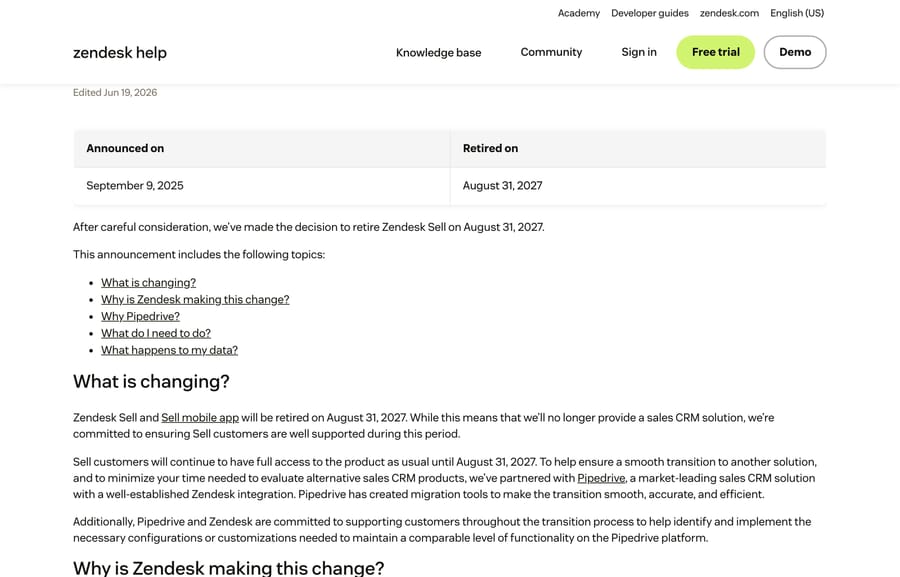
Zendesk is retiring Sell on August 31, 2027, a decision it announced on September 9, 2025, and your data is deleted permanently when your Sell subscription ends or on that date, whichever comes first. The built-in export cannot produce five categories of your data, so plan to pull those through the Sell API while the subscription is live.
Key takeaways
- Zendesk retires Sell and its mobile app on August 31, 2027, a decision announced September 9, 2025, after which unrecovered data is deleted permanently.
- Zendesk Sell's built-in export leaves out five categories of data: activity history, appointments, emails, call logs and documents.
- The Zendesk Sell export panel keeps downloadable files for only 30 days, so run and verify the export well before cancelling the subscription.
- Missing Zendesk Sell data can be pulled through the Sales CRM API at api.getbase.com using OAuth 2.0, but that API stops working when the Sell subscription ends.
- Import2, listed in Pipedrive's migration docs, offers free migration of up to 1,000,000 records from Zendesk Sell, with paid migration above that.

Zendesk Sell retires on August 31, 2027, and its data is deleted when your Sell subscription ends or on that date, whichever comes first. Before then, run the account export (Settings > Data > Export), pull the five categories the CSV leaves out through the Sell API, and choose a destination, with Pipedrive as Zendesk's named migration partner.
When is Zendesk Sell being retired?
| Date | What it means |
|---|---|
| September 9, 2025 | Zendesk announced the retirement. |
| Now until August 31, 2027 | Sell and the Sell mobile app work normally. Zendesk's wording is that customers "continue to have full access to the product as usual". |
| August 31, 2027 | Sell and the Sell mobile app are retired. |
| Whichever comes first: your Sell subscription ending, or August 31, 2027 | Data deletion starts, under the Zendesk Service Data Deletion Policy. Once it begins it cannot be reversed. |
That last row is the one to plan around, and it contains a trap. If you cancel Sell early, say because you have migrated to something else in March 2027, deletion starts then rather than in August. The general Deletion Policy begins its automated process 90 days after an account is canceled or terminated, but treat that as a technicality rather than a buffer. The safe rule is simpler: do not cancel Sell until your export is downloaded and verified.
How do you export your data from Zendesk Sell?
Exporting is quick and it is the first thing to do, because the export panel only keeps files for 30 days and because doing it now tells you what is missing while you still have 11 months to fix it.
- On the Sell sidebar, click the Settings icon, then click Data > Export.
- In Account Export, click Export.
- Wait for the email. Zendesk sends a secure link to download everything as CSV.
- Go back to the Export panel to review and re-download. It holds your account's exports from the last 30 days.
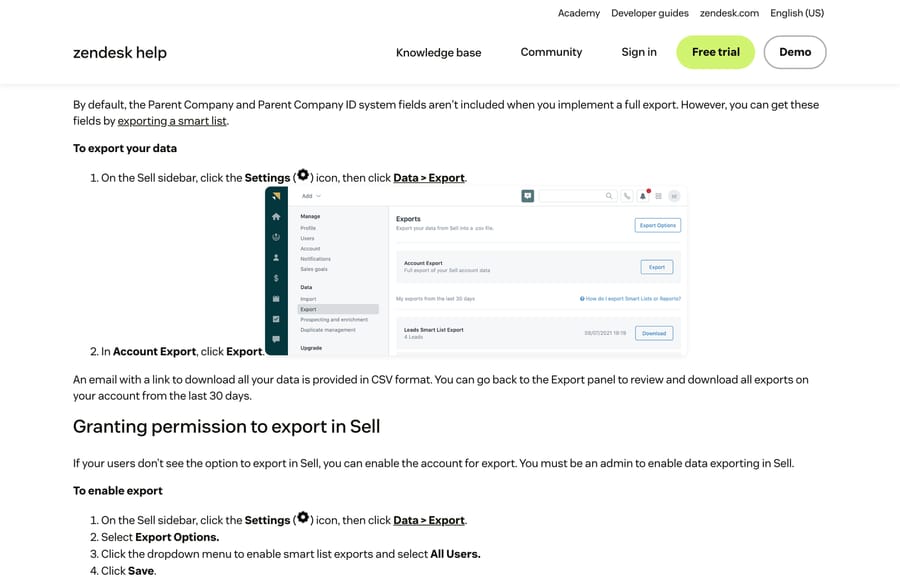
If your users can't see the export option, an admin has to turn it on: Settings > Data > Export, select Export Options, use the dropdown to enable smart list exports, choose All Users, then Save.
What does the Sell export include, and what does it leave out?
This is the part that decides how much work you have.
Comes out: Leads, Contacts, Deals, Notes, Tasks, smart lists, your full account data, and the Total Sales report.
Does not come out: activity history, appointments, emails, call logs, and documents.
Read that second list against how your team actually uses Sell. If your reps log calls in Sell, the call log is the record of the relationship, and none of it is in the CSV. If contracts and proposals live as documents on deals, those are not in the CSV either. For a lot of teams, the five missing categories are worth more than the five that export cleanly.
Two smaller quirks from the same article, both of which cost people a re-export:
- Parent Company and Parent Company ID are excluded from a full account export. You get them by exporting a smart list instead.
- A Company ID that differs from the contact person's value is dropped. If your company records don't line up neatly with your contacts, check that column before you trust it.
How do you get the data the CSV leaves behind?
The Sell API can read every category the export skips, and this is the single most useful thing to know before August 2027.
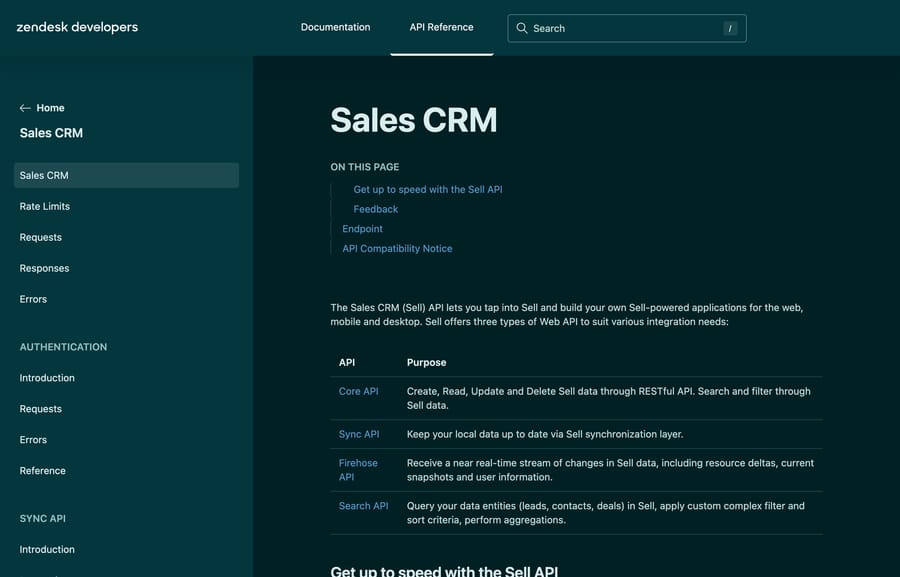
The Sales CRM API sits at https://api.getbase.com, authenticates with OAuth 2.0, and comes in four flavors: a Core API for CRUD, a Sync API, a Firehose API for change streams, and a Search API for filtered queries. Its resource list includes exactly what you're missing: Calls and Call Outcomes, Appointments and Visits with their outcomes, Documents, Text Messages, and Notes, alongside Leads, Contacts, Deals, Accounts, Line Items, Orders, Products, Pipelines, Stages, Tags, Users, Custom Fields and Sequences.
In practice that means a short script, run once, that walks the collections the CSV skipped and writes them to disk. It does not have to be elegant; it has to exist before your subscription ends. If you're not going to write one, this is worth an afternoon of contractor time, and the deadline is a real one.
One planning note: that API stops working when Sell does. Whatever you extract, extract it while the subscription is live.
How does the Zendesk Sell to Pipedrive migration work?
Zendesk named Pipedrive as its migration partner and says Pipedrive "has created migration tools to make the transition smooth, accurate, and efficient." Worth being precise about what those tools are, because the phrase suggests a one-click connector and the reality is two different paths.
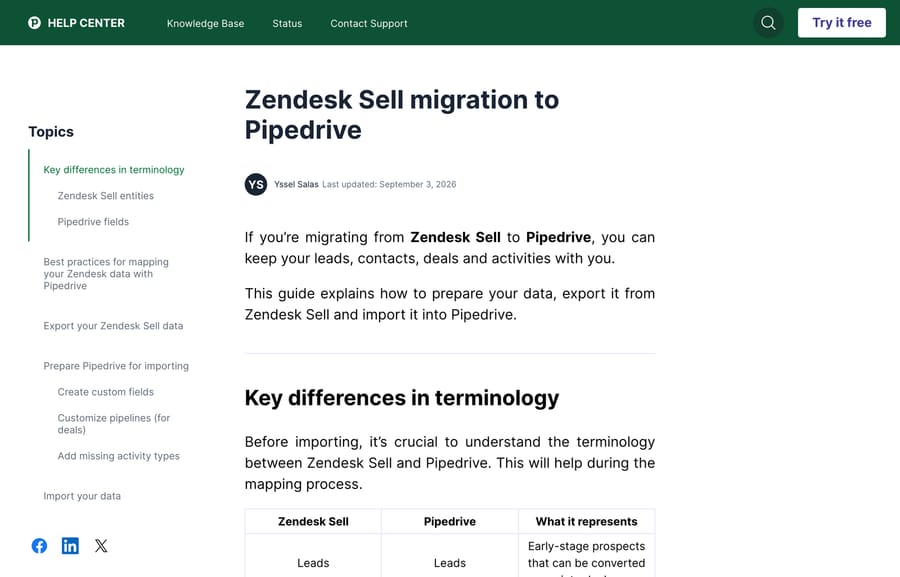
Path one, Pipedrive's own guide. It's a CSV export and import with manual field mapping. You export from Sell, create matching custom fields in Pipedrive under Company settings > Data fields, customize your pipelines, add activity types, then go to Tools and apps > Import data and map each CSV column to a Pipedrive field. Pipedrive recommends importing in the order Organizations, Persons, Deals, Leads, Activities, Notes, and recommends a test import of 5 to 10 records first, which can be reverted if it goes wrong. Its Technical Set Up Team will run a guided migration if you ask.
The terminology shifts, which is what the mapping step is for. Sell's Contacts become Pipedrive's Persons, Companies become Organizations, Tasks become Activities, and Tags become Labels.
Path two, Import2. Pipedrive's separate migration article lists Zendesk Sell among Import2's supported source CRMs, and says Import2 offers free migration of up to 1,000,000 records, with paid migrations above that. For most Sell accounts a million records is not a constraint. If you are going to Pipedrive, check this path before hand-mapping CSVs.
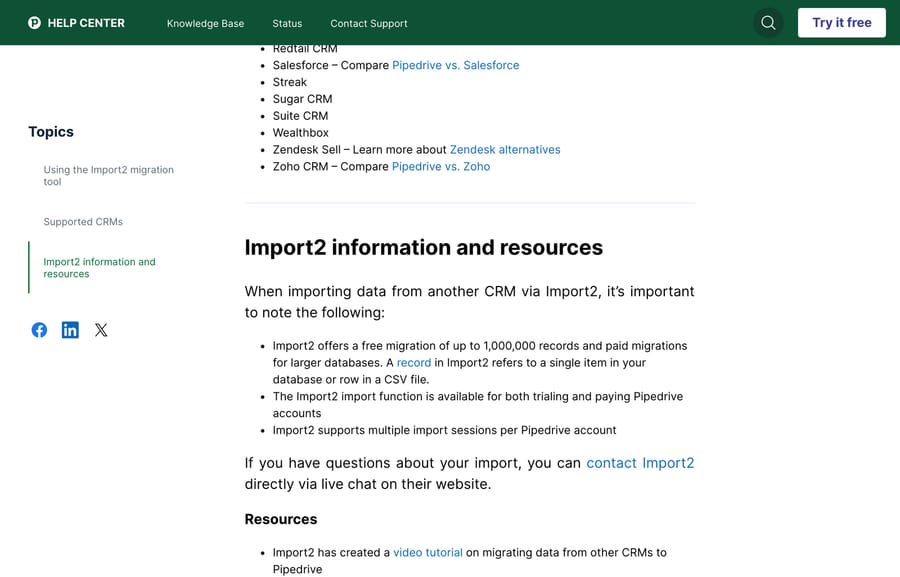
Neither path changes the export's limits. Whatever isn't in the CSV isn't in the import either, so the API extraction above is still yours to do regardless of where you land.
Do you have to move to Pipedrive?
Nothing obliges you to. Zendesk's own wording is that it partnered with Pipedrive to "minimize your time needed to evaluate alternative sales CRM products", which is a recommendation rather than a requirement, and the partner relationship is a reason to check the fit yourself rather than a reason to skip the evaluation.
The practical filter is the same one that made Sell attractive: how tightly does the CRM need to sit next to your support desk. If the answer is "very", the Pipedrive and Zendesk integration is the argument for Pipedrive and it is a real one. If sales and support barely touch, you are choosing a CRM on its own merits and the Sell retirement is just the prompt.
Either way, the export work is identical, so start it before you have decided.
What should you do, and by when?
- This month. Run the account export. Open the CSV. Write down which of the five missing categories you actually need.
- This quarter. Extract the missing categories through the Sell API while the subscription is live, and store them somewhere that isn't a laptop.
- By mid-2027. Pick a destination and run a test import of 5 to 10 records.
- Before you cancel Sell. Verify the destination has what you need. Cancellation starts deletion; the August date does not protect you if you cancel first.
- Never. Don't wait until August 2027 to start, because the export panel keeps files for 30 days and a failed import in the final week has nowhere to fall back to.
For the Support side of the house, our guide to exporting data from Zendesk covers the ticketing exports, which work differently, and the Zendesk API explained covers the ticketing API if you end up scripting both.
What does the Sell retirement say about where Zendesk is going?
Zendesk's stated reason is focus: retiring Sell lets it concentrate on customer and employee service, "move faster, innovate more boldly with AI". You can take that at face value or not, but the direction is consistent with everything else the company has shipped in the last two years, and it is worth factoring into any other Zendesk product you are betting on.
If you're consolidating anyway, the service side is where the AI investment is landing. Macha on Zendesk is an agent layer on the help desk you already run, not a CRM and not a replacement for one: it reads incoming tickets, answers what it can from your own history, and routes the rest with context attached. It suits teams already on Zendesk whose support volume is the problem, and it's the wrong fit if what you need is sales-pipeline software, which is the gap Sell is leaving and which a CRM should fill.
Worth naming the incentive while we're on the subject of vendors and deadlines: an AI vendor charging per automated resolution earns more the more tickets arrive. Macha bills per ticket, one thread with one person as one charge however many replies it takes, from $299 a month for 750 tickets on published pricing, with setup and monitoring by our team included and $50 of free usage to start.
How we researched this
We checked every date and step against the vendors' own documentation on September 21, 2026, and we want to be exact about what we could not do first-hand. Our own instance has no Sell subscription, which we confirmed by reading its subscription record over the API, so the Sell interface was genuinely unreachable and all five images are captures of public documentation pages rather than screenshots of our own account. The dates come from Zendesk's announcement (edited June 19, 2026), whose own header table gives September 9, 2025 and August 31, 2027. The export steps, the included and excluded data, the 30-day export window and the Parent Company quirks come from "Exporting data from Zendesk Sell" (July 1, 2026). The deletion wording comes from the announcement and the Zendesk Service Data Deletion Policy (June 3, 2026). The API resource list comes from Zendesk's Sales CRM API reference. The Pipedrive steps, the test-import advice and the Import2 record limit come from Pipedrive's own knowledge base, whose migration article was last updated September 3, 2026. We rechecked the retirement and deletion wording and the Import2 record limit on September 24, 2026. We did not run an export, call the Sell API or perform a Pipedrive import, and we could not find published pricing for Pipedrive's guided migration service.
Frequently asked questions
When is Zendesk Sell being retired? August 31, 2027. Zendesk announced the retirement on September 9, 2025 and says Sell and the Sell mobile app work normally until that date.
What happens to my Zendesk Sell data? It's deleted under the Zendesk Service Data Deletion Policy, starting either when your Sell subscription ends or on August 31, 2027, whichever comes first. Zendesk states that once deletion begins it's permanent and cannot be reversed.
How do I export my data from Zendesk Sell? On the Sell sidebar click the Settings icon, then Data > Export, then click Export under Account Export. Zendesk emails a secure link to a CSV. The Export panel keeps your account's exports for 30 days, so download rather than relying on it.
What data can't be exported from Zendesk Sell? Activity history, appointments, emails, call logs and documents. Parent Company and Parent Company ID are also left out of a full account export, although you can get them by exporting a smart list instead.
How do I get the data the export leaves behind? Through the Sell API. The Sales CRM API at api.getbase.com has endpoints for Calls and Call Outcomes, Appointments and Visits, Documents, Text Messages and more, using OAuth 2.0. Run the extraction while your subscription is still live, because the API goes away with the product.
Is Zendesk forcing me to move to Pipedrive? No. Pipedrive is the named migration partner and has a well-established Zendesk integration, which is a genuine argument if your sales and support workflows are linked. You're free to choose any CRM, and the export work is the same either way.
How does the Zendesk Sell to Pipedrive migration work? Two ways. Pipedrive's guide describes exporting CSVs from Sell and importing them under Tools and apps > Import data with manual field mapping, in the order Organizations, Persons, Deals, Leads, Activities, Notes. Separately, Import2 lists Zendesk Sell as a supported source and offers free migration of up to 1,000,000 records.
Should I cancel my Sell subscription early? Not before your export is complete and verified. Data deletion starts when the subscription ends or on August 31, 2027, whichever comes first, so canceling early brings the deletion forward rather than buying you time.
What happens to my Zendesk Support account? Nothing. The retirement covers Zendesk Sell and the Sell mobile app. Zendesk's stated reason for the change is to concentrate on customer and employee service, which is the Support side of the product.
Sources: Announcing the retiring of Zendesk Sell · Exporting data from Zendesk Sell · Zendesk Service Data Deletion Policy · Sales CRM API reference · Zendesk Sell migration to Pipedrive · Migrating data from a previous CRM using Import2
Add AI agents to your Zendesk
Macha reads the ticket, drafts the reply and takes the action, inside the Zendesk you already run.