





 Shopify
 Stripe
 Slack
Slack Notion
 Google Workspace
 Confluence

What Are Zendesk's Storage Limits in 2026? The Three Counters Explained


Zendesk meters storage on three separate counters, data, files and external content, each with its own ceiling. The number most admins worry about, ticket volume, is usually the one that matters least.
Key takeaways
- Zendesk storage limits are three separate ceilings: data storage and file storage each start at a 10 GB base plus a per-agent allowance, and external content is flat.
- Zendesk adds 2 GB of file storage per agent on Team, 5 GB on Growth and Professional, and 10 GB on Enterprise and Enterprise Plus.
- Zendesk external content storage does not scale with seats: it is 100 MB on Team, 500 MB on Growth and Professional, and 1 GB on Enterprise.
- The Zendesk storage usage page only counts the past 3 years of data, and its dashboard only began collecting in May 2023.
- Each Zendesk More Storage unit adds 500 MB of data, 25 GB of files and 500 MB of external content, bought from the storage dashboard.

Zendesk storage limits are three separate ceilings, not one: data storage and file storage each get a 10 GB base plus a per-agent allowance (up to 200 MB of data and 10 GB of files per agent on Enterprise), and external content storage is a flat 100 MB to 1 GB depending on plan. File storage is almost always the one that fills first.
| Plan | Data storage | File storage | External content |
|---|---|---|---|
| Team | 10 GB + 50 MB per agent | 10 GB + 2 GB per agent | 100 MB |
| Growth, Professional | 10 GB + 100 MB per agent | 10 GB + 5 GB per agent | 500 MB |
| Enterprise, Enterprise Plus | 10 GB + 200 MB per agent | 10 GB + 10 GB per agent | 1 GB |
Source: Zendesk's Managing data storage in your Zendesk account, checked 24 September 2026. Here's what the storage page looks like once you find it, and what each figure is actually counting.
Where is the Zendesk storage page, and what does it show?
Admin Center, Account, Usage, Storage. It sits under Usage rather than Billing, which is one of several places the Admin Center layout sends people the wrong way. Zendesk documents it in Managing data storage in your Zendesk account. It opens with three cards.
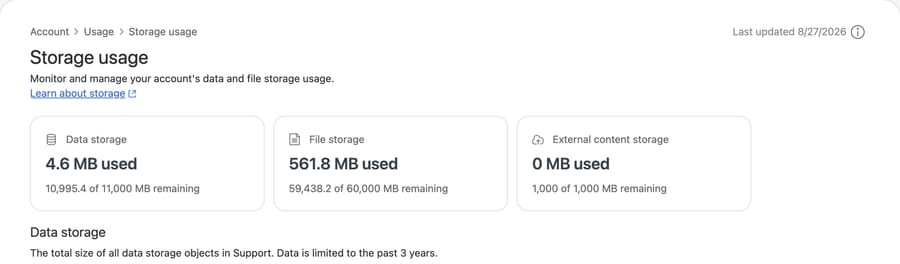
On our developer instance: data storage 4.6 MB, file storage 561.8 MB, external content storage 0 MB. The ceilings differ too, at 11,000 MB, 60,000 MB and 1,000 MB respectively.
Those are one instance's numbers and yours will differ. What generalizes is the ratio. Files are using roughly 122 times what the structured data uses, against a ceiling only about five times larger.
That shape is normal, and it's why "we have a lot of tickets" is rarely the storage problem. Ticket text is small. A ticket is a few kilobytes of words and metadata. A screenshot somebody pasted to show you the error is a few hundred kilobytes on its own, and a phone video of a broken product is tens of megabytes.
How is your storage ceiling calculated?
Those ceilings are not arbitrary and they are not the same as ours. Zendesk's guide to managing data storage sets out the formula: "a base storage amount for all plans and an additional per-seat allocation that varies per plan type."
The base is 10 GB of data storage and 10 GB of file storage on every plan. The per-seat part is where plans diverge: Team adds 50 MB of data and 2 GB of files per agent, Growth and Professional add 100 MB and 5 GB, and Enterprise and Enterprise Plus add 200 MB and 10 GB. External content storage does not scale per seat at all; it is 100 MB on Team, 500 MB on Growth and Professional, and 1 GB on Enterprise and Enterprise Plus.
Our own numbers fall out of that, with a caveat worth learning from. An 11,000 MB data ceiling and a 60,000 MB file ceiling is a 10,000 MB base plus per-seat allocation, and two combinations produce exactly those figures: ten seats at Growth or Professional rates, or five at Enterprise rates. The big counters cannot separate them.
The third card can. Ours reads 1,000 MB of external content storage, and external content does not scale per seat: it is 500 MB on Growth and Professional, 1 GB on Enterprise and Enterprise Plus. So this is a five-seat Enterprise-tier account, and the two large numbers on their own would have had us guessing wrong.
Run the arithmetic backwards on your own page and it will narrow your plan considerably. Read the external card before you commit to an answer, because it is the one that breaks the tie.
So your ceiling is base plus seats, which has a consequence people miss: buying an agent buys storage. A team that adds ten Professional seats gains 50 GB of file allowance without anyone deciding to. And a team that reduces seats loses it, which is the version that surprises people, because the tickets and attachments do not leave when the agents do.
What does each storage counter hold?
Data storage is the structured content: tickets, users, and custom objects. The Storage usage page describes it in the line visible in the screenshot above: "The total size of all data storage objects in Support. Data is limited to the past 3 years."
That three-year window is worth pausing on. It means the number on the card is not your all-time footprint, so an instance with a decade of history is showing you a partial figure. If you're planning around growth, you're extrapolating from a rolling window.
File storage is attachments on tickets, with the same three-year framing. This is the counter that moves.
External content storage covers content indexed from outside Zendesk. On our instance it's zero, and on many instances it stays zero until somebody connects an external source for search or an AI agent to read from. It's the smallest ceiling of the three by a wide margin, which matters if you start indexing a large documentation site.
Which counter fills first?
The two big counters fill at completely different rates, so the useful question is which of them hits its ceiling first, and when.
Data storage grows with ticket volume, roughly linearly and slowly. You can forecast it from your ticket count with reasonable confidence.
File storage grows with what people attach, which is not a function of your volume at all. It's a function of your product and your customers. A support desk for a SaaS tool collects screenshots. A support desk for physical goods collects photos and increasingly video, and the same ticket count produces an order of magnitude more storage. Two companies with identical ticket volumes can be years apart on file storage.
That means a forecast built on ticket growth will be wrong in the direction that hurts, because the counter you can predict isn't the counter that fills.
How large can a single attachment be?
There's a fourth number, and it doesn't appear on the storage page at all. Each attachment has a maximum size, and the account settings endpoint returns it as limits.attachment_size, in bytes. If you have not used the API before, our Zendesk API guide covers authenticating a request like this one:

52,428,800 bytes, which is fifty megabytes per file on our instance. That's the cap a customer hits when they try to send you a video, and it's the setting that quietly shapes your file storage curve, because it sets the size of the largest single thing anyone can add.
It's worth knowing this number before you go looking for ways to slow storage growth, since lowering it is one of the few levers that acts on the input rather than the accumulated total.
How do you read the storage charts?
Below the cards, each counter gets a time-series chart with a range selector and a line marking the limit.
On a young or low-volume instance these charts are flat, and ours are: a line along the bottom and the ceiling drawn far above it. Flat charts are not useless, though they're easy to dismiss. The thing to look for is not the current height but the gradient, and on a busy instance the gradient is the whole story. A line that has doubled its slope in the last quarter tells you something a single "used" figure never will.
Set the range to the longest available and look at the shape, remembering that the dashboard only began collecting in May 2023, so anything earlier reads as zero. If it bends upward, you have a date, and knowing the date is what turns this from a surprise into a plan.
What can you do when a counter climbs?
The options are narrower than people expect, and they divide cleanly.
You can delete things, which is what deletion schedules are for, and which sits alongside the other retention settings in our Zendesk security checklist. Attachments have their own object type there, so if file storage is your problem you can target attachments specifically without touching ticket history. That's usually the right first move, because it removes the megabytes while keeping the conversations searchable.
You can stop things arriving, by capping attachment sizes or steering large files elsewhere. This is a policy decision more than a technical one, and it has a real cost: an agent who can't see the screenshot solves the ticket slower. Be careful about optimizing storage at the expense of resolution time, since one of those is cheap to buy more of and the other isn't.
You can buy more, which is the option Zendesk would prefer and is sometimes simply correct. It is sold in units. Each More Storage unit adds 500 MB of data, 25 GB of files and 500 MB of external content, bought from the storage dashboard itself. The cart recommends a quantity based on your past usage, which is the incentive below made concrete.
Worth knowing what the ceiling actually feels like, because it is less dramatic than people fear and less harmless than they hope. At 80% you get an in-product warning and the chart line turns orange. Past the limit you get an in-product error and the line turns red. Zendesk is explicit about what it may do next: it "always reserves the right to enforce product limits, including charging for additional usage or curtailing usage if the limits are surpassed."
Nothing breaks at the threshold, in other words, and nothing protects you either. Separately, exceeding storage is not a performance problem: Zendesk answers that question directly and the answer is no.
The incentive here is worth naming rather than resenting. Storage is a metered resource with a real underlying cost, and the counter that grows fastest is the one tied to customer behavior you don't control. That's a comfortable position for a vendor: the overage arrives whether or not you changed anything, and the cheapest response for a busy admin is to pay it. That doesn't make the pricing wrong. It does mean the decision to buy should follow a look at the chart rather than an email about a threshold, because the two prompts lead to different-sized purchases.
How do you audit your storage in five minutes?
Three questions, answerable in a few minutes on the page itself.
Which counter is closest to its ceiling, as a percentage rather than in megabytes? Megabytes are the wrong unit for this, because the ceilings differ by more than an order of magnitude. On our instance file storage is the larger number by far and still sits at about 0.9% of its limit, while data storage is at roughly 0.04%. Both are comfortable; they are not comparable.
What's the gradient on the longest range you can select? A flat line means you can stop thinking about this for a year. A bend means you should put a date in the calendar.
Is external content storage doing anything? If you've connected external sources, check it, because it has the smallest ceiling of the three and it's the one nobody watches.
Write the three answers down. That's your storage position, and it takes longer to describe than to do.
Common questions
Where is the storage page in Zendesk? Admin Center, then Account, then Usage, then Storage. It's under Usage rather than under Billing, which is where people tend to look first.
Why is my file storage so much bigger than my data storage? Ticket text is small and attachments are not. On our instance files use about 122 times what structured data uses. A single screenshot can outweigh hundreds of tickets' worth of text.
Does the storage page show my all-time usage? The Storage usage page says so in the product: "Data is limited to the past 3 years." Treat the card as a three-year window rather than a lifetime total.
How do I reduce file storage without deleting tickets? Attachments are a separate object type for deletion schedules, so you can schedule attachment deletion while leaving the tickets themselves in place. The conversation stays searchable and the megabytes go.
What counts as external content storage? Content indexed from sources outside Zendesk. It's zero on instances that haven't connected any, and it has a much smaller ceiling than the other two counters, so it's worth checking if you've recently added a source.
Does an AI agent add to Zendesk storage?
The split between the two counters has a consequence for automation that is worth spelling out, because it points the opposite way from the obvious one.
The counter under pressure is file storage. The counter most AI work leans on is data storage: ticket text, subjects, comments, the words people wrote. Those are separate ceilings, and the one filling up is not the one holding most of the material an agent works from. So the storage remedy that costs you nothing is attachment deletion, which frees megabytes at the rate they accumulated while leaving every conversation searchable.
That makes the sequencing easy where it usually is not. Attack file storage first, because it is both the bigger number and the one you can cut without touching what anybody, human or automated, reads later. Only then consider ticket retention, which is where the trade-off actually bites.
Macha reads from your existing Zendesk rather than storing a second copy, so it adds nothing to either counter. It also reads attachments: its Read Attachment tool extracts text from PDFs, DOCX, XLSX and CSV files and uses AI vision to describe screenshots, receipts and product photos. That matters here, because if your tickets carry their answers in attachments (a screenshot of the error rather than a description of it), deleting attachments too aggressively removes material an agent could have used. Point attachment deletion at tickets that have been closed for a while, not recent ones. Our Zendesk integration page sets out exactly what gets read.






