Shopify
 Stripe
 Slack
Slack Notion
 Google Workspace
 Confluence

How Do You Connect Zoho CRM to Zendesk? Native Extension vs AI Custom Tool (2026)


Zoho CRM connects to Zendesk through Zoho's free extension, which syncs Leads, Contacts and Accounts, or through a Custom Tool that lets an AI agent query Zoho CRM live from inside a ticket. The right choice depends on whether human agents need shared context or your AI agent needs to look records up and act on them.
Key takeaways
- Zoho CRM connects to Zendesk through Zoho's free Zendesk extension, which syncs Leads, Contacts and Accounts and adds Zendesk Tickets and Zendesk Ticket Comments modules to Zoho CRM.
- Zoho's Zendesk extension runs its bulk sync only once and lists support only for the US, IN, AU, CA, SA and JP data centers, so EU accounts should check first.
- A Macha Custom Tool can look up a Zoho CRM contact with a GET to /crm/v8/Contacts/search by email, or run a COQL query that returns up to 200 records per call.
- Read tools such as a Zoho CRM lookup run freely, while Write tools that add a note, update a field, or change a stage require a confirmation step before they run.
- On the trial and every Macha plan, the Macha team builds and tests the Zoho CRM tools and the agent for you, at about $0.40 a ticket including setup and a dedicated success manager who handles your changes.

You can connect Zoho CRM to Zendesk in two ways: Zoho's free Zendesk extension, which syncs Leads, Contacts and Accounts and shows Zendesk tickets inside Zoho CRM, or a Custom Tool that lets an AI agent query Zoho CRM's REST API live from inside a ticket. The extension is enough for shared context between sales and support. The Custom Tool is for when you want the agent to look up a customer's record, reason over it and act on it.
| Zoho's Zendesk extension | Macha Custom Tool | |
|---|---|---|
| Price | Free on Zoho Marketplace | Included on every Macha plan |
| Zoho modules | Leads, Contacts and Accounts | Any module the Zoho CRM API exposes, including Deals |
| What it does | Syncs records and shows tickets in two new modules (Zendesk Tickets, Zendesk Ticket Comments) | The AI agent looks up or updates a record mid-ticket |
| Limits | Bulk sync runs once; US, IN, AU, CA, SA and JP data centers only | Zoho API limits: 200 records per call |
| Writes | Creates tickets from CRM records | Notes, field updates and stage changes, each confirmed before it runs |
| Setup | Install the free extension from the Zoho Marketplace | Done for you by the Macha team, with a dedicated success manager, included |
Framing first. Macha runs on top of the Zendesk you already use. It's an AI-agent layer, not a Zendesk or Zoho CRM replacement. Your agents keep working in Zendesk; Macha reads the ticket, reasons, and reaches into Zoho CRM to answer or act.
What does the native Zoho CRM Zendesk integration do, and where does it stop?
Zoho CRM does offer a native Zendesk integration. On the Zoho side, the Zendesk for Zoho CRM extension is free, lists more than 2,000 installs and was last updated on 30 July 2024 (checked 24 September 2026). Per Zoho's help article, it syncs contact, lead and account data between the two systems, lets you create Zendesk tickets from CRM records, and adds two custom modules, Zendesk Tickets and Zendesk Ticket Comments. A Zendesk Marketplace app covers the other direction and puts Zoho CRM context next to the ticket. If all you need is shared CRM context on the screen, that may be enough.
Where it stops:
- It's mostly display and sync, not action. It shows records; it doesn't let an AI agent decide to look something up mid-conversation, pass the right parameters, and reason over the result.
- It covers three modules. Zoho says the extension supports only Leads, Contacts and Accounts, so deal stage and deal value aren't part of the sync.
- It has operational limits. The bulk sync can run only once (after that you email Zoho's extensions team), and Zoho lists support only for its US, IN, AU, CA, SA and JP data centers. An account on Zoho's EU data center should confirm availability first.
- It's fixed. You get the fields the integration exposes, not the specific query or write your workflow needs (e.g. "what's this contact's lifecycle stage and open deal value?" or "log this ticket as a note on the record").
For a lot of teams, the sync is fine. For anyone who wants their AI agent to actually use Zoho CRM, there's a lighter, more flexible path.
Why would you want the AI agent to use Zoho CRM live?
The high-value version of this integration isn't a synced field. It's the agent doing the work. A customer emails Zendesk; the agent recognizes them, looks up their live Zoho CRM record by email, and answers "I can see you're on the Growth plan with an upgrade in progress" or routes them to their account owner as a VIP, grounded in Zoho CRM and not a stale synced copy. That's what a Custom Tool enables.
How do you connect Zoho CRM to Zendesk with a Custom Tool?
A Custom Tool is a single action you define once and point at Zoho CRM's API. No code, and custom tools are included on every Macha plan.
1. Point it at the Zoho CRM API. Zoho CRM exposes a REST API at www.zohoapis.com/crm/v8 (accounts on another Zoho data center use that region's API domain) with OAuth 2.0; you give Macha the endpoint and credentials. The built-in Sidekick can scaffold the request from a plain-English description if you'd rather not fill in the form.
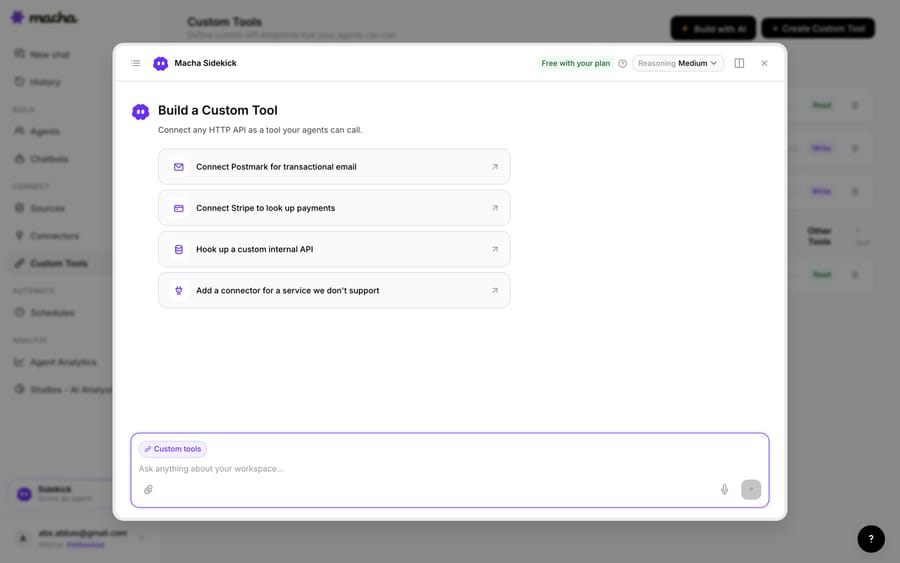
2. Define the action. Give it a label and a description the AI uses to decide when to call it, e.g. "Get the Zoho CRM contact, lifecycle stage, and open deal for a customer by email." For a simple lookup, use GET /crm/v8/Contacts/search?email={{email}}, which searches every email field on the record. For something more specific, Zoho's COQL endpoint takes a POST to /crm/v8/coql with a SQL-like query and returns up to 200 records per call. Then choose Read or Write. A lookup is a Read; adding a note or updating a field is a Write, which requires confirmation before it runs.
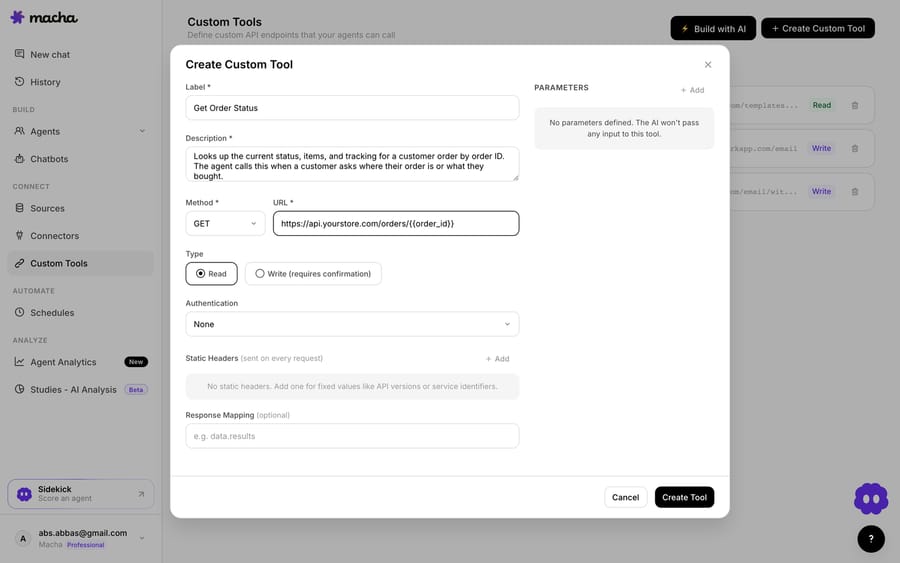
3. The agent uses it live. Once the tool exists, the agent calls it mid-ticket, passes the customer's email, and reasons over the Zoho CRM record it gets back, answering the question or taking the next step.
Which Zoho CRM actions can the agent take, and how do you keep them safe?
Because a Custom Tool can reach into Zoho CRM, the guardrails matter: Read tools (lookups) are free to call; Write tools (add a note, update a field, change a stage) require confirmation. Each tool is scoped to one action, permissioned per agent, and every call is audited. Zoho's OAuth handles credentials, so secrets never live in the conversation. Grant only the OAuth scopes a tool needs: the search call needs module read access plus ZohoSearch.securesearch.READ, and COQL needs ZohoCRM.coql.READ.
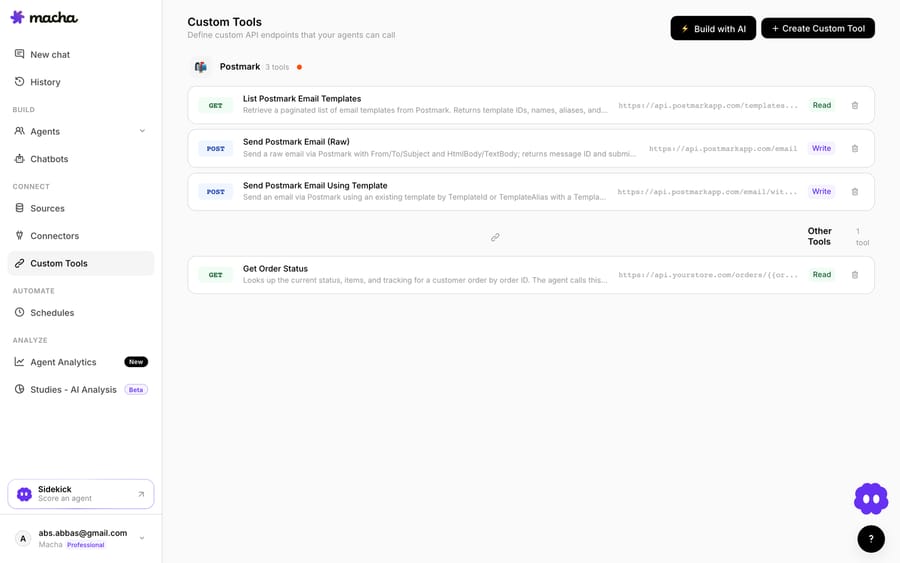
Teams usually build a few Zoho CRM tools and group them, such as a "contact lookup," a "log ticket as note," and a "flag account," alongside tools for their other systems.
Should you use the native app or a Custom Tool?
- Use the native Zoho CRM Zendesk extension if you want leads, contacts and accounts synced for human agents, your Zoho account sits on a supported data center, and you don't need deal data.
- Use a Custom Tool when you want your AI agent to look up live Zoho CRM data or take an action from the ticket, or you need a specific query or write the native integration doesn't expose, such as the open deal on a contact. The two can coexist. Macha is the done-for-you option: the Macha team builds and tests the Zoho CRM tools and the agent on your Zendesk, then runs it in safe mode, with drafts as internal notes, until the drafts are right. That's included on the trial and every plan at about $0.40 a ticket, which covers setup and a dedicated success manager who handles your changes.
What else can the agent do once it reaches Zoho CRM?
Once the agent can reach Zoho CRM, the same pattern covers more: check a contact's lifecycle stage before answering, read the open deal and owner to route a VIP, log the ticket to the record's timeline, or flag churn risk. And because Custom Tools aren't Zoho-specific, the same approach connects your billing system, data warehouse, or internal API. The Custom Tools integration directory lists 210+ tools, Zoho CRM among them, and the pillar on building custom Zendesk integrations covers the general pattern.
Ready to try it? See how Custom Tools work, browse the integration directory, or start a free trial with $50 of free usage and wire up your first Zoho CRM tool today.
Frequently asked questions
Does Zendesk have a native Zoho CRM integration? Yes. Zoho's free Zendesk extension syncs Leads, Contacts and Accounts, creates Zendesk tickets from CRM records, and shows tickets in Zoho CRM, and a Zendesk Marketplace app puts Zoho CRM context beside the ticket. It's display and sync focused; a Custom Tool adds live, agent-driven lookups and actions.
Do I need an engineer to connect Zoho CRM to Zendesk this way? No. On the trial and every plan, the Macha team builds and tests the Zoho CRM tools for you. To build one yourself, you describe the action in plain English and Macha's Sidekick scaffolds the Zoho CRM request, OAuth, and parameters. Technical teams can go deeper with full control over the COQL query, headers, and response mapping.
Can the agent update Zoho CRM, or only read it? Both. Reads (lookups) run freely; writes, such as adding a note or updating a field, require a confirmation step, and you control which agents can use them.
Is it secure? Yes. The tool is scoped to a single action, permissioned per agent, authenticated via Zoho OAuth, and every call is audited.
Does the Zoho extension sync deals? No. Zoho's help article says the Zendesk extension supports only the Leads, Contacts and Accounts modules. To show an open deal inside a ticket, point a Custom Tool at the Deals module through the Zoho CRM API.