





 Shopify
 Stripe
 Slack
 Notion
 Google Workspace
 Confluence


How Do You Migrate from Zendesk to HubSpot Service Hub? What Moves, What You Rebuild, What It Costs (2026)


A Zendesk to HubSpot Service Hub migration can start with HubSpot's own Smart Transfer, which is included on every HubSpot plan and syncs Zendesk users, organizations, tickets, agents and groups, then copies attachments, ticket comments and ticket conversations once. It doesn't move custom objects, custom field mappings need a Data Hub subscription, and macros, triggers, SLAs and views don't move at all. Paid tools such as Help Desk Migration ($100 per 1,000 records) add a test run on your own data and, on Help Desk Migration's Premium or Enterprise plans, a delta pass for tickets created during the move.
Key takeaways
- HubSpot Smart Transfer moves Zendesk users, organizations, tickets, agents and groups, plus a one-time copy of attachments, comments and conversations, at no extra cost.
- The one-time copies don't stay up to date, so replies added in Zendesk after that copy runs don't reach HubSpot automatically, which is why we'd run that copy last.
- Macros, triggers, SLA policies and views are rebuilt by hand, and HubSpot workflows need a Professional or Enterprise subscription, so Service Hub Starter alone doesn't have them.
- HubSpot's knowledge base importer copies Zendesk help center articles by URL, up to 400 per import, but it doesn't import tables.
- Help Desk Migration charges $100 per 1,000 records and $514 per 10,000, with a free 20-ticket demo and a delta run only on its Premium or Enterprise plans.

| Route | What it moves | Cost | Catch |
|---|---|---|---|
| HubSpot Smart Transfer | Users, organizations, tickets, agents, groups; one-time copy of attachments, comments as notes and conversations | Included on all HubSpot plans | No custom objects; custom field mappings need Data Hub; Super Admins only |
| HubSpot knowledge base import | Help center articles by URL or CSV | Service Hub Professional or Enterprise | 400 articles per import, no tables, primary language only |
| Help Desk Migration | Tickets, comments, attachments, contacts, companies, agents, custom fields, side conversations as private comments | $100 per 1,000 records, $514 per 10,000 (basic, Essential plan) | Delta run only on Premium or Enterprise |
| MigrateMyCRM (SyncMatters) | Zendesk tickets, comments, attachments, contacts, companies | $149 under 5,000 records up to $3,499 for 2 million | A HubSpot-first CRM migration tool; check what it says about cutover |
| A HubSpot partner | Data, and on larger packages the rebuild of workflows, SLAs and reports | From $950 (Orange Marketing) to from $5,000 (SmartBug Media) | Scope differs a lot; Orange's $950 package is low record counts, no workflows |
Which migration route actually moves your Zendesk ticket history?
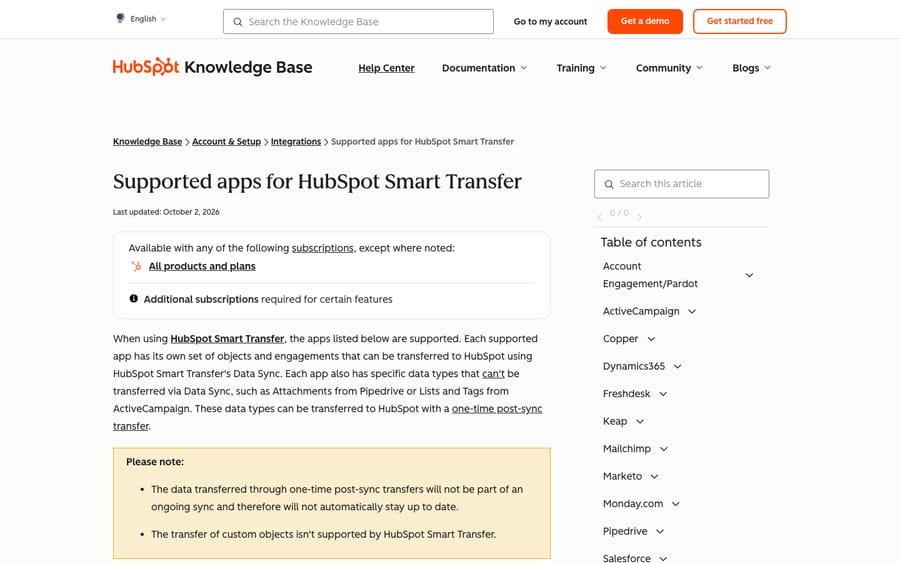
HubSpot's own tool now handles a Zendesk move. Smart Transfer is HubSpot's one-way importer, and HubSpot's supported apps article (last updated October 2, 2026) lists Zendesk with this mapping: users become contacts, organizations become companies, tickets stay tickets, agents become HubSpot users and groups become teams. Those five objects move through what HubSpot calls Data Sync. Three more data types come over as a "one-time post-sync transfer": attachments, "ticket comments as notes" and "ticket conversations."
HubSpot's own wording on that second list is that "the data transferred through one-time post-sync transfers will not be part of an ongoing sync and therefore will not automatically stay up to date." The same page says "the transfer of custom objects isn't supported by HubSpot Smart Transfer."
HubSpot's how-to article for Smart Transfer adds the rules around it. Only Super Admins can open it. "You must have a Data Hub subscription to transfer custom field mappings." It runs in stages: an audit of the Zendesk account, a configure step where you pick objects and properties, a review, the data sync (which HubSpot says can take several hours and then "will continue to run in the background"), the optional one-time transfer, and a cleanup that removes the workflows Smart Transfer created along the way. Those transfer workflows are "automatically turned on once the configuration is complete" and handle differences between the two data models; HubSpot's example is one that fills the Close date property from the right source field.
Where Smart Transfer stops, the paid tools start. If your Zendesk tickets lean on custom fields and you don't have Data Hub, or you want to check the result on a sample before anything touches your live HubSpot account, a migration tool is the usual route. HubSpot's own hands-on guide to this migration, a PDF last edited in September 2022 and so older than Smart Transfer, named Help Desk Migration, Import2 and Trujay as tools "that have a pre-built connector between Zendesk and HubSpot." Trujay has since merged into SyncMatters, which sells the MigrateMyCRM product.
How do Zendesk objects map to HubSpot?
Zendesk is a ticket-first help desk. HubSpot is a CRM where the ticket is one record among contacts, companies and their associations, and statuses live in a pipeline you design. Here is the mapping, with what to check on each row:
| Zendesk | HubSpot | What to watch |
|---|---|---|
| Users (end users) | Contacts | HubSpot deduplicates on email, per its 2022 guide; a person with a different email in each system becomes two contacts |
| Organizations | Companies | Check the contact-to-company associations after the sync |
| Tickets | Tickets | Add a property for the original Zendesk ticket ID before you start |
| Ticket comments and conversations | Notes and conversations, copied once | Not kept up to date after the copy |
| Agents | Users | Help Desk Migration maps light agents to non-billing users |
| Groups | Teams | Confirm team membership afterwards |
| Ticket statuses | Pipeline statuses | Build the pipeline first |
| Tags | A custom property | Help Desk Migration's own page says tags land in custom properties |
| Help center articles | Knowledge base articles | Separate importer, Service Hub Professional or Enterprise |
| Custom objects | Not supported by Smart Transfer | Tool or API work |
Statuses need a pipeline before any ticket arrives. HubSpot's pipeline article describes "a default Support Pipeline with four ticket statuses": New, Waiting on contact, Waiting on us and Closed. Zendesk has New, Open, Pending, On-hold, Solved and Closed, and accounts with custom ticket statuses add their own under the new, open, pending, hold and solved categories. Our Zendesk ticket statuses explainer covers how those categories behave. Six built-in statuses into four doesn't go evenly, so decide where Pending and On-hold land, and whether Solved and Closed collapse into one. HubSpot's articles don't say how Smart Transfer maps Zendesk statuses to stages; the how-to article says only that configuration creates "the properties and pipelines based on the CRM settings of the app you're transferring from." Check the mapping on the review screen rather than assuming it. A custom ticket pipeline needs a Starter, Professional or Enterprise subscription, according to the same pipeline article.
What moves automatically, and what do you rebuild by hand?
The left column moves with Smart Transfer or a tool. The right column is rework in HubSpot whichever route you pick, and none of it is on Smart Transfer's list.
| Moves | Rebuilt by hand in HubSpot |
|---|---|
| Contacts and companies (from users and organizations) | Macros, which become snippets or templates |
| Tickets and their standard fields | Triggers and automations, which become workflows |
| Comments as notes, and conversations (one-time copy) | SLA policies and business hours |
| Attachments (one-time copy) | Views, which become saved ticket views and filters |
| Agents as users, groups as teams | Explore reports and dashboards |
| Custom fields (with Data Hub, or a paid tool) | Email notifications and the routing rules behind them |
| Help center articles (separate importer) | CSAT surveys and their history |
Macros mostly become snippets. A HubSpot snippet is a block of reply text. HubSpot's snippets article caps each one at 2,500 characters and allows up to 5,000 per paid account, and users need a Core, Sales or Service Hub seat to use them. That covers a macro that inserts a reply. It doesn't cover a macro that also sets a status, adds a tag and reassigns the group. Those actions go into a workflow, or into the agent's hands. Our Zendesk macros explainer is a useful checklist when you sort which of yours are text-only. Help Desk Migration says its tool exports each macro, trigger and automation as a reference document, because they "don't map 1:1 to Workflows."
Triggers become workflows, and workflows have a plan floor. HubSpot's workflows article lists Service Hub at Professional and Enterprise. Starter isn't on that list, so a team moving to Service Hub Starter should check where its trigger logic will live before it signs. Our Service Hub pricing breakdown has the tiers. The same rebuild shows up in our Freshdesk to HubSpot and Front to HubSpot guides.
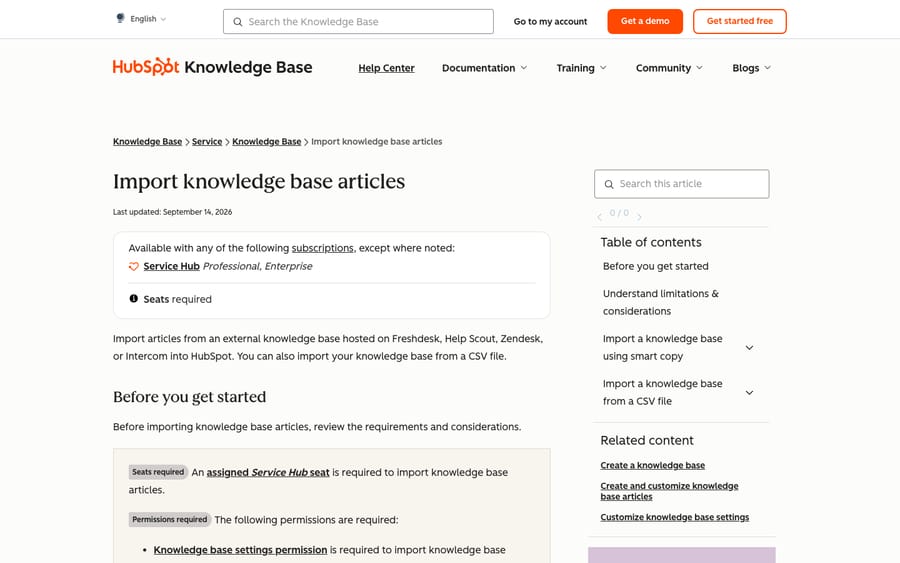
The help center moves with its own importer. HubSpot's knowledge base import article (updated September 14, 2026) lets you point "Smart copy" at your Zendesk help center, or upload a CSV. "Each import has a limit of 400 articles." "Importing tables into a knowledge base isn't supported," and "all imported articles are added to your knowledge base's primary language," so a multilingual Zendesk Guide needs a plan for its translations. You can import as drafts or publish straight away. It needs Service Hub Professional or Enterprise and an assigned Service Hub seat.
How much does a Zendesk to HubSpot migration cost?
Smart Transfer is included. HubSpot lists it under "all products and plans." The extra cost is Data Hub, if you need custom field mappings, and your admin time on the rebuild.
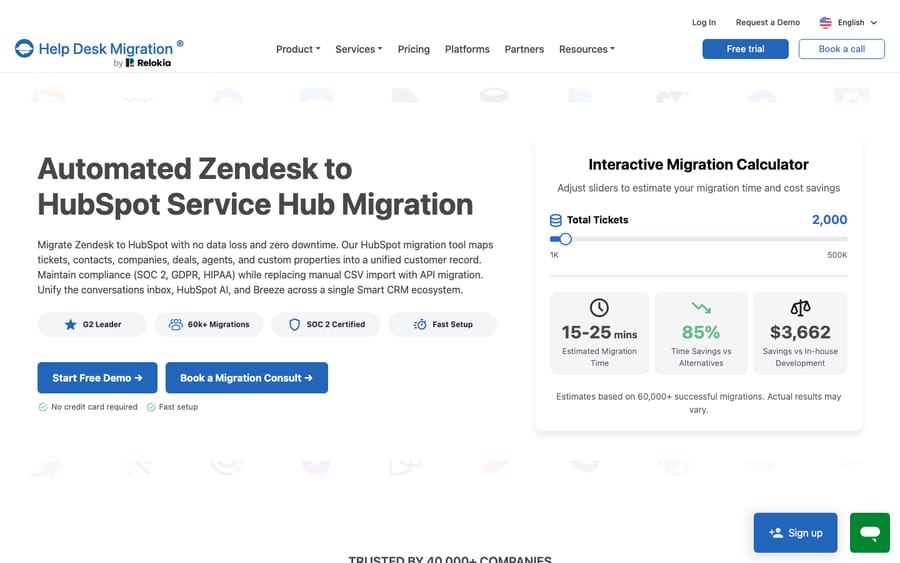
Help Desk Migration prices per record. Its pricing page gives "$100 for 1,000 records" for a basic migration on the free Essential plan, and $514 for 10,000 under the same conditions. Tickets, contacts, companies, agents and articles count; "attachments, comments, and notes" don't. Its HubSpot Marketplace listing carries the same $100 per 1,000. The free demo moves 20 tickets and 20 knowledge base articles, and you can rerun it.
Here's a worked example. Take a Zendesk account with 20,000 tickets, 12,000 users, 1,500 organizations, 15 agents and 300 articles: 33,815 records. Help Desk Migration says the curve "is not linear," so the Essential-plan price sits somewhere below 3.4 times its $514 example, under about $1,740, before custom options. MigrateMyCRM's price list counts differently: "a contact, an email, an attachment" each count as a record, so the same account lands at $1,199 only if its tickets, comments and attachments together stay under 100,000 records, and at $2,499 up to 500,000. It adds a $875 guided add-on and unlimited free samples of a random 10% of your records, which is the cheapest way to see your real count. Neither figure includes a delta run on Help Desk Migration, which needs its Premium plan, and Premium has no published price.
Engineer-led and agency routes cost more and cover more. ClonePartner's Zendesk to Service Hub page quotes a flat fee after an assessment, runs sample migrations on your own data first, and says "most migrations complete within 1–5 business days." Several HubSpot partners name Zendesk on their own migration pages. Orange Marketing lists "ZenDesk Tickets" in a $950 simple data migration package, with a $2,450 complex one. SmartBug Media's Zendesk offer starts at $5,000 and still lists conversations and macros as "coming soon." INSIDEA's Service Hub engagements start from $2,000 and keep Zendesk and HubSpot running side by side for 30 to 90 days. uspeh, HubXpert and Vantage Point have dedicated Zendesk to HubSpot pages without a published migration price. Those partner facts were read on their sites on November 2, 2026.
A per-record vendor earns more the more history you bring, and a HubSpot partner's tier rises with the HubSpot revenue it sources. Both point toward "bring everything" and "upgrade the hub." Decide your history cutoff and your tier before the first sales call.
What is the cutover sequence?
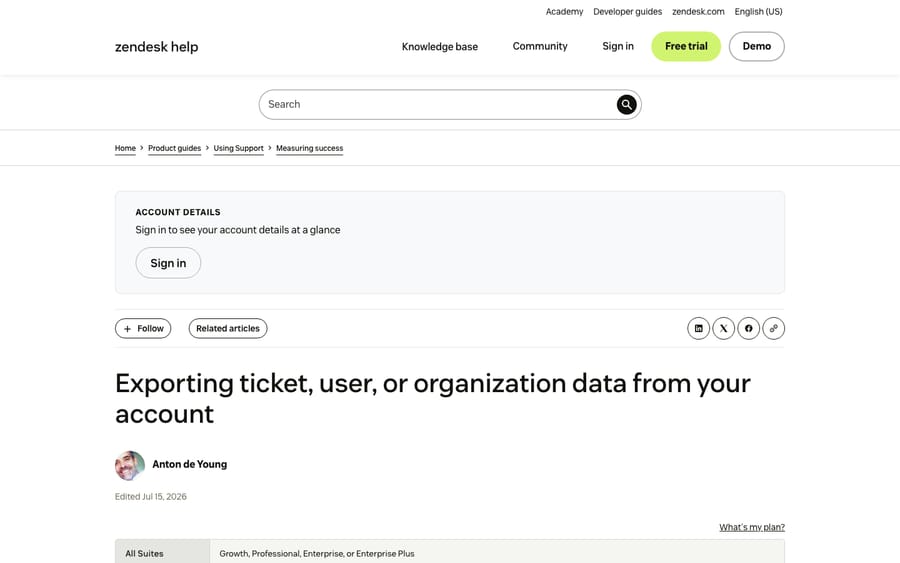
- Get an archive out of Zendesk first. Zendesk's export article says exports are off by default and "the account owner must contact Zendesk Customer Support to enable data exports"; the tools aren't available on Team plans. The CSV export doesn't include ticket comments, so ask for JSON, which still drops comments on tickets over 1 MB, and AI agent tickets can't be exported at all. Our guide to exporting data from Zendesk walks through it.
- Freeze configuration in Zendesk. Agents keep working. Nobody adds a field, a status or a trigger from here on.
- Design HubSpot first. Build the ticket pipeline and its statuses, create a property for the original Zendesk ticket ID, and create the custom properties your fields will land in.
- Turn off HubSpot workflows that react to new records. HubSpot's 2022 guide warns that imported data "could trigger automated messaging," and suggests turning workflows back on with the option not to enroll existing records. Leave Smart Transfer's own transfer workflows alone until its cleanup step.
- Run a sample. Smart Transfer's audit and review screens show what it plans to create; a paid tool's demo writes real records you can open. HubSpot's 2022 guide suggests a sample of "about 10% of records." Check authorship, timestamps, private versus public comments, attachments and custom field values.
- Rebuild the right-hand column in parallel. Snippets, workflows, SLAs, views and the knowledge base all need to exist before live traffic arrives.
- Run the full migration in a quiet window.
- Switch email and chat routing to HubSpot. This is the cutover moment.
- Catch the stragglers. With Smart Transfer, our reading of HubSpot's documentation is to run the one-time transfer after routing moves, so the copied conversations include the last replies agents sent in Zendesk. HubSpot doesn't give an order for this step, and its 2022 guide put the final delta "the evening before you cutover." Expect a few hours where tickets in HubSpot lack their Zendesk thread. With a paid tool, this is the delta run, timed per the vendor's instructions; Help Desk Migration's has to run within 10 days of the full migration.
- Keep one Zendesk seat for a month. HubSpot's guide recommends "keeping one license in your Zendesk account for another month" to cross-check data.
HubSpot's guide budgets 2 to 4 weeks for data migration and 1 to 2 weeks for configuration, running in parallel with planning, plus a two-week pilot if you run one. Those are planning ranges from 2022, not a measured benchmark.
Is there downtime, and what breaks after cutover?
There's no hard outage on any of these routes. Both systems stay live while data moves over the API, and agents answer in Zendesk until step 8. Help Desk Migration's pricing page says "no-downtime cut-over is included in every package."
The real risk is the gap between what synced and what was copied once. Smart Transfer's data sync keeps tickets current in the background, but the comments and conversations on those tickets are a snapshot. If the one-time copy runs on Monday and a customer replies in Zendesk on Tuesday, HubSpot has the ticket and an out-of-date thread. That's why we put step 9 after the routing switch; this is our reading of HubSpot's wording, not a HubSpot recommendation. It's also why the paid tools sell a delta run: Help Desk Migration's version "catches any tickets created or updated during the transition."
The other break is the configuration gap. On day one in HubSpot you have tickets, but no SLA clocks, no routing workflows and no snippets unless you built them in step 6. Teams that treat the rebuild as cleanup after the move spend their first week doing by hand what Zendesk triggers had been doing for years. If you're leaving Zendesk for another desk instead, our Zendesk to Freshdesk guide covers the same problem there.
What we check when a help desk reaches us right after a migration
Before an agent touches a ticket, our team reads the account the way the agent will. We check that ticket fields came across with their values, because an agent that reads a category or order number field gets nothing from a property the migration left blank. We read the triggers or workflows: a rebuilt workflow that changes ticket properties can wake an agent that listens for property changes, so we scope that trigger to fields the agent itself won't touch, the HubSpot version of Zendesk's tag-and-exclude rule. We read the macros, or the snippets they became, since they're often the best record of how the team answers each question. We sort past tickets by category to pick the first ones an agent should handle, which only works if the migration kept each conversation inside its ticket. Then the agent runs in safe mode, drafting replies as internal notes for your team to approve, so a field that didn't map shows up in a draft before a customer sees it.
Where AI fits after the move
A migration resets any AI agent you had. The triggers, fields, macros and knowledge base it depended on all change shape in Service Hub, so the agent has to be rebuilt against the new desk. If you ran one in Zendesk, budget for that alongside the workflow rebuild.
Macha runs AI agents inside the help desk a team already uses, including Zendesk, Freshdesk, Gorgias, Front, HubSpot or Intercom, and the Macha team sets them up and monitors them. On HubSpot it connects over OAuth and fires on new tickets or ticket property changes. An agent can read a Service Hub ticket and its contact, add a timeline note, update status, owner or priority, and move the ticket between pipeline stages using real stage IDs, with custom API tools for order or account lookups. It's priced from $299/month for 750 tickets, with a trial of $50 of free usage (about 125 tickets), no credit card, no time limit. See Macha on HubSpot. It fits teams already settled on Service Hub with a repeat-question ticket mix. It doesn't move data and isn't a help desk, so use Smart Transfer, a tool or a partner for the migration itself.
How we researched this
On November 3, 2026 we checked every HubSpot, Zendesk and vendor page linked above. We also read HubSpot's 2022 PDF guide to this migration in full and flag it wherever we quote it. Partner facts come from our November 2, 2026 reads of each firm's own pages. We don't run a Zendesk to HubSpot migration ourselves and didn't run Smart Transfer, so the screens are described from HubSpot's documentation, not a live account. Where vendor pages contradict themselves (Help Desk Migration's page says both that help center articles "don't migrate automatically" and lists them as moving), we say so or leave the claim out. Our guide to leaving Zendesk and our breakdown of what moves in a Zendesk data migration cover the export side in more depth.
<div class="docs-callout" data-p16-box="1"><div><p class="docs-callout-title">Who can run this move for you</p><p class="docs-callout-body">Migration tools whose own supported-platform lists include Zendesk to HubSpot Service Hub: Help Desk Migration, ClonePartner, DataGrine, Sanka Migrate, SyncMatters and Klamp Migrate. We compare them on price, free test runs and downtime in <a href="/blog/best-help-desk-migration-services">the best help desk migration services</a>.</p></div></div>
FAQs
Can HubSpot import tickets from Zendesk by itself?
Yes. HubSpot Smart Transfer syncs Zendesk users, organizations, tickets, agents and groups, then copies attachments, ticket comments (as notes) and ticket conversations once. It's included on all HubSpot plans. It doesn't move custom objects, and transferring custom field mappings needs a Data Hub subscription.
Do Zendesk macros and triggers move to HubSpot?
No, they're rebuilt. Text-only macros become snippets, which HubSpot caps at 2,500 characters each. Macros that change fields, and all triggers and automations, become HubSpot workflows, which need a Professional or Enterprise subscription (Service Hub Starter alone doesn't include them).
How do Zendesk ticket statuses map to HubSpot?
They map to statuses in a HubSpot ticket pipeline. HubSpot's default Support Pipeline has four: New, Waiting on contact, Waiting on us and Closed. Zendesk has six built-in statuses plus any custom ones, so build the pipeline and decide where Pending, On-hold and Solved land before you migrate.
Can I move my Zendesk help center to HubSpot's knowledge base?
Yes, with HubSpot's knowledge base importer, which copies articles from a Zendesk help center URL or a CSV. Each import takes up to 400 articles, tables aren't supported, and everything lands in the primary language. It needs Service Hub Professional or Enterprise and a Service Hub seat.
How much does a Zendesk to HubSpot migration cost?
Smart Transfer is included in HubSpot. Help Desk Migration charges $100 per 1,000 records and $514 per 10,000 on a basic migration, and MigrateMyCRM runs from $149 under 5,000 records to $1,199 under 100,000. Priced partner offers start at $950 (Orange Marketing) and from $5,000 (SmartBug Media).
Will replies sent during the migration be lost?
They can be. Smart Transfer's one-time copies of comments and conversations don't stay up to date, so we'd run that copy after you switch email routing to HubSpot (our reading; HubSpot doesn't specify the order). Paid tools solve the same problem with a delta run; on Help Desk Migration it's part of the Premium and Enterprise plans.
Disclosure: Macha makes AI agents that run inside help desks. It doesn't sell migrations, nobody paid to be listed, and Macha is not ranked.