





 Shopify
 Stripe
 Slack
Slack Notion
 Google Workspace
 Confluence

How Do You Migrate from Zendesk to Freshdesk? What Moves, What You Rebuild, What It Costs (2026)


Moving from Zendesk to Freshdesk takes a migration tool for ticket history, because Freshdesk's own importer only loads contacts and companies from a CSV. Help Desk Migration prices the move per record, delta runs need its Premium support plan, and macros, triggers and SLAs are rebuilt by hand in Freshdesk.
Key takeaways
- Help Desk Migration prices a basic Zendesk-to-Freshdesk migration at $100 for 1,000 records and $514 for 10,000 records, and does not count attachments, comments or notes as records.
- Help Desk Migration's free demo moves 20 tickets and 20 knowledge base articles and can be re-run, so field mappings can be tested before paying.
- Delta migration comes only with Help Desk Migration's Premium or Enterprise support plans, which include one delta run within 10 days of the migration.
- Freshdesk requires at least 10 tickets to already exist in the account before its CSV contact importer will run, which blocks first imports on new accounts.
- Zendesk macros become Freshdesk scenario automations and Zendesk triggers become Freshdesk automations, but none of them transfer, so the rebuild belongs on the critical path.

A Zendesk to Freshdesk migration runs through a migration tool such as Help Desk Migration, which moves tickets, contacts, agents, groups and the knowledge base over the API for $100 per 1,000 records or $514 per 10,000 under basic conditions; Freshdesk's own importer only takes contacts and companies from a CSV. Macros, triggers, SLA policies and business hours don't move at all, so you rebuild them in Freshdesk before cutover.
| Route | What it moves | Cost | Catch |
|---|---|---|---|
| Freshdesk CSV import | Contacts and companies, with custom fields | Included | Needs at least 10 tickets in the account first |
| Help Desk Migration | Tickets, notes, attachments, agents, groups, contacts, companies, knowledge base | $100 per 1,000 records, $514 per 10,000 (basic, Essential plan) | Delta run only on Premium or Enterprise support |
| Scripting both APIs | Whatever you build | Your engineering time | Freshdesk list endpoint defaults to 30 days, caps at 300 pages |
| Manual rebuild | Macros, triggers, SLAs, business hours, templates, views | Admin time | On the critical path, not cleanup |
Going the other direction? Read how to migrate to Zendesk from Freshdesk instead. The object mapping reverses, and so does the list of things that don't move.
Which migration route actually moves your ticket history?
Freshdesk's native import is customer data only. Freshworks' own Importing and Exporting customer data article, modified 23 October 2025, covers contacts and companies from a CSV, including your custom fields on both. Tickets are not part of it. The path is Contacts > Import (or the same button on the Companies page, behind the hamburger icon), and it's available on every current plan. The article's plan matrix still lists Free, which Freshdesk now offers only as a program for up to 2 agents for 6 months rather than a plan on its pricing page.
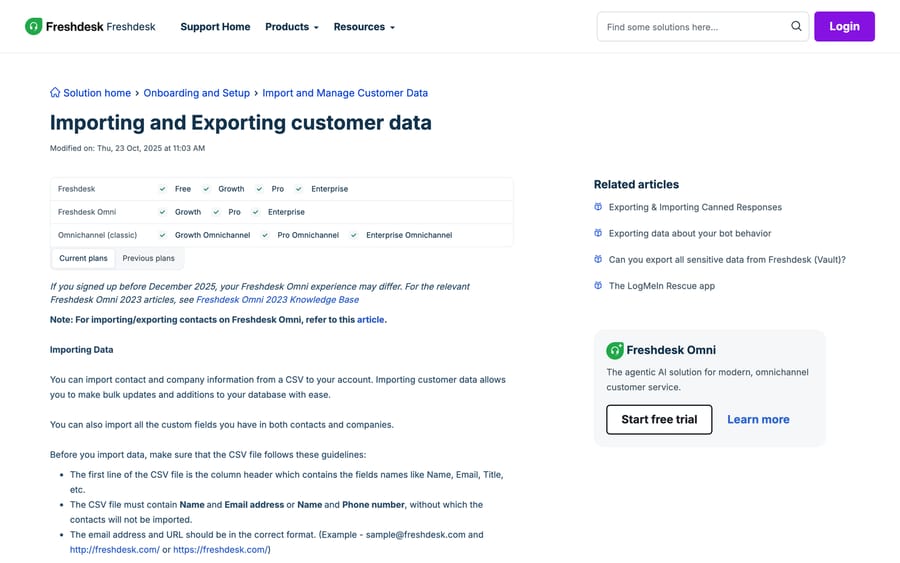
Three rules from that article decide whether your CSV loads at all:
- The first row must be the column header, and the file must contain Name and Email address, or Name and Phone number. Without one of those pairs the contacts don't import.
- Dates go in as
YYYY-MM-DD. Any other format fails. - You need at least 10 tickets already in the Freshdesk account before the contact importer will run. That is a genuinely odd prerequisite on a brand-new account, and it's the reason a first import silently does nothing.
Email is the unique key, so a row whose email matches an existing contact overwrites that contact instead of creating a second one. Useful for a re-run, dangerous if your export has stale names.
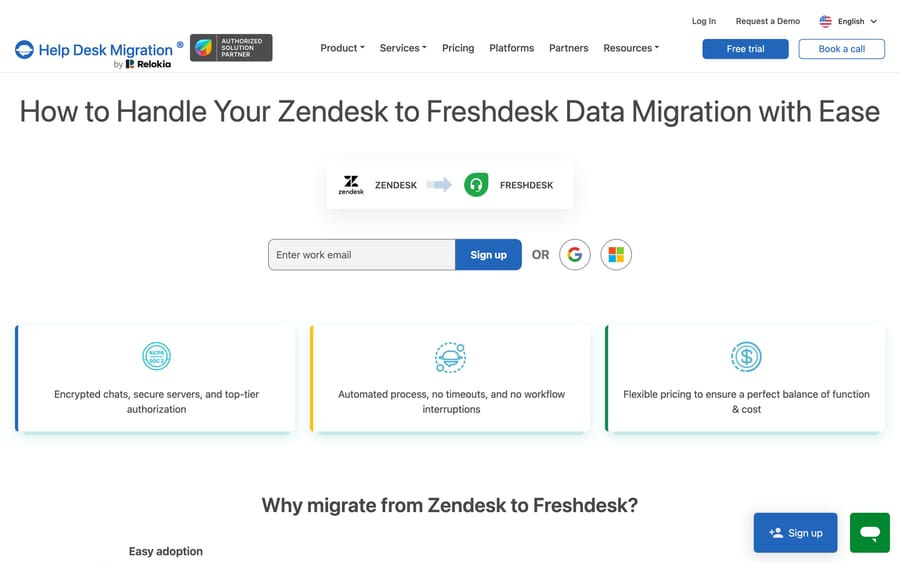
A migration tool moves the rest. For tickets with their threads, attachments, agents, groups and the knowledge base, the standard route is Help Desk Migration (HDM, by Relokia). It reads Zendesk over API, writes Freshdesk over API, and maps objects in between. The alternative is scripting both APIs yourself, which is a real project: our Freshdesk API guide covers the write side, and the list endpoint's 30-day default and 300-page cap are the constraints you'd be working around on the read side.
What moves automatically from Zendesk to Freshdesk, and what do you rebuild by hand?
This table is the heart of the project. The left column transfers with a tool. The right column is manual rework in Freshdesk no matter what tooling you buy.
| Moves automatically | Rebuilt by hand in Freshdesk |
|---|---|
| Tickets, with public and private notes | Macros, which become Scenario automations |
| Ticket attachments | Triggers, which become Automations on ticket creation or updates |
| Ticket custom fields | SLA policies and targets |
| Agents and groups | Business hours and the operating calendar |
| Contacts and companies, with their custom fields | Email notifications and templates |
| CC recipients on tickets | Canned responses |
| Created_at, Updated_at and Closed_at timestamps | Channel and integration configuration |
| Knowledge base articles, categories, folders, tags and attachments | Reports, dashboards and saved views |
The macro and trigger mapping is the one teams get wrong at the planning stage. A Zendesk macro is a one-click bundle an agent applies; the Freshdesk equivalent is a scenario automation. A Zendesk trigger fires on create or update; the Freshdesk equivalent is an automation in the Ticket Creation or Ticket Updates rule set. The concepts line up, which is the good news. The objects do not port, which is why the rebuild is on the critical path rather than in the cleanup backlog. Our reference for the Freshdesk side is Freshdesk automations explained and Freshdesk scenario automations explained.
Three behaviors on HDM's Zendesk to Freshdesk page are worth knowing before the demo, because each one changes what your migrated tickets look like:
- Inline images need an option. HDM's attachment feature migrates images added into tickets as attachments, and HDM warns it lengthens the run. Skipping attachments entirely is also offered, as a speed option.
- Zendesk side conversations arrive as private comments. They don't stay a separate thread, because Freshdesk's model has no direct equivalent.
- Call recordings can come across as attachments rather than as a call object.
How much does a Zendesk to Freshdesk migration cost?
HDM prices per record, not per seat, and the curve is non-linear: larger migrations cost less per record. Its pricing page gives $100 for 1,000 records and $514 for 10,000 records under basic conditions, and says the exact number depends on record types, platforms and options, which is why it routes you to a demo for a firm quote. Those two figures are for a basic migration with no custom options on the free Essential support plan. Only "substantial" records count: HDM says attachments, comments and notes are free, and pricing doesn't change with your agent count.
Two details on that page change the plan more than the headline number:
- The free demo is capped. It moves 20 tickets and 20 knowledge base articles so you can inspect threading, field values and attachments before paying. You can re-run it, which is the right way to test a field-mapping change.
- Delta migration is a paid support tier, not a standard step. HDM sells four support plans: Essential (free, weekday support, 3-day data retention, 24-hour SLA), Advanced (weekend hours, 5-day retention, 3 expert-led calls), Premium (priority support, 10-day retention, and delta and interval migrations included, with one delta within 10 days) and Enterprise (custom SLA, dedicated team). If your cutover plan depends on a delta run to sweep up tickets created mid-migration, you are buying Premium. Budget for it at the start.
Our previous version of this guide attributed those per-record figures to a competitor's blog. They're on HDM's own page, which is the better source, and this is the general rule for migration quotes: the vendor's own price list beats anyone's summary of it, and a number that only exists on a rival's comparison page is a number to check.
Worth naming the incentive while you're reading price pages. A per-record migration vendor earns more the more history you move, and every "should we bring all seven years?" conversation is one where their interest and yours diverge. Decide your retention cutoff before the demo, not after the quote.
What is the cutover sequence?
- Freeze config changes in Zendesk, not tickets. Agents keep working; nobody adds a trigger or a field from here on, because anything you add now has to be re-authored twice.
- Connect the source. Zendesk subdomain plus an admin API token, so the tool can read tickets, users and articles.
- Connect the target. Freshdesk domain plus an API key from an admin profile. If the key isn't visible, check plan and agent verification first: our API key guide covers both gates.
- Map objects and fields. Zendesk statuses, priorities, ticket types and custom fields to their Freshdesk counterparts, and each Zendesk group to a Freshdesk group. Freshdesk's status and priority values are integers behind the scenes, which is worth knowing when a mapping looks right and lands wrong: Freshdesk ticket statuses explained has the codes.
- Run the free demo. 20 tickets, 20 articles. Inspect threading, private-versus-public notes, custom-field values and attachments. Fix mappings, re-run.
- Rebuild the right-hand column in parallel, while the demo is being checked. Automations, SLA policies, business hours, canned responses and email templates all have to exist in Freshdesk before live traffic arrives.
- Run the full migration in a low-volume window.
- Run a delta migration to capture anything created or updated during the bulk run, assuming you bought a plan that includes one.
- Switch the email routing and point your support address at Freshdesk. This is the actual cutover moment, and it's the one to schedule for a quiet hour.
Is there downtime, and what breaks after cutover?
There's no hard outage, and HDM says no-downtime cutover is included in every support package. A tool-based migration runs over the API while both platforms stay up, so agents keep answering in Zendesk until you move the email routing. The real risk isn't availability, it's the config gap.
On day one in Freshdesk you have your tickets and your history, and no SLA clocks running, no automations routing new tickets, and no canned responses for agents to reach for. That's expected and it's also why step 6 runs in parallel rather than after. Teams that treat the rebuild as post-migration cleanup spend their first week in Freshdesk doing manually what Zendesk had been doing automatically for years.
The other thing to plan for is export quality on the way out. Practitioners in r/msp and r/sysadmin have written up the same complaint about leaving Freshdesk, that its exports don't give you what you need for a clean landing elsewhere, with the same thread cross-posted to r/sysadmin. The lesson generalizes in both directions: verify what comes out of the source in the demo, before you pay, rather than trusting a feature list.
Where does an AI agent layer fit after the move?
A migration is the one moment when nobody is defending the existing rules. That makes it the right time to ask which macros and triggers were compensating for reading and typing that a person still had to do.
Macha is an AI agent layer that runs on top of Zendesk, Freshdesk, Gorgias, Front, HubSpot or Intercom, including the Freshdesk you just moved to. You connect it with your Freshdesk domain and an API key, and it reads the same tickets Freshdesk holds: drafting or sending replies grounded in your knowledge base, triaging by intent so tickets land in the right group, and calling your own systems through custom API tools for order or account lookups. It doesn't replace Freshdesk, its automations or its SLA engine, and it isn't a help desk.
Two honest limits. The connector is for Freshdesk specifically, not Freshchat, Freshservice or Freshcaller. And it suits teams whose post-migration ticket mix is mostly repeat questions with a lookup attached; if your volume is low or every ticket is novel, the setup has nothing to pay itself back with.
Pricing is one plan priced on monthly ticket volume, from $299/month for 750 tickets, about $0.40 per ticket at every tier, with setup and monitoring by the Macha team, included on every plan. A ticket is one thread between Macha and one person, charged once no matter how many messages it takes. The trial is $50 of free usage (about 125 tickets), no credit card, no time limit. See Macha on Freshdesk and the pricing page.
How did we research this?
We checked Freshworks' import article and Help Desk Migration's Zendesk-to-Freshdesk and pricing pages in a browser on 20 September 2026, captured the two screenshots in that session, and re-read all three pages on 24 September 2026. Every price, cap and plan gate above is quoted from the vendor's own page and linked in place. We don't run a Zendesk or a Freshdesk account, and HDM's wizard sits behind a signup wall, so the field-mapping screens are described from documentation and not from a live run. Where the live version of this guide cited a competitor's blog for HDM's prices, we replaced it with HDM's own page and the figures matched.
Frequently asked questions
What actually migrates from Zendesk to Freshdesk? With a tool like Help Desk Migration: tickets with public and private notes, ticket attachments, ticket and contact and organization custom fields, agents, groups, contacts, companies, CC recipients, the created, updated and closed timestamps, and the knowledge base with its categories, folders, tags and attachments. Freshdesk's native CSV importer covers contacts and companies only.
Can I import tickets into Freshdesk from a CSV? No. Freshworks' import article covers contact and company data. Ticket history reaches Freshdesk through the API or through a migration tool that uses it.
Do Zendesk macros, triggers and SLAs move to Freshdesk? No, they're re-authored. A Zendesk macro becomes a Freshdesk scenario automation, and a Zendesk trigger becomes a Freshdesk automation in the Ticket Creation or Ticket Updates rule set. SLA policies, business hours, notification templates, views and reports are all rebuilt by hand.
How much does a Zendesk to Freshdesk migration cost? Help Desk Migration prices per record on a non-linear curve: its own pricing page gives $100 for 1,000 records and $514 for 10,000 under basic conditions, with a firm quote coming from the demo. Attachments, comments and notes aren't counted as records. Add the cost of a Premium support plan if your plan needs a delta run.
Is there downtime during the migration? Not a hard outage. Both platforms stay live while the transfer runs over the API, and the cutover is the moment you repoint your support email address. What you should plan for is the config gap: SLA clocks, automations and canned responses don't exist in Freshdesk until you rebuild them.
What is a delta migration and do I need one? It's a follow-up run that copies tickets created or updated while the bulk migration was in progress. You need one if your migration takes longer than you can freeze ticket creation, which is almost always. On Help Desk Migration it is part of the Premium and Enterprise support plans, with Premium including one delta within 10 days of the migration.
Why did my Freshdesk contact import do nothing? Two likely causes. Either the CSV is missing the required Name-plus-Email or Name-plus-Phone pair, or the account has fewer than 10 tickets in it, which Freshworks lists as a prerequisite for the contact importer to run.
How do I migrate from Freshdesk to Zendesk instead? That's the other direction and it has its own guide: how to migrate to Zendesk from Freshdesk. The tooling is the same family; the object mapping and the rebuild list both reverse.
Sources:
- Importing and Exporting customer data (Freshworks support)
- How do I export my tickets from Freshdesk? (Freshworks support)
- Zendesk to Freshdesk data migration (Help Desk Migration)
- Help Desk Migration pricing
- Freshdesk plans and pricing
- r/msp: If you're leaving Freshdesk, its exports don't give you what you need
- r/sysadmin: the same discussion






