





 Shopify
 Stripe
 Slack
Slack Notion
 Google Workspace
 Confluence

Why Are Gorgias Macro Variables Not Populating? 6 Fixes (2026)


A Gorgias macro variable renders blank when the ticket has no data for it and prints its braces back when the path is mistyped. Re-inserting it from the Ticket customer or Current agent dropdown fixes most cases; the rest come down to linked orders and integration IDs.
Key takeaways
- A Gorgias macro variable renders as a blank space when the ticket has no matching data, such as an unlinked Shopify order or a contact with no first name recorded.
- A Gorgias variable prints literally with its braces when the path has a typo, a single brace or a stray space, so re-insert it from the Ticket customer or Current agent dropdown.
- Back-office HTTP-integration variables need the integration ID from the end of its URL under Settings, Account, HTTP integration, for example 9141 from /app/integrations/http/9141.
- Gorgias Shopify order variables are indexed, with orders[0] for the most recent order and orders[1] for the one before, so a wrong index quotes the wrong order.
- The reliable way to test a Gorgias macro is to apply it to a draft reply on a fully linked ticket and read the rendered text before sending.

A Gorgias macro variable comes out blank when the ticket has no data for it, and prints literally with its braces when the path is mistyped; the fastest fix is to delete the hand-typed variable and re-insert it from the Ticket customer or Current agent dropdown at the bottom of the macro editor. Gorgias's own documentation puts the blank case plainly: "If the data isn't available for that ticket, the variable is replaced with a blank space." Almost every failure traces to one of six causes, listed below in the order worth checking.
What does each symptom point to?
Read what the reply actually rendered, then jump to the matching cause below.
| What you see in the reply | Most likely cause | Where to check |
|---|---|---|
{{ticket.customer.firstname}} printed literally | Typo in the path, or single braces / broken syntax | The macro body |
| A blank space where the value should be | No matching data on the ticket (unlinked order/profile) | The customer sidebar |
| Blank only for third-party/back-office fields | Wrong HTTP-integration ID, or integration not connected | Settings → Account → HTTP integration |
| Works for some customers, blank for others | Customer has no order, or wrong Shopify store linked | The ticket's linked order |
| Variable missing from the dropdown | Integration not added, or a manually-typed field | Variable picker at editor bottom |
Which causes should you check first?
1. Was the variable typed by hand with a small error?
The most common reason a variable renders literally, braces and all, is a typo in the path. Gorgias variables use a strict double-curly format, {{variable.path}}, and anything Gorgias doesn't recognize stays on the page verbatim. A single brace ({ticket.customer.firstname}), a stray space inside the braces, or firstName where the docs use firstname will all fail without an error. The Gorgias macro variables documentation lists every path in lowercase, such as {{ticket.customer.firstname}}, {{ticket.id}} and {{current_user.firstname}}. The page doesn't state a casing rule, so the safe habit is to copy the documented path character for character.
The fix that avoids this entirely is the next cause.
2. Was it inserted through the variable picker?
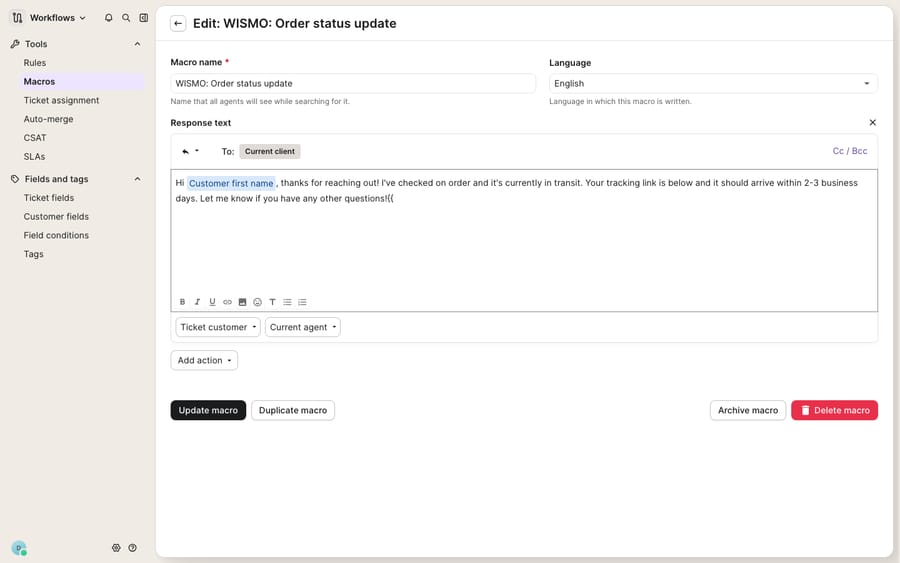
Rather than typing paths from memory, use the variable dropdowns at the bottom of the macro editor. Gorgias labels them by source: Ticket customer, Current agent, and one per connected ecommerce integration (Shopify, BigCommerce, Magento 2 and others). Picking a variable from the right dropdown inserts a validated chip into the body, so you can't misspell the path or drop a brace. If a hand-typed variable comes out blank or literal, delete it and re-insert the same field from the picker. The screenshot below shows that surface.
3. Does this ticket have any data for the variable?
If the syntax is perfect and the value still comes out empty, Gorgias is working as designed: missing data becomes a blank space. A {{ticket.customer.firstname}} that renders blank usually means the contact has no first name recorded; a blank order-number variable means no Shopify order is linked to that ticket. Open the ticket and check the customer sidebar on the right. If the panel doesn't show the order or profile you expect, the variable has nothing to read. That's why the same macro works on one ticket and goes blank on the next: the difference is the data, not the macro.
4. Is the store connected and the right order linked?
Shopify, Recharge and other ecommerce variables only resolve when that integration is connected and the ticket is matched to the right record. A common trap: the customer emailed from a different address than the one used at checkout, so Gorgias never linked the order, and every order variable in your WISMO macro comes back blank. Order variables are also indexed: Gorgias's docs say to use orders[0] for the most recent order and orders[1] for the one before, so a macro that reads the wrong index quotes the wrong order. Confirm the integration is live under Settings, then confirm the ticket has the order attached in the sidebar. You can't fully exercise Shopify variables on a bare Gorgias trial; you need a connected store with real orders before these fields have anything to populate. For how macros and their variables fit together, see Gorgias macros explained.
5. Does the back-office variable point at the right integration ID?
Variables that pull from your own back office through an HTTP integration break most often, because their path contains a numeric ID you have to get exactly right. The format is {{ticket.customer.integrations[integration_id].data.field_name}}, for example {{ticket.customer.integrations[9141].data.delivery_cost}}. That 9141 is the integration's own ID. Gorgias's steps: go to Settings → Account → HTTP integration, open the Manage tab, select the integration, and copy the number from the end of the URL (9141 from /app/integrations/http/9141). Paste the wrong ID, or reuse a macro written against a different integration, and the whole path resolves to nothing. Check that the ID matches the integration actually returning the field, and that the data.field_name segment matches the field name in the returned payload exactly.
6. Why isn't the variable in the picker at all?
Some fields, particularly from certain third-party or WooCommerce-style integrations, can't be selected from the dropdown even when the integration is connected. Gorgias's guidance is to type those manually between double curly braces using the exact path. To find the path, open a ticket that already contains that back-office data and click the gear icon in the customer section of the sidebar to view every available field; build your {{...}} path from what you see there rather than guessing. That's also why a variable can be missing from the picker and still be valid: it's a manual-entry field, not a broken one.
How do you test a macro before it reaches a customer?
Gorgias doesn't ship a one-click "preview resolved values" button, so the reliable test is to run the macro against a real, fully linked ticket rather than reading the raw macro body. Open a ticket you know has the data (a real customer with a linked Shopify order), apply the macro to a draft reply, and read the rendered text before you send. If a variable comes out blank, walk the checklist: braces and spelling first (causes 1 and 2), then whether the ticket has that data (causes 3 and 4), then the integration ID for back-office fields (cause 5). The reply stays a draft, so nothing goes out while you debug. To create or edit the macro, open the dropdown menu at the top left and go to Workflows → Tools → Macros, click the macro name, and Save changes when you're done, as the Gorgias macros documentation describes. The same page notes an account limit of 5,000 macros, and deleted macros can't be recovered, so export before you prune.
Where do macro variables stop being useful?
Macro variables are a useful shortcut, and none of the above is Gorgias's fault: a variable either has data to insert or it doesn't, and the blank space is the design telling you the data isn't there. That predictability is why these failures are so easy to diagnose.
It's also the ceiling. A variable can insert a value; it can't decide whether to. {{order.status}} will print "unfulfilled" whether or not that's the right thing to tell this customer right now, and it can't rephrase a WISMO reply, pick a different macro when the order is a pre-order, or apologize differently for a second late delivery. So teams end up maintaining a sprawl of near-duplicate macros, one per scenario, and those are exactly what break when a field is renamed or an integration ID changes.
That's where an AI agent layer fits. The category of AI agents for customer service exists to do the reasoning variables can't: read the order data, judge the situation and write the reply, instead of stamping a fixed template with a value. Macha is one such layer, and it runs on top of the Gorgias you already use. It doesn't replace your help desk or your macros; it connects to Gorgias, reads and writes the same tickets, and takes the personalized, judgment-heavy replies your variable-driven macros were never built for, while your deterministic macros keep doing the canned work they're good at. See the Macha–Gorgias integration and the walkthrough on how to connect Gorgias to Macha and automate ticket replies, or the Gorgias AI agent explained for the fuller picture.
Because an agent acts on meaning rather than a fixed path, you validate it differently: Macha lets you replay a candidate agent against your real past Gorgias tickets before it touches the live queue, and you can extend it with a custom tool that turns any REST API into an action the agent can call, such as looking up that same back-office delivery-cost field mid-conversation without a hand-typed integrations[9141] path to maintain. Macha bills per ticket: one conversation, charged once however many messages it takes, never per resolution. Plans start at $299 a month for up to 750 tickets; see pricing for the tiers.
FAQ
Why is my Gorgias macro variable showing as blank? Because there's no matching data for it on that ticket. Gorgias replaces a variable with a blank space when the data isn't available, so a blank first name means the contact has no first name recorded, and a blank order field usually means no order is linked to the ticket. Check the customer sidebar; if the order or profile isn't there, the variable has nothing to read.
Why is the variable printing literally with the {{ }} braces? That's a syntax problem, not a data problem. Gorgias prints anything it doesn't recognize as a variable verbatim, so a typo, a single brace, a stray space or a changed character in the path will render literally. Delete the hand-typed variable and re-insert it from the Ticket customer or Current agent dropdown at the bottom of the macro editor so the path is correct.
How do I use a back-office variable from my own system? Use the HTTP-integration path {{ticket.customer.integrations[integration_id].data.field_name}}, and get the integration_id from the end of that integration's URL under Settings → Account → HTTP integration (e.g. 9141 from /app/integrations/http/9141). If the ID or field name is off by anything, the variable resolves to blank.
Why isn't the variable I want in the dropdown? Some third-party fields can't be selected from the picker even when connected; those you type manually between double curly braces. Open a ticket that already has that data and use the sidebar's gear icon to see the available fields, then build the {{...}} path from what's shown there.
How do I test a macro without emailing a customer? Apply the macro to a draft reply on a real, fully linked ticket and read the rendered text before sending. It stays a draft until you send it, so you can confirm every variable resolved, or spot which one went blank and walk the checklist.
How do I reference an older Shopify order in a macro? Change the order index. Gorgias's docs say orders[0] is the most recent order and orders[1] the second most recent, and the same indexing applies to line items inside an order.
Ready to stop babysitting WISMO macros and their variables? Start a free trial of Macha and let an AI layer read the order data and write the reply on top of your existing Gorgias workspace.






