





 Shopify
 Stripe
 Slack
Slack Notion
 Google Workspace
 Confluence

Why Are Shopify Orders Not Syncing in Gorgias? 6 Fixes (2026)


When the Gorgias sidebar shows no Shopify orders, clicking Update App Permissions on the Shopify integration fixes most cases. The rest come down to the 10-most-recent-orders cap, an order placed under another email, address-only edits, a Shopify-side outage, or a store that was never connected.
Key takeaways
- Shopify orders missing from Gorgias are usually fixed by clicking Update App Permissions on the Shopify integration, which needs an Admin role and a Shopify sign-in.
- Gorgias displays only the 10 most recent orders in a customer's sidebar, so older purchases from repeat buyers won't appear there even though syncing works.
- When a shopper's order history sits under a different email, Gorgias says to merge the customer in Shopify first, then merge the profiles in Gorgias.
- Gorgias subscribes only to order created, deleted, paid, partially fulfilled and updated events, so an address-only change in Shopify can leave the sidebar showing an old address.
- On June 24, 2026, Gorgias reported degraded Shopify API performance that disrupted manual actions, AI agent actions and historical sync until Shopify fixed it.

When Shopify orders stop showing in Gorgias, the usual fix is to click Update App Permissions on your Shopify integration in Gorgias settings, which re-authorizes the app and resyncs the data. If that isn't it, the cause is almost always one of four others: Gorgias only shows the 10 most recent orders in the sidebar, the order sits under a different customer email, a Shopify-side outage (Gorgias logged one on June 24, 2026), or a store that was never connected. Gorgias's docs and status page confirm each of these as of 24 September 2026.
Which symptom points to which cause?
| What you see in the sidebar | Most likely cause | Where to fix it |
|---|---|---|
| Was working, now totally empty | Permissions need resyncing | Shopify integration in Gorgias settings → Update App Permissions |
| Some orders show, but an older one is missing | The 10-most-recent-orders cap | Open the customer in Shopify directly |
| Right customer, but zero order history | Order history sits under a different email | Merge the customer in Shopify, then in Gorgias |
| Order shows, but a new shipping address doesn't | Address-only edits don't send an order event | Check the order in Shopify |
| Empty across every ticket at once | Degraded Shopify API / outage | Check status.gorgias.com |
| Never worked since setup | Store was never actually connected | Reconnect on the Shopify integration page |
How do you fix it, starting with the most common cause?
1. Resync the connection with "Update App Permissions"
This is the most common break, and the first thing to try. As Gorgias ships new features, its integration sometimes needs access to data that the scopes granted at your original connection don't cover. When a scope is missing, the data behind it quietly stops flowing into the sidebar. Gorgias surfaces this as an Update App Permissions button.
Per the Shopify FAQs, navigate to Settings → Installed apps → Shopify → your Shopify integration and click Update App Permissions, if available, to resync the information. The dedicated permissions guide labels the same menu Settings → My Apps → Shopify, then has you select your store, click the button, and sign back into Shopify to confirm the new access. One caveat: the guide marks the task "Admin role required" and says you must have an Admin role in Shopify. A regular agent seat can't re-authorize the app, so if the button is greyed out or missing, that's usually why.
2. Remember the 10-most-recent-orders cap
If some orders show but the one your customer is asking about doesn't, the integration isn't broken at all. Gorgias's FAQ states it "only displays the 10 most recent orders in the customer's sidebar." A repeat buyer's order from thirty purchases ago simply won't render in that widget. It hasn't failed to sync; it's below the cutoff. When you need an older order, open the customer's profile in Shopify directly, or search the order number. This one causes a lot of false-alarm "syncing is broken" reports, so rule it out before you resync anything.
3. Fix the email mismatch by merging the customer
Here's the subtle one. Shopify order history is keyed to the email address on the order. If a shopper bought once as [email protected] and is now emailing you from [email protected], Gorgias correctly matches the ticket to the second identity, which has no purchase history. The sidebar looks empty even though the store, permissions, and API are all healthy.
The fix is to consolidate the two identities, and the order of operations matters. Per Gorgias's merge customers guide: "If a customer has Shopify order history under multiple email addresses, merge the customer in Shopify first, then merge their profiles in Gorgias." That sequence puts both the order history and the ticket history under one profile. Do it in the wrong order and you can end up with the Gorgias profiles stitched together but the Shopify orders still stranded on the other email.
4. Check whether the change was address-only
Sometimes the order is there but a detail is stale. Gorgias's Shopify FAQ says it subscribes only to order created, deleted, paid, partially fulfilled and updated events, not to address-only updates. If a customer changed their shipping address in Shopify and nothing else on the order changed, the sidebar can keep showing the old one. The FAQ also notes that when a customer has orders in more than one connected Shopify store, rules with Shopify conditions (like Shopify Customer or Shopify Last Order) won't execute for them.
5. Rule out a Shopify-side outage
If the sidebar is empty across every ticket for every agent at the same time, stop debugging your own configuration. Nothing you changed did that. This is the signature of a platform-level incident rather than a store-specific problem.
Gorgias's own status history shows what that looks like. On June 24, 2026, Gorgias reported degraded Shopify API performance that affected Shopify actions, both manual actions and actions performed by the AI agent, as well as the historical sync. It was resolved within about half an hour, with Gorgias noting that "Shopify fixed the outage on their side" (see status.gorgias.com). More recently, on September 16, 2026, Gorgias logged a separate "Customer sidebar search not working" incident, resolved the same day. When order data stops flowing platform-wide, check the status page before you touch a setting; if it's red, the fix is patience, not permissions. (For the broader "is it me or is it them" question, we wrote up is Gorgias down.)
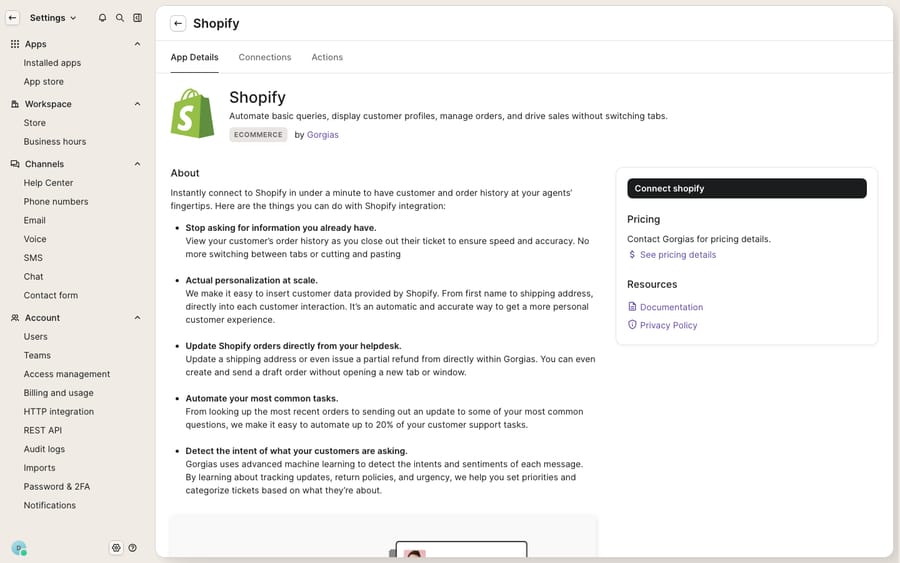
6. Confirm the store is actually connected, and reconnect if not
If order data has never appeared since you set Gorgias up, the store may not be connected. On the Shopify integration page (the surface pictured above, with its App Details, Connections, and Actions tabs), a linked store shows under Connections; a store that isn't linked shows a Connect Shopify button. Connecting (or reconnecting) walks you through Shopify's authorization flow and grants the full set of scopes in one pass, which is also the fallback when a permissions resync alone doesn't fix things. On a fresh or trial account with no store linked yet, this page simply is the connect screen; the "reconnect" you read about in the docs is the same action from a connected starting point. If you rely on Shopify data inside your automations, re-check your rules afterward: a rule with a condition like Shopify Last Order won't fire while the data behind it is missing.
Why does Shopify data keep going missing in Gorgias?
Most of these failures share a root cause: identity. The integration is only as good as its ability to tie an inbound ticket to the right Shopify customer, and email addresses are a leaky key. People buy on one address and email from another, use a nickname, or check out as a guest. Gorgias handles the happy path well, but the sidebar can only show what it can match, and no toggle changes that. There are also design limits worth naming: the ten-order cap, the event types Gorgias listens for, and the Admin requirement for a resync aren't bugs you can configure away. They're how the product works, so the fix is knowing the behavior, not hunting for a setting.
Can an AI agent answer order tickets without the sidebar?
A large share of the tickets where an empty sidebar actually hurts are order-status questions: WISMO, "did my order ship," "change my address." Those are the tickets where an agent needs the order in front of them right now. If they never reached a human, an empty sidebar would matter far less.
That's where an AI agent layer helps. Macha runs on top of the Gorgias you already use. It doesn't replace your help desk; it connects to it as a native integration and reads and writes the same tickets your agents do. Instead of relying on the sidebar rendering, a Macha AI agent can look up the live order itself, through Macha's Shopify connector or a custom tool that turns your order-status endpoint into an action the agent calls mid-conversation, and answer the WISMO ticket without a human opening it. Your Gorgias rules, macros, and routing keep doing what they're good at, while the agent absorbs the repetitive order-lookup volume behind them. Macha is priced per ticket, from $299 a month for up to 750 tickets: one conversation is charged once however many order lookups it takes, never per resolution. The tiers are on the pricing page.
FAQ
Why is the Shopify sidebar empty in Gorgias when the customer clearly placed an order? Most often the order was placed under a different email than the one the customer is emailing you from, so Gorgias matched the ticket to an identity with no purchase history. Merge the customer in Shopify first, then in Gorgias, to consolidate both order and ticket history. If it's empty across all tickets, resync via Update App Permissions or check the status page for a Shopify outage.
Why does Gorgias only show some of a customer's orders? By design. Gorgias displays only the 10 most recent orders in the customer's sidebar, so older purchases from high-volume buyers won't appear there. Open the customer in Shopify directly to see the full history. The older orders aren't failing to sync; they're below the widget's cutoff.
What does "Update App Permissions" actually do? It re-authorizes the Gorgias app against Shopify with any new data scopes it needs, which resyncs data that had stopped flowing. Find it on your Shopify integration in Gorgias settings (the docs call the menu Installed apps in one place and My Apps in another). You'll re-sign into Shopify to confirm, and you need an Admin role to complete it.
All my agents lost Shopify data at once. Is my integration broken? Probably not. A simultaneous, everyone-at-once outage is the signature of a platform incident rather than a configuration problem. On June 24, 2026, Gorgias reported degraded Shopify API performance that disrupted both actions and historical sync. Check status.gorgias.com before changing any settings.
Can AI reduce how much the empty-sidebar problem hurts? Yes, indirectly. Many of the tickets where the sidebar matters most are order-status questions. An AI agent layer like Macha connects to Gorgias natively and can look up the live Shopify order itself, resolving those tickets before a human opens them. See the Gorgias integration and pricing for details.
Ready to stop chasing order data ticket by ticket? Start a free trial and run a Macha agent against your own Gorgias history before it ever touches a live queue.






