





 Shopify
 Stripe
 Slack
Slack Notion
 Google Workspace
 Confluence

How Do You Block Spam in Freshdesk? Spam Action, Domain Rules and CAPTCHA (2026)


Freshdesk blocks spam in three layers: the Spam action on a ticket (which can also block the sender), a built-in filter that flags any email scoring 6 or higher, and Ticket Creation rules that quarantine whole domains on arrival. Spam tickets are deleted permanently after 30 days, so real customers caught by mistake need rescuing before then.
Key takeaways
- Freshdesk blocks spam by marking a ticket as Spam and blocking the sender, then adding a Ticket Creation rule with the Mark as spam action for repeat domains.
- Freshdesk's proactive spam filter is on by default and automatically marks any incoming email with a spam score of 6 or higher as spam.
- Freshdesk keeps tickets in the Spam view for 30 days and then deletes them permanently, so legitimate tickets must be restored before then.
- Freshdesk Ticket Creation rules run top to bottom in Execute first matching rule mode by default, so a spam rule placed below a broad routing rule never fires.
- Enabling CAPTCHA under Admin, Channels, Portals, Edit, Manage sections is the most effective Freshdesk control against bots submitting the support form.
To block spam in Freshdesk, mark the ticket as Spam and accept the prompt to block the sender, then add a Ticket Creation rule under Admin → Workflows → Automations with the action Mark as spam for any domain or phrase that keeps coming back. Freshdesk's built-in filter already flags any incoming email with a spam score of 6 or higher, and turning on CAPTCHA for your portal stops form bots.
| Method | Where to set it | What it stops |
|---|---|---|
| Spam action + block contact | Ticket toolbar → More → Spam | One sender, now and in future |
| Proactive spam filter | On by default, no setup | Emails scoring 6 or higher |
| Ticket Creation rule | Admin → Workflows → Automations → Ticket Creation | Whole domains, subject lines, repeat phrases |
| Portal CAPTCHA | Admin → Channels → Portals → Edit → Manage sections | Bots submitting your support form |
How does Freshdesk handle spam?
Freshdesk fights spam at three levels, and most teams use all three together.
- Reactive (per ticket): the Spam action on an individual ticket, for the one-off that slipped through, with an option to block the sender.
- Automatic (built in): the proactive spam filter, which scores every incoming email and quarantines the obvious junk without any setup.
- Rule-based (proactive): Ticket Creation automations that inspect the sender, subject, or body of every new ticket and mark matching mail as spam the moment it arrives.
The first is a broom, the second is a smoke detector, and the third is a locked door. Configure the third well and the first two barely get used.
How do you mark a single ticket as spam?
This is the fastest fix and the one you'll reach for most. When a junk ticket lands in your queue, open it and use the ticket's overflow menu.
- Open the offending ticket.
- Click the ... (More) menu in the ticket toolbar.
- Select Spam.
Per Freshworks' Spam and trash documentation, the ticket leaves your main inbox and moves to the Spam view (Tickets → Ticket views → Spam). Freshdesk then offers to block the contact; if you accept, every later ticket from that sender is marked as spam automatically. You can also select several tickets in the list view and mark them as spam in bulk.
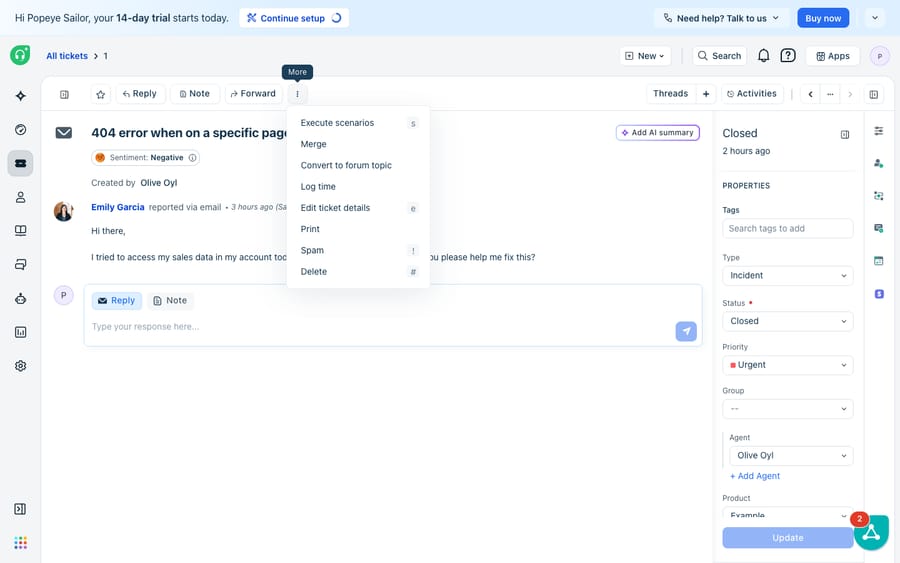
The Spam action lives in the same More menu as Execute scenarios, Merge, Convert to forum topic, Log time, Print, and Delete, so if you can merge a ticket, you already know where to find it. The clock matters here: a ticket stays in the Spam or Trash view for 30 days, after which Freshdesk deletes it permanently. Until then you can remove it from spam from inside the ticket. Spam is the safer default over Delete for that reason, but it isn't a permanent archive, so check the folder before the month runs out.
What does Freshdesk's built-in spam filter catch?
You don't have to catch everything by hand. Freshdesk ships with a proactive spam filter that's enabled by default. According to the How to protect your helpdesk from spam attack article, the filter evaluates every incoming email ticket against preset criteria and assigns it a spam score. Messages scoring 6 or higher are marked as spam automatically and dropped into the Spam folder, with no rule, action, or agent involved.
Two practical implications follow:
- Check the Spam folder at least weekly. Freshworks notes that legitimate mail can be caught if it comes from an IP on a spam-reporting list or simply scores high. Because spam is purged after 30 days, a real customer caught on the 1st is gone by the 31st if nobody looks.
- Close the front door for portal spam. A lot of junk doesn't arrive by email at all; it's bots filling in your support form. Go to Admin → Channels → Portals → Edit → Manage sections and turn on Enable CAPTCHA to help avoid spam. It's the single most effective setting against form-submission bots.
How do you auto-route junk with Ticket Creation (Dispatch'r) rules?
The manual Spam action and the built-in filter handle most cases, but for a recurring offender (a spam domain hammering you, a mailing list you're stuck on, a subject line that always signals junk) you want it gone before it hits your queue. That's the job of a Ticket Creation automation rule.
Long-time users know this feature as the Dispatch'r. Freshdesk has folded it into the unified automations UI, but it runs at the same moment: the instant a ticket is created. Per the Automation Rules Examples: Ticket Creation documentation, here's how to build a rule that marks incoming mail as spam:
- Go to Admin → Workflows → Automations and open the Ticket Creation tab.
- Click New rule and give it a clear name (e.g. Block spam domains).
- In the "On tickets with these properties" (conditions) section, choose Requester email → Contains and enter the values you want to block, for example
spamdomain.comor a specific sender. - In the "Perform these actions" section, add the Mark as spam action. (Delete the ticket is also available, but it skips the Spam folder you'd use to rescue a false positive.)
- Click Preview and save, then Save and enable.
From then on, any new ticket whose requester email matches is quarantined automatically. Placement matters more than it looks. Freshworks' Dispatch'r documentation says Ticket Creation rules run top to bottom, and the default mode is Execute first matching rule: only the first enabled rule whose conditions match will run. If a broad routing rule such as "all email to Tier 1" sits above your spam rule, the spam rule never fires. Put spam rules at the top of the list, or switch the tab to Execute all matching rules if you need several rules to act on the same ticket.
How do you block a whole domain?
Freshdesk has no standalone domain blocklist screen, but a Ticket Creation rule is the practical equivalent. To block an entire domain (a persistent spam wave, or a competitor scraping your form), create the rule above with Requester email → Contains → @baddomain.com and the Mark as spam action. You can stack several domains into one rule's condition set, and add Subject or Description → Contains conditions to catch spam that rotates sender addresses but reuses the same pitch. Blocking a single contact covers one address; the rule covers everyone at the domain.
Where does native spam handling stop?
| Layer | What it's good for | Where it stops |
|---|---|---|
| Ticket Spam action | One-off junk, fast cleanup, blocks the sender | Manual; scales badly under an attack |
| Proactive spam filter | Obvious spam, zero setup, always on | Score-based, so it misses clever spam and occasionally over-flags |
| CAPTCHA on portal | Bot form submissions | Only guards the portal, not email |
| Ticket Creation rules | Recurring senders, domains, subject patterns | You maintain the rules; matches are literal, not semantic; order matters under first-match |
For most teams, these layers are enough. The proactive filter quietly eats the bulk of junk, CAPTCHA shuts down form bots, and a handful of Ticket Creation rules handle the repeat offenders.
They share one limit: every one of these tools matches on patterns, not meaning. A rule that blocks @baddomain.com can't tell an angry but legitimate customer from a troll, and the spam score doesn't understand intent. The tickets that make it past the filters, the real ones, still land on a human who has to read each one, work out what the customer wants, and write the reply. Spam handling cleans the queue; it does nothing about the work inside it. Rules are also literal, so aggressive blocking risks quarantining real customers, and every rule you add is one more thing to maintain as spam patterns shift.
That's the seam where an AI layer fits, and it's worth being clear about the build-versus-buy tradeoff before adding one. The category of AI agents for customer service exists to do the reasoning-heavy part that pattern rules can't. Macha is one such layer: it runs on top of the Freshdesk you already use (Macha also runs on Zendesk, Freshdesk, Gorgias, Front, HubSpot or Intercom) and doesn't replace your help desk, your Spam folder, or your automation rules. You connect Macha to Freshdesk with your subdomain and API key, and it reads the same tickets your spam rules already filtered, drafting a grounded first reply, triaging by intent, and looking up order or account status through a custom tool that turns a REST API into something the agent can call. Because it reasons about what a message means rather than which string it contains, it can also flag borderline junk your literal rules miss, while Freshdesk stays the system of record for how mail is received and quarantined. (Macha's connector is for Freshdesk specifically, not Freshchat, Freshservice, or Freshcaller. Macha bills per ticket, one conversation charged once however many messages it takes, never per resolution; plans start at $299/mo for up to 750 tickets.) To see how that automation is wired, how to automate Freshdesk with AI walks through it.
For the broader picture on email setup and deliverability, see how to configure email in Freshdesk and the companion guide on why Freshdesk emails go to spam. The flip side of blocking junk is making sure your own replies aren't treated as junk.
FAQ
How do I mark an email as spam in Freshdesk? Open the ticket, click the ... (More) menu in the ticket toolbar, and choose Spam. The ticket moves to the Spam view under Tickets, and Freshdesk offers to block the sender so their future tickets are marked as spam automatically.
Can I block an entire email domain in Freshdesk? Yes, with a Ticket Creation automation rule (formerly the Dispatch'r). Go to Admin → Workflows → Automations → Ticket Creation → New rule, set the condition Requester email → Contains → @yourdomain.com, add the Mark as spam action, and save. Keep the rule at the top of the list, because the default mode runs only the first matching rule.
Does Freshdesk have a built-in spam filter? Yes. A proactive spam filter is enabled by default and scores every incoming email ticket; messages scoring 6 or higher are automatically marked as spam and moved to the Spam folder. Check that folder regularly in case a real email is over-flagged.
How long does Freshdesk keep tickets in the Spam folder? 30 days. After that, Freshdesk permanently deletes them, so restore any legitimate ticket before then from inside the ticket.
How do I stop spam from my customer portal form? Go to Admin → Channels → Portals → Edit → Manage sections and enable CAPTCHA to help avoid spam. It's the most effective control against bots submitting your support form.
Can I add AI to Freshdesk spam handling without replacing Freshdesk? Yes. An AI agent layer like Macha connects to Freshdesk and works on the same tickets your spam rules and filter already produced, reasoning about intent to draft replies and surface borderline junk, while Freshdesk stays the system of record for how mail is quarantined and restored.
Ready to clear the tickets that survive your spam filters? Start a free trial of Macha and connect it to your Freshdesk in minutes.






