





 Shopify
 Stripe
 Slack
Slack Notion
 Google Workspace
 Confluence

How Do You Configure Email in Freshdesk? Support Email, Forwarding and DKIM (2026)


Freshdesk email setup starts at Admin Settings > Channels > Email > New support email, then either a forwarding rule or a direct Gmail, Office 365 or IMAP/SMTP connection. After that, publish the 4 DKIM CNAME records Freshdesk generates and set threading rules so replies land on the right ticket.
Key takeaways
- Setting up a Freshdesk support email starts at Admin Settings, then Channels, then Email, then New support email, choosing incoming only, outgoing only, or both.
- Freshdesk allows multiple support emails from the Growth plan, at $19 per agent a month billed annually, while the Freshdesk Free program allows one address.
- Freshdesk DKIM setup generates 4 CNAME records to publish in your domain's DNS, so it needs a support email on a custom domain rather than a freshdesk.com subdomain.
- Freshdesk's SPF record value is v=spf1 include:email.freshdesk.com ~all, and Freshdesk says SPF is not required once DKIM is set up.
- Freshdesk's Automatic Bcc setting can silently copy up to 50 addresses on all outgoing ticket mail for archiving or monitoring.

To configure email in Freshdesk, go to Admin Settings → Channels → Email → New support email, pick a mail server, then either forward your real address to the Freshdesk forwarding address or connect Gmail, Office 365 or your own IMAP/SMTP server, and finally publish the 4 DKIM CNAME records Freshdesk generates. The five steps below cover each link in that chain, checked against Freshdesk's support docs in September 2026.
| Step | Where in Freshdesk | Needed when |
|---|---|---|
| 1. Add a support email | Admin Settings → Channels → Email → New support email | Always (one address on the Free program; multiple from Growth) |
| 2. Set up forwarding | Your mail provider, pointing at the Freshdesk forward-to address | Only on the Freshworks mail server route |
| 3. Connect your own mail server | Same panel: Gmail, Office 365 or Custom (IMAP/SMTP) | If mail should come from your own infrastructure |
| 4. Authenticate with DKIM and SPF | Admin → Channels → Email → Advanced Settings → Configure DKIM, plus your DNS | Any custom domain |
| 5. Threading and requester rules | Advanced Settings | Before you go live |
How does email become a ticket in Freshdesk?
A customer emails your support address. That mail is delivered into a mailbox Freshdesk can read: either a Freshworks-hosted mailbox ([email protected]) that your real address forwards to, or your own mailbox connected over Gmail, Office 365 or a custom server. Freshdesk picks the message up, creates a ticket, sets the sender as the requester, and routes it to the group you mapped. When an agent replies, Freshdesk sends the outbound mail from your reply-to alias and stamps a ticket-ID marker so the customer's next reply threads back onto the same ticket instead of opening a new one. Every step below configures one link in that chain.
How do you add a support email in Freshdesk?
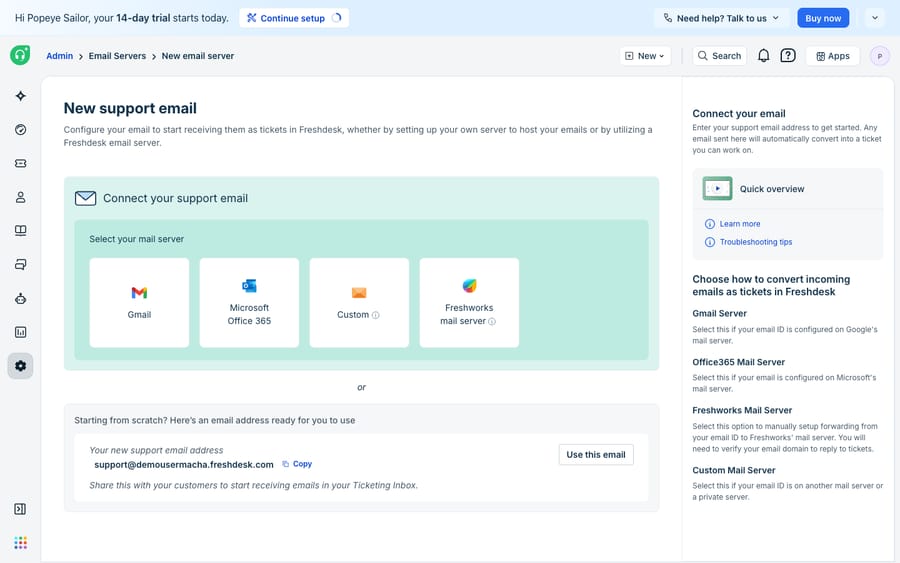
This is where the pipeline starts. Per Freshworks' Set up your support email documentation, you add a mailbox under Admin Settings → Channels → Email.
- Go to Admin Settings → Channels → Email and click New support email.
- Choose your email setup combination: Incoming only, Outgoing only, or Incoming and outgoing (most teams want both, so Freshdesk receives and sends).
- Pick a mail server: the Freshworks mail server (the default, giving you
[email protected]), Gmail, Microsoft Office 365, or a Custom mail server. - Enter the support email name and an email alias. The alias becomes your default reply-to address (e.g.
[email protected]), so customers see your brand, not the Freshworks subdomain. - Assign incoming tickets to a group (the team that owns this address) and, if you run multiple products, link the email to a product.
- Save.
Two plan notes worth knowing up front. You can add multiple support emails from the Growth plan onward ($19 per agent a month billed annually on Freshdesk's pricing page); on the Freshdesk Free program, which covers up to 2 agents for 6 months, you get one email address only. Freshdesk's pricing page itself no longer lists a free plan. Assigning different mailboxes to different products needs Pro or above. If you only need one shared inbox, none of that matters: the default Freshworks mailbox works out of the box.
How do you forward your support address to Freshdesk?
If you chose the Freshworks mail server, your real address ([email protected], hosted with Google, Microsoft or anyone else) has to hand its mail to Freshdesk. That's done with a forwarding rule.
When you add the mailbox, Freshdesk generates a distinct forwarding address for it (each support email gets its own, so mail from different inboxes never mixes). You then create a forwarding rule in your own mail provider that sends a copy of everything arriving at [email protected] to that Freshdesk address.
- In Freshdesk's email setup, copy the auto-generated forward-to address for this mailbox.
- In your email provider (Google Workspace, Microsoft 365, etc.), create a forwarding rule on
[email protected]pointing at that address. - Return to Freshdesk and complete verification. Only a verified support email can be used for outgoing replies.
Freshdesk documents the multi-mailbox and forwarding mechanics in Adding multiple email addresses to Freshdesk. Forwarding rules are only needed on the Freshworks-server route. If you connect your own mailbox directly, skip to the next section.
How do you connect Gmail, Office 365 or your own mail server?
Instead of forwarding, you can let Freshdesk read and send directly from your own mailbox. This is the cleaner path if you want mail to originate from your infrastructure. Freshdesk supports OAuth connections to Gmail and Microsoft Office 365, or a fully custom mail server over IMAP (incoming) and SMTP (outgoing).
- Gmail / Office 365: pick the server type, click Sign in, and authorise Freshdesk over OAuth. No app passwords, no forwarding rule.
- Custom server: enter your IMAP host, port and credentials for incoming mail and your SMTP host, port and credentials for outgoing.
The upside of connecting your own outgoing server is deliverability: mail is sent from your domain's own infrastructure, so authentication is simpler. For a step-by-step on the OAuth flow, see how to connect Office 365 or Gmail to Freshdesk.
How do you set up DKIM and SPF for Freshdesk?
An address that receives mail is only half the job; the mail you send has to be trusted, or it lands in spam. DKIM digitally signs outbound mail with your domain so receiving servers can verify it came from you.
You configure it under Admin → Channels → Email → Advanced Settings → Configure DKIM. Per Freshdesk's Configuring DKIM records doc, Freshdesk generates 4 CNAME records to publish at your DNS host; you then expand the domain settings and click Verify to confirm they've propagated. The caveats, from that doc and the advanced email settings docs:
- DKIM signs with your own domain. The records go in DNS you control, so you need a support email on a custom domain. A
[email protected]address has no domain of yours to sign for. Freshdesk also makes domain verification mandatory if you send through the default Freshdesk server. - DKIM is recommended but not strictly required for a custom-mailbox configuration: "DKIM configuration is not required for custom mailbox configuration, however, we still recommend you configure this option for your custom email domains." If you connect your own SMTP server, that server's authentication does much of the work.
- SPF isn't configured inside Freshdesk; it's a DNS TXT record on your domain. Freshdesk's SPF article gives the value
v=spf1 include:email.freshdesk.com ~all(merged into any existing SPF record) and says SPF is not required if you already have DKIM set up.
If your replies are landing in spam, DKIM and SPF are the first thing to check. There's a fuller walkthrough in Freshdesk SPF, DKIM, and custom mailbox setup.
How do you keep replies threaded on the right ticket?
The last mile is making sure conversations stay conversations. In Advanced Settings, Freshdesk exposes the controls that decide how replies thread and who gets recorded as the requester:
- Ticket ID prefix: Freshdesk uses a marker like
[#prefix-{{ticket.id}}]in the subject so a customer's reply lands back on the original ticket. If you set a prefix, update your email templates and notifications to include it; if threading misbehaves, check the templates first. - Create requester from Reply-To and use original sender for forwarded emails: decide whether the forwarder or the original customer becomes the ticket's requester (important if a colleague forwards a customer complaint in).
- Automatic Bcc (up to 50 addresses): silently copies an archive or monitoring inbox on all ticket mail.
Where does native Freshdesk email stop?
Freshdesk's native email is solid. The email-to-ticket conversion is reliable, the forwarding and OAuth options cover almost every mail setup, DKIM and SPF support is built in, and threading mostly works once configured. For many teams, this is all the email infrastructure they need.
But notice what "configure email" gives you. Every step above builds a pipe: it gets the customer's message into a ticket and your agent's reply out to their inbox. It does nothing about the work in between: reading the email, understanding what the customer wants, and writing the answer. A perfectly configured mailbox still lands every message on a human who has to read and type.
There are honest edges, too. DKIM needs a custom domain, so any team still on a freshdesk.com subdomain ships weaker deliverability. Threading is rule-based, so unusual clients, stripped subject lines or aggressive forwarding can still fork a conversation into two tickets. And forwarding rules add a hop that can break silently.
This is where an AI layer fits, and it's worth being clear about the build-versus-buy tradeoff before adding one. The category of AI agents for customer service exists to do the reasoning-heavy part the pipe can't. Macha is one such layer: it runs on top of the Freshdesk you already use as a native connector, and it does not replace your help desk, your mailboxes or your DKIM setup. You connect Macha to Freshdesk with your subdomain and API key, and it reads the same email-to-ticket conversations your forwarding rules already create: drafting or posting a grounded first reply, triaging by intent, and looking up order or account status through a custom tool that turns a REST API into something the agent can call. (Macha's connector is for Freshdesk specifically, not Freshchat, Freshservice or Freshcaller. Macha bills per ticket, one conversation charged once however many messages it takes, never per resolution, from $299 a month for up to 750 tickets; see the pricing breakdown.) To see how that automation is wired, how to automate Freshdesk with AI walks through it.
The clean division of labour: keep Freshdesk as the system of record for how mail moves (the mailbox, the forwarding, the authentication) and layer an agent on top for the part the pipe can't do, which is answering what comes through it.
FAQ
Where do I set up a support email in Freshdesk? Go to Admin Settings → Channels → Email → New support email. Choose an email setup combination (Incoming only, Outgoing only, or both), pick a mail server (Freshworks, Gmail, Office 365 or Custom), set your reply-to alias, assign the mailbox to a group, and save.
Do I need a forwarding rule? Only if you use the Freshworks mail server. In that case, your real address forwards mail to a Freshdesk-generated forward-to address. If you connect your own Gmail, Office 365 or custom server directly, no forwarding rule is needed.
How many support emails can I add? You can add multiple support emails from the Growth plan onward. On the Freshdesk Free program you're limited to a single support email address.
Why do I need DKIM, and can everyone use it? DKIM signs your outbound mail so it isn't flagged as spam. Freshdesk recommends it, and setup means publishing 4 CNAME records in your domain's DNS, so you need a support email on a custom domain, not a yourcompany.freshdesk.com subdomain. Add Freshdesk's SPF include if you haven't set up DKIM.
What SPF record does Freshdesk need? v=spf1 include:email.freshdesk.com ~all, merged into your existing SPF record if you have one. Freshdesk says SPF is not required once DKIM is set up.
Can I add AI to Freshdesk email without replacing Freshdesk? Yes. An AI agent layer like Macha connects to Freshdesk as a native connector and works on the same email-to-ticket conversations your mailboxes create, drafting grounded replies and triaging by intent, while Freshdesk stays the system of record for how mail is received, sent and authenticated.
Want your Freshdesk inbox to start answering itself? Start a free trial of Macha ($50 of usage, no credit card) and connect it to your Freshdesk.






