Shopify
 Stripe
 Slack
Slack Notion
 Google Workspace
 Confluence

Why Are Freshdesk Emails Going to Spam? How to Fix It with DKIM, SPF and DMARC


Freshdesk replies land in junk when the receiving server can't prove your domain authorized Freshdesk to send them, so the fix lives in DNS, not in your message content. You publish four DKIM CNAME records, one SPF include and one DMARC record for a verified custom support domain, then wait up to 48 hours for verification.
Key takeaways
- Freshdesk emails land in spam because outbound mail fails SPF, DKIM or DMARC checks for your domain, not because of what the message says.
- Freshdesk generates 4 CNAME records for DKIM under Admin, Channels, Email, Advanced Settings, Configure DKIM, and DNS verification can take up to 48 hours.
- The Freshdesk SPF value is v=spf1 include:email.freshdesk.com ~all, merged into your existing record because a domain can hold only one SPF record.
- Freshdesk DKIM needs a verified custom support-email domain, so replies sent from a yourcompany.freshdesk.com subdomain cannot be DKIM-signed for your brand.
- SPF allows at most 10 DNS lookups, and Freshdesk offers data-center includes such as fdspfus.freshemail.io to keep a crowded SPF record under that limit.

Freshdesk emails go to spam because the receiving server can't prove your domain authorized Freshdesk to send them, and the fix is 4 DKIM CNAME records from Admin > Channels > Email > Advanced Settings > Configure DKIM, plus an SPF include and one DMARC record. DKIM only works once you send from a verified custom support domain; Freshworks lists it on every plan tier, so the gate is the domain, not the plan (Freshdesk DKIM article, checked 24 September 2026).
| Record | What to publish | Where it comes from |
|---|---|---|
| DKIM | 4 CNAME records, unique to your domain | Admin > Channels > Email > Advanced Settings > Configure DKIM |
| SPF | include:email.freshdesk.com merged into your one SPF record | Freshdesk SPF article |
| DMARC | One v=DMARC1 TXT record, starting at p=none | You write it |
| Custom domain | A support address on your own domain, verified in Freshdesk | Admin > Email |
| Propagation | Minutes to several hours, up to 48 hours | Freshdesk DKIM article |
Why does Freshdesk mail land in spam?
The root cause is authentication, not content. Freshdesk relays your replies through its own mail servers, so a receiving server sees mail claiming to be from [email protected] but arriving from a Freshworks IP. If your DNS doesn't publish a record authorizing that, SPF fails; if the message isn't cryptographically signed for your domain, DKIM fails; and if you've published a DMARC policy, failing both is what tips the message into the spam folder. The fix is to publish the right DNS records so the checks pass.
How do I set up DKIM in Freshdesk?
Do DKIM first. It signs every outbound message with a private key held by Freshdesk and a matching public key published in your DNS, and receiving servers verify the signature. Per Freshworks' email domain verification using DKIM records article, the flow is:
- Go to Admin > Channels > Email > Advanced Settings > Configure DKIM (you need admin access).
- Freshdesk generates 4 CNAME records unique to your domain. Freshworks calls this "a one-time configuration step per domain name."
- Publish all four CNAME records at your DNS host (GoDaddy, Cloudflare, Route 53, etc.).
- Return to Freshdesk and verify. A green check mark means the DNS verified; a red cross mark means it's still unverified.
Give DNS time to propagate. Freshworks says it can take "anywhere from a few minutes to several hours, and in some cases, up to 48 hours," and you'll get an email once verification completes. The failure we see most often isn't in Freshworks' article: at Cloudflare, a CNAME left with the proxy toggle ON (the orange cloud) resolves to Cloudflare's own address instead of Freshdesk's target, so verification never lands. Turn the proxy off for the DKIM CNAMEs, and copy the four records exactly as Freshdesk generated them for your domain.
What SPF record do I add for Freshdesk?
SPF tells receiving servers which infrastructure may send on your behalf. Freshdesk's SPF article gives this value:
v=spf1 include:email.freshdesk.com ~allThe same article says "SPF configuration is not required if you already have DKIM setup." That's true for Freshdesk's own check, but DMARC passes when either SPF or DKIM aligns, so publishing both gives you a fallback if a DKIM key ever breaks. We'd add it.
A domain can hold only one SPF record, so if you already send through Google Workspace or Microsoft 365, don't add a second v=spf1 line. Merge include:email.freshdesk.com into the existing record, which is exactly what Freshdesk's article shows. SPF also has a hard limit of 10 DNS lookups (RFC 7208), and stacking several include: mechanisms (Freshdesk plus Google plus a marketing tool) can push you past it, at which point SPF returns a permanent error. Freshdesk's own workaround: include only your data center's record instead of the global one. The four values are fdspfus.freshemail.io (US), fdspfeuc.freshemail.io (EU), fdspfind.freshemail.io (India) and fdspfaus.freshemail.io (Australia).
Do I need a DMARC record for Freshdesk?
Yes, if you want receivers to trust the domain over time. DMARC ties SPF and DKIM together and tells receivers what to do when a message fails both. A basic monitoring policy looks like this:
v=DMARC1; p=none; rua=mailto:[email protected]Start with p=none to collect reports without affecting delivery, then tighten to p=quarantine or p=reject once the reports show Freshdesk mail passing. A domain can hold only one DMARC record, so if you already publish one, reconcile it instead of adding a duplicate. Most "Freshdesk mail going to spam" cases that survive DKIM setup turn out to be a strict DMARC policy meeting a DKIM record that never verified, which sends you back to the DKIM step.
Do I need a custom domain to fix Freshdesk deliverability?
Yes, and this is the gate that trips up trial and small accounts: DKIM requires a verified custom support-email domain. Freshworks' article says the custom support email domain must be set up under Admin > Email before DKIM records become available. If your replies still go out from [email protected], there is no custom domain to sign, and you inherit whatever reputation the shared subdomain carries. Add a support email on your own domain ([email protected]) first, then authenticate that domain. Setting the mailbox up is covered in how to configure email in Freshdesk, and the full authentication walkthrough lives in Freshdesk SPF, DKIM, and custom mailbox setup.
How do I monitor what Freshdesk sends?
Once authentication passes, you'll want visibility into what's going out, both to spot deliverability regressions and to keep a compliance copy of agent replies. Freshdesk's Advanced email settings include an automatic Bcc option that copies a monitoring or archive inbox on all ticket communications, so you can audit outbound mail without sitting in every ticket.
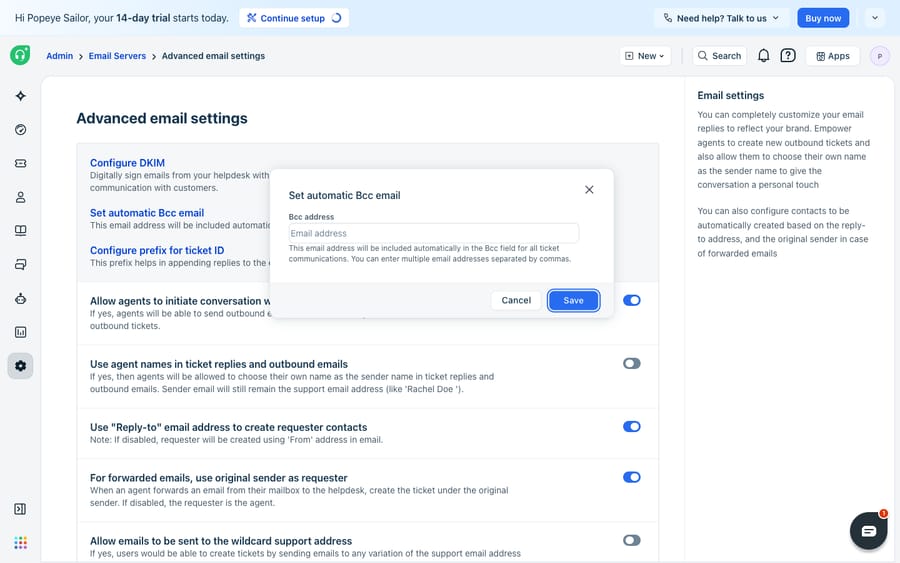
The automatic Bcc is an archiving and monitoring control. It won't stop mail from being flagged as spam; that's the DKIM, SPF and DMARC work above. It gives you a running copy of every outbound reply, which is what you want when you're diagnosing why certain messages bounce or land in junk. Pair it with the DMARC rua report address and you have an internal archive and an external signal on how receivers treat your mail.
Where does native Freshdesk email stop?
Freshdesk's built-in authentication is good. It generates the DKIM records for you, gives you a clear verified/unverified indicator, and documents the flow well. For most teams on a custom domain, four CNAMEs and one SPF line are the entire fix.
The edges are real, though. DKIM is domain-gated: you can't authenticate mail on a freshdesk.com subdomain, so a team that hasn't moved to a custom domain ships weaker deliverability with no in-product remedy. Freshdesk also doesn't manage your DNS, so SPF lookup-limit problems, proxied CNAMEs and duplicate DMARC records all live in a system Freshdesk can't see; verification stays red until you sort it at the registrar. And once mail is delivering, authentication does nothing about the work waiting in the inbox: reading each message, working out intent, and writing the answer.
That last gap is where an AI layer fits, and it's worth weighing the build-versus-buy tradeoff before adding one. The category of AI agents for customer service exists to do the reasoning-heavy part. Macha is one such layer: it runs on top of the Freshdesk you already use as a native connector and doesn't replace your help desk, your mailboxes or your DKIM setup. You connect Macha to Freshdesk with your subdomain and API key, and it works the same email-to-ticket conversations your authenticated mailbox already creates: drafting a grounded first reply, triaging by intent, and looking up order or account status through a custom tool that turns a REST API into something the agent can call. (The connector is for Freshdesk specifically, not Freshchat, Freshservice or Freshcaller. Macha bills per ticket: one conversation, charged once however many messages it takes, from $299 a month for 750 tickets, never per resolution.) For how that automation is wired end to end, how to automate Freshdesk with AI walks through it.
The division of labor: Freshdesk stays the system of record for how mail is sent and trusted (DKIM, SPF, DMARC, the custom domain), and an agent on top answers what finally lands in the inbox. For the wider picture of how Freshdesk email works underneath, Freshdesk email explained covers the full flow.
FAQ
Why are my Freshdesk emails going to spam? Almost always because of failed email authentication. Freshdesk sends on your behalf from its own servers, so unless your domain publishes DKIM signatures, an SPF record authorizing Freshdesk, and a consistent DMARC policy, receiving servers treat the mail as unverified and route it to junk.
How do I set up DKIM in Freshdesk? Go to Admin > Channels > Email > Advanced Settings > Configure DKIM. Freshdesk generates four CNAME records; publish all four at your DNS host, turn off any proxy on those records, then verify. A green check mark confirms success; propagation can take up to 48 hours.
What SPF record do I add for Freshdesk? v=spf1 include:email.freshdesk.com ~all. A domain can have only one SPF record, so merge the Freshdesk include into your existing record, and if you hit the 10-lookup limit, use your data center's include (for example fdspfus.freshemail.io in the US) instead.
Do I need a custom domain to fix deliverability? Yes. DKIM requires a verified custom support-email domain; you can't authenticate mail on a yourcompany.freshdesk.com subdomain. Add a support email on your own domain first, then configure DKIM, SPF and DMARC for it.
Is DKIM limited to certain Freshdesk plans? No. Freshworks' DKIM article lists it on every plan tier. The requirement is a verified custom support domain and admin access.
Can I add AI to Freshdesk email without replacing Freshdesk? Yes. An AI agent layer like Macha connects to Freshdesk as a native connector and works the same email-to-ticket conversations your authenticated mailbox creates, drafting grounded replies and triaging by intent, while Freshdesk stays the system of record for how mail is sent and authenticated.
Ready to turn a clean-sending Freshdesk inbox into one that answers itself? Start a free trial of Macha and connect it to your Freshdesk in minutes.