





 Shopify
 Stripe
 Slack
Slack Notion
 Google Workspace
 Confluence

How Do You Create Custom Ticket Fields in Freshdesk? (2026)


Custom ticket fields in Freshdesk are built under Admin, Workflows, Ticket Fields from eight field types, and the Growth, Pro and Enterprise plans cap how many of each you can add. Here is how to build them, split agent-only from customer-facing data, and use dependent fields and dynamic sections to keep the form short.
Key takeaways
- Custom ticket fields in Freshdesk are created under Admin, Workflows, Ticket Fields by dragging one of eight field types onto the form, then setting labels and visibility.
- Freshdesk's Growth plan, at $19 per agent a month billed annually, allows up to 80 single-line text and 80 dropdown fields but only 10 checkboxes.
- Freshdesk Pro and Enterprise raise the custom field ceilings to 400 single-line text fields and 250 dropdowns, while decimal fields stay capped at 10 on every plan.
- A Freshdesk dependent field supports up to three cascading levels, such as Category, Subcategory and Item, built by indenting choices with one or two tabs.
- Turning off a field's customer Can view and Can edit settings makes it agent-only, which suits internal data like root cause or refund approver.

To create a custom ticket field in Freshdesk, go to Admin > Workflows > Ticket Fields, drag one of eight field types from the palette onto the form, set its agent and customer labels and visibility, and save. Custom fields are available from the Growth plan ($19 per agent a month, billed annually), and the plan sets how many of each type you can add.
| What you want | Where / how | Plan needed |
|---|---|---|
| Custom ticket fields (8 types) | Admin > Workflows > Ticket Fields, drag from the palette | Growth and up |
| Agent-only field | Turn off the customer Can view / Can edit settings | Growth and up |
| Cascading 3-level dropdown | Dependent field, choices indented with tabs | Growth and up |
| Fields that appear only for one dropdown choice | Dynamic section on a dropdown field | Pro and up (third-party reported) |
| More than one ticket form | Multiple ticket forms | Pro and up |
What is a ticket field in Freshdesk?
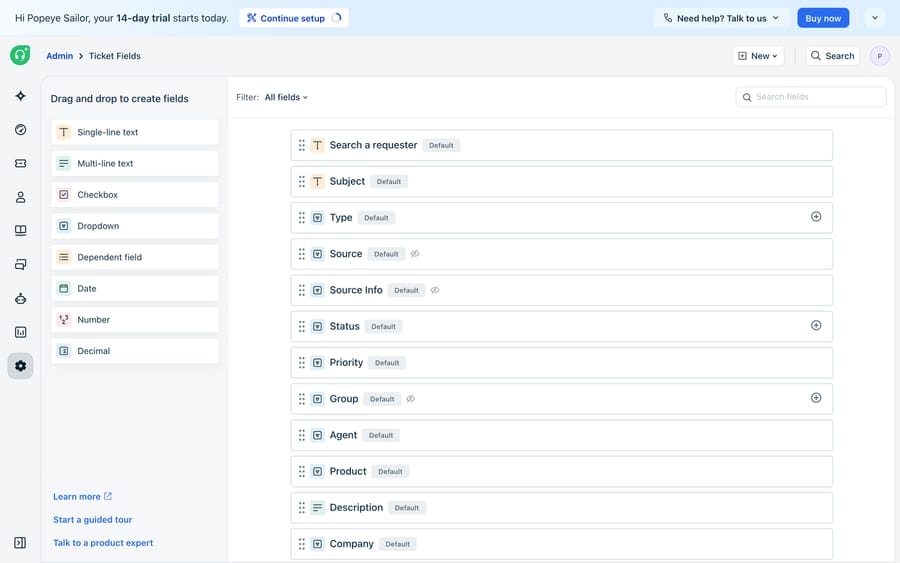
A ticket field is one input on the ticket form (a dropdown, a text box, a checkbox) that stores a piece of structured data against every ticket. Freshdesk ships with default fields you can reorder and relabel but not delete: Requester, Subject, Type, Source, Status, Priority, Group, Agent, Product, Description, and Company. On top of those you add custom fields of your own.
Per Freshworks' Understand and Customize Ticket Fields documentation, there are eight custom field types:
- Single-line text: a short free-text answer (order number, serial).
- Multi-line text: a longer paragraph answer (steps to reproduce).
- Checkbox: a single yes/no toggle.
- Dropdown: a fixed list of choices, the workhorse for structured data.
- Dependent field: a cascading three-level dropdown (more below).
- Date: a date picker.
- Number: a whole number.
- Decimal: a number with decimal places.
How many custom fields does each Freshdesk plan allow?
The ceilings differ a lot by type. Text and dropdown fields are generous; the rest are tight on Growth. From the same Freshworks article:
| Field type | Growth | Pro and Enterprise |
|---|---|---|
| Single-line text | 80 | 400 |
| Multi-line text | 10 | 50 |
| Checkbox | 10 | 30 |
| Dropdown | 80 | 250 |
| Dependent field | 80 per level | 250 per level |
| Date | 10 | 30 |
| Number | 10 | 30 |
| Decimal | 10 | 10 |
Most teams never hit these. The one to watch is checkboxes on Growth: ten flags go fast if you use them for internal tags. Freshdesk's pricing page lists Growth at $19, Pro at $55 and Enterprise at $89 per agent a month, billed annually.
How do you open the Ticket Fields builder?
Everything lives in one drag-and-drop canvas.
- Go to Admin > Workflows > Ticket Fields.
- You'll see your current form in the center and a field-type palette on the left, labeled "Drag and drop to create fields."
- Drag a field type from the palette onto the form where you want it to sit.
- In the panel that opens, set its labels and behavior (next section), then Save.
That's the whole loop: drag, configure, save. The order of fields on the canvas is the order agents and customers see them, so put the high-signal fields near the top.
How do you make a field agent-only or customer-facing?
This is the part people get wrong, and it's the difference between a clean customer form and one that leaks internal jargon. Each field carries two names and a set of visibility toggles:
- Label for agents: what your team sees in the ticket view.
- Label for customers: what shows on the customer portal and support form. Leave a field's customer visibility off and it becomes agent-only, which suits internal data like "Refund approved by" or "Root cause category" that customers should never see or set.
- Required when submitting the ticket: forces a value at creation. Use it sparingly on customer-facing fields; every required field is a reason someone abandons the form.
- Required when closing the ticket: a softer, agent-side gate. The field can stay empty during the conversation but must be filled before the ticket resolves, which is how you get clean data for reporting.
- Can view and Can edit: control whether the customer sees the field at all and whether they can set its value. A field the customer can view but cannot edit is a display-only badge; a field they can neither view nor edit is fully agent-only.
- Can filter: whether agents can filter the ticket list by this field.
The mental model: customer-facing fields collect what you need to triage (product, issue category), while agent-only fields capture what you need to resolve and report (disposition, root cause). That split keeps the form short for customers and rich for agents. It also feeds the priority and type data we break down in Freshdesk ticket types, priority & source explained.
How do you build a dependent field for cascading choices?
When you need customers to narrow down through a hierarchy, say Category > Subcategory > Item, a stack of separate dropdowns is clumsy. A dependent field collapses that into one cascading control: pick a category and the relevant subcategories appear; pick a subcategory and the relevant items appear. Freshdesk supports up to three levels.
To build one:
- Drag the Dependent field type onto the form.
- Create a label for each of the two or three levels you want (for example Category, Subcategory, Item).
- Enter your choices, one per line, using indentation to signal hierarchy: no indent for a level-1 category, one tab for a level-2 subcategory, and two tabs for a level-3 item.
- Add the choices and Save.
The payoff is a form that feels short to the customer but hands your agents a precise, pre-sorted classification, which is what routing and the automation rules in how to set up automations in Freshdesk depend on.
How do dynamic sections show fields only when relevant?
A long form scares people off. A dynamic section keeps it short by showing a group of fields only when a particular dropdown option is selected. Choose "Billing" as the issue type and the invoice-number and account-email fields appear; choose "Bug" and a steps-to-reproduce field appears instead. Everything else stays hidden until it's needed.
Freshworks' own "Creating dynamic sections" article now sits behind a support login, so we couldn't re-check it. eesel's Freshdesk ticket fields guide reports that dynamic sections are on the Pro and Enterprise plans. The usual steps:
- Go to Admin > Workflows > Ticket Fields.
- Click the plus icon on a dropdown field (a default one like Type, or a custom dropdown).
- Name the section and associate it with the specific dropdown choices that should trigger it.
- Drag new or existing custom fields into the section, set their properties, and Save field.
Fields inside a section behave like normal custom fields: they show up in ticket-view filters and can drive automation rules. If you need a completely different form per request type rather than a section, multiple ticket forms are also a Pro-and-up feature, per Freshworks' ticket forms documentation.
Which field type should you use?
| Field type | Best for | Customer-facing? | Notes |
|---|---|---|---|
| Single-line text | Order/serial numbers | Often | Short free text |
| Multi-line text | Steps to reproduce | Sometimes | Longer paragraphs |
| Dropdown | Issue category, disposition | Either | The routing workhorse |
| Dependent field | Category > Sub > Item | Often | Up to 3 levels via tab-indent |
| Checkbox | Single yes/no flag | Either | e.g. "VIP" (agent-only) |
| Date | Due dates, incident date | Either | Date picker |
| Number / Decimal | Quantities, amounts | Either | Numeric only |
What can't Freshdesk's form builder do?
The field-and-form builder is capable. It's visual, it covers the field types most support teams need, and dependent fields plus dynamic sections let you keep a form short without dumbing it down. For structured data capture you don't need anything heavier.
What it can't do is fill fields for you. It can make a dropdown required, but it can't read a customer's message, understand that "my package never showed up" is a Delivery > Lost parcel issue, and set the dependent field accordingly. Required customer-facing fields fight the goal of a short form: every mandatory dropdown is friction, and customers routinely pick the wrong option or the first one. Agent-only fields still depend on a human remembering to fill them before close. And the form can capture "order #4471" but it can't go fetch that order's status from your systems.
That's where an AI agent layer fits, and it's worth weighing the build-versus-buy tradeoff before you reach for one. The broader category of AI agents for customer service exists to do the reasoning your form can't. Macha is one such layer: it runs on top of the Freshdesk you already use as a native connector and doesn't replace your help desk or its ticket fields. You connect it with your Freshdesk subdomain and API key, and it reads and writes the same tickets your form structures: inferring category and priority from the customer's own words, populating the fields you built even when the customer skips a dropdown, and looking up order or account status through a custom tool that turns a REST API into something the agent can call. The connector is for Freshdesk specifically, not Freshchat, Freshservice or Freshcaller. Macha bills per ticket (one conversation, charged once however many messages it takes), never per resolution, starting at $299 a month for up to 750 tickets; see pricing.
The division of labor: keep Freshdesk's ticket fields as the source of truth for what data a ticket carries, and let an agent handle the part the form can't, which is understanding the message well enough to fill those fields correctly. If you're also standardizing the replies that go out on those tickets, the companion piece is Freshdesk canned responses explained.
FAQ
Where do I create custom ticket fields in Freshdesk? Go to Admin > Workflows > Ticket Fields. Drag a field type from the left-hand palette onto the form, configure its labels and visibility in the panel that opens, and save. Custom fields are available from the Growth plan onward.
What field types can I add? Eight custom types: single-line text, multi-line text, checkbox, dropdown, dependent field, date, number, and decimal, alongside built-in default fields like Type, Priority, Group, and Company.
How many custom fields can I create? On Growth, up to 80 single-line text and 80 dropdown fields but only 10 each of multi-line text, checkbox, date, number and decimal. Pro and Enterprise raise single-line text to 400 and dropdowns to 250.
What's the difference between an agent-only and a customer-facing field? The field's visibility settings. With customer Can view / Can edit enabled, the field shows on the support portal for customers to fill; turn those off and it becomes agent-only, visible and editable only inside Freshdesk, which suits internal data like root cause or disposition.
How do dependent fields and dynamic sections differ? A dependent field is a single cascading control with up to three linked levels (Category > Subcategory > Item). A dynamic section reveals a whole group of separate fields when a specific dropdown option is chosen. Dependent fields narrow one choice; dynamic sections show the right block of fields for the situation. Dynamic sections are reported to need Pro or Enterprise.
Can I add AI to Freshdesk ticket fields without replacing Freshdesk? Yes. An AI agent layer like Macha connects to Freshdesk as a native connector and runs on top of your existing help desk and its ticket fields. It helps populate those fields by reading the ticket, inferring category and priority, and writing values back, while Freshdesk stays the system of record.
Want clean ticket data without a longer form? Start a free trial of Macha ($50 of free usage, no credit card) and connect it to your Freshdesk.






