



 Intercom
 Shopify
 Stripe
 Slack
Slack Notion
 Google Workspace
 Confluence

How to Customize a Zendesk Help Center Theme in 2026 (Step by Step)


Zendesk Help Center themes are customized in Knowledge admin under Customize design, where the Theme Editor changes logo, colors and fonts without code and Edit code opens the Curlybars templates, CSS and JavaScript. Branding works on every Suite plan, while code edits, imported themes and Marketplace themes need Suite Growth or above.
Key takeaways
- Zendesk Help Center themes are customized in Knowledge admin under Customize design, then Customize, not in Admin Center where most other Zendesk settings live.
- Changing branding settings keeps the Copenhagen theme standard, but editing its templates, CSS or JavaScript turns it into a custom theme that Zendesk does not support or update automatically.
- Suite Team accounts can change the Help Center logo, colors and fonts, but custom and Marketplace themes need Suite Growth or above.
- A Zendesk Help Center can hold a maximum of 10 themes in total, and only one theme can be live at any moment.
- Imported Zendesk theme ZIP files must have a file name of 30 characters or fewer to load on the Themes page.

To customize a Zendesk Help Center theme, open Knowledge admin, click Customize design, click Customize on a theme, change the logo, colors and fonts in the Theme Editor (or open Edit code for templates, CSS and JavaScript), preview it, then choose Set as live theme. Branding works on every Suite plan including Team; editing code, custom themes and Marketplace themes need Suite Growth or above (or Knowledge Professional or Enterprise). You can hold up to 10 themes, and only one is live at a time.
| Task | Where | Code needed? | Plan |
|---|---|---|---|
| Logo, favicon, colors, fonts, hero images | Customize design → Customize (Settings panel) | No | All Suites, including Team |
Templates, style.css, script.js | Theme options → Edit code | Yes (Curlybars, CSS, JS) | Suite Growth and above |
| Import a ZIP or Marketplace theme | Customize design → Add theme | No to install, yes to adapt | Suite Growth and above |
| Preview by role | Theme Editor → Preview | No | All Suites |
| Go live | Theme options → Set as live theme | No | All Suites |
One scoping note: this post is about how your Help Center looks. If you still need the content itself (categories, sections and articles), that's covered in our companion guide on how to build a Zendesk knowledge base. For the conceptual background on what a theme is, see Zendesk Help Center themes explained. Every step below is checked against Zendesk's own documentation; Zendesk revises its UI periodically, so confirm labels in your own account.
What access and plan do you need to customize a Help Center theme?
Three things decide whether you can open the theme tools at all:
- You need the Knowledge admin role. Theme management belongs to Knowledge admins, what Zendesk historically called a Guide manager (or Guide admin). Regular agents don't see the customization tools.
- Your plan decides how far you can go. Zendesk's branding article lists every Suite plan, Team through Enterprise Plus, so Team accounts can change colors, fonts, logo and images. Its standard vs. custom themes article says custom and Marketplace themes are not available on Suite Team, and the code customization article lists Growth, Professional, Enterprise and Enterprise Plus (plus Knowledge Professional and Enterprise). If you're on Team and want a new layout, that's an upgrade conversation before it's a design project.
- A working Help Center. Guide has to be enabled and your Help Center activated. If it isn't yet, start with building the knowledge base first; there's no point theming an empty shell.
Where does Help Center theming live in Zendesk?
This trips people up because Zendesk's admin tools are split across two places. Most account-wide configuration lives in Admin Center, but Help Center theming lives inside Knowledge admin (formerly Guide admin). If you go hunting through Admin Center for a theme editor, you won't find one.
The exact path: open Knowledge admin, then click the Customize design icon in the sidebar. That opens the Themes page, the home base for everything below. From there you can edit branding, edit code, preview, switch the live theme and import new ones.
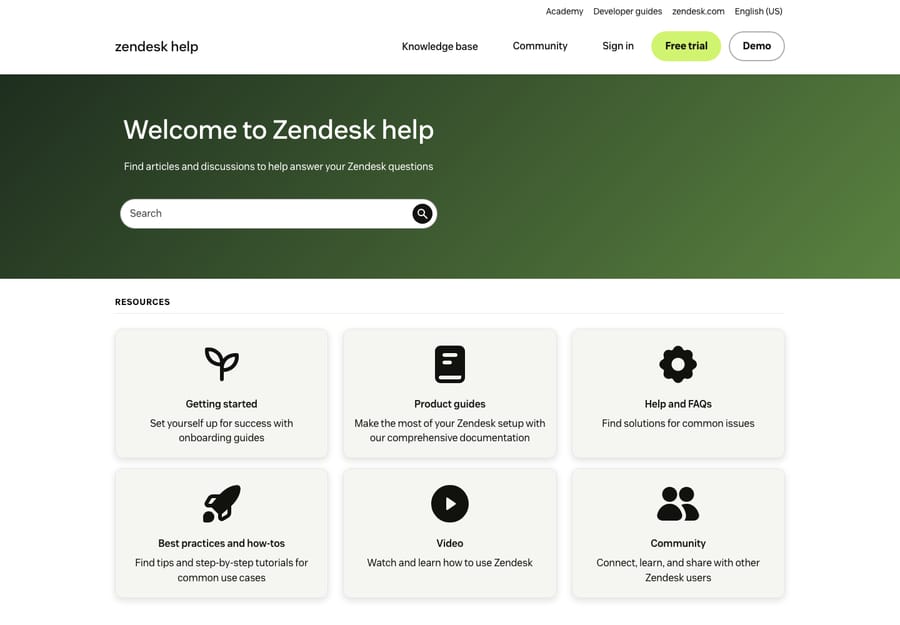
The screenshot above is a real, published Zendesk Help Center: the live output of a theme, which is what your customers see. A note on visuals: the theme admin editor on our test instance sits behind bot verification and can't be captured cleanly, so the Theme Editor and code editor below are described from Zendesk's docs rather than shown as a fabricated screenshot. Both images in this post are public Help Center pages, the result of a theme, not the editor.
What is the Copenhagen theme, and when does it stop updating?
Every Help Center starts on the standard theme, Copenhagen, Zendesk's default theme, built for mobile responsiveness and accessibility. Copenhagen is open source; the code lives on Zendesk's GitHub, which is handy if a developer wants to fork it as a clean starting point.
The line that matters is between branding and code. Per Zendesk's standard vs. custom themes article, changing branding and settings in the Theme Editor keeps Copenhagen a standard theme. The moment you edit its page templates, CSS or JavaScript, it becomes a custom theme, and Zendesk says custom themes are not supported by Zendesk and are not automatically updated when new theme features ship. That's not a reason to avoid code. It's a reason to keep a clean copy of the standard theme and budget for the occasional manual update.
Should you use the Theme Editor or edit the code?
There are two modes of Zendesk Help Center customization, and knowing which one you need saves time:
| Approach | Best for | Skills needed | What you change |
|---|---|---|---|
| Theme Editor (no-code) | Branding a stock theme to match your company | None | Logo, favicon, colors, fonts, hero and community images, settings-panel options |
| Editing code | Custom layouts, new components, deep restructuring | HTML/Curlybars, CSS, JS | Page templates, style.css, script.js, the manifest |
Most teams only ever need the first one, and it has a bonus: the theme stays standard and keeps receiving Zendesk's updates. You reach for code when the Settings panel can't express what you want, like a different homepage layout, a custom block or a restructured article page. The steps below cover both, in order.
Step 1: Open Customize design and choose your theme
In Knowledge admin, click Customize design in the sidebar to open the Themes page. You'll see your current themes, with the live one marked. Click Customize on the theme you want to edit, usually Copenhagen to begin with. This opens the Theme Editor.
If you'd rather not edit your live theme directly (a good habit, and one Zendesk recommends), duplicate it first from the theme's options menu, then customize the copy. Your live Help Center stays untouched until you deliberately publish.
Step 2: How do you change the logo, colors and fonts without code?
This is where most of the visible win happens. Inside the Theme Editor, the Settings panel on the left holds the branding controls. Zendesk's branding article groups them like this:
- Colors: brand color, text color, link color and background. The preview updates as you change them, so you can check contrast immediately.
- Fonts: heading and body fonts, chosen from the available options.
- Brand: upload your logo and favicon.
- Images: the home page hero image, the community hero image and the community banner.
- Other settings: depending on the theme, the panel may expose homepage toggles, search bar appearance and which page elements show. These vary by theme because they're defined in the theme's manifest file.
Branding edits are deliberately constrained: you can only change what the theme's author exposed as a setting, which is why they're safe. You can't break the layout by picking a new brand color. Click Save when you're happy.
If the Settings panel doesn't offer a control you need, say you want to move the search bar or add a section to the homepage, that's your cue to move to code.
Step 3: How do you edit the theme code (templates, CSS, JS)?
For anything the Settings panel can't do, open Edit code from the theme's options. This exposes the theme's full source: page templates, the stylesheet (style.css), the script (script.js), assets and the manifest. This is the part that needs a developer, and it's the part that turns a standard theme into a custom one.
Help Center templates are written in Curlybars, which implements a large subset of Handlebars with one key difference: it renders server-side rather than in the browser. Curlybars expressions (placeholders wrapped in double curly braces) pull Help Center data such as article titles, category lists, breadcrumbs and search results into the HTML, and they can read your theme settings too.
Each page type has its own template. The ones you'll touch most:
home_page: the Help Center landing page (search bar, category tiles, promoted content).category_page: a single category listing its sections.section_page: a single section listing its articles.article_page: the article reading view.search_results: the unified search results page.new_request_page: the request (ticket submission) form, if your Help Center accepts tickets.
If an older guide mentions a "page finder" template, that's not a stock Zendesk template name; the real building blocks are the page templates above. Alongside them, style.css controls visual styling and script.js adds client-side behavior. After any change, click Save. For worked examples, Zendesk maintains a help center templating cookbook.
A practical caution: editing code on your live theme is risky because mistakes show up immediately to customers. Work on a duplicate, or better, in a sandbox, and publish only once it's tested.
Step 4: What does preview check, and what doesn't it?
Whether you changed branding or code, preview before going live. In the Theme Editor, click Preview to see your changes across the page templates, and pick a role to check how the Help Center looks to different audiences (an anonymous visitor vs. a signed-in user, for example). You can't preview by user segment, though you can assume an end user's identity to see their view.
Know the limit: Zendesk says preview "is intended to show look-and-feel changes, but it is not intended for end-to-end testing of interactive theme functionality." Preview confirms it looks right; it doesn't prove forms submit or scripts behave. For functional testing, Zendesk points you to a sandbox.
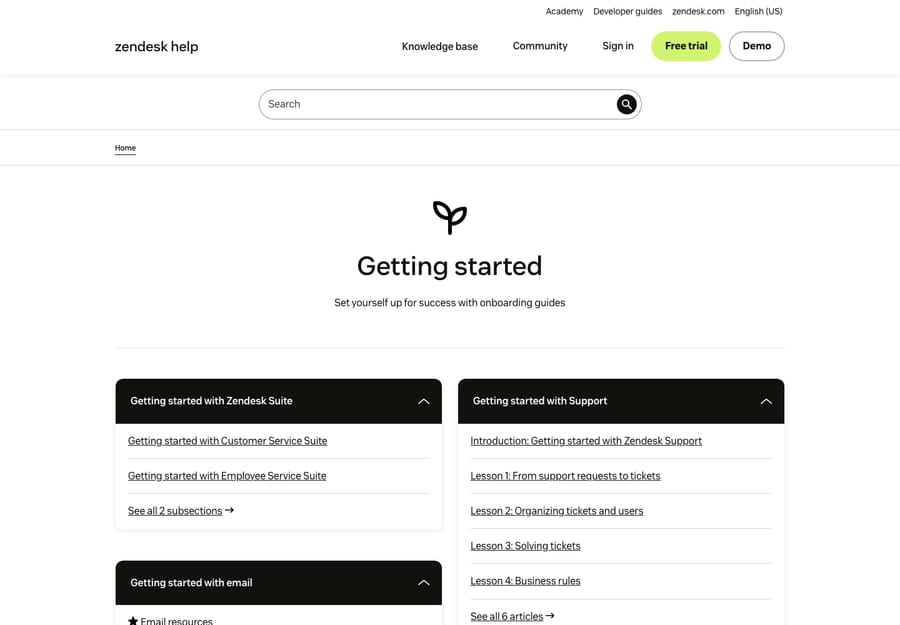
The category page above is the live published result, the kind of page your category_page template produces once a theme is set live. Comparing your preview against pages like this is the quickest way to catch layout problems before customers do.
Step 5: How do you set a theme live?
Your Help Center has exactly one live theme at any moment. All customizing happens on non-live themes until you promote one. When you're ready, go back to Customize design, open the options menu for the theme and click Set as live theme. The theme moves to the top of the page and applies to your public Help Center immediately.
Because the switch is instant, do your final review first. The safe pattern: keep the current theme live, build and preview the new one separately, then flip it live in one click, with the old one still sitting there as an instant rollback.
Step 6: How do you import or buy a third-party theme?
You don't have to build from Copenhagen. On Suite Growth and above you can install a free or paid theme from the Zendesk Marketplace, where themes from Zendesk and third-party developers offer a trial and a Buy now option, then Add to theme library. Or import a theme ZIP directly:
- In Knowledge admin, click Customize design.
- On the Themes page, click Add theme in the upper-right corner.
- Click Import theme and select your ZIP archive (the file name must be 30 characters or fewer). You can also drag and drop the ZIP onto the Themes page.
The ZIP carries the theme's templates, CSS, JavaScript and assets. Once imported, it behaves like any other theme: customize it, preview it and set it live the same way. Note the ceiling: a Help Center holds a maximum of 10 themes in total, so prune old experiments. The same import flow is how developers work on a theme locally and push it up.
Do multiple brands share one theme?
No. If your Zendesk account runs multiple brands, each brand gets its own Help Center, and therefore its own themes and its own live theme. Customizing one brand's Help Center doesn't touch the others, so a redesign in a multi-brand account is a per-brand job: switch to the brand's Help Center, open its Customize design and theme it separately. Plan for that repetition up front. (For how brands and Help Centers relate, see Zendesk Help Center explained.)
How do you keep a customized theme responsive and accessible?
Copenhagen is responsive and accessible by default, but once you edit code, you own those qualities. Things to protect:
- Don't break mobile. Test every layout change at phone and tablet widths in preview. CSS that looks fine on a desktop monitor can collapse on a 375px screen.
- Keep color contrast accessible. When you pick brand colors, check that text still meets WCAG contrast ratios against its background.
- Preserve keyboard and screen-reader support. Custom components need semantic HTML, alt text on images and visible focus states. Copenhagen does this well; custom code is where it regresses.
- Re-check against new Copenhagen releases. A code-customized theme won't auto-update, so periodically diff it against the latest Copenhagen on GitHub to pick up accessibility and feature fixes.
Will a better theme reduce ticket volume?
Not by itself. A well-branded Help Center is still self-service: customers have to find it, land on the right article and read it. Plenty won't search, won't read, or won't find the one article that answers them. Theming improves the shelf; it doesn't make anyone take the book down.
That's the gap an AI agent like Macha fills. Macha isn't a help desk and it doesn't replace Zendesk Guide. It runs on top of your existing Zendesk and reads the same Guide content you just themed. Instead of relying on a customer to browse to the right page, an AI agent on Zendesk answers from that knowledge base inside the ticket and escalates to a human, with context, when it isn't confident. The cleaner your Guide knowledge base is, the better that layer performs, because it draws from the same well.
It's another integration to set up, and it's only as good as the content you point it at. On cost, Macha bills per ticket: one conversation, charged once however much answering, tagging or routing it takes, never per resolution. That matters because a per-resolution vendor earns more whenever it can count an outcome as resolved, and you don't control that definition. Plans start at $299 a month for up to 750 tickets, with setup and monitoring by the Macha team included. If your themed Help Center gets traffic but ticket volume isn't dropping, the content needs an active layer on top, not another coat of paint. You can try it with $50 of free usage, no credit card required.
Frequently asked questions
Where do I customize my Zendesk Help Center theme? In Knowledge admin, click the Customize design icon in the sidebar to open the Themes page, then click Customize on a theme. Theming lives in Knowledge admin, not Admin Center, and you need the Knowledge admin role.
What is the Copenhagen theme? Copenhagen is Zendesk's default standard theme: responsive, accessible and open source on GitHub. Changing its branding settings keeps it standard. Editing its templates, CSS or JavaScript makes it a custom theme, which Zendesk doesn't support or update automatically.
Can I customize Zendesk without coding? Yes. The Theme Editor's Settings panel changes the logo, favicon, colors, fonts and hero images with no code, on every Suite plan. You only need code (Curlybars templates, style.css, script.js) for layout or component changes.
Can Suite Team edit Help Center theme code? No. Zendesk says custom and Marketplace themes aren't available on Suite Team. Team accounts can brand the standard theme; code editing and imported themes need Suite Growth or above.
What templating language does Zendesk use? Curlybars, a large, server-side-rendered subset of Handlebars. Its expressions (placeholders wrapped in double curly braces) pull Help Center data into page templates like home_page, category_page, section_page and article_page.
How many themes can I have, and how many can be live? Up to 10 themes per Help Center, but only one live at a time. Switch via the theme's options menu and Set as live theme; it applies instantly, which makes the previous theme a one-click rollback.
Can I use a third-party Zendesk theme? Yes, on Suite Growth and above. Install free or paid themes from the Zendesk Marketplace, or import your own ZIP via Customize design → Add theme → Import theme (file name of 30 characters or fewer).
Do multiple brands share one theme? No. Each brand has its own Help Center and its own live theme, so a multi-brand redesign means theming each brand's Help Center separately.
What's the fastest safe path through a redesign?
Duplicate the live theme, brand the copy in the Theme Editor, and stop there if the Settings panel covers what you need: your theme stays standard and keeps getting Zendesk's updates. Only open Edit code when you need a different layout, and when you do, keep a clean Copenhagen copy as a fallback and test functionality in a sandbox rather than preview. Theme each brand's Help Center separately, and remember that the content underneath, and increasingly an AI agent that answers from it, is what actually deflects tickets. For the concepts, see Zendesk Help Center themes explained; to build the content you're theming, see how to build a Zendesk knowledge base.
Customization steps checked against Zendesk's documentation on 24 September 2026. Zendesk updates its product periodically, so confirm labels in your own account.
Add AI agents to your Zendesk
Macha reads the ticket, drafts the reply and takes the action, inside the Zendesk you already run.





