Shopify
 Stripe
 Slack
Slack Notion
 Google Workspace
 Confluence

How to Set Up Automations in Freshdesk (Dispatch'r & Supervisor)


Freshdesk automation is one of those features that looks intimidating in the admin panel and turns out to be genuinely simple once you build your first rule. The trick is knowing that every rule is defined by when it runs, not by what it does — and that two of the three types cover almost everything a small team needs on day one. This guide walks you through setting up one real rule of each of the two workhorse types: a ticket-creation rule that triages incoming mail, and a time-triggered rule that keeps stale tickets from rotting in the queue. Along the way you get a plain decision table for choosing between them, the native limits nobody warns you about, and where an AI agent layer picks up once rules run out of road.

Before you start: the two rule types you actually need
Freshdesk splits its automations by timing. The classic admin vocabulary calls them Dispatch'r, Observer, and Supervisor, but the modern Admin → Workflows → Automations UI relabels them as Ticket creation, Ticket updates, and Time triggers — a one-to-one mapping Freshworks documents in its Overview of Automation Rules. If you want the full breakdown of all three, we cover it in Freshdesk automations explained.
For a first setup you can ignore Observer and focus on the two that carry the load:
- Ticket creation (Dispatch'r) runs once, the instant a ticket is created. It is your intake bouncer — set priority, assign a group, add tags, route by product.
- Time triggers (Supervisor) run on a clock, sweeping every hour. Nothing a customer does triggers them; the passage of time does. Use them for aging tickets — auto-close, escalate the stale, nudge the forgotten.
Build one of each and you already have a functioning automation pipeline. Here is how.
Rule 1: A ticket-creation (Dispatch'r) rule that triages on arrival
Say every urgent email should be flagged and routed the moment it lands. Per Freshworks' guide to automation rules that run on ticket creation, here is the exact flow:
- Go to Admin → Workflows → Automations and open the Ticket Creation tab. Click New Rule and give it a descriptive name like "Flag and route urgent tickets."
- Set your conditions. Pick the field type from the dropdown (ticket, contact, or company), then the specific field. For example: Priority is Urgent, or Subject contains "outage" or "down" or "can't log in."
- Choose your match logic. Decide whether ALL conditions must match or just ANY one. Freshdesk also supports nested AND/OR condition blocks, so you can express things like "all of block 1 AND any of block 2" without spawning five separate rules.
- Define the actions. Click through the actions dropdown: Set Priority = Urgent, Assign to Group = Tier 2, Add tag
urgent-intake, and optionally send an email using placeholders for the ticket fields. - Preview and Save. Freshdesk auto-generates a plain-language summary of the rule (which you can edit into the description), then click Save and Enable.
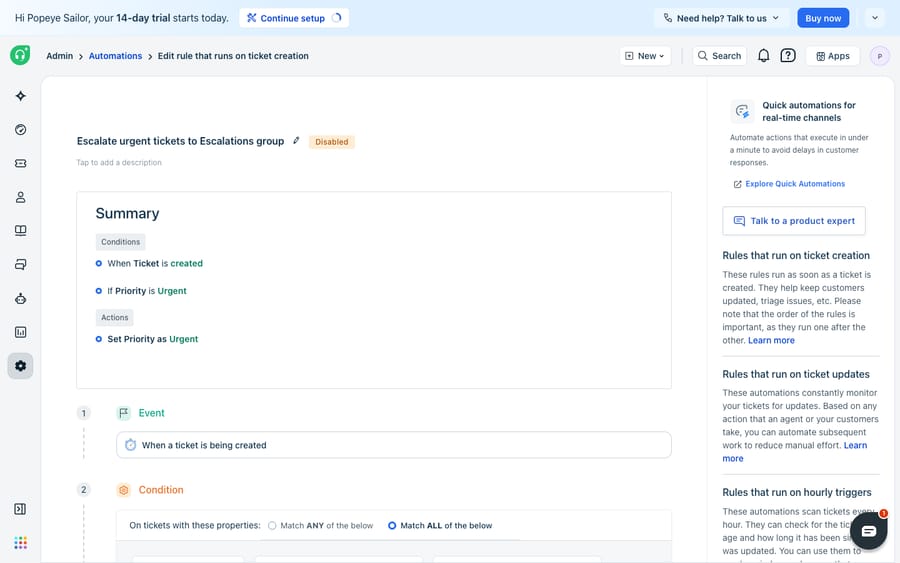
One critical detail: by default, Freshdesk runs only the first matching rule and stops. That makes rule order matter enormously — your most specific rules belong at the top. If you would rather every matching rule fire, click the gear icon above the rules list and switch to Execute all matching rules. Ticket-creation rules are available across every plan tier (Free, Growth, Pro, and Enterprise), though the exact conditions and actions you can reach vary by tier.
Rule 2: A time-triggered (Supervisor) rule that closes stale tickets
Now the housekeeping half. A ticket that has been Resolved for two days rarely gets reopened — leaving it Resolved just clutters the view. A time trigger closes it automatically. Following Freshworks' doc on automation rules that run on hourly triggers:
- Go to Admin → Workflows → Automations and open the Time triggers (Hourly Triggers) tab. Click New rule and name it "Auto-close resolved tickets."
- Set the conditions. Combine a status condition with a time condition: Status is Resolved AND Hours since resolved is greater than 48. Time-based fields like "hours since an agent responded" and "hours since first response is due" are what make this tab distinct.
- Set the action. Set Status = Closed. You could also send a satisfaction survey or notify the requester in the same rule.
- Preview and Save, then Save and Enable.
That is it — every hour, Freshdesk sweeps and closes anything that has been Resolved for more than 48 hours. The same pattern powers escalations, which we cover in depth in how to set up ticket escalations in Freshdesk.
When-triggered vs. time-triggered: a decision table
The single most common setup mistake is reaching for the wrong tab. Use this to decide:
| Question | Ticket creation (Dispatch'r) | Ticket updates (Observer) | Time triggers (Supervisor) |
|---|---|---|---|
| When does it fire? | Once, at ticket creation | On any update — reply, note, field change | Every hour, on the clock |
| What triggers it? | A new ticket arriving | A human or customer action | The passage of time |
| Best for | Intake triage, routing, tagging | Reopen-on-reply, change-based escalation | Auto-close, aging, SLA follow-ups |
| Example | Route "billing" tickets to Finance | Notify lead when priority → Urgent | Close tickets Resolved > 48h |
| Sees a ticket… | Exactly once | Every time it changes | Repeatedly, until conditions stop matching |
The rule of thumb: if the trigger is an event, you want Ticket creation or Ticket updates; if the trigger is elapsed time, you want Time triggers. Get that right and 90% of your rules land in the correct tab on the first try.
The honest limits — and the native quirks nobody warns you about
Freshdesk's engine is fast and predictable, but there are real edges to know before you lean on it hard.
Time triggers are not precise. Because the sweep runs hourly on calendar hours, not business hours, a rule with a "5 hours since" condition may not fire until roughly five hours and 58 minutes have passed — the doc says so plainly. If you need to-the-minute SLA timing, use SLA policies, not time triggers.
The 30-day window. Time-trigger rules only process tickets updated within the last 30 days. A ticket that has sat silently for over a month is invisible to the hourly sweep — so "close everything ancient" is not a job automations can do retroactively.
Everything is keyword-and-field matching. This is the deepest limit. A condition can see that a subject contains "refund," but it cannot understand that "I was double-charged and want my money back" means refund. Rules route and tag; they cannot read a knowledge base, weigh intent, or decide from the actual content of a conversation whether an issue is genuinely resolved. That is not a knock on Freshdesk — deterministic rules are exactly what you want for routing and housekeeping. It is simply where the category ends.
That seam — meaning, judgment, and looking things up in another system — is where an AI agent layer fits. It is worth being clear-eyed about the build-versus-buy tradeoff before you go there, and the broader category of AI agents for customer service exists precisely for the reasoning-heavy work rules can't express. Macha is one such layer: it runs on top of the Freshdesk you already use as a native connector — it does not replace your help desk, it extends it. You connect Macha to Freshdesk with your subdomain and API key, and it reads and writes the same tickets your rules touch — posting replies, adding notes, updating priority, status, and tags — except grounded in what the customer actually said and in your help center. (The connector is for Freshdesk specifically — not Freshchat, Freshservice, or Freshcaller.) For account or order lookups mid-conversation, a custom tool turns any REST API into something the agent can call.
The practical division of labour: keep your Dispatch'r and Supervisor rules for what they are great at — instant routing and tidy housekeeping — and layer an agent on top for the parts that need reading and judgment.
FAQ
How do I set up an automation in Freshdesk? Go to Admin → Workflows → Automations, pick the tab that matches when you want the rule to fire (Ticket Creation, Ticket updates, or Time triggers), click New Rule, set conditions on ticket/contact/company fields, choose ALL or ANY match logic, define the actions, then Preview and Save → Save and Enable.
What is the difference between a Dispatch'r rule and a Supervisor rule? Timing. Dispatch'r (Ticket creation) runs once the instant a ticket is created — it is for intake triage. Supervisor (Time triggers) runs on a recurring hourly clock — it is for aging and housekeeping like auto-closing resolved tickets. Nothing a person does triggers a Supervisor rule; time does.
Why isn't my time-triggered automation firing on time? Time triggers run hourly on calendar hours, not to-the-minute, so a "5 hours since" condition can take up to ~5h58m to fire. They also only process tickets updated in the last 30 days. For precise timing, use SLA policies instead.
Do ticket-creation rules run in order? Yes. By default Freshdesk runs only the first matching rule and stops, so order matters — put specific rules first. You can switch to "Execute all matching rules" via the gear icon above the rules list.
Can I add AI to Freshdesk automations without replacing Freshdesk? Yes. An AI agent layer like Macha connects to Freshdesk as a native connector and runs on top of your existing help desk — reading and writing the same tickets your rules do, but acting on the meaning of a conversation rather than keyword matches. See the Freshdesk connector and pricing for details.
Ready to handle the tickets your Freshdesk rules can route but can't read? Start a free trial of Macha and layer AI agents on top of the Freshdesk you already run.
Add AI agents to your Freshdesk
Macha reads the ticket, drafts the reply and takes the action, inside the Freshdesk you already run.