Shopify
 Stripe
 Slack
Slack Notion
 Google Workspace
 Confluence

How Do You Connect Freshdesk to Jira? Setup, Two-Way Sync, Limits and AI Lookups (2026)


Freshdesk connects to Jira through Freshworks' free Atlassian Jira Plus app, which links tickets to issues and syncs comments and mapped statuses both ways on Growth, Pro and Enterprise. For live Jira lookups by an AI agent inside a ticket, you need a separate tool, because the app only links and syncs.
Key takeaways
- Freshdesk connects to Jira through the free Atlassian Jira Plus app, published by Freshworks (version 53.0, roughly 3.3k installs as of 24 September 2026) and authenticated with API keys on both sides.
- Freshdesk caps linking at 5 Jira issues per ticket, though linking many tickets to one Jira issue is unrestricted.
- Freshworks marks Atlassian Jira Plus as available on Growth, Pro and Enterprise but not on Free, with Growth listed at $19 per agent a month billed annually.
- The Jira-side companion app "Freshdesk by Freshworks" is not available for on-premise Jira accounts, so self-hosted teams only get the Freshdesk-side view.
- On the trial and every Macha plan, the Macha team builds and tests the Jira tools and the agent for you, at about $0.40 a ticket including setup and a dedicated success manager who handles your changes.

To connect Freshdesk and Jira, install Freshworks' free Atlassian Jira Plus app from Admin → Apps → Get More Apps, authenticate Freshdesk with your domain and API key, connect Jira with its domain URL, admin email and an API token, then map projects, fields and statuses. Once linked, comments and mapped statuses sync both ways, with a cap of 5 Jira issues per Freshdesk ticket, and the app runs on Growth, Pro and Enterprise but not on Free.
| Question | Answer (checked 24 September 2026) |
|---|---|
| Official app | Atlassian Jira Plus, published by Freshworks, version 53.0, about 3.3k installs |
| Price | Free; you still pay for Freshdesk and Jira |
| Freshdesk plans | Growth, Pro, Enterprise (not Free); legacy Blossom to Forest (not Sprout) |
| Jira versions | Jira Cloud and on-prem; on-prem needs Freshworks IPs allowlisted |
| Link limit | 5 Jira issues per Freshdesk ticket; many tickets per issue is fine |
| Sync actions | Do Nothing, update status, or add a comment |
| AI lookups | Not in the app; needs a separate tool such as a Macha Custom Tool |
Below: the native route end to end (which apps are official, install, mapping, sync behavior, limits and fixes), then how to give an AI agent live Jira lookups and actions inside a ticket, which the native app doesn't do. Facts were checked against the Freshworks Marketplace and Freshdesk's support documentation on 24 September 2026. New to the platform? Start with what is Freshdesk; for the wider toolkit, see the best Freshdesk integrations.
Why connect Freshdesk to Jira?
The point isn't novelty. It's removing a manual relay between two teams that work in different systems. A good Freshdesk Jira integration does four things:
- Escalate bugs without retyping. Turn a ticket into a Jira issue, or attach it to an existing one, from the ticket itself, carrying over the summary, description and key fields.
- Keep status in sync, both ways. When engineering moves an issue from In Progress to Done, support sees it on the ticket, no Slack ping required.
- Sync the conversation. Comments added on either side show up on the other, so engineering's questions and support's customer context stay together.
- Avoid duplicate work and dropped threads. One issue can serve many tickets reporting the same bug, and resolution updates fan back out to every linked ticket.
The net effect: support stops chasing engineering for updates, and engineering stops getting the same bug filed five times.
Which Freshdesk Jira apps are official, and which are third-party?
This is where accuracy matters, because the Marketplace lists several Jira apps and they are not all built by the same people.
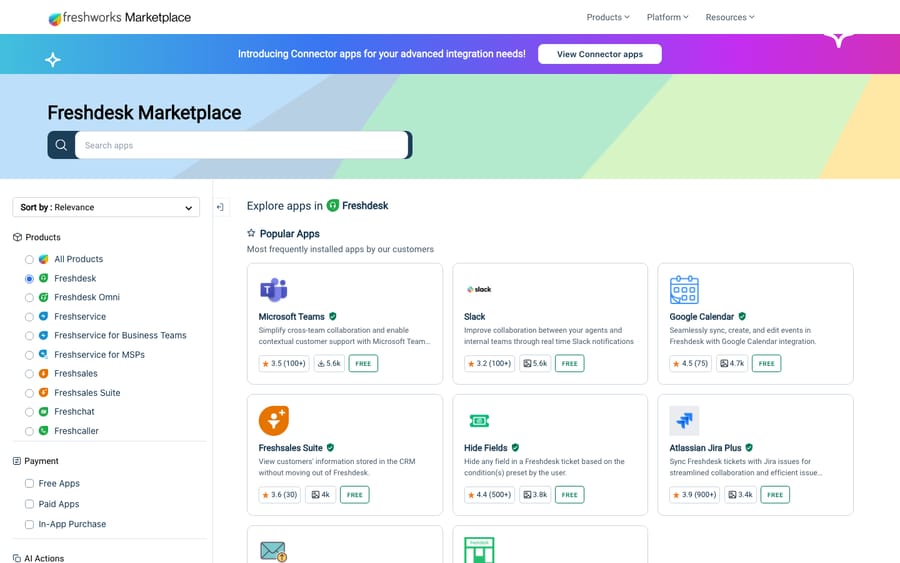
The official app: Atlassian Jira Plus (by Freshworks). The Atlassian Jira Plus app is published and verified by Freshworks, it's free, and it's actively maintained: version 53.0 with roughly 3.3k installs as of 24 September 2026, and its listing was last updated in mid-September. It supports both Freshdesk and Freshdesk Omni, and it's the app Freshworks' own support documentation walks you through. For most teams, this is the one to install. It works with Jira Cloud and on-premise Jira (Server/Data Center); the on-prem path needs a bit of extra network setup, covered below.
Third-party options. If you need a different flavor of sync, the Marketplace also lists third-party apps. The most established is IntegrateCloud's Atlassian JIRA-Freshdesk Integration (built by IntegrateCloud Inc USA, not Freshworks; free, version 3.0, 200+ installs, and it lets you create, link and comment on Jira issues), and there's a dedicated Jira Service Management-Freshdesk Integration for teams whose engineering side runs JSM. On the Atlassian side, the complementary "Freshdesk by Freshworks" app and a couple of two-way-sync connectors live on the Atlassian Marketplace.
The honest recommendation: start with Atlassian Jira Plus. It's official, free, well documented and covers the common cases. Reach for a third-party app only if it offers a specific capability Jira Plus lacks, and when you do, check the publisher, the reviews and the last-updated date before trusting it with your data.
Plan note. Freshworks' setup article marks Jira Plus as available on Growth, Pro and Enterprise on current Freshdesk and Freshdesk Omni, plus the legacy Blossom, Garden, Estate and Forest tiers. It is marked as not available on Free (or the legacy Sprout). Freshworks no longer sells a free Freshdesk plan on its pricing page, which publishes Growth at $19, Pro at $55 and Enterprise at $89 per agent a month billed annually. A separate Free program covers up to 2 agents for 6 months, so a small team on it will need Growth before it can install Jira Plus.
How do you install Atlassian Jira Plus? (Step 1)
In Freshdesk, go to Admin → Apps → Get More Apps (this opens the Freshworks Marketplace), search for Atlassian Jira Plus, and click Install. You need admin rights in Freshdesk to install and configure an app.
How do you authenticate Freshdesk? (Step 2)
The app first asks you to connect Freshdesk itself: enter your Freshdesk domain (your yourcompany.freshdesk.com URL) and your Freshdesk API key, which is in your Freshdesk profile settings. This is what lets the app read and update tickets.
How do you connect Jira Cloud or on-prem Jira? (Step 3)
Next, connect Jira. Choose Jira Cloud or On-Prem, then provide:
- Your Jira domain URL (e.g.
yourcompany.atlassian.netfor Cloud). - Your Jira admin email.
- A Jira API token, generated at
id.atlassian.comunder Account settings → Security → Create and manage API tokens.
On-premise (Jira Server / Data Center): if your Jira is self-hosted, you also need to allowlist Freshworks' regional VPC IP addresses so the app can reach your instance. Freshworks publishes the specific IPs per data-center region (US, Europe, India, Australia) in the setup article: read them there rather than from a blog, because they change. Cloud users skip this entirely.
How do you map projects, fields and statuses? (Step 4)
This is the step that makes the integration feel native instead of bolted on. In the app's configuration:
- Pick what to link. Select the Freshdesk product to associate with the connected Jira account, then choose the Jira project issues should be created in.
- Map fields. Standard fields (status, priority, description) map across, and so do Freshdesk fields like Source, Group, Agent, Ticket Number, Customer Name, Customer Email Address, Customer Phone Number and Company Name, into Jira text fields. The context engineering needs lands on the issue automatically.
- Map statuses. Set up a one-to-one mapping between Jira statuses and Freshdesk statuses, so a status change on one side can update the other (Jira Done → Freshdesk Resolved, for instance).
- Set sync behavior. Choose what happens when a linked item updates (Do Nothing, update status, or add a comment), and optionally turn on priority syncing. You can also exclude attachments and workflow notes from the sync, which is worth doing if your tickets carry customer files you'd rather not push into an engineering project.
- Control deletion rights. You can restrict which Freshdesk agent roles are allowed to delete Jira issues from within the app.
A practical note on that status mapping: design it to match how each team actually works. If support's Resolved should only fire when engineering hits Done and not In Review, map it that way; otherwise you'll resolve tickets while the fix is still in QA.
How do engineers see the ticket inside Jira? (Step 5)
To let your engineers see the linked Freshdesk ticket inside the Jira issue, install the complementary "Freshdesk by Freshworks" app on your Jira instance from the Atlassian Marketplace. This is the piece that makes the integration genuinely two-way for both teams: support sees Jira on the ticket, engineering sees the ticket on the issue. One caveat from the support article: this companion app is not available for on-prem Jira accounts, so self-hosted teams get the Freshdesk-side view only.
How do you link a ticket to a Jira issue? (Step 6)
With setup done, day-to-day use happens from the ticket. Open a Freshdesk ticket, find the Jira Plus app in the ticket sidebar, and you get two options:
- Link existing issue: search by issue ID or issue summary and attach the ticket to an issue engineering is already tracking. Use this when the bug is already filed.
- Create issue: fill in the required fields (Issue Type, Summary, Reporter, Assignee, Description) and the app creates a new Jira issue and links it in one move. Use this for a newly discovered bug.
Once linked, the app adds the Jira issue ID as a tag on the Freshdesk ticket, plus any pre-configured tag from setup, which makes linked tickets easy to filter later.
How does two-way sync behave?
Here's what actually flows between the two systems once a ticket and an issue are linked:
- Comments sync both directions. A comment added on the Freshdesk ticket appears on the Jira issue and vice versa, including comments edited in Jira, which update on the Freshdesk side too.
- Status and key fields sync per your mapping, so engineering's progress is visible on the ticket without anyone re-checking Jira.
- The behavior is configurable, not forced. Your global sync settings (Do Nothing, update status, or add a comment, plus optional priority sync and the attachment/workflow-note exclusions) decide exactly what an update on one side does to the other.
What are the limits of the Freshdesk Jira integration?
- Five Jira issues per Freshdesk ticket is the cap on linking. Plenty for most cases, but worth knowing if you triage sprawling, multi-bug tickets. Linking many tickets to one issue is unrestricted, which is the pattern you want for a widely reported bug.
- On-prem needs IP allowlisting, so budget time with whoever owns your Jira network rules, and remember the Jira-side companion app isn't available to you.
- API tokens, not passwords. Both sides authenticate with API keys and tokens. If sync silently stops, an expired or rotated token is the usual culprit.
- Status mapping is one-to-one. Plan it so there are no ambiguous states, and remember a mapping change affects future syncs, not past ones.
- Plan eligibility. Growth and up on current plans, not Free; the legacy Blossom/Garden/Estate/Forest tiers are also listed, Sprout is not.
Why isn't the Freshdesk Jira integration working?
- Issues won't create or link. Re-check the Jira API token and admin email, and confirm the connecting account has permission to create issues in the target project. For Server or Data Center, verify the Freshworks IPs are allowlisted.
- Comments or status aren't syncing. Open the app's sync settings: if the action is set to Do Nothing, nothing propagates. Then confirm your status mapping covers the states you're actually moving between.
- Engineers can't see the ticket in Jira. You likely skipped step 5. If you're on on-prem Jira, the companion app isn't an option, so give engineering the ticket URL in the issue description instead.
- Attachments are landing in Jira and shouldn't be. That's a sync setting, not a bug: exclude attachments and workflow notes in the app configuration.
- Can't install or configure the app. You need Freshdesk admin rights, and the account has to be on Growth or above; Free accounts can't use Jira Plus.
- Need a different sync model. If Jira Plus doesn't fit (say you need conditional field-level rules), evaluate a third-party app like IntegrateCloud's, but verify its maintenance and reviews first.
What can't the native Jira app do?
Give the app its due: for linking a ticket to an issue and keeping a shared comment thread, it does the job, it's free, and it's maintained. But notice the shape of it.
- It's linking and sync, not action. It connects a ticket to an issue; it doesn't let an AI agent decide to check a bug's status mid-conversation, file a fresh issue with the right details, and reason over the result.
- It's manual. An agent has to remember to link the ticket and read the status back. The app surfaces the connection; a human still drives it.
- It's fixed. You get the fields and actions the app exposes, not the specific query or write your workflow needs: "is the fix for this bug released yet?" isn't a button.
For a lot of teams, the linked-issue app is all they need. For anyone who wants their AI agent to actually use Jira, there's a lighter, more flexible path.
How do you give an AI agent live Jira access?
The high-value version of this integration isn't a manually linked issue. It's the agent doing the work. A customer reports a bug in Freshdesk; the agent recognizes it, checks Jira for a matching issue, and answers "yes, that's a known bug, the fix ships in the next release," or files a new issue with the repro steps and links it. Grounded in Jira, not in a stale note.
Macha bills per ticket rather than per resolution, from $299 a month for up to 750 tickets, and calling a Jira tool inside a ticket doesn't add to that charge. Setup by the Macha team and a dedicated success manager who handles your changes are included.
Macha runs on top of the Freshdesk you already use: it's an AI agent layer, not a Freshdesk or Jira replacement, and it connects to Freshdesk the ticketing product, not Freshchat, Freshservice or Freshcaller. A Custom Tool is a single action you define once and point at Jira's REST API. No Marketplace app, no code.
1. Point it at the Jira API. Jira exposes a REST API with an API token or OAuth; you give Macha the endpoint and credentials. The built-in Sidekick can scaffold the request from a plain-English description if you'd rather not fill in the form.
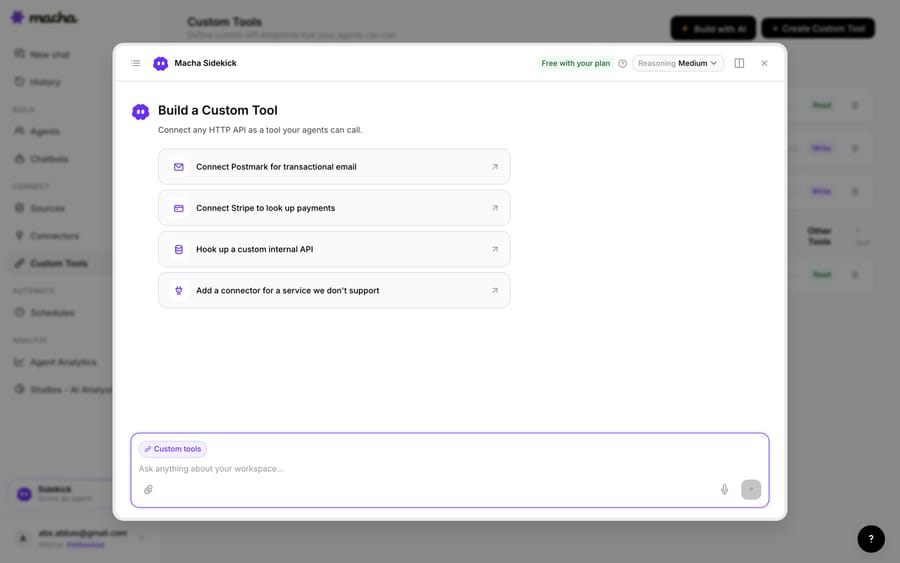
2. Define the action. Give it a label and a description the AI uses to decide when to call it ("Look up the status of a Jira issue by key," say, or "Create a Jira bug from a ticket"), set the method and URL against the Jira REST API with an {issue_key} or {summary} placeholder, and choose Read or Write. A status lookup is a Read; creating an issue or transitioning one is a Write, which requires confirmation before it runs.
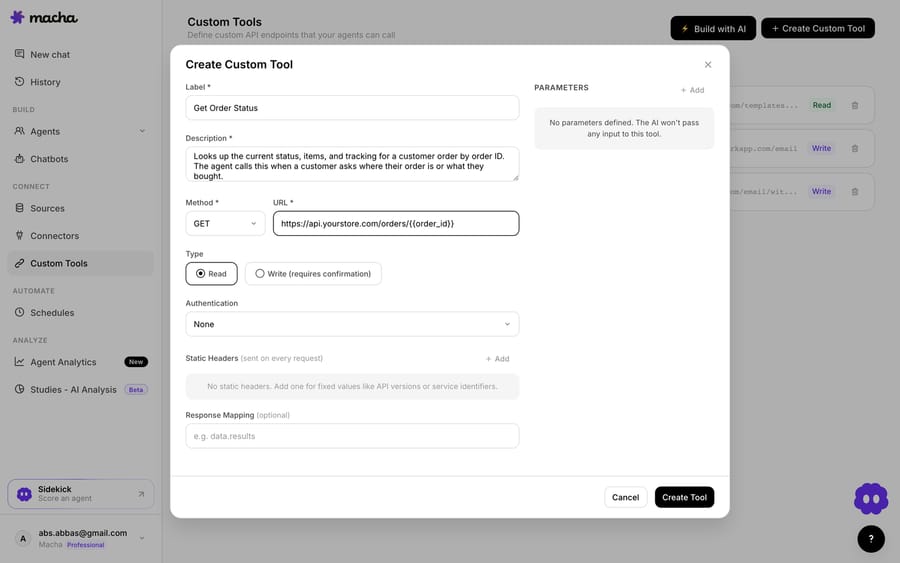
3. The agent uses it live. Once the tool exists, the agent calls it mid-ticket, passes the issue key or the details it pulled from the conversation, and reasons over what Jira returns, answering "your issue is in review," or filing the bug and linking it back.
Read vs Write, and staying safe
Because a Custom Tool can reach into Jira, the guardrails matter. Read tools (status lookups) are free to call; Write tools (create an issue, transition it, add a comment) require confirmation. Each tool is scoped to one action, permissioned per agent, and every call is audited. Jira's API token or OAuth handles credentials, so secrets never live in the conversation.
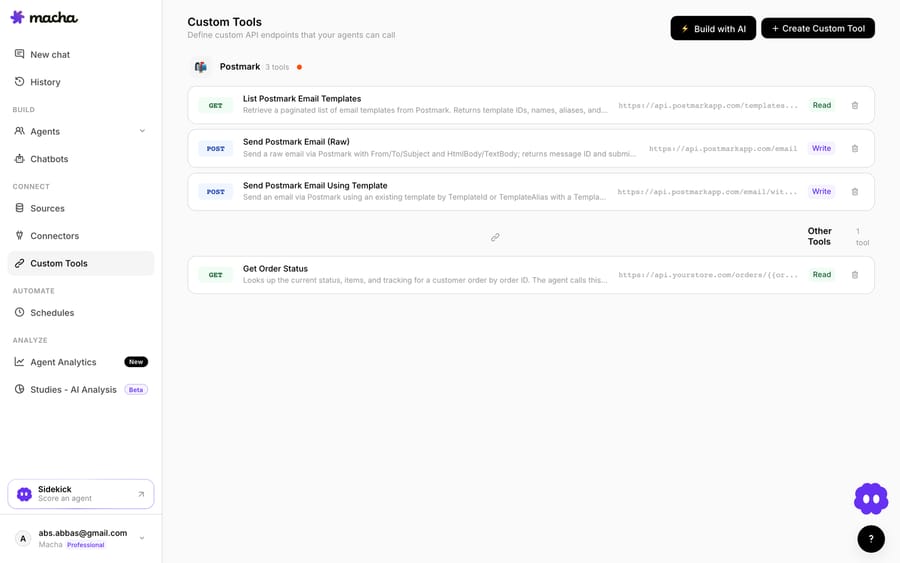
Teams usually build a few Jira tools and group them (a status lookup, a "create bug," a "link issue") alongside tools for their other systems. And because Custom Tools aren't Jira-specific, the same approach connects your billing system, data warehouse or internal API; see the integration directory, or the full pillar on building custom Freshdesk integrations.
Native app vs Custom Tool: which to use
- Use the native Jira Plus app if you want agents to manually link a ticket to an issue and keep comments in sync, and you're fine driving it by hand. It's free and it's the shortest path.
- Use a Custom Tool when you want your AI agent to look up a bug's live status or file an issue from the ticket on its own, you need a specific query or write the app doesn't expose, or you want it to happen without a human remembering. Macha is the done-for-you option: the Macha team builds and tests the Jira tools and the agent on your Freshdesk, then runs it in safe mode, with drafts as internal notes, until the drafts are right. That's included on the trial and every plan at about $0.40 a ticket, which covers setup and a dedicated success manager who handles your changes.
The two coexist happily: the app gives engineering the linked-ticket view, and the tool gives the agent the live read.
Frequently asked questions
Does Freshdesk have a native Jira integration? Yes: the Atlassian Jira Plus app, published and verified by Freshworks, free on the Freshworks Marketplace. It lets agents link a Freshdesk ticket to a Jira issue and syncs comments and mapped fields both ways.
How do I connect Freshdesk to Jira step by step? Install Atlassian Jira Plus from Admin → Apps → Get More Apps, authenticate Freshdesk (domain plus API key), connect Jira (domain URL, admin email, and an API token from id.atlassian.com), map your project, fields and statuses, install the companion "Freshdesk by Freshworks" app on the Jira side, then link or create issues from the ticket sidebar.
Is the Freshdesk Jira app free? Yes, Atlassian Jira Plus is free to install. You still pay for your underlying Freshdesk and Jira plans. Freshworks lists it on Growth, Pro and Enterprise plus the legacy Blossom, Garden, Estate and Forest tiers, and marks it as unavailable on Free and Sprout. Growth starts at $19 per agent a month billed annually.
Does Freshdesk Jira sync work both ways? Yes. Once a ticket is linked to an issue, comments sync in both directions (including comments edited in Jira) and status and mapped fields sync according to your configuration. You control exactly what an update on one side does to the other, and you can exclude attachments and workflow notes.
Can I link one Freshdesk ticket to multiple Jira issues? Yes, up to 5 Jira issues per Freshdesk ticket. Linking many tickets to a single issue is the other direction, and it's the right pattern when several customers report the same bug.
Does the integration work with on-premise Jira (Server/Data Center)? Yes, Jira Plus supports Cloud and on-prem. Self-hosted instances need Freshworks' regional VPC IP addresses allowlisted (they're in the support article, per data-center region), and the Jira-side companion app isn't available to on-prem accounts.
Why has my Freshdesk Jira sync stopped working? Start with credentials: an expired or rotated API token on either side is the most common cause. Then check the app's sync settings, because an action set to Do Nothing propagates nothing, and check that your status mapping actually covers the states you're moving between.
Can an AI agent create Jira issues from a Freshdesk ticket? Yes, with a Custom Tool pointed at Jira's REST API rather than the Marketplace app. Reads such as status lookups run freely; writes (creating an issue, transitioning it, adding a comment) require a confirmation step, and you control which agents can use them.
Do I need an engineer to connect Jira to Freshdesk this way? No. The native app is an install-and-configure job for a Freshdesk admin. For the Custom Tool route, the Macha team builds and tests the Jira tools for you on the trial and every plan; to build one yourself, you describe the action in plain English and the Sidekick scaffolds the Jira request, auth and parameters; technical teams can take full control of the endpoint, headers and response mapping.
Is the Custom Tool route secure? Each tool is scoped to a single action, permissioned per agent, authenticated with Jira's API token or OAuth so secrets never appear in the conversation, and every call is audited. Writes need confirmation before they run.
The bottom line
The Freshdesk Jira integration turns the support-to-engineering handoff from a copy-paste relay into a linked, two-way sync. Install the official, free Atlassian Jira Plus app, map your projects, fields and statuses carefully, especially status, so you don't resolve tickets before fixes ship; install the companion app on the Jira side unless you're on-prem, and reach for a third-party app only when you need something Jira Plus genuinely can't do. Then, if you want the connection to work without a human remembering to use it, a Custom Tool puts Jira in your AI agent's hands: live status reads and issue creation, decided in context, with Read/Write guardrails and an audit trail. See how Custom Tools work, or start a trial and wire up your first Jira tool.
Verified against the Freshworks Marketplace listing and Freshdesk support article 50000000067 (modified 1 April 2026), 24 September 2026. Vendors update apps periodically: confirm current details on the listing before installing.
Sources: Atlassian Jira Plus on the Freshworks Marketplace, The Jira Plus app (Freshdesk support), IntegrateCloud Jira-Freshdesk integration, Freshdesk pricing.