





 Shopify
 Stripe
 Slack
Slack Notion
 Google Workspace
 Confluence

How Do You Connect Google Docs and Sheets to an AI Agent? The Native Google Picker in Macha


Most support teams keep refund policies, shipping rules and price lists in Google Docs and Sheets, and those files change every week. Getting them into an AI agent used to mean copying document IDs by hand, one file at a time.
Key takeaways
- Macha agents connect to Google Docs and Sheets through the native Google Picker, which replaced manual document-ID entry in the April 9, 2026 release.
- The Google Picker pattern uses Google's drive.file scope, which Google lists as non-sensitive and which limits the app to the specific files a user selects.
- Macha's Google Workspace connector gives an agent three actions on a picked file: Read Google Doc, Read Google Sheet, and Sync Docs to Knowledge.
- Read Google Doc and Read Google Sheet fetch the current version from Drive at answer time, so fast-changing prices belong in an on-demand Sheet read.
- Google Doc and Sheet reads do not add to a Macha bill, because Macha charges per ticket, from $299/mo for up to 750 tickets.

To connect Google Docs and Sheets to a Macha agent, you open the agent's Data Sources panel, choose Google, and pick the files in the native Google Picker, the same "Open from Drive" dialog you use everywhere else in Google. Macha captures the document IDs for you. The Picker replaced manual document-ID entry in the April 9, 2026 release, and the pattern it rests on, Google's drive.file scope, means the app can only open the files you pick.
| Question | Answer |
|---|---|
| Where do you start? | Connectors page: authorize Google Workspace once (OAuth) |
| How do you add files? | Agent → Data Sources → Google → pick Docs or Sheets in the Picker |
| Do you paste document IDs? | No, the Picker returns them to Macha |
| What can the agent do? | Read Google Doc, Read Google Sheet, Sync Docs to Knowledge |
| What can the agent see? | Only the files you selected (drive.file scope) |
| What does it cost? | Nothing extra: Macha bills per ticket, from $299/mo for up to 750 tickets |
How did you connect a Google Doc before the Picker?
To be clear about what changed, here's the thing it replaced. A Google Doc's URL looks like docs.google.com/document/d/1aBcD…XyZ/edit. The long string in the middle is the document ID, and the previous flow asked you to copy just that string (not the whole URL, not the trailing /edit) into a field. It worked, but it was exactly the kind of fiddly, copy-paste-the-wrong-thing task that produces silent failures — you don't find out the ID was malformed until the agent can't read the doc on a live ticket.
Manual IDs also don't scale. Connecting one runbook is fine. Connecting the twenty docs that make up your real help center is twenty round-trips to twenty browser tabs. The Picker turns that into a multi-select.
How do you select Docs and Sheets with the Google Picker?
The Google Picker is Google's own file-open dialog, the "choose a file from Drive" interface that handles browsing, search, and the authentication handshake for you, and hands the application back the file's metadata (its ID and URL) when you're done. Macha embeds it directly in the data-source flow. Because it's the native component, it behaves exactly the way your team expects: recent files up top, full-text search across your Drive, the "Shared with me" and "Shared drives" tabs, and thumbnails.
Here's the connector side first. Google Workspace is an OAuth connector, so before any of this you authorize it once from the connectors page.
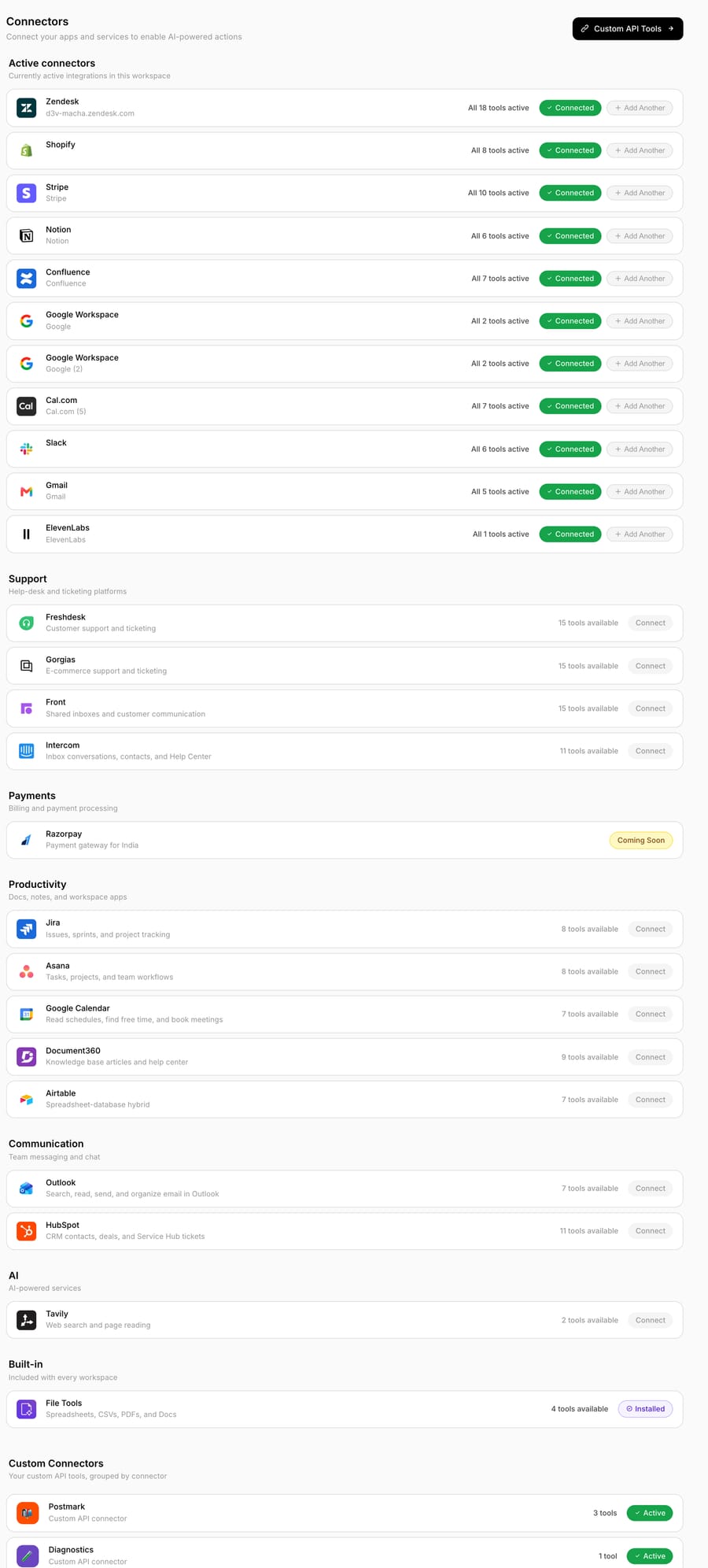
Once Google Workspace is connected, you add a data source to an agent. This is the Data Sources panel where each knowledge source — uploaded files, web pages, Notion pages, and Google documents — lives.

Choose Google as the source type and Macha opens the Picker. There is no ID box and no instruction about where to find the string in the URL. You see Drive.
Search for the documents you want, filter to Docs and Sheets, and select one or several at once. The Picker returns the file IDs to Macha behind the scenes; you never see or touch them.
That's the whole interaction. The documents become data sources on the agent, and from there Macha can do three things with them.
What can the agent do with a picked document?
Connecting a file isn't the goal — the agent using it is. The Google Workspace integration gives an agent three capabilities once a Doc or Sheet is in scope:
- Read Google Doc — read the full content of a Doc by its ID or URL, on demand, mid-conversation. Good for "what does our policy say about X" lookups where the agent pulls the live document at answer time.
- Read Google Sheet — read data from a Sheet, either every tab or a specific range. This is the one people underrate: a price list, an SLA matrix, or a store-locator tab becomes structured data the agent can quote exactly.
- Sync Docs to Knowledge: add a Doc as a live knowledge source, so when someone edits the doc in Drive, the agent's answers follow. There is no re-uploading and no stale PDF.
The distinction between reading on demand and syncing to knowledge matters, and it's also the answer to the obvious next question — how fresh is "live"? The two paths refresh differently:
- A Read Google Doc / Read Google Sheet is truly real-time. The agent fetches the document straight from Drive at answer time, so it always reflects the version that exists the moment the ticket is being worked. There's no index in between to go stale.
- A knowledge sync makes the Doc part of what the agent knows by default. Macha describes it as a live source but does not publish a refresh interval, so do not rely on it for a figure that must be exact the minute it changes. For a returns policy edited a few times a quarter, that makes no difference. For a price you change hourly, point an on-demand Sheet read at it instead.
A read is a tool call the agent makes when it decides it needs that specific document. A knowledge sync keeps the doc in the agent's standing knowledge, so it is available on every ticket without the agent deciding to open it. Most teams want their core help content synced (so it's always in the retrieval pool) and reserve on-demand reads for long, rarely-needed, or fast-changing references the agent should only open when a ticket clearly calls for it. If you're standing up Google Docs as an agent's knowledge base for the first time, the Google Docs AI knowledge base walkthrough covers the end-to-end setup beyond just the Picker.
Why connect Docs instead of uploading a copy?
The reason to pipe Drive into an agent rather than uploading a static export is that Docs move. Your returns window changes for the holidays; a SKU gets discontinued; legal rewrites a clause. With a connected Doc, you edit it once in Google and the agent works from that edit. You are editing the source of truth your team already maintains, not a copy you have to remember to refresh. One place to update, and the agent does not drift from it. (This applies to any connected wiki, not just Drive — see how to connect knowledge sources to an AI agent for the cross-source view, including Notion and Confluence.)
Why is the Picker safer than a full Drive connection?
The Picker also changes the permission model, for the better.
The Google Picker is the front end for a least-privilege flow: Google recommends pairing it with the drive.file scope, which is non-sensitive because an app granted it can only ever see the specific files the user explicitly selects through the Picker, not their whole Drive. In other words, the Picker pattern is designed so the application sees what you pick and nothing more — you're not handing an AI agent a master key to every document in your Google account; the four runbooks and the one price sheet you chose are the files in play. Google lists drive.file as a non-sensitive scope, while broad Drive scopes are restricted. That is a much smaller blast radius than a "read all your Drive" grant, and your security reviewer will ask about it, so confirm the exact scopes Macha requests on the Google Workspace integration page when you authorize it.
The Picker also handles the OAuth token exchange itself — for web apps it's handed an access token and manages the browsing session — which is why the experience feels like the rest of Google rather than like a third-party form bolted onto Drive.
Where does this fit in a real support setup?
A concrete shape that works well: a Zendesk-triggered agent whose synced knowledge is your three or four canonical policy Docs (returns, shipping, warranty), with on-demand Sheet reads wired to a live pricing or inventory tab. A ticket comes in asking "can I still return this and what'll the refund be" — the agent retrieves the returns policy from synced knowledge for the rules, reads the pricing Sheet for the exact figure, and drafts a reply that's correct today, not correct as of whenever someone last exported a PDF.
Macha is the agent layer on top of your help desk (Zendesk, Freshdesk, Gorgias, Front, HubSpot or Intercom), so the Google content feeds agents that act inside the help desk you already run. It does not replace any of them. The Picker is simply the on-ramp that gets your Drive knowledge into those agents without the busywork. If you want the broader picture of how knowledge sources work, the Data Sources docs and Connectors docs cover the rest of the flow.
When is the Google Picker the wrong tool?
Five cases where the Picker flow is not the answer, or needs care:
- It needs Google Workspace OAuth. If your docs live in Notion, Confluence, or a public help center, this specific flow isn't your path — connect those sources instead. The Picker is for Drive.
- Picked ≠ permanently shared with the org. Selection is per data source. If you delete the source or revoke the Google connection, the agent loses access — by design, but worth knowing if answers suddenly go vague.
- Sheets are read as data, not magic. A Sheet read returns the cells; it doesn't interpret a tangle of merged headers and pivot tables for you. Clean, tabular ranges read far better than a dashboard tab. Point reads at a specific range when the layout is messy.
- Reads are live; syncs are indexed. Every
Read Google DocorRead Google Sheetis a tool call the agent makes mid-conversation, and it doesn't add to the bill. Macha charges per ticket, from $299/mo for up to 750 tickets, and one conversation is charged once however many reads it takes. What does change is speed: syncing is the better pattern for content the agent needs on most tickets, so it isn't reading the same document from scratch every time. See the pricing page for the tiers. - Huge documents are still big. A 60-page Doc read on-demand is a lot of tokens to pour into one turn. For sprawling references, split the doc into smaller ones or sync it to knowledge rather than reading the whole thing on each ticket.
FAQ
Do I still need to copy document IDs? No. Since the April 9, 2026 release you select Docs and Sheets through the native Google Picker, and Macha captures the IDs for you.
Can I select multiple documents at once? Yes. The Picker is multi-select, so you can add several Docs and Sheets in one pass instead of connecting them one at a time.
Does the agent see my whole Google Drive? No. The Picker pattern is built around Google's least-privilege drive.file scope, where the application can only access the specific files you select through the Picker — files you don't pick stay invisible. Confirm the exact scopes Macha requests when you authorize Google Workspace.
What's the difference between reading a Doc and syncing it to knowledge? A read pulls a specific document live, on demand during a conversation. A sync adds the Doc as a live knowledge source so it is available on every ticket and follows your edits in Drive. Most teams sync core policies and reserve on-demand reads for long, rare, or fast-changing references.
How often does a synced Doc update — is it instant? Macha does not publish a refresh interval for synced Docs, so treat a sync as fine for policies that change a few times a quarter. If you need a value to be exact the instant it changes (like an hourly price), use an on-demand Read Google Sheet/Doc instead, which fetches the current version from Drive at answer time.
Can it read Google Sheets too, not just Docs? Yes. The Read Google Sheet action reads all tabs or a specific range — useful for pricing tables, SLA matrices, and inventory.
How do you get started?
If your support truth lives in Google Docs and Sheets, this is the fastest way to put it in front of an agent. Start a free trial ($50 of usage, no credit card, no time limit), connect Google Workspace, and pick the documents you want your agent to read — no IDs, no exports, no stale copies. For the full setup, the Google Workspace integration page and the Data Sources docs walk through it end to end.
Written by Abbas (Customer Support & AI, Macha) · Reviewed by Ankeet Guha (Co-founder & CTO) · Published 2026-06-24 · Last updated 2026-09-24.






