





 Shopify
 Stripe
 Slack
Slack Notion
 Google Workspace
 Confluence

Why Are Front Emails Going to Spam or Showing "via mandrillapp.com"? SPF & DKIM Fixes


Front email lands in spam or carries a "via mandrillapp.com" or "via sendgrid.net" note when a channel sends through Front's own mail provider and your domain hasn't authorized it with SPF and DKIM. The fix is a few DNS records added from the Deliverability tab, or switching the channel to send through Google, Microsoft or your own SMTP server.
Key takeaways
- Front email shows "via mandrillapp.com" or "via sendgrid.net" when a channel sends through Front Default without SPF and DKIM records that authorize Front's mail provider.
- Front's deliverability settings live under Company settings, Security, Deliverability, and the tab appears only to company admins after at least one shared SMTP channel exists.
- Front names DreamHost, HostGator, SiteGround and Wix as DNS hosts that can't create the required MX record, and recommends custom SMTP for those channels.
- Setting a Front channel's sending server to Google OAuth2, Office365 OAuth2 or Other SMTP sends mail through your own servers and removes the via note at the source.
- An SPF record fails with a permerror when its chain of include mechanisms needs more than ten DNS lookups, which causes silent authentication failures.

Front email lands in spam, or shows "via mandrillapp.com" or "via sendgrid.net" next to your address, when a channel sends through Front's own mail infrastructure and your domain hasn't published the SPF and DKIM records that authorize it. The fix is admin-only: gear icon → Company settings → Security → Deliverability, select the domain, copy the records into your DNS host, then click Check DNS settings. If your DNS host is DreamHost, HostGator, SiteGround or Wix, it can't create the MX record Front needs, so switch that channel to custom SMTP instead.
Which symptom points to which cause?
Start here, then jump to the matching section below.
| Symptom | Most likely cause |
|---|---|
| "via mandrillapp.com" or "via sendgrid.net" shown next to your sending address | SMTP channel sending via Front's default server without authorized SPF/DKIM |
| Replies land in spam/junk but no "via" note | Missing or failing SPF/DKIM for your send domain |
| Only some recipients junk your mail | Missing DKIM (Gmail/Yahoo enforcement) or a too-broad SPF record |
| DNS records won't verify no matter what | Wrong record host, or a DNS provider that can't create the required MX record |
| Only outbound from one channel is affected | That channel's sending server is set to Front Default instead of your own provider |
Why does Front show "via mandrillapp.com" or "via sendgrid.net"?
This is the single most common Front deliverability complaint. When a channel sends through Front Default, the mail physically leaves Front's outbound infrastructure, not your own mail server. If you haven't told mailbox providers that this infrastructure may send as your domain, they annotate the message with a "via" note and treat it as more suspicious, which pushes it toward spam.
Front's help center currently names two providers. The older guide, removing "via mandrillapp.com" from outgoing emails, covers Mandrill (Mailchimp Transactional) and says: "If you use SMTP channels in Front, we strongly recommend that you authorize Mandrill to send emails on your behalf by setting up specific Mandrill SPF/DKIM entries in your DNS configuration." Front's deliverability settings guide says configuring SPF/DKIM will remove "via sendgrid.net" from the From: address. Which note your recipients see depends on which provider handles your channel; the fix goes through the same Deliverability tab either way.
The fix (admin-only):
- Click the gear icon, go to Company settings → Security, and open the Deliverability tab. Front says the tab is only visible to company admins after they add at least one shared SMTP channel, so if you don't see it, check both conditions.
- Select the domain with the warning icon. Front shows the exact record values it needs.
- Copy those values into your DNS provider. Front's guide lists three records, including an MX record on a subdomain such as
front-mail. Enter the name without your domain, and leave out the leading100and the trailing period where Front's guide says to. - Back in Front, click Check DNS settings. Once it passes, "the warning icon will be removed from the channel name in the list and the DNS records will say Verified."
One caveat for Mandrill-routed channels: Front's records remove the warning, but Mandrill also validates the domain on its side. Per the Mandrill guide, you contact Front's Support team once your DNS is correct, Mandrill sends a validation link to your domain, and you forward it back so Front can validate the domain on its Mandrill account. It's a one-time step.
What if SPF or DKIM is missing or failing for your send domain?
Even without the "via" note, mail can quietly land in junk when SPF or DKIM don't line up. These are the two standard checks every inbox provider runs. Since February 2024 Gmail and Yahoo have required authentication from bulk senders, and Google's sender guidelines now ask every sender for SPF or DKIM, with bulk senders needing both plus DMARC.
Per Front's deliverability settings and SPF/DKIM guide, company admins configure these records per domain in one place: the Deliverability tab under Security. Domains with missing records carry a warning icon; you select a domain to view its DNS records, add them at your DNS host, and click Check DNS settings to verify.
What to check, in order:
- SPF exists and isn't over-limit. SPF is a single TXT record. If you already send through Google, Microsoft or another service, you can't stack multiple SPF records; you merge the
include:mechanisms into one. More than ten DNS lookups in the chain causes apermerrorand silent failures. - DKIM is published and matches. DKIM is the signature that survives forwarding, and it's what Gmail and Yahoo lean on hardest. Copy Front's host and value exactly; a trailing dot or a wrong host is the usual reason a record won't verify.
- You clicked Check DNS settings after propagation. Front warns that its mail provider might not see your changes before the time set in your DNS TTL. Verifying too early reports a false failure, so wait, then re-check.
If you're still setting up Front's channels for the first time, how those channels connect and send is covered in Front channels explained, and if your inbox is a Gmail mailbox, how to connect Gmail to Front walks the OAuth path that sidesteps a lot of this.
Should a channel send through Front Default or your own mail server?
Here's the lever most teams don't know exists. Each channel in Front chooses how its outbound mail is physically sent, and that choice, not just your DNS, decides how deliverable your mail is. The picker lives at Settings → Channels → [your channel] → Settings → Send Outbound Messages → Modify, and it offers four options: Front Default, Office365 OAuth2, Google OAuth2 and Other SMTP.
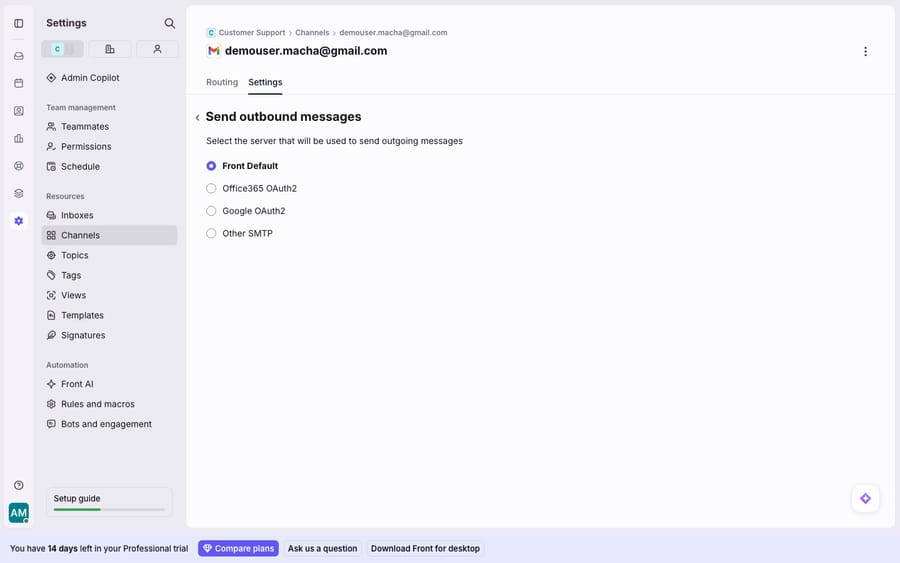
If your organization already runs Google Workspace or Microsoft 365, choosing Google OAuth2 or Office365 OAuth2 sends outbound through your own authenticated mail servers, which already have working SPF and DKIM and a warm sending reputation. That's the cleanest way off the "via" note entirely, because the mail never touches Front's sending provider. Other SMTP does the same through any provider whose credentials you supply. Front Default is the convenient fallback, and it's the one that needs the SPF/DKIM authorization above to stay out of junk.
A note on what you'll see: the per-channel sending-server picker appears on a standard connected channel like the one above. The Deliverability tab only appears once a company admin has at least one shared SMTP channel. On our test account, which connects a plain Gmail channel over OAuth, the tab read "No domains," which is why the sending-server panel (not a domain list) is the control to reach for first on OAuth-connected inboxes.
What if your DNS provider can't create the record Front needs?
Sometimes every step is right and verification still fails, because the DNS host can't create the record type Front asks for. Front names the culprits directly. Per the deliverability settings guide, "DreamHost, HostGator, SiteGround, and Wix do not support creating the required MX record."
The fix: if you're on one of those four providers, don't keep fighting the record. Front recommends "configuring custom SMTP for these channels to send mail via your own mail servers, using your existing DNS records." If moving DNS is on the table long-term, most mainstream DNS hosts (Cloudflare, Namecheap, AWS Route 53) can create MX records on a subdomain.
Do content and sender reputation still matter once SPF and DKIM pass?
Yes. Authentication gets you eligible for the inbox; it doesn't guarantee it. Once SPF and DKIM pass, a few reputation basics finish the job:
- Publish a DMARC record (
v=DMARC1; p=none;to start) so providers see an aligned policy. Google requires one from bulk senders. - Keep spam complaints low. Google's guidelines ask senders to keep the reported spam rate under 0.3%.
- Avoid spam-trigger patterns: all-caps subjects, link-only bodies, or a brand-new domain sending high volume from a cold reputation.
- Warm up gradually if you've just switched sending servers; a sudden spike from a fresh IP looks like spam regardless of authentication.
For most shared-inbox teams these matter less than the authentication and sending-server fixes, but they're worth a pass once the DNS work is done. For the wider picture of how sending, channels and inboxes fit together, Front shared inbox explained covers the model.
Can an AI agent reduce the outbound volume you have to authenticate?
Deliverability is a plumbing problem, and the fixes above are the right ones. There's a second-order angle, though: a large share of the outbound your team authenticates is routine (order status, password resets, "where's my refund"). Every one of those is a message that has to be written, sent, and land in an inbox.
That's where an AI agent layer sits. Macha runs on top of the Front you already use through the live Macha–Front connector; it doesn't replace Front, your channels or your DNS. What it changes is who writes the routine replies: the category of AI agents for customer service exists to answer repetitive questions directly, so your team drafts fewer by hand. When the agent needs live data (a real order, a real account status) it pulls it through a custom tool that turns your REST API into something the agent can call. Macha bills per ticket: one conversation is one charge however many messages it takes, starting at $299 a month for up to 750 tickets. It won't fix an SPF record for you, and its replies still go out through your Front channel, so the authentication work above applies to them too.
FAQ
Why does my Front email say "via mandrillapp.com"? Because that channel sends through Front's default server, and Mandrill (Mailchimp Transactional) isn't authorized in your domain's SPF/DKIM. Front's newer deliverability guide shows the same problem as "via sendgrid.net." Add the records under Company settings → Security → Deliverability, then click Check DNS settings. Once verified, the warning icon goes and the records read Verified.
Where are Front's deliverability settings? Click the gear icon, go to Company settings → Security, and open the Deliverability tab. It's admin-only and appears only after at least one shared SMTP channel exists. You select each sending domain, copy the records into your DNS provider, and click Check DNS settings to verify.
My DNS won't verify. What's wrong? Most often the record host or value is slightly off (Front's guide says to enter the subdomain without your domain and drop the leading 100 and trailing period), or you checked before your DNS TTL expired. If it still fails, confirm your DNS provider can create the required MX record: DreamHost, HostGator, SiteGround and Wix can't, and Front recommends custom SMTP for channels on those hosts.
Can I avoid Front's sending provider entirely? Yes. In Settings → Channels → [channel] → Settings → Send Outbound Messages → Modify, set the sending server to Google OAuth2, Office365 OAuth2 or Other SMTP. Mail then sends through your own authenticated servers, which removes the "via" note at the source.
Do I need a custom domain to fix this? You need to control DNS for the domain you send from, because the fix is publishing records there. If you can't, use the OAuth2 or Other SMTP sending options instead. The Deliverability tab only lists domains once a shared SMTP channel exists; on a plain Gmail OAuth channel it stays empty.
Want your team writing fewer routine replies by hand? Start a free trial of Macha with $50 of free usage and no credit card, and connect it to your Front.






