





 Shopify
 Stripe
 Slack
Slack Notion
 Google Workspace
 Confluence

Why Is My Front Salesforce or HubSpot Integration Not Working?


A broken Front integration is usually an expired Salesforce login, an exhausted Salesforce API quota, HubSpot's one-way sync, a sidebar field setting, or a disabled app. Each has a different fix, and most take an admin a few minutes in Front's App store.
Key takeaways
- Front's most common Salesforce failure is an invalid login, shown as a banner saying some rules are failing because the Salesforce login is invalid, and only a company admin can update the credentials.
- Salesforce lookups that stop without a login error usually mean the org hit its Salesforce API request limit, which needs a higher quota or a reset cycle, not a reconnect.
- Front's HubSpot companies and contacts syncs run one-way from HubSpot into Front, so edits made to synced records in Front never write back; the sidebar plugin is where two-way edits work.
- Front's Salesforce and HubSpot sidebar plugins work on every plan, but contacts sync, accounts sync and Connectors need Professional, listed at $65 a seat a month, or above.
- According to Nango, a Salesforce External Client App holds 5 concurrent token pairs per user, so repeated re-authorizations can silently revoke the connection you just fixed.

When a Front integration with Salesforce or HubSpot stops working, the cause is usually one of five things: an expired Salesforce login (Front shows "Some rules are failing because your Salesforce login is invalid"), an exhausted Salesforce API quota, HubSpot's one-way sync, sidebar field settings, or the integration being disabled. A company admin fixes the first by updating credentials under Company → App store → Salesforce → Settings; the others have their own fixes, below. Start with this triage table:
| Symptom | Most likely cause | Where to look |
|---|---|---|
| "Rules failing… Salesforce login is invalid" banner | Expired / revoked credentials | Salesforce integration settings (admin) |
| Salesforce lookups suddenly stop, no login error | Hit the Salesforce API request limit | Salesforce API usage / Front error log |
| Edit made in Front didn't appear in HubSpot | One-way sync (HubSpot → Front) | Expected behavior, not a bug |
| Sidebar shows a contact but no company/deal fields | Field display config / no matched record | Plugin Settings tab |
| Whole integration greyed out or missing | Disabled, or Front itself is down | Company → App store; status page |
One plan detail before you start: per Front's Salesforce and HubSpot guides, the sidebar plugins work on every Front plan, but the contacts sync, accounts sync and Connectors need Professional (listed at $65 a seat a month) or above. If a sync vanished after a downgrade to Starter, that's why.
Why is my Front Salesforce integration saying the login is invalid?
The single most frequent Salesforce failure is a rejected login. Front is explicit about the symptom. Per its Salesforce integration guide, when the credentials go stale you'll see: "Some rules are failing because your Salesforce login is invalid. Update your credentials and test the rules again." This happens after a password reset, an SSO change, a revoked OAuth token, or a Salesforce admin rotating a connected app.
The fix is a re-authentication, and Front says a company admin must do it. A regular teammate can't. In Front, a company admin opens the Salesforce integration settings (Company → App store → Salesforce → Settings), updates the login/credentials, and then re-tests the affected rules. Once the credential is valid again, the rules that were erroring resume.
One gotcha if repeated re-auths don't stick: according to Nango's write-up of Salesforce OAuth errors, each External Client App (the new name for a Connected App) can hold 5 concurrent access and refresh token pairs per user, and Salesforce revokes the oldest pair when a sixth is issued. That can quietly invalidate the connection you thought you just fixed. If you're in a re-auth loop, have your Salesforce admin clear old tokens for the integration user before reconnecting.
Why did Salesforce lookups stop with no login error?
If Salesforce lookups stop but there's no "invalid login" message, you've likely hit your Salesforce API request limit. Front's Salesforce documentation treats this as a separate failure mode from bad credentials: when your org exhausts its API quota, rules fail. No reconnect fixes this. The credential is fine; the calls are being refused.
Front gives two options: increase your API request limit with Salesforce, or wait for the request-limit cycle to reset. Salesforce quotas run on a rolling 24-hour window and scale with your edition and license count, so a busy Front rule set that calls Salesforce on every inbound message can burn through a smaller org's allowance. If this recurs, check whether your rules call Salesforce more often than they need to. Narrowing a trigger from "every inbound message" to a specific inbox or tag is the cheapest way to cut call volume.
Why don't my Front edits show up in HubSpot?
The most common HubSpot "bug" isn't a bug. It's the one-way sync. Per Front's HubSpot companies sync guide, "Companies are synced one-way from HubSpot to Front," and the same one-directional model applies to the HubSpot contacts sync. Data flows HubSpot → Front, not the other way. If you rename a company or fix a phone number inside a synced Front record and it never appears in HubSpot, that's expected: Front reflects HubSpot and doesn't write sync data back upstream.
Edits do travel both ways through the sidebar plugin, which is separate from the account/contact sync. Per the HubSpot integration guide, the plugin fetches data live from HubSpot and lets you view and update supported fields based on your permissions. Front's own sync article points you there: the plugin is how you update company information without leaving Front. So the model that removes most confusion is simple. The background sync is one-way (HubSpot populates Front); the sidebar plugin is a live, editable window into HubSpot. If you need field-level writeback outside the plugin, Front's native sync doesn't provide it.
Why does the HubSpot sidebar show a contact but not the fields I need?
If the plugin finds the person but the company, deal, or custom-object fields you rely on aren't there, it's almost always field display configuration, not a broken connection. The plugin matches records by the sender's email or name, per the HubSpot integration guide, and shows Contacts, Companies, Deals, and Engagements, plus custom objects linked to a Contact or Company. Which fields appear is a per-object choice in the plugin's Settings tab: open the plugin, go to Settings, and choose the fields to show for each object.
Two concrete fixes from that same guide:
- Missing custom fields or a new object? Use Reload custom fields in the plugin settings to refresh the schema so newly added HubSpot fields and custom objects show up. Front doesn't pick up schema changes on its own.
- No record at all for a valid contact? The match is by email or name. If the conversation's sender address doesn't exist on any HubSpot contact, there's nothing to display. Confirm the address is on the HubSpot record (or add it), and the sidebar resolves on the next open.
If fields still won't display after reloading, check permissions. Front's guide says users need read and write access to Contacts, Companies and Deals in HubSpot, read-only access to Marketing Lists, and "Edit property settings" for HubSpot tickets. The plugin only shows and edits what the connected HubSpot user can see.
What if the integration is greyed out, disabled, or Front itself is down?
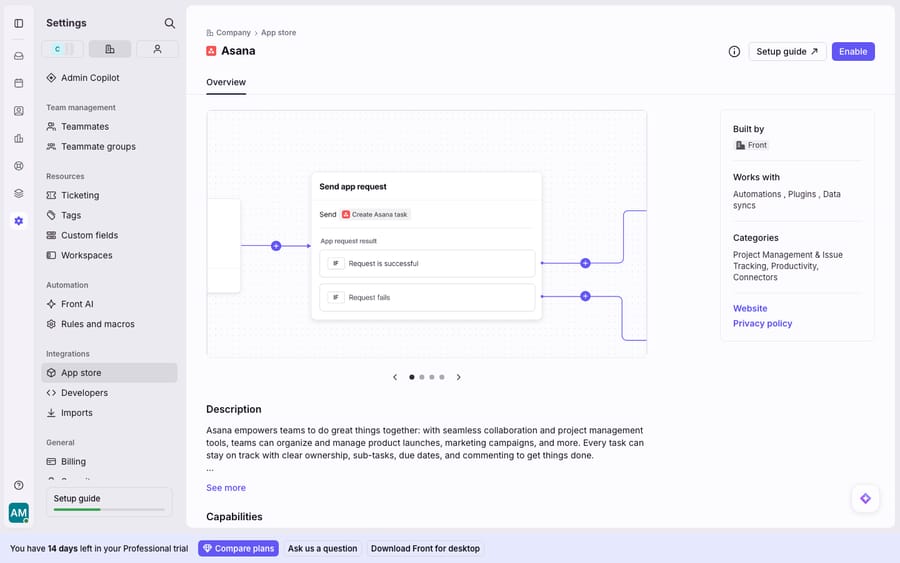
Before deep-troubleshooting a single integration, rule out the two blunt causes. First, the integration may be disabled: in Company → App store, open the integration and confirm it's enabled and connected. An admin, a plan change, or a billing change can switch integrations off (the syncs need Professional or above). This is the same install/settings screen pictured above; it's where you re-enable or re-authorize any connector. Second, if multiple integrations, syncs, and the app itself feel broken at once, the problem may not be your integration. Check whether Front is down before you reconnect anything. A platform-wide incident looks exactly like a local integration failure from inside one workspace.
Can an AI agent cut the tickets that depend on these lookups?
Reconnecting a connector is the tactical fix. The bigger cost is the volume of conversations where a human has to open Salesforce or HubSpot and hand-answer, because that volume is what makes every integration hiccup feel urgent. An AI agent layer takes some of it. Macha runs on top of the Front you already use through the Macha–Front integration. It doesn't replace Front, your shared inboxes, your rules, or your CRM. The agent reads a routed conversation, works out the intent, and pulls the account or deal record itself: Macha has a native HubSpot connector (search contacts, read deals and tickets, log notes), and for Salesforce you'd wire the lookup through a custom tool that turns the CRM's API into something the agent can call. The broader category of AI agents for customer service exists for this. It won't stop a Salesforce token from expiring, but fewer conversations depend on a person cross-referencing a CRM by hand. Macha fits teams on Zendesk, Freshdesk, Gorgias, Front, HubSpot or Intercom who want the agent working inside the ticket. It bills per ticket, from $299 a month for up to 750 tickets: one conversation is charged once however many messages it takes, never per resolution.
FAQ
Why is my Front Salesforce integration suddenly failing? The two common causes are an invalid credential ("Some rules are failing because your Salesforce login is invalid…"), which a company admin fixes by updating the credentials in Front's Salesforce integration settings, and hitting your Salesforce API request limit, which you fix by raising your quota or waiting for the limit cycle to reset.
Who can reconnect a Salesforce integration in Front? A company admin. Front requires admin rights to update integration credentials; a regular teammate can't re-authorize the connection.
Why don't my Front edits show up in HubSpot? Because the companies and contacts sync is one-way, from HubSpot to Front. Front reflects HubSpot data and doesn't push sync changes back. The live sidebar plugin is where two-way field edits work, subject to your HubSpot permissions.
The HubSpot sidebar shows a contact but no company or deal fields. Why? It's usually field display config, not a broken connection. Open the plugin's Settings tab to choose which fields show per object, and use "Reload custom fields" to pick up new HubSpot fields and custom objects. If a whole record is missing, the sender's email or name may not match any HubSpot record.
Which Front plan do the Salesforce and HubSpot integrations need? The sidebar plugins work on all Front plans. Contacts sync, accounts sync and Connectors need Professional or above, so a downgrade to Starter turns those off.
How do I know if it's my integration or Front being down? If a single integration fails, troubleshoot that connector. If multiple integrations, syncs, and the app all misbehave at once, check whether Front is having a platform-wide incident first.
Want fewer conversations to hinge on a human cross-referencing your CRM by hand? Start a free trial of Macha and connect it to your Front in minutes.






