





 Shopify
 Stripe
 Slack
Slack Notion
 Google Workspace
 Confluence

Why Are Front Notifications Not Working? 7 Fixes (2026)


Missing or late Front notifications almost always trace back to a setting: your status, a channel's notification mode, a browser permission or an advanced rule. Front also delays mobile and email alerts on purpose, so some lateness is not a fault at all.
Key takeaways
- Front notifications usually stop because status is Out of office, Mute notifications is on, a channel is set to No notifications, or the browser blocks Front.
- Front sends desktop notifications immediately but delays mobile notifications by 20 seconds and email by 30 seconds, sending each only if nobody has seen the message.
- Front's Smart notifications alert on assignments, @mentions and rules, but new messages in shared inboxes only notify you on the All notifications mode.
- Front's advanced notification rules override the basic mode, so a Don't notify me rule silences an inbox even when Desktop is set to All.
- Front deprecated its legacy notification center before the new design, and a Front support engineer said in August 2025 it will not return.

Front notifications usually stop because of a setting, not a fault: your status is Out of office, Mute notifications is on, a channel is set to No notifications, or your browser is blocking Front. Late alerts are often by design, because Front holds mobile notifications for 20 seconds and email notifications for 30 seconds and sends them only if nobody has seen the message. Match your symptom below, then work down the numbered checks.
Which symptom points to which cause?
| What you're seeing | Most likely cause |
|---|---|
| No desktop pop-ups at all | Status is Out of office, or Mute notifications is on |
| Desktop alerts, but nothing in the browser | Browser notifications blocked (Enable button greyed out) |
| Notifications arrive, but late on phone/email | Working as designed: mobile 20s / email 30s delay |
| Only some conversations notify you | Level set to Smart, or an advanced rule is filtering |
| No mobile push notifications | Mobile level set to No notifications, or OS permission off |
| Nothing anywhere, settings look right | Mac Focus or Windows Focus assist is on |
| Lost the old top-bar notification view | The notification center was deprecated and isn't coming back |
1. Is your status set to Out of office, or are you muted?
The most common reason Front goes silent is your availability status. Per Front's guide to changing your notification settings, you won't receive any notifications while your status is Out of office, or while the Mute notifications setting is toggled on. Both are easy to leave on by accident: you flip OOO for a meeting, or mute during focus time, and forget.
Fix: click your avatar (or the status control) at the top of Front and confirm you're set to Available or Busy, which are the two statuses Front's own troubleshooting FAQ tells you to check for. Then open the gear icon → Me settings → Notifications and make sure Mute notifications is off. That clears most "notifications not working" reports before you touch anything else.
2. Is the channel set to "No notifications"?
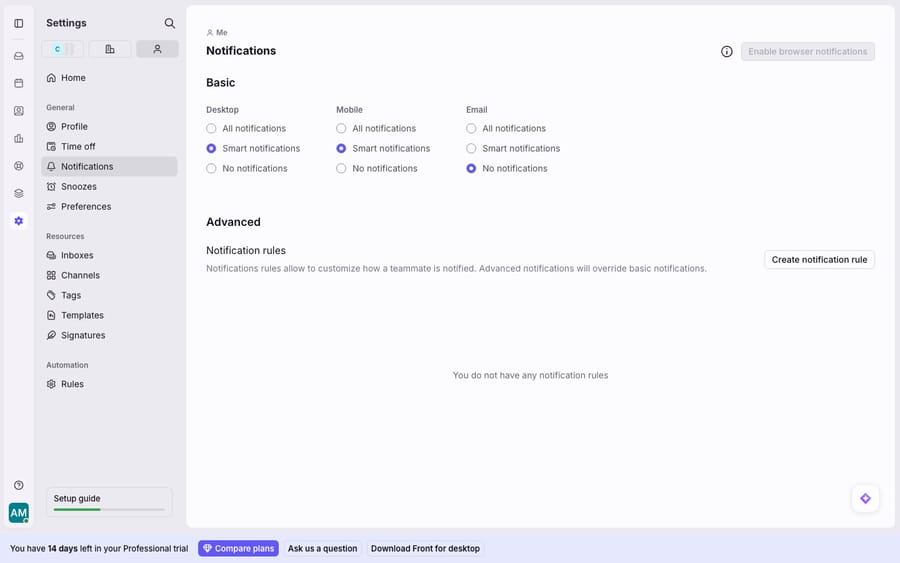
Front has three notification modes, and one of them turns a channel off entirely. In gear icon → Me settings → Notifications, each channel (Desktop, Mobile and Email) can be set independently to All notifications, Smart notifications or No notifications, then saved (Front help).
- All notifications fires on every scenario in Front's table, including every new message in the shared inboxes you can access.
- Smart notifications is what Front calls its most popular default for new customers. It alerts you when you're assigned a conversation, @mentioned on a comment, or notified by a rule, on all three channels. Snoozed conversations reopening and new activity on conversations assigned to you reach desktop and mobile but not email. Activity on conversations you follow reaches desktop only. New messages in shared inboxes don't notify you at all.
- No notifications silences that channel completely.
If a channel is set to No notifications, that's your answer for that channel. If you're on Smart and expecting to hear about every new message in a shared inbox, that's the mismatch: Smart deliberately won't ping you for conversations that aren't yours or don't mention you. Switch the channel to All if you want everything, or keep Smart and add per-inbox rules in step 6.
3. Why do Front notifications arrive late on mobile and email?
If notifications arrive but land a little late, Front is usually working as designed. Front staggers delivery so it doesn't buzz your phone or fill your inbox for something you're already handling at your desk. Per the notification settings documentation:
- Desktop notifications are sent immediately.
- Mobile notifications are delayed by 20 seconds, and only sent if the message still hasn't been seen.
- Email notifications are delayed by 30 seconds, and only sent if the message still hasn't been seen.
So the mobile and email delay isn't a bug. It's a "did anyone catch this yet?" grace period, and it explains a common shared-inbox surprise: if a teammate opens the conversation inside that window, your phone or email notification is suppressed on purpose. If you only want the immediate channel, keep Desktop on and turn Mobile and Email down. If a delay stretches to many minutes instead of seconds, that's a different problem. Check whether Front itself is having an incident (see is Front app down) before assuming a settings fault.
4. Why is the "Enable browser notifications" button greyed out?
If desktop alerts work in the Front app but not in your browser, your browser is blocking them. In the web app, the Enable browser notifications button appears greyed out when notifications are blocked in your browser settings (Front help). You can see that disabled button in the settings screenshot above.
Fix: in your browser (Chrome, Edge, Safari, Firefox), open the site permissions for your Front URL and set Notifications to Allow, then reload the Front tab. In Chrome, that's the settings icon next to the URL in the address bar, where you toggle Notifications on. Once the permission is granted and you reload, the Enable browser notifications button disappears from your settings and pop-ups start arriving.
If the browser already allows Front and nothing arrives, check the operating system. Front's FAQ says notifications must be turned on for the app or browser in your device's system preferences, and that Focus mode (Mac) or Focus assist (Windows) must be off. Either one swallows notifications without Front knowing.
5. How do you get Front mobile push notifications working?
Front's mobile levels sit in the same settings screen as desktop and email. Open the desktop or web app → gear icon → Me settings → Notifications, and under Mobile pick All, Smart or No notifications (Front help). If Mobile is set to No notifications there, no amount of poking at the phone will fix it.
Two checks live on the device, not in Front's settings: the Front mobile app needs the operating system's notification permission (iOS/Android Settings → Front → Notifications → Allow), and background refresh or battery-optimization settings can delay or drop push delivery. Grant the permission, turn off aggressive battery optimization for Front, and confirm the Mobile level is All or Smart.
6. Is an advanced notification rule overriding your basic settings?
If only some inboxes or conversations notify you, an advanced notification rule may be filtering them. Below the basic modes, Front lets you Create notification rule with your own conditions: notify me on everything in the VIP inbox, but stay quiet on the archive inbox, for example. In a Front community thread on per-inbox customization, Front's support team confirms you can "create notifications for specific inboxes" with this feature.
The catch is precedence. Front's documentation says that when rules conflict, the more specific rule overrides the more general one, and advanced rules override your basic mode. So a rule that says Don't notify me wins even when Desktop is set to All. Fix: open gear icon → Me → Notifications, review each rule, and adjust or remove the one silencing the inbox you care about. Front's own advice for heavy rule users is to set the basic modes to No notifications and build rules for only what you need. That suits a shared inbox where you want to hear about the queues you own and nothing else (see Front shared inbox explained for how those inboxes are structured). These are personal notification rules, separate from workspace automation, which Front rules explained covers.
7. Where did Front's notification center go?
If you're looking for the old top-bar list of notifications, it's gone and it isn't a setting you can switch back on. In an August 2025 community thread, a Front lead technical support engineer wrote that the legacy notification center was deprecated before the new Front design and that Front doesn't plan to bring it back. The reasoning he gave is that you work from one place, the Open view of your inbox, so nothing slips through the cracks. Front's staff pointed users who want it back to the ideas portal.
What to do instead: use the Open and assigned views as your live queue, and rely on the Desktop/Mobile/Email modes above plus advanced rules to surface what matters. It's a workflow change rather than a bug, so there's no hidden toggle to find. If Front pages or panels fail to load entirely, that's an availability question, and is Front app down covers how to check.
How do you cut the number of notifications you need?
Even perfectly tuned, notifications are a triage problem: every ping is a conversation waiting for a human. The durable fix is fewer conversations that need you in the first place.
That's the gap an AI agent layer fills. The broader category of AI agents for customer service exists to resolve routine conversations before they become an alert on your phone. Macha is one such layer: it runs on top of the Front you already use through the live Macha–Front connector. It doesn't replace Front, your shared inboxes or your notification settings. Macha's agent reads each incoming conversation, works out the intent, and drafts or sends a grounded reply, pulling a real order or account status through a custom tool that turns your REST API into something the agent can call. The conversations it resolves never reach your notification queue, and the ones it escalates arrive with context attached. Macha bills per ticket, from $299 a month for up to 750 tickets: one conversation is charged once however many messages it takes, never per resolution.
FAQ
Why are my Front notifications delayed? On mobile and email, the delay is intentional. Front sends desktop notifications immediately, delays mobile by 20 seconds and email by 30 seconds, and only sends them if the message still hasn't been seen. In a shared inbox, a teammate opening the conversation inside that window suppresses your later notification on purpose.
Why is the "Enable browser notifications" button greyed out? Because your browser is blocking notifications for Front. Open your browser's site permissions for the Front URL, set Notifications to Allow, and reload the Front tab.
Why am I only notified about some conversations? Either the channel is on Smart notifications, which covers assignments, @mentions, rules and your own conversations but not every new shared-inbox message, or an advanced rule is filtering them. Switch to All notifications for everything, or review your rules under gear icon → Me → Notifications.
How do I get Front mobile push notifications? Set them in gear icon → Me settings → Notifications → Mobile, and choose All or Smart. Also grant the Front app the operating system's notification permission and turn off aggressive battery optimization for it.
Can I get the old Front notification center back? No. Front deprecated the legacy notification center before the new design and has said it doesn't plan to bring it back. Work from the Open view and use notification modes and advanced rules to surface what matters.
Do Front's notification settings affect calendar notifications? No. Front manages calendar notifications separately from the Desktop, Mobile and Email modes.
Want fewer notifications to triage in the first place? Start a free trial of Macha and connect it to your Front in minutes.






