





 Shopify
 Stripe
 Slack
Slack Notion
 Google Workspace
 Confluence

How Do You Connect Instagram and Facebook to Gorgias?


Gorgias connects Facebook and Instagram through one app in its App store, turning Messenger, Instagram DMs, post comments, mentions and ad replies into tickets in the same queue as email. The setup takes a few minutes if your Instagram account is professional, linked to the Facebook Page, and your login has full access to the Meta Business portfolio.
Key takeaways
- Gorgias connects Facebook and Instagram from Settings, Apps, App store, where you open Facebook, Messenger and Instagram and click Login with Facebook.
- Instagram must be a professional account, added to the Meta Business portfolio and linked to the Facebook Page, before Gorgias can import its DMs, comments and mentions.
- Gorgias creates a ticket for every top-level comment on a Facebook post, including ads, and agents can send a private reply within 7 days of the comment.
- Instagram DMs are blocked on deprecated Gorgias plans, and Gorgias opens a new DM ticket when a customer replies more than 3 days after the last message.
- Gorgias AI Agent answers Instagram DMs and Facebook Messenger in open beta but does not reply to public posts, mentions or comments.

To connect Instagram and Facebook to Gorgias, open Settings → Apps → App store, search for Facebook, Messenger & Instagram, click Login with Facebook and accept every permission Meta asks for. You need to be a Gorgias account owner or admin with full access to the Meta Business portfolio, and the Instagram account must be a professional account linked to the Facebook Page. Per Gorgias' connection guide, the app is available on all Helpdesk plans.
| What you need | Detail |
|---|---|
| Where to connect | Settings → Apps → App store → Facebook, Messenger & Instagram → Login with Facebook |
| Who can connect | Gorgias account owner or admin, with full access to the Meta Business portfolio |
| Instagram account | Professional account, added to the business portfolio and linked to the Facebook Page |
| Facebook channels | Messenger, posts and comments, mentions, ad replies (reviews also create tickets) |
| Instagram channels | DMs, comments, mentions, ad replies |
| Plan limits | All Helpdesk plans; Instagram DMs are blocked on deprecated plans |
What does the Meta channel bring into Gorgias?
The Facebook, Messenger & Instagram integration is a single Meta connection that switches on several channels at once. On the Facebook side you get Messenger conversations, post comments, mentions, ad replies and page reviews. On the Instagram side you get direct messages, comments on posts, Reels and ads, mentions, and replies to your Stories. Each of these becomes a Gorgias ticket routed into the same queue, tagged and assignable like any email. The difference from a plain inbox is the social-native actions that come with it.
The behaviour to understand up front is that comments and messages work differently. A Messenger or Instagram DM is a private one-to-one thread, much like email. A comment is public. Per Gorgias' Facebook comments documentation, "every top-level comment on a post, every new review, and every new mention creates a new ticket in your helpdesk," and that includes comments on ads. From that ticket an agent can hide or unhide the comment, like or unlike it, reply publicly, or send a private Messenger reply within 7 days of the comment being created. That public/private split is the reason social support needs its own tooling rather than a forwarding rule.
What do you need before you connect?
Meta gates this integration tightly, and most failed connections trace back to one of three prerequisites.
The right access on both sides. In Gorgias, the account owner and admins can connect the app. On the Meta side, the Gorgias connection guide says you need full access to the relevant Meta Business portfolio. If you log in with a Facebook account that only has partial access, the Pages you expect will not appear.
Instagram must be a professional account, linked to the Page. A personal Instagram account will not connect. The account has to be a professional (business or creator) account, added to your Meta Business portfolio and linked to the Facebook Page you connect. Gorgias then includes Instagram automatically when you select that Page. For DMs, Gorgias' Instagram DM FAQ also asks you to turn on Allow Access to Messages in the Instagram app's settings.
Meta permissions. During the Facebook login, accept every permission Gorgias requests. If a permission is left out, Pages will not show up in Gorgias. The documented fix is to remove Gorgias from Connected Apps in Meta Business Suite and log in again, this time granting everything. You can still choose which channels to turn on afterwards.
How do you open the Meta integration and log in?
Everything starts in one place.
- In Gorgias, click the Settings icon in the bottom-left corner, then go to Apps → App store.
- Search for Facebook, Messenger & Instagram and open it.
- Confirm your browser is logged into the correct Facebook account, the one with full access to the business portfolio.
- Click Login with Facebook.
- Authorize the Gorgias app and accept all the requested permissions.
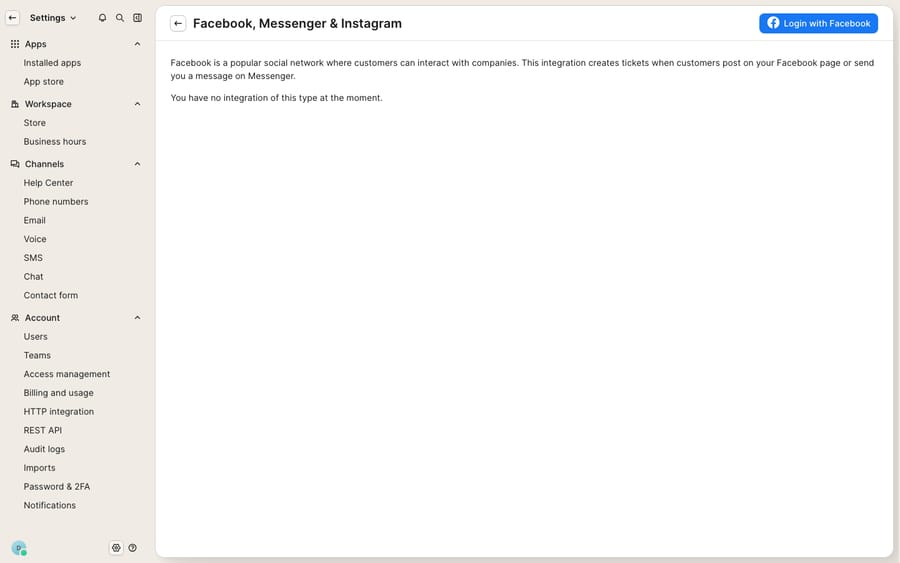
The screen above is the connect page for the Meta channel before any Pages are linked: an empty integration with a single Login with Facebook button. Once you complete the login and add a Page, this area fills with your connected Pages and the channel toggles described below.
How do you pick a Page and choose channels?
After authorizing, Gorgias shows the Pages you manage.
- Select the Page you want to bring into the helpdesk. A linked Instagram account comes with it.
- Choose your import settings (whether to backfill recent conversations).
- Click Add page.
- Tick the activity to enable. For Facebook: Messenger messages, posts and comments, mentions, and ad replies. For Instagram: DMs, comments, mentions, and ad replies.
- Click Save Changes.
You do not have to enable everything. A brand that wants private support but not public comment moderation can turn on Messenger and Instagram DMs while leaving comments off. A team focused on cleaning up the comment section under paid ads can do the reverse.
Why don't Instagram DMs show up?
Instagram direct messages have extra dependencies. Per Gorgias' Instagram DM FAQ, an account on an outdated plan "won't gain access to this integration," and you must upgrade from the deprecated plan to get Instagram DMs. If you are on an older Gorgias plan and DMs never appear, that plan gating is usually why. The same FAQ lists the other causes: the account is personal rather than business, Allow Access to Messages is off, or the account is below Meta's minimum follower requirement.
Once DMs are live, a few limits are worth knowing:
- Stories do not render. Gorgias says the "Instagram API specifically prohibits us from rendering Stories inside the helpdesk," so a story mention arrives without the story itself.
- You cannot start a conversation. Gorgias can only reply to inbound DMs.
- Text or attachment, not both. A single reply can carry text only or an attachment only.
- Three-day threading. If a customer comes back more than 3 days after the last message, Gorgias opens a new ticket.
- No merging, no read receipts. Instagram DM tickets cannot be merged, and read receipts do not sync from Gorgias to Instagram.
How do comments, ad comments and auto-hide rules work?
This is where social support differs most from email.
Every top-level comment on a Facebook post creates its own ticket, and Gorgias "creates a ticket every time a customer comments on one of your posts, including ads." On Instagram, comments on posts, Reels and ads do the same, per Gorgias' Instagram comments documentation. From any comment ticket, an agent can hide, like or unlike, reply publicly, or send a private reply by DM or Messenger within the 7-day window.
The useful part is automation. Using Gorgias Rules, you can act on comments the moment they arrive: for example, auto-like every positive comment and auto-hide anything matching a profanity or spam keyword list. A few mechanics to keep in mind:
- Hiding is quiet. On Facebook, you still see a hidden comment marked as hidden when you view the post signed in as the Page; other users do not see it. On Instagram, a hidden comment stays visible to the person who posted it but not to other Instagram users.
- Likes alone are free. Per the docs, "if you only like a Facebook comment, the ticket is not billable," which is useful when you build a like-everything-positive rule. On Instagram, a ticket you answer natively in Instagram and never reply to from Gorgias is not counted as billable either.
- You can only reply to top-level comments. Gorgias says a Facebook API limitation means it "can only reply to top-level comments on posts. Replies to replies are imported into the ticket, but you cannot reply to them." Nested threads have to be answered natively.
Should you use the native Meta channel or a separate social tool?
For most ecommerce support teams, native wins on ticket unification; a separate tool wins on publishing and analytics you probably do not need in a helpdesk.
| Consideration | Gorgias native Meta channel | Separate social suite (e.g. Sprout, Hootsuite) |
|---|---|---|
| DMs & comments as tickets | Yes, in the same queue as email and chat | Usually siloed from your helpdesk |
| Order/customer context beside the message | Yes, via the customer sidebar | Rarely; no ecommerce context |
| Auto-hide / auto-like comment rules | Yes, via Gorgias Rules | Yes, often more granular |
| Content publishing & scheduling | No | Yes, that's their core job |
| Cross-channel social analytics | Limited | Extensive |
| Extra cost & extra login | None beyond your plan | Separate subscription |
For running support, the native channel is almost always the right call: it keeps a WISMO comment next to the customer's order history. If you also need to schedule campaigns and report on reach, that is a marketing tool's job, not your helpdesk's.
Where does the native integration stop, and where does an AI layer fit?
Gorgias' Meta integration is solid plumbing: it unifies channels, follows Meta's permission model, and gives agents real moderation controls. The channel itself does not read a message, work out that "still not here??" under a shipping ad is a WISMO query, and draft the reply. It enforces your auto-hide keyword list, but it cannot tell an angry-but-legitimate return request from spam.
Gorgias' own AI Agent covers part of that gap. Per its social channels article, AI Agent can answer Instagram DMs and Facebook Messenger (in open beta, with a Shopify store connected), but "it doesn't moderate or reply to public posts, mentions, or comments." It also works inside Meta's 24-hour messaging window and escalates account changes that need security verification. So the public comment queue, including the WISMO comment under an ad, still lands on a person.
That reasoning-and-answering gap is where an AI agent layer fits. The broad category of AI agents for customer service exists to do the work a channel integration can't. Macha is one such layer, and it runs on top of the Gorgias you already use as a native connector. It does not replace Gorgias or its Meta channel. Once connected, Macha reads the same social tickets your Meta integration creates and drafts or posts grounded, on-brand replies: answering a DM return question against your policy, handling a WISMO comment by fetching live order status through a custom tool that turns your Shopify or shipping API into something the agent can call, and triaging by intent so an urgent complaint under an ad doesn't sit in the same pile as a compliment. If you want the deeper wiring, see the Macha–Gorgias integration and the wider list of best Gorgias integrations. Macha bills per ticket (one conversation, charged once however many messages it takes), never per resolution, starting at $299 a month for up to 750 tickets; the pricing page breaks it down.
The division of labour: let Gorgias own the channel, bringing every DM, comment and ad comment into one queue with the right moderation controls, and layer an agent on top for the part the channel can't do, which is understanding and answering fast. If WhatsApp is also on your roadmap, the same pattern applies to WhatsApp on Gorgias.
FAQ
Where do I connect Facebook and Instagram in Gorgias? Click the Settings icon, go to Apps → App store, search for Facebook, Messenger & Instagram, then click Login with Facebook. You need to be a Gorgias owner or admin, logged into a Facebook account with full access to the Meta Business portfolio.
Why won't my Instagram account connect? The usual reasons: the Instagram account is personal rather than professional, it isn't in your Meta Business portfolio, or it isn't linked to the Facebook Page. For DMs, also turn on Allow Access to Messages in Instagram and check that your Gorgias plan isn't a deprecated one, since Instagram DMs are blocked on outdated plans.
Do Facebook and Instagram comments become tickets? Yes. Gorgias creates a ticket for every top-level comment on a post, including ads, plus reviews and mentions. From the ticket you can hide, like or unlike, reply publicly, or send a private reply within 7 days. Replies to replies are imported but cannot be answered from Gorgias.
Can I auto-hide negative comments? Yes, Gorgias Rules can auto-hide comments matching keywords and auto-like positive ones. A hidden Instagram comment is still visible to the person who posted it, and on Facebook you still see it marked as hidden when signed in as the Page. Other users don't see it.
Can Gorgias AI Agent answer Instagram and Facebook messages? Partly. Gorgias AI Agent answers Instagram DMs and Facebook Messenger (open beta, Shopify store required) but does not reply to public posts, mentions or comments, so comment tickets still need a person or another layer.
Can I add AI to my Gorgias social channels without replacing Gorgias? Yes. An AI agent layer like Macha connects to Gorgias as a native connector and runs on top of your existing helpdesk and its Meta channel. It reads the DMs, comments and ad comments your integration creates and drafts or sends grounded replies, while Gorgias stays the system of record for every social ticket.
Ready to turn social comments and DMs into answered tickets instead of a growing backlog? Start a free trial of Macha and connect it to your Gorgias in minutes.






