





 Shopify
 Stripe
 Slack
Slack Notion
 Google Workspace
 Confluence

How Do You Connect WhatsApp to Gorgias? Setup, 24-Hour Window and Template Limits (2026)


You connect WhatsApp to Gorgias from the App store with a Meta business portfolio and a phone number you own, and the channel itself costs nothing extra. The limits that matter come from Meta: a 24-hour reply window and, in Gorgias, Marketing-only text templates for everything outside it.
Key takeaways
- Connecting WhatsApp to Gorgias runs through Settings, Apps, App store, WhatsApp, then Connect WhatsApp Business, using a Facebook login with full access to a Meta business portfolio.
- WhatsApp's 24-hour customer service window allows unlimited free-form replies after a customer messages, and outside it Gorgias can only send a pre-approved Message Template.
- Gorgias can send only Marketing category WhatsApp templates with a text header, so Utility templates, image headers and URL buttons built elsewhere need rebuilding.
- Adding the WhatsApp channel to Gorgias is free and Meta's usage costs are currently covered, but every WhatsApp ticket you reply to counts as a billable Gorgias ticket.
- Meta caps new business portfolios at 250 unique customers messaged outside a service window per rolling 24 hours, shared across every number in the portfolio.

To connect WhatsApp to Gorgias, open Settings → Apps → App store, search for WhatsApp, click Connect WhatsApp Business, then sign in to Facebook, pick your Meta business portfolio, create a WhatsApp Business Account and verify a phone number by text or call. The channel itself is free, but every WhatsApp ticket you reply to counts as a billable Gorgias ticket, and outside WhatsApp's 24-hour window you can only send an approved Marketing template.
| Question | Answer (Gorgias docs, checked 24 Sept 2026) |
|---|---|
| Where to connect | Settings → Apps → App store → WhatsApp → Connect WhatsApp Business |
| What you need | A Meta business portfolio, a Facebook login with full access to it, and a number you own that isn't on any other WhatsApp account |
| Channel cost | Free; Meta's usage costs currently covered by Gorgias |
| Billing | WhatsApp tickets you reply to count as billable tickets |
| Reply rule | Free-form replies only inside the 24-hour customer service window |
| Templates you can send | Marketing templates only, text header, no image or URL buttons |
| Outbound cap for new Meta portfolios | 250 unique customers per rolling 24 hours outside the window (Meta) |
What does the WhatsApp channel do in Gorgias?
Once connected, WhatsApp becomes a native channel inside your Gorgias helpdesk. When a shopper messages your WhatsApp Business number ("where's my order?", "can I swap this for a size up?"), that thread lands as a Gorgias ticket in the same inbox as every other channel, and Gorgias creates a dedicated WhatsApp view for it. Agents read and reply from the ticket view they already use, with macros, tags, rules and assignment working the way they do on email.
The context is the useful part. Per Gorgias' WhatsApp product page, Gorgias recognizes Shopify profiles from WhatsApp numbers, so a matched shopper arrives with their order details already in the sidebar. That's the difference between an agent answering a WISMO ("where is my order") question by asking for an order number and one who can see the order sitting right there. If you're running on Shopify, that sidebar is the same one we cover in Gorgias for Shopify. (Gorgias' older WhatsApp documentation URL now returns a 404; the setup steps below come from its current help center.)
WhatsApp supports rich content, within limits. Gorgias' WhatsApp FAQs list text, JPEG and PNG images, audio, MP4 and 3GPP video, PDFs, Office documents and animated WEBP stickers (512x512 px, 500 KB max). GIFs aren't supported, and you can't send text and an attachment together in one message. It's a customer-support channel first, which is fine for the returns, exchanges and order questions that make up most of an ecommerce queue.
How do I start the connection in the App store?
Everything starts in one place. Per Gorgias' guide to setting up WhatsApp with your own number:
- Click the Settings icon (bottom left), then Apps → App store.
- Search for WhatsApp and click Connect WhatsApp Business.
- Sign in with a Facebook account that has full access to your Meta business portfolio. The portfolio has to exist before you start, because WhatsApp Business runs on Meta's infrastructure.
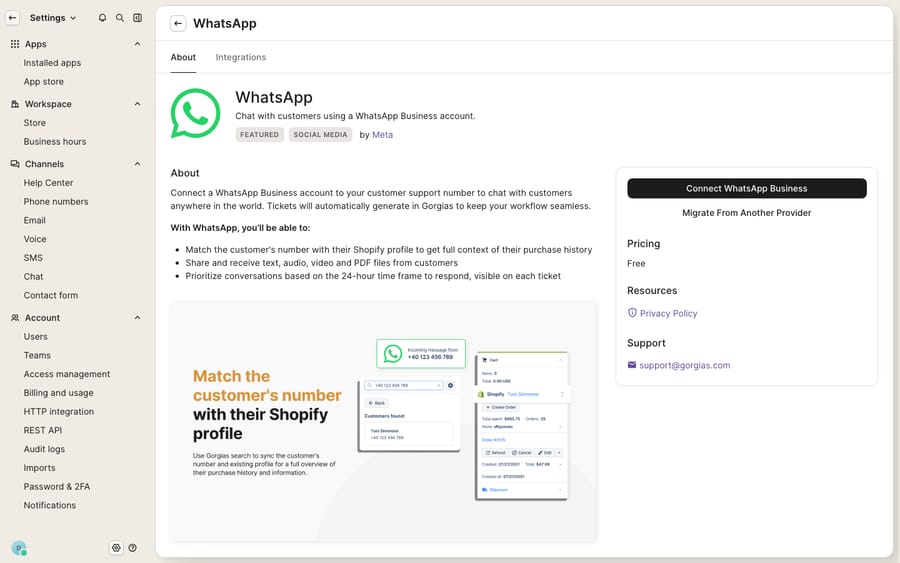
The screen above is the connect page you land on, before any conversation exists. What you see after connecting is an ordinary Gorgias ticket with a WhatsApp thread inside it, which only appears once a customer messages you or you send an approved template.
How do I set up the WhatsApp Business Account?
WhatsApp requires a dedicated business identity, called a WhatsApp Business Account (WABA). After you click Connect, Gorgias sends you to Facebook, where you select the business portfolio and create the WhatsApp Business Account inside it. Meta shows customers the business's display name, so use your real, recognizable store name rather than a placeholder.
Gorgias then handles several things automatically: it sets up two-step verification on the number, takes over Meta billing (you're charged through helpdesk tickets rather than by Meta), imports any message templates the account already has, and creates the WhatsApp view in your inbox.
What phone number can I use?
The number is where most first-time setups stall, so get the requirements right up front. Per Gorgias' setup guide, the number must:
- Be owned by you.
- Be able to receive a call or text, because you'll enter a verification code sent either way.
- Not already be connected to any WhatsApp account.
Two catches. First, one number can't run on the WhatsApp app (or another tool) and in Gorgias at the same time, so you remove it from the other platform first. Second, if the number already runs on a different WhatsApp Business platform, Gorgias offers a migration wizard (Migrate a WhatsApp number to Gorgias) that keeps your business status and approved templates but does not carry over your past chat history. For a brand moving a live WhatsApp number into Gorgias, that history loss is the thing to plan around.
Note the geographic fine print too. Per the Gorgias FAQs, businesses registered in Cuba, Iran, North Korea, Syria and three sanctioned regions of Ukraine can't use the WhatsApp Business Platform, and users in Turkey can't receive messages, so a global brand should confirm coverage for its actual customers.
What is the 24-hour window, and why does it matter?
This is the rule that governs everything about outbound WhatsApp, and it's Meta's rule, not Gorgias'. Whenever a customer messages you, a 24-hour customer service window opens. While it's open, you can send unlimited free-form replies, normal back-and-forth support, and each new inbound message from the customer restarts the 24 hours. Gorgias' FAQs are explicit that it can't override this.
Outside that window, you can't send a free-form message. The only way to reopen a conversation is with a pre-approved Message Template. So the practical shape is:
- Customer messages first → window opens → answer freely for 24 hours.
- Customer goes quiet, window closes → you must use an approved template to reach them again.
- You want to reach out first (a proactive shipping-delay notice, say) → template only.
Gorgias suggests using Rules to prompt customers to reply, which keeps the window open. Miss this and you'll write a perfectly good reply that WhatsApp refuses to deliver.
Which template messages can Gorgias send?
Templates are pre-written, Meta-approved messages you're allowed to send outside the window. The workflow per Gorgias' template documentation:
- Create the template in Meta's WhatsApp Manager and submit it for approval.
- Gorgias imports approved templates automatically, and you can monitor their status from the WhatsApp integration settings.
- Agents pick an approved template directly from the ticket composer.
The limits are tighter than most teams expect. Meta sorts templates into three categories (Marketing, Utility and Authentication), and only Marketing templates can be sent from Gorgias:
| Rule | What Gorgias supports |
|---|---|
| Category | Marketing: Default only (not Utility or Authentication) |
| Allowed parts | Text-only header, body, footer, quick reply buttons, variables in header and body |
| Not supported | Image, video, document or location headers |
| Buttons not supported | URL, dial, one-time code and product list buttons |
| Preview | Gorgias advises making the first 60 to 65 characters count, since that's what customers see first |
If you've designed WhatsApp templates elsewhere with image headers, link buttons, or Utility-category order updates, temper expectations: in Gorgias they need rebuilding as text Marketing templates. That's enough for most WISMO, returns and re-engagement messages but not for a rich marketing blast.
What does WhatsApp in Gorgias cost?
Two things to keep straight. Adding the WhatsApp channel to Gorgias is free for all customers, and Meta's usage costs are currently covered by Gorgias, which says that may change with future features. Separately, WhatsApp tickets you reply to from the helpdesk count as billable tickets toward your Gorgias usage, the same as any other channel.
One more cap to know if you're new to Meta's platform. Meta's messaging limits cap how many unique customers you can message outside a customer service window in a rolling 24 hours, and newly created business portfolios start at 250. The limit is shared by every number in the portfolio. Replies inside a customer-opened window don't count against it. Completing a scaling path such as business verification can raise it to 2,000 once Meta reviews your message quality. For a store that leans on proactive WhatsApp outreach, 250 is the number to watch until then.
Where does the native WhatsApp channel stop, and where does an AI layer help?
The native WhatsApp channel is well built: it pulls WhatsApp into the same inbox as your other channels, matches customers to Shopify profiles, and handles the Meta plumbing for you. But notice what it doesn't do. It routes and displays WhatsApp messages; it doesn't answer them. Every WISMO question, every "can I exchange this?", every subscription pause still lands on a human who has to read the thread, look up the order and type the reply.
The 24-hour window makes speed matter more than on any other channel. A ticket that sits overnight isn't just slow: if the window closes, your agent is forced into a pre-approved Marketing template just to say something a free reply could have said an hour earlier.
This is the seam where an AI agent layer fits, and it's worth understanding the broader category of AI agents for customer service before reaching for one. Macha is one such layer: it runs on top of the Gorgias you already use as a native connector and doesn't replace your helpdesk, your WhatsApp channel, or your Meta setup. Macha reads and writes the same Gorgias tickets your WhatsApp threads become: drafting or sending grounded replies the moment a message arrives (keeping the conversation inside the 24-hour window instead of forcing a template later), answering WISMO by looking up live order status through a custom tool that turns your OMS or Shopify API into something the agent can call, and handling routine returns and subscription questions before a human opens the ticket. Macha bills per ticket, one conversation charged once however many messages it takes, from $299 a month for 750 tickets and never per resolution; the pricing page has the tiers.
The clean division of labor: keep Gorgias as the system of record for what came in on WhatsApp and who's assigned to it, and put an agent on top for the part the channel can't do, answering fast enough that the window never closes. New to the platform underneath all this? Start with what Gorgias is, and if you're weighing WhatsApp against your other conversational channels, Gorgias Chat explained and connecting Instagram and Facebook to Gorgias cover the neighbors.
FAQ
Where do I connect WhatsApp in Gorgias? Click the Settings icon, go to Apps → App store, search for WhatsApp and click Connect WhatsApp Business. You'll sign in with a Facebook account that has full access to your Meta business portfolio, create a WhatsApp Business Account (WABA), and verify a phone number by text or call.
Is the WhatsApp channel free in Gorgias? Adding WhatsApp as a channel is free for all Gorgias customers, and Meta's usage costs are currently covered by Gorgias, which says that may change. WhatsApp tickets you reply to count as billable helpdesk tickets, the same as any other channel. Confirm current terms against your own plan.
What is the 24-hour window? When a customer messages you, a 24-hour customer service window opens during which you can send unlimited free-form replies; each new inbound message restarts it. Outside that window you can only start a conversation using a pre-approved Message Template.
Can I send any message I want as a template? No. Gorgias can send only Marketing templates with a text header, body, footer, quick reply buttons and variables. Image, video, document and location headers aren't supported, and neither are URL, dial, one-time code or product list buttons. Templates are created and approved in Meta's WhatsApp Manager, then Gorgias imports them.
Can I move an existing WhatsApp Business number into Gorgias? Yes, with Gorgias' migration wizard. It keeps your business status and approved templates, but your past chat history doesn't come across.
Can I add AI to WhatsApp without replacing Gorgias? Yes. An AI agent layer like Macha connects to Gorgias as a native connector and runs on top of your existing helpdesk and WhatsApp channel. It helps by drafting or sending grounded replies fast enough to stay inside the 24-hour window and by looking up order status, while Gorgias stays the system of record.
Want WhatsApp tickets answered before the window closes? Start a free trial of Macha ($50 of usage, no credit card) and connect it to your Gorgias.






