





 Shopify
 Stripe
 Slack
Slack Notion
 Google Workspace
 Confluence

Where Do You Find and Create a Front API Token? (2026)


Front API tokens are created by admins under Settings > Developers > API tokens, and you can reveal or copy an existing token's value from its details page. Each token gets its own features, namespaces and Read, Write, Delete or Send permissions, and deleting one cuts off every app using it immediately.
Key takeaways
- Front API tokens are created only by admins under Settings, Developers, API tokens, by clicking Create API token and choosing features, namespaces and permissions.
- Front shows an existing token's value on its details page through Reveal or Copy, so a token you forgot to copy at creation is not lost.
- Front documents no regenerate option for API tokens, and deletion cannot be undone, so rotating a token means creating a replacement, migrating services, then deleting the old one.
- Front's API rate limit is 50 requests per minute on Starter, 100 on Professional and 200 on Enterprise, enforced per company rather than per token.
- Front API tokens can be scoped to Global, Shared and Private resources, with Read, Write, Delete and Send granted separately, and Private access needs each teammate to enable API access.

You find and create a Front API token under Settings > Developers > API tokens, then click Create API token, and only a Front admin can see that page. Per Front's developer documentation on API tokens, you name the token, pick its features and resource namespaces, grant Read, Write, Delete or Send, and click Create. To get the value of an existing token, open its details page and click Reveal or Copy.
| Task | Where / what |
|---|---|
| Create a token | Settings > Developers > API tokens > Create API token (admins only) |
| Get an existing token's value | Open the token's details page, click Reveal or Copy |
| Scope it | Features (e.g. Access resources, MCP server) plus Global, Shared or Private namespaces |
| Permissions | Read, Write, Delete, Send, granted separately |
| Use it | Authorization: Bearer <token> against https://api2.frontapp.com |
| Rate limit | 50 / 100 / 200 requests per minute on Starter / Professional / Enterprise, per company |
| Revoke it | Details page > Delete (immediate, cannot be undone) |
Where does the Front API token live?
Front keeps API tokens in the Developers area of settings, and only admins can reach it. The path from Front's docs is:
- Open Settings (the gear icon).
- Select Developers.
- Click the API tokens tab.
- Click Create API token and give it a descriptive name.
If you don't see the Developers option at all, you're almost certainly not an admin. Front is explicit that "you must be an admin to create or manage API tokens." There's no per-teammate self-serve path; personal-inbox access is handled differently (more on that under Private resources below). API tokens are a company-level credential, created and owned centrally.
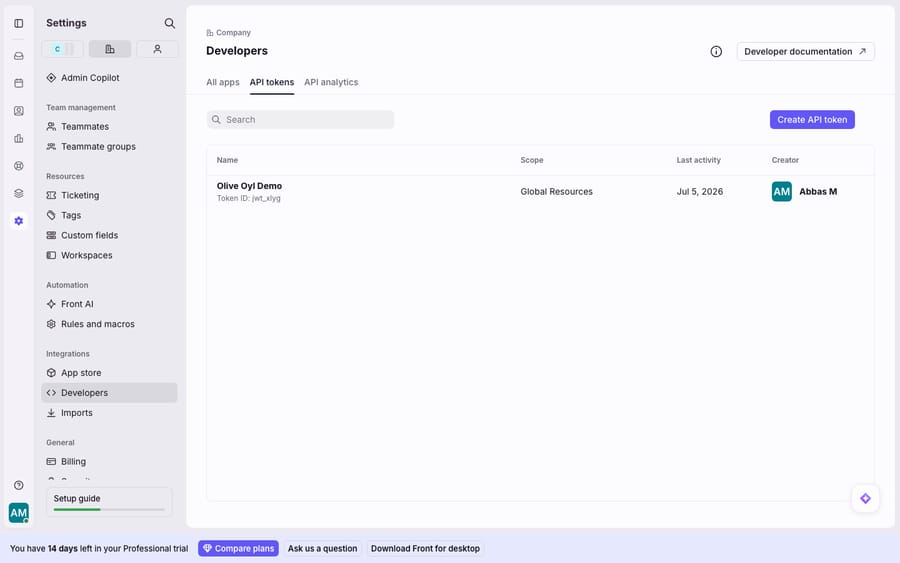
The list view shows each token's name, its Token ID (a short jwt_-prefixed identifier, not the secret itself), the scope it was granted, last activity, and who created it. The secret isn't printed in the list. To get it, click the token to open its details page, then click Reveal or Copy. Front's docs describe that page as the place to "obtain the token value and other useful information, such as who created the token and when." So a token you forgot to copy at creation isn't lost, but it also means any admin can pull the value later, which matters for the security advice below.
Which scope should a Front API token get?
When you create a token, Front doesn't hand out blanket access. You first pick the features the token can use: Access resources (the Core API: conversations, contacts, inboxes), Auto-provisioning (SCIM), Application triggers, and the MCP server (for connecting Front data to AI tools). Then you choose which resource namespaces it can touch, and Front recommends limiting each token to the minimum it needs. There are three namespaces:
- Global resources: company-level things that exist above any single workspace, such as company rules, company tags, teams, and accounts. A token scoped to Global resources can manage the org-wide furniture.
- Shared resources: resources that belong to specific workspaces, such as shared inboxes and workspace tags. You can pick individual workspaces or choose All shared workspaces to cover every one at once. This is the scope most support-automation tokens need, because shared inboxes are where team conversations live.
- Private resources: an individual teammate's personal inbox, signatures, and other private items. This one has a catch: the teammate must enable API access in their own settings before a token can manage their private resources. You can't reach into someone's personal inbox just by scoping a token to it.
Match the namespace to the job. A token that syncs shared-inbox conversations to a reporting tool needs Shared resources, not Global. A token that manages company-wide tags needs Global. Over-scoping is the most common way an API credential ends up with a bigger blast radius than it needed.
What do the Read, Write, Delete and Send permissions allow?
Inside each namespace, you set what the token is allowed to do. Front exposes four permission levels, and they're not interchangeable:
| Permission | What it allows |
|---|---|
| Read | Retrieve resource information: list conversations, fetch a contact, read tags. No changes. |
| Write | Create and update resources (this also covers historical message imports). |
| Delete | Remove API resources. Kept separate so a write-capable token can't destroy data unless you explicitly allow it. |
| Send | Create and send messages in conversations. Deliberately distinct from Write: a token can update a conversation without being able to send outbound messages. |
The separation of Send from Write, and Delete from both, is the useful part. A dashboard that only reports on inbox volume should get Read and nothing else. An automation that drafts replies but shouldn't send them gets Write without Send. Granting all four "just in case" is the habit Front's documentation warns against: "limit the permissions for each token to prevent misuse or security issues."
How do you use the token in an API request?
Once created, the token authenticates every Core API call. Per Front's authentication docs, you send it in the Authorization header, prefixed with Bearer, against the base URL https://api2.frontapp.com:
curl --request GET \
  --url https://api2.frontapp.com/conversations \
  --header 'Authorization: Bearer YOUR_FRONT_API_TOKEN' \
  --header 'Accept: application/json'
A successful response returns JSON. If you're building something more involved than a one-off call, our guide to how to use the Front API walks through pagination, endpoints, and error handling in depth.
The number to know up front: Front's rate limit starts at 50 requests per minute on Starter, 100 on Professional and 200 on Enterprise (the help center covers the same limits). Limits are enforced per company, not per token, so spinning up a second token won't buy you more throughput. Some resource-heavy routes carry extra guards on top, such as 5 requests per second per route and resource and 1 request every 3 seconds for analytics reports. Exceed a limit and you get an HTTP 429 with a Rate limit exceeded. Please retry in [milliseconds] message and a retry-after header. Rate-limit increases beyond the defaults require the Professional plan or higher.
Can you regenerate a Front API token?
Most platforms let you rotate a key in place: click "regenerate," get a fresh secret, keep the same slot. Front's token documentation describes no regenerate option. It covers three actions: create, view (Reveal or Copy), and delete. And deleting is final: it "will immediately prevent any applications using the token from making requests to the Core API," and "this operation cannot be undone."
Two practical consequences follow:
- Put the value in your secret manager as soon as you create it. You can reveal it again later from the details page, but every extra place the value lives (a clipboard, a chat, a notes app) is a copy you can't revoke separately.
- "Rotating" a token means create-then-delete. Create a new token with the same scopes, update every service that uses the old one, confirm nothing broke, and then delete the old token. Deleting first causes an outage, because the cutoff is immediate.
To revoke a token, go back to Settings > Developers > API tokens, click the token to open its details page, and click Delete.
How should you manage tokens per team and keep them secure?
Because tokens are company-level and long-lived, a little discipline goes a long way:
- One token per integration, named for its job. "Zendesk migration script," "Looker sync (read-only)," "Macha connector." When something misbehaves or a vendor relationship ends, you can revoke exactly one credential without collateral damage. The list view's creator and last activity columns make orphaned tokens easy to spot.
- Scope narrowly, per team where you can. A token for one team's automation should be limited to that team's Shared resources workspace rather than All shared workspaces. Front's namespace model is built for this.
- Store the secret in a real secret manager, never in a repo, a shared doc, or a Slack message. The token is a bearer credential: whoever holds it is your Front account, within its scope. Since any admin can reveal it from the details page, keep your admin list short too.
- Use OAuth for anything you distribute. Front's authentication docs require OAuth for public integrations available to all Front customers. API tokens are best for internal scripts and single-instance tools.
- Audit periodically. There's no auto-expiry, so review the token list every so often and delete anything whose last activity has gone cold.
Where do Front API tokens fall short?
Front's token system is clean, but it has edges. There's no in-place rotation and no auto-expiry, so key hygiene is entirely on you, and a leaked token stays valid until a human deletes it. Private-resource access depends on each teammate opting in, so a token can't unilaterally reach personal inboxes. Rate-limit headroom above the 50 rpm Starter baseline comes from a higher plan, or from the rate-limit add-on on Professional and up, so a high-volume integration on Starter can hit the ceiling. And a token, however well-scoped, is still plumbing: it authenticates a request, but it doesn't read a customer's message, understand what they're asking, or write a useful reply. That's the reasoning work an API alone was never meant to do.
That's the seam where an AI agent layer fits. The broader category of AI agents for customer service exists for the part a raw API credential can't do: understanding intent and answering it. Macha is one such layer: it runs on top of the Front you already use through the live Macha–Front integration, and it does not replace Front, your shared inboxes, or your token-based scripts. Instead of you hand-building a token, wiring the Bearer header, and minding the rate limit, Macha connects as a native integration; its agent then reads a conversation, works out what the customer wants rather than matching keywords, and drafts or sends a grounded reply, pulling a real order or account status through a custom tool that turns your own REST API into something the agent can call. Your Front rules keep routing conversations to the right shared inbox; the agent handles the answer. Macha bills per ticket, starting at $299/mo for up to 750 tickets with setup and monitoring by the Macha team included. One conversation is charged once however many messages it takes, never per resolution, so the bill never hangs on an outcome definition you don't control.
FAQ
Where do I find my Front API token? In Settings > Developers > API tokens. You must be an admin to see it. Click Create API token to make a new one, or click an existing token to open its details page, where Reveal or Copy gives you the token value along with its creator and creation date.
Can I regenerate a Front API token? Front's docs describe no regenerate option, and deletion is permanent. To rotate a token, create a new one with the same scopes, migrate every service to it, then delete the old one. Deleting immediately blocks requests, so delete last, not first.
What scopes and permissions can a Front API token have? You pick features (such as Access resources or the MCP server) and three namespaces: Global resources (company-level), Shared resources (workspaces and shared inboxes), and Private resources (a teammate's personal inbox, which requires the teammate to enable API access). Within those, you grant Read, Write, Delete, and Send separately. Grant the minimum a given integration needs.
How do I authenticate a Front API request? Send the token in the Authorization header prefixed with Bearer, against the base URL https://api2.frontapp.com, for example Authorization: Bearer YOUR_TOKEN. The rate limit is 50, 100 or 200 requests per minute depending on plan, counted per company; exceeding it returns a 429.
Do I need an API token to connect Front to Macha? No. Macha connects to Front as a native integration rather than requiring you to hand-build and manage a static API token. It runs on top of your existing Front inboxes and rules, so you keep your current setup and add an AI agent layer without extra plumbing.
Ready to add an AI agent on top of Front without wiring a single API token? Start a free trial of Macha and connect it to your Front in minutes.






