





 Shopify
 Stripe
 Slack
Slack Notion
 Google Workspace
 Confluence

How Do You Import Contacts and Conversation History Into Front? (2026)


Moving into Front is two jobs: a quick self-serve contact import, and a slower import of past conversations from your old help desk. Front handles them through different menus, and its free history importer skips tags, teammates and rules.
Key takeaways
- Front imports contacts from the Import menu in the Contacts view, using a CSV file, Salesforce, HubSpot or an Outlook Directory, while conversation history comes in through separate help-desk importers.
- Front's native importers for Zendesk, Freshdesk and Help Scout history sit under Company settings → Imports, cost nothing, and are described by Front itself as not actively maintained.
- Front's native Zendesk importer brings across conversations, messages, attachments, comments and assignments but skips tags, teammates and rules, which have to be rebuilt in Front.
- Zendesk tickets in Pending, Hold, Solved or Closed states import into Front as archived conversations, while New and Open tickets keep an open status.
- Help Desk Migration's free demo imports 20 tickets with their associated data into Front and can be repeated, so the mapping can be checked before paying for the full run.
Front imports contacts from the Import menu in the Contacts view (CSV, Salesforce, HubSpot or Outlook Directory), and imports conversation history from Zendesk, Freshdesk or Help Scout under Company settings → Imports, or through a paid partner such as Help Desk Migration. The two are separate jobs with separate tools, and mixing them up is where most Front onboardings stall.
| What you're moving | Where you do it | Cost | Best for |
|---|---|---|---|
| Contacts | Contacts view → Import (CSV, Salesforce, HubSpot, Outlook Directory) | Included | Any team, one-time load |
| Contacts at volume or ongoing sync | Front API contact endpoints | Engineering time | Tens of thousands of records, continuous sync |
| Conversation history | Company settings → Imports (Zendesk, Freshdesk, Help Scout) | Free, "not actively maintained" | Simple moves |
| Conversation history, larger or complex | Help Desk Migration or ClonePartner | Paid, quoted by volume | Big archives, tags, knowledge base |
What are you actually importing into Front?
Contacts are people and companies: names, email addresses, phone numbers, the account a customer belongs to. This is a lightweight, structured import you can do yourself in minutes.
Conversation history is the archive of past tickets, emails, and their messages, attachments, assignees, and statuses. This is heavier, sometimes lossy, and depending on volume runs through either a free but unmaintained importer or a paid partner tool. Treat it as a project, not a click.
If you only need Front working for new mail going forward, you may not need a history import at all. Connect your channel (for example, connect Gmail to Front) and start fresh. The history import matters when auditability, context, or continuity of past threads is non-negotiable.
How do you import contacts into Front?
Front ships a built-in contact importer, and for most teams it's all they need on the people side. Open the Contacts view, then use the Import menu. Front lets you bring contacts in from a CSV file, Salesforce, HubSpot, or an Outlook Directory, so whether your customer records live in a spreadsheet or a CRM, there's a native path in.
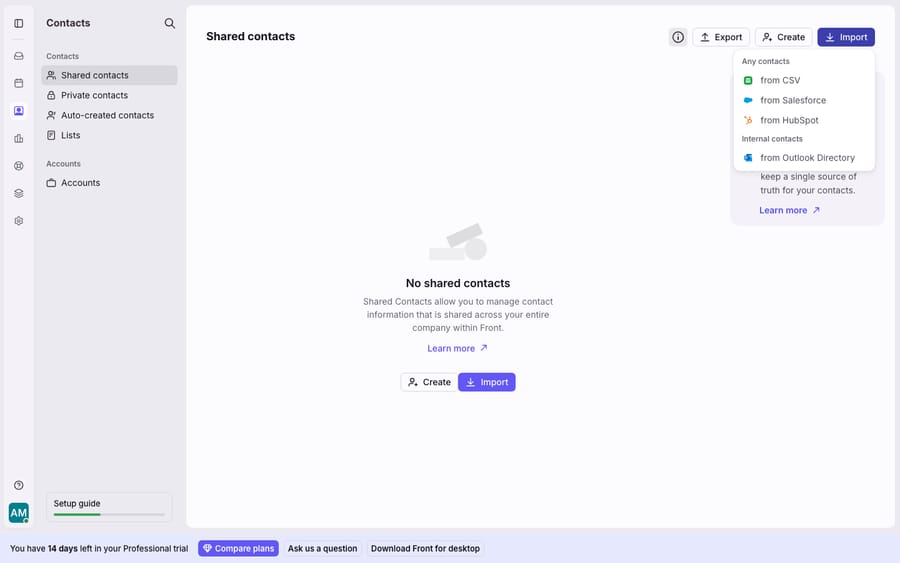
For a CSV import, prep the file first. Give it a header row and one contact per row, with a separate column for each field: name, email, company, phone. Front matches your columns to its contact fields during the wizard, and you can adjust the mapping by hand before you commit. Clean the data before you upload: deduplicate email addresses, standardise company names, and strip empty rows. A messy CSV becomes a messy contact list, and untangling it afterwards is slower than fixing the spreadsheet.
For Salesforce or HubSpot, the importer pulls records directly from the connected CRM rather than a file, which keeps field structure intact and avoids an export-then-reimport round trip. Outlook Directory covers teams whose contact book lives in Microsoft's ecosystem. Whichever source you pick, the wizard has the same shape: choose the source, map the fields, review, import.
For very large contact sets, or ongoing sync rather than a one-time load, the Front API exposes contact endpoints you can script against. That's the right tool when you're importing tens of thousands of records or keeping Front continuously in step with an external system of record.
How do you import conversation history into Front?
Contacts are the easy half. Conversation history is where you plan carefully.
If you're coming from Zendesk, Freshdesk, or Help Scout, Front has native importers. Open the company settings gear, go to Imports, and pick the source; this is separate from the contact menu above. For Zendesk, Front's Zendesk import documentation lists what comes across: inboxes, contacts, conversations and messages, attachments, comments, and conversation assignments. It also lists what doesn't: tags, teammates and rules. Add your teammates in Front before you run the import. The importer lets you map Zendesk Groups to Front inboxes (map to an existing inbox, skip the group, or create a new shared inbox).
There's a catch worth stating plainly: Front's built-in importer is available at no cost but, in Front's own words, is "not actively maintained." For that reason Front recommends two migration partners, Help Desk Migration and ClonePartner, for anything beyond a simple move.
For volume, complexity, or a low-risk migration, use a partner tool. Help Desk Migration transfers teammates, contacts with custom fields, accounts, conversations with comments and attachments, knowledge-base categories, folders and articles, and custom objects such as assets or warranties into Front. It runs in the background so your team keeps working during the migration, offers a Delta migration that moves only records created or updated during the full run, and lets you test with a free demo that imports 20 tickets with their associated data. You can repeat the demo as often as you like, and a custom demo lets you pick which 20 tickets to test. Run it, open the imported tickets in Front, and confirm the mapping looks right before you pay for the full run. Pricing is quoted from your data volume and options after the demo.
What moves into Front, and what do you rebuild by hand?
This table is the part to screenshot before you migrate. It's drawn from Front's Zendesk import doc and Help Desk Migration's Front page.
| Item | Native Front importer (Zendesk) | Help Desk Migration (partner) | Notes |
|---|---|---|---|
| Contacts | Yes | Yes | Native CSV/CRM importer handles these directly too |
| Conversations / tickets | Yes | Yes | Statuses and assignees mapped |
| Messages & comments | Yes | Yes | Internal comments preserved |
| Attachments | Yes | Yes | Respected on port-over |
| Assignee & status | Yes | Yes | See status-mapping gotcha below |
| Tags | No | Yes | Native importer drops tags; partner keeps them |
| Teammates / agents | No | Yes (with mapping) | Add teammates in Front before a native import |
| Rules / automations | No | No | Rebuild every rule by hand in Front |
| Templates / macros | No | Some (partner) | Recreate in Front |
| Knowledge base | No | Yes | Partner tool moves categories, folders and articles |
| Analytics history | No | No | Reporting starts fresh in Front |
The pattern is consistent: content moves, configuration doesn't. Anything that is your data (conversations, contacts, attachments) ports over. Anything that is how the old tool was set up (rules, macros, views, reporting) you rebuild inside Front. Budget time for that rebuild; it's usually the underestimated line item. Rule caps matter here too: Front's pricing page allows up to 10 rules on Starter, up to 20 on Professional and unlimited on Enterprise, so a Zendesk account with dozens of triggers needs consolidating, not copying.
What goes wrong with historic conversations and downtime?
A few things reliably trip teams up. Knowing them in advance turns them from incidents into checklist items.
Ticket status mapping is not one-to-one. Per Front's docs, Zendesk tickets in Pending, Hold, Solved, or Closed states come in as archived conversations in Front, while New and Open tickets keep an open status. If your team suddenly can't find migrated threads, they're probably archived, not missing. Search rather than scroll.
Deactivated agents' tickets usually import unassigned. Zendesk tends to unassign tickets when an agent is deactivated, so Front imports those as unassigned in most cases; where an assignee record survives without a matching active teammate, the ticket can go to the fallback teammate you designate. Partner tools let you remap them to an active teammate explicitly.
Don't delete the related inboxes mid-import. Front warns that deleting an inbox involved in a running import will stop the process. Leave everything in place until the import fully completes.
Downtime is mostly avoidable, but plan the cutover anyway. Partner tools run in the background so daily work continues, and Delta migration catches anything that changed during the run. The real risk isn't the tool being down; it's the ambiguity window where a customer emails and nobody's sure whether the reply should go from the old system or the new one. Pick a cutover moment, redirect your channels, and tell the team.
And know the reverse, too: leaving Front later is not symmetric. Front's self-serve export covers contacts as CSV only, and full conversation-history export goes through Front Support rather than a button. We cover that fully in how to export data from Front. Rules, shared drafts, and analytics don't travel out of Front to another platform either. Import is the easy direction; plan your data ownership with the harder one in mind.
Where does an AI agent fit after you land in Front?
Imported history is worth more than an audit trail. Once those conversations live in Front, they are a record of how your team actually answers real questions.
That's the gap an AI agent layer fills. The category of AI agents for customer service exists to do the reasoning a shared inbox can't do on its own. Macha is one such layer: it runs on top of the Front you just migrated into through the live Macha–Front connector (and on Zendesk, Freshdesk, Gorgias, Front, HubSpot or Intercom more broadly). It does not replace Front, your inboxes, or your imported data. The agent reads your migrated conversations as grounding, works out what a new customer is asking, and drafts or sends a reply, pulling a live order or account status through a custom tool that turns your REST API into something the agent can call. Macha bills per ticket, one conversation charged once however many messages it takes, never per resolution: one plan from $299 a month for up to 750 tickets, with setup and monitoring by the Macha team included.
FAQ
How do I import contacts into Front? Open the Contacts view and use the Import menu. Front supports importing from a CSV file, Salesforce, HubSpot, or an Outlook Directory. For a CSV, use a header row with one contact per row and a column per field; Front maps your columns to its contact fields in the wizard. For very large or ongoing imports, use the Front API's contact endpoints.
Does Front import my old conversation history? Yes, through separate importers under Company settings → Imports for Zendesk, Freshdesk, and Help Scout. The native importer is free but "not actively maintained," so Front recommends partners Help Desk Migration or ClonePartner for larger or more complex migrations.
What does NOT transfer when I import into Front? Front's native Zendesk importer skips tags, teammates and rules. Rules, macros/templates, views, and analytics history are rebuilt inside Front whichever tool you use. Partner tools like Help Desk Migration recover more (tags, teammates, knowledge base), but rules and reporting still start fresh.
Why are my imported tickets showing as archived? Front maps source ticket statuses on import: Zendesk Pending, Hold, Solved, and Closed tickets become archived conversations, while New and Open tickets stay open. They're not lost; search for them rather than scrolling your open inbox.
Can I test a migration before committing? Yes. Help Desk Migration's free demo imports 20 tickets with their associated data, and you can repeat it as often as you need to verify the mapping in Front before running and paying for the full migration.
Want your imported Front archive to start answering customers? Start a free trial of Macha with $50 of free usage, no card needed, and connect it to your Front.






