





 Shopify
 Stripe
 Slack
Slack Notion
 Google Workspace
 Confluence

How Do You Import Tickets and Contacts into Freshdesk? (CSV and API, 2026)


Freshdesk imports contacts and companies from a CSV, but it has no CSV route for tickets. Ticket history comes in through the Freshdesk REST API, one ticket per call, or through a paid migration tool that makes those calls for you.
Key takeaways
- Freshdesk's native CSV importer handles only contacts and companies, so ticket history must come in through the Freshdesk REST API or a paid migration tool.
- Freshdesk requires at least 10 tickets in the account before a contact import succeeds, which trips up first-time migrators on brand-new instances.
- The Freshdesk API allows 100 calls a minute on Growth, of which 50 can be ticket creations, so 10,000 tickets with three notes each take about 400 minutes.
- The Freshdesk API caps each ticket's attachments at 20MB in total, while the widely quoted 50-per-request bulk import figures belong to Freshservice's partner APIs.
- Each Freshdesk contact can hold up to 10 email addresses, and an imported row matching an existing contact's email overwrites that contact instead of creating a duplicate.

Freshdesk's built-in CSV importer takes contacts and companies only; ticket history has to come in through the Freshdesk REST API (one POST /api/v2/tickets call per ticket, capped at 50 ticket creations a minute on the Growth plan) or through a paid migration tool that makes those calls for you. Most real migrations use both: CSV for people, API or a tool for conversations.
| Route | What it imports | Cost | Main limit |
|---|---|---|---|
| Native CSV importer | Contacts and companies | Free | No tickets; needs at least 10 tickets already in the account |
| Freshdesk REST API | Tickets, notes, contacts, companies | Free, but developer time | Per-minute rate limits by plan; 20MB of attachments per ticket |
| Migration tool (e.g. Help Desk Migration) | Tickets, attachments, contacts, KB, from 100+ platforms | Paid | Same API limits underneath; the tool handles batching and retries |
Why can't you import tickets into Freshdesk with a CSV?
Freshdesk splits imports along a hard line. Contacts and companies go through a CSV importer in the UI. Tickets do not: there is no menu button that ingests a CSV of past conversations. Freshworks' own importing and exporting customer data article covers customer records only and says nothing about tickets, and migration vendors such as Help Desk Migration describe the native importer the same way: contacts and companies, with no support for tickets or knowledge base articles.
That one fact shapes every migration. If all you need is a contact list, the free importer does the job in a few minutes. If you're moving years of ticket history off another help desk, you're in API territory, either writing against Freshdesk's endpoints yourself or paying a tool to do it.
How do you import contacts and companies from a CSV?
The CSV importer lives in the UI and gives you a mapping screen so your spreadsheet columns line up with Freshdesk fields.
- Prepare a UTF-8 CSV with column headers in the first row. Freshdesk reads that header row to offer field mappings.
- Give each contact at least a name plus an email address or a name plus a phone number. Rows missing both pairs won't import.
- Format every date field as YYYY-MM-DD, and write phone numbers with a country code (e.g. +14088481234, not 4088481234).
- Pre-create any custom fields in Admin before you import. The mapper can only target fields that already exist.
- Go to Contacts → Import (or the same button on the Companies page), upload the file, map each column on the mapping screen, and click Import. You'll get a status email when it finishes.
Know the sharp edges before you run it. Email is the unique key: if an imported row matches an existing contact's email, Freshdesk overwrites that contact rather than creating a duplicate, so a sloppy file can quietly clobber good data. Each contact can hold up to 10 email addresses (one primary, nine secondary). And contacts and companies import separately, so you run two passes, companies first if you want the associations to resolve.
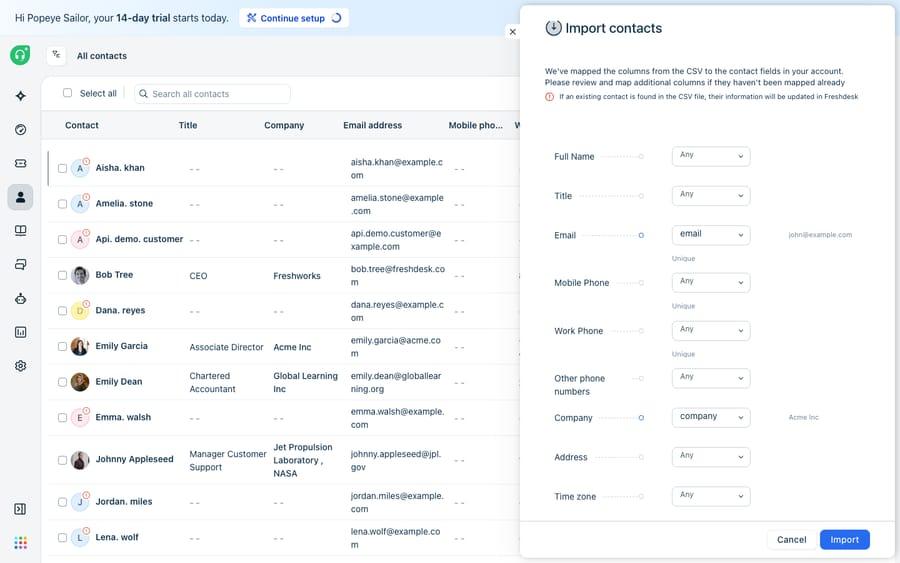
One non-obvious gotcha: Freshdesk says you need at least 10 tickets in the account for a contact import to succeed. On a brand-new instance that means creating a handful of throwaway tickets first, then importing your people. It's an odd requirement, and it trips up first-time migrators constantly.
How do you import ticket history through the Freshdesk API?
Freshdesk's public API has no bulk ticket-import endpoint. You recreate each ticket with Create a Ticket (POST /api/v2/tickets), then add its history as notes with POST /api/v2/tickets/[id]/notes. The notes endpoint takes an incoming flag so a note can appear as coming from outside rather than from an agent. This is an engineering task, not a settings screen, so budget developer time. The limits that matter:
- JSON only, except when you upload attachments, which use multipart/form-data.
- Per-minute rate limits by plan: 100 calls a minute on Growth (of which 50 can be ticket creations), 400 on Pro (160 ticket creations) and 700 on Enterprise (280 ticket creations). Trial accounts get 50 calls a minute. Every note is its own call against the overall limit.
- 20MB of attachments per ticket: the docs say the total size of all of a ticket's attachments, across the ticket and its notes, cannot exceed 20MB.
- Dependent records first: the requesters and agents a ticket points at should exist (via the contact import above, or the API) before you create the ticket.
Do the arithmetic before you promise a date. Moving 10,000 tickets with three notes each is 40,000 calls. At 100 calls a minute on Growth that's about 400 minutes, close to seven hours of uninterrupted running, before retries. On Pro the same job fits in about 100 minutes.
You may see "50 tickets per request, 10 requests a minute, 40 MB per entity" quoted for a Freshdesk bulk import API. Those figures come from Freshservice's bulk APIs, which Freshworks documents for Freshservice data-migration partners, not from the Freshdesk API reference.
What does come through the API is the structured skeleton of each conversation: type, status, priority, source, custom fields, requester, agent and tags. That's a lot of fidelity, but it's fidelity you script, map and error-handle yourself.
When is a paid migration tool worth it?
If you're moving off Zendesk, Gorgias or another platform with tens of thousands of tickets and attachments, a dedicated migration service is usually the sane choice over hand-rolling the API. Tools like Help Desk Migration (by Relokia) automate the export, field mapping and import steps, carry attachments and inline media, and offer Delta Migration, which transfers only records created or updated after your first full run. That gets you close to zero downtime instead of a hard cutover. The trade is cost: these are paid services, whereas the native CSV importer is free. We compare the options in the best Freshdesk migration tools, and if you're coming from Zendesk, the Zendesk to Freshdesk migration guide walks that exact path.
What moves into Freshdesk and what do you rebuild?
Read this table before you start. Most migration disappointment comes from assuming a CSV or a tool moves everything. It moves the data, not the logic that acts on it.
| Data / config | How it comes in | Fidelity |
|---|---|---|
| Contacts (name, email, phone) | Native CSV import | Full; email is the unique key |
| Companies | Native CSV import (separate pass) | Full |
| Contact/company custom fields | CSV, with fields pre-created in Admin | Full if pre-built |
| Tickets (subject, description, status, priority, type, source, tags) | REST API or paid tool | Good; structured fields map over |
| Ticket requester & agent assignment | API / tool (users must exist first) | Good |
| Ticket attachments | API (20MB total per ticket) or paid tool | Partial via API; better via tool |
| Ticket threading / notes | Notes endpoint, one call per note, or tool | Good via tool; manual via raw API |
| Automations, ticket dispatch rules | Rebuilt by hand in Admin | None; does not port |
| SLA policies | Rebuilt by hand | None; does not port |
| Business hours, groups, roles | Reconfigured in Admin | None; does not port |
| Reports & analytics history | Starts fresh | None; historical dashboards reset |
| Macros / canned responses | Recreated (or scripted separately) | None natively |
The pattern: records port, behavior rebuilds. Your customers and their conversations can travel; the SLA policies, automations, business hours and reporting that operate on them are configuration you set up again. Treat that rebuild as planned scope. Our Freshdesk migration checklist sequences it so nothing slips.
How much downtime should you plan for, and where does the free route fall short?
Downtime is a choice you make. A CSV contact job is fast and low-risk, but a raw-API ticket migration of any size runs for hours under the per-minute limits above, and you have to decide whether to freeze the source system during the move or reconcile changes afterward. Paid tools soften this with Delta Migration; the free path does not.
The free importer has real gaps. It handles people, not conversations; it doesn't touch attachments; and it silently overwrites contacts on matching emails. For a small team importing a clean list, none of that matters. For a data-heavy cutover, those gaps are why the API and paid tools exist.
The short version on tooling: the native importer is free but narrow, the API is free but a build, and a migration service is paid but broad. The right choice depends on your volume, your engineering capacity and how much history you need to keep.
Can you add an AI agent on top of Freshdesk once the data is in?
Yes. Importing is the start; after that the work is answering the new tickets that keep arriving, and an AI agent layer sits on top of the Freshdesk you just populated rather than replacing it. The broader category of AI agents for customer service exists to do that reading and writing at volume.
Macha is one such layer. It connects to the Freshdesk you already use as a native connector: you link it with your subdomain and API key, and it reads and writes the same tickets you just imported. It drafts or posts grounded replies, triages incoming tickets by intent, and can look up an order or account status through a custom tool that turns a REST API into something an agent can call. Because Macha works on your live ticket data, a clean import gives it more history to ground answers in. For the full picture of automating the queue after you've moved in, see how to automate Freshdesk with AI.
Two things to keep straight: Macha's connector is for Freshdesk specifically, not Freshchat, Freshservice or Freshcaller. And it bills per ticket, one conversation charged once however many messages it takes, starting at $299 a month for up to 750 tickets, with setup and monitoring by the Macha team included. The pricing page lays out the tiers. It doesn't replace your help desk or your imported data; it works on top of both.
FAQ
Can I import tickets into Freshdesk with a CSV? No. Freshdesk's native CSV importer only handles contacts and companies. To bring in ticket history you recreate each ticket through the REST API (JSON, one ticket per call, 50 ticket creations a minute on Growth) or use a third-party migration tool that makes those API calls for you.
Does Freshdesk have a bulk import API for tickets? Not in the public Freshdesk API reference. The bulk endpoints with 50 tickets per request and 10 requests a minute are documented for Freshservice data-migration partners. In Freshdesk you create tickets one at a time and add notes with separate calls.
Why does Freshdesk say I need 10 tickets before importing contacts? Freshdesk requires at least 10 tickets in the account for a contact import to succeed. On a fresh instance, create a few placeholder tickets first, then import your contacts.
Do contacts and companies import together? No, they're two separate imports. Run the Companies import first, then Contacts, so company associations resolve. Both are UTF-8 CSVs with a header row and YYYY-MM-DD dates.
What data doesn't migrate into Freshdesk? Records (contacts, companies, tickets) move; behavior doesn't. Automations, SLA policies, business hours, macros and historical reports all have to be rebuilt in the new instance. Through the raw API, a ticket's attachments are also capped at 20MB in total.
Do I have to replace Freshdesk to add AI after importing? No. An AI agent layer like Macha connects to Freshdesk as a native connector and works on top of your imported tickets and contacts, drafting replies and triaging by intent, without replacing the help desk.
Once your data is home, help your team answer faster on top of it. Start a free trial of Macha with $50 of free usage and no credit card, and connect it to your Freshdesk in minutes.






