





 Shopify
 Stripe
 Slack
Slack Notion
 Google Workspace
 Confluence

How Do You Integrate HubSpot with Front? Plugin, One-Way Sync and Limits (2026)


Connecting HubSpot to Front puts contact, company and deal records beside each conversation, so agents never tab out to see who they're talking to. The integration has two halves, a two-way sidebar plugin and a one-way data sync, and mixing them up causes most sync complaints.
Key takeaways
- HubSpot integrates with Front through the App Store: open Settings, Company settings, App Store, enable HubSpot, and authenticate with your HubSpot account.
- Front's HubSpot sidebar plugin is available on every Front plan, while the contacts and companies data sync requires the Professional plan or above.
- The Front HubSpot data sync copies records one way, from HubSpot into Front, so edits to a synced Front contact or account never reach HubSpot.
- Front syncs HubSpot changes usually within seconds and runs a full backstop sync every 24 hours, with a Start bulk sync button for manual runs.
- Front supports syncing a maximum of 1M HubSpot contacts and 500k companies, and skips contacts without an email or phone number.

To integrate HubSpot with Front, open Settings → Company settings → App Store in Front, enable the HubSpot app and sign in to HubSpot. That switches on the sidebar plugin, which works on every Front plan. The separate contacts and companies sync copies HubSpot records into Front one way only, needs the Professional plan or above, and updates within seconds, with a full backstop sync every 24 hours (Front help center, checked 24 September 2026).
| Question | Answer |
|---|---|
| Where do you start? | Front: Settings → Company settings → App Store → HubSpot → Enable app |
| Plan for the sidebar plugin | All Front plans |
| Plan for the data sync | Professional or above |
| Sync direction | One way, HubSpot to Front |
| Sync speed | Usually within seconds; full backstop sync every 24 hours |
| Limits | 1M contacts, 500k companies |
| Who can set up the sync | A workspace or company admin in Front |
What does the Front HubSpot integration connect?
Before touching a setting, it helps to separate the two mechanisms, because they have different capabilities, different plan requirements, and different failure modes. Per Front's guide to enabling the HubSpot integration, the pieces are:
- The sidebar plugin. This lives in Front's app switcher next to each conversation and lets you "display, create, and edit customer records from your HubSpot CRM that match the open message in Front" — contacts, companies, deals, and engagements (notes, tasks). Because the plugin talks to HubSpot live, edits you make here do write back to HubSpot. Front says the plugin "is available on all plans."
- The data sync. Separately, Front can copy HubSpot contacts into Front contacts and HubSpot companies into Front accounts. This is a one-way sync: HubSpot is the source of truth and Front is the mirror. It requires the Professional plan or above, per Front's contacts sync documentation.
The distinction matters: the plugin is bidirectional at the record level (you can edit a deal from Front and it lands in HubSpot); the sync is strictly one-directional. Most bidirectional expectations break because people assume the sync behaves like the plugin. It doesn't.
How do you enable the HubSpot app in Front?
The connect flow starts in Front's App Store, not in HubSpot.
- Click the gear icon to open Settings, then go to Company settings.
- Open the App Store from the left menu.
- Find HubSpot in the list (it's in the CRM & Ecommerce category), and click See details.
- On the overview page, click Enable app and authenticate with your HubSpot account via OAuth.
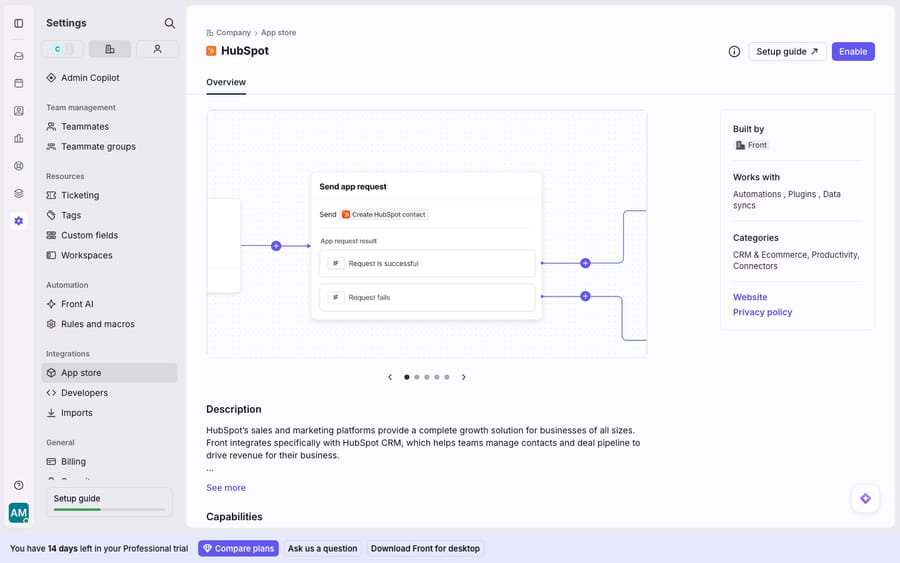
Enabling the app switches on the sidebar plugin immediately. Now, when a conversation matches a HubSpot contact by email, agents see that contact's HubSpot record — company, deals, recent engagements — in the app panel, and can create or edit records without leaving Front. This is the half of the integration that most support and sales teams get value from first, and it works on any plan.
How do you turn on the HubSpot contacts sync?
If you want HubSpot contacts to populate Front's own contact directory (so they're searchable, routable, and usable in rules even without an open HubSpot record), enable the contacts sync. Per Front's contacts sync guide, you must be a workspace or company admin to set this up.
- From the HubSpot app settings, open the contacts sync configuration.
- Choose which HubSpot contact fields to sync and map each to a corresponding Front field. Front automatically merges HubSpot's separate First name and Last name into a single Name field.
- Confirm the field mapping and start the sync.
A few hard constraints to plan around, straight from Front's documentation:
- Contacts need at least an email or phone number to sync — records without either are skipped.
- Front supports a maximum of 1M contacts.
- Deletes don't propagate. "If a contact is deleted in HubSpot, the contact will stop syncing to Front but the Front contact will not be deleted." You'll clean those up manually.
- Duplicates are skipped, not merged. If an email or phone already exists in Front linked to a different HubSpot contact, the sync skips that record and logs an error.
How do you turn on the HubSpot companies sync?
Company (account) sync works the same way and carries the same one-way, HubSpot-to-Front direction. Per Front's companies sync documentation, "companies are synced one-way from HubSpot to Front," matched to Front accounts via an external ID so updates land on the right record over time.
- Open the companies sync settings under the HubSpot app.
- Map HubSpot company fields to Front account fields. Front's compatibility table covers single line text, multi-line text, single checkbox, dropdown, radio select, date picker, number, calculation, score, HubSpot user and company domain name fields.
- Start the sync.
Three things to know: Front supports a maximum of 500k companies/accounts. When a company is created or updated in HubSpot, Front updates the synced account "usually within seconds", and it also refreshes an account when a rule or macro uses its data. On top of that, a full sync of everything in scope runs every 24 hours as a backstop, and an admin can start one at any time with the Start bulk sync button on the sync settings page. If a field edited in HubSpot hasn't reached Front, a bulk sync is the fix.
Should you use the plugin, the sync, or both?
Keeping the two mechanisms straight prevents most integration surprises. Here's the decision table.
| Sidebar plugin | Contacts / companies sync | |
|---|---|---|
| What it does | Shows + edits HubSpot records beside the conversation | Copies HubSpot contacts/companies into Front's own directory |
| Direction | Two-way at record level (edits write to HubSpot) | One-way (HubSpot → Front only) |
| Freshness | Live / real-time on open | Usually within seconds; full backstop sync every 24h; manual bulk sync |
| Plan | All plans | Professional or above |
| Objects | Contacts, companies, deals, engagements | Contacts, companies |
| Best for | Agents needing CRM context on a conversation | Routing, search, and rules that need CRM data in Front |
If you only need context on the conversation, the plugin alone is enough. Turn on the sync when you want HubSpot data to drive Front behavior — assignment rules that route by account, search across your full CRM contact list, or AI automation that reads account attributes.
Where does the Front HubSpot integration fall short?
The native Front HubSpot integration does two jobs well: giving agents CRM context without a tab switch, and keeping Front's directory populated from HubSpot. Its limits sit in four places.
The sync is one-way, full stop. Changes you make to a synced Front contact or account do not travel back to HubSpot. Only edits made through the plugin (which talks to HubSpot's live API) write back. Teams that expect a true two-way CRM mirror — where a rep updating a lifecycle stage in Front updates HubSpot — will be disappointed, because that's not what the sync is.
Deletes and channels don't carry. Updates usually arrive within seconds, with the 24-hour backstop behind them, per Front's companies sync guide. Deletes never propagate. And only email messages log back to HubSpot as engagements. Front says "SMS messages, tweets, or other message types will not be sent to HubSpot," so your HubSpot activity timeline is an incomplete picture of the conversation.
Deep config needs both accounts. Field mapping, sync scope, and object relationships are configured after you enable the app, and getting HubSpot custom objects to surface requires them to have relationships to standard objects in HubSpot — work you do on the HubSpot side, not in Front. The App Store overview page (shown above) is just the front door; the real configuration happens once you're authenticated into both platforms.
None of that makes the integration bad. It makes it a data-presentation integration, not a reasoning one. It can put a HubSpot deal in front of an agent, but it can't read the customer's actual question and decide what to do about it. That's a different job.
Can an AI agent use HubSpot data inside Front?
Front's HubSpot integration answers "who is this customer?" It doesn't answer "what should we do about this conversation?" That's the seam an AI agent layer fills, and the broader category of AI agents for customer service exists for exactly this reasoning work.
Macha is one such layer. It runs on top of the Front you already use through a live connector and doesn't replace Front, your shared inboxes, or your HubSpot integration. You keep HubSpot feeding CRM context into the sidebar and Front's directory; Macha's agent then reads this conversation, understands intent rather than keywords, and drafts or sends a grounded reply. Macha also has its own HubSpot connector, so the agent can search and read contacts, search deals, update a deal stage and add a note at the moment it answers, and a custom tool can turn any other REST API, such as your billing or order system, into something the agent calls. The native integration shows the deal; the agent uses it. If you want the mechanics, connecting Front to Macha to route conversations to AI walks through it, Macha bills per ticket, from $299/mo for up to 750 tickets, with one conversation charged once however many messages it takes, and the Macha–Front connector covers the setup. For how integrations fit the wider Front shared inbox model, start there.
FAQ
How do I connect HubSpot to Front? Open Settings (gear) → Company settings → App Store, find HubSpot, click See details → Enable app, and authenticate with HubSpot. Enabling switches on the sidebar plugin immediately; the contacts and companies sync are configured separately afterward, need a workspace or company admin, and require the Professional plan or above.
Is the Front HubSpot sync one-way or two-way? The data sync is one-way, HubSpot to Front only. Front copies HubSpot contacts and companies into its own directory, but edits to those synced records don't travel back to HubSpot. The sidebar plugin is different: edits you make to a record through the plugin write back to HubSpot live.
How often does the Front HubSpot integration sync? Changes to HubSpot contacts and companies usually reach Front within seconds. A full sync of everything in scope also runs every 24 hours as a backstop, and an admin can trigger one any time with Start bulk sync.
What are the sync limits? Front supports up to 1M contacts and 500k companies/accounts. Contacts must have at least an email or phone number to sync, deleted HubSpot contacts stop syncing but aren't deleted in Front, and duplicate email/phone matches are skipped with a logged error.
Can I add AI on top of the Front HubSpot integration? Yes. An AI agent layer like Macha connects to Front as a live connector alongside your HubSpot integration. HubSpot keeps supplying CRM context; the agent reads the routed conversation, understands intent, and drafts or sends a grounded reply using live HubSpot data through Macha's HubSpot connector.
Ready to turn "CRM context in the sidebar" into "actually answered"? Start a free trial of Macha and connect it to your Front in minutes.






