





 Shopify
 Stripe
 Slack
Slack Notion
 Google Workspace
 Confluence

How Do You Integrate Jira with Front? Plugin vs Connectors (2026)


Front's Jira plugin lets any teammate create or link a Jira issue from a conversation on every plan, and resolving that issue reopens the conversation. Automated issue creation and two-way comment sync need Front's Jira connectors, which start on the Professional plan.
Key takeaways
- Front integrates with Jira through a sidebar plugin available on every plan, enabled once by an admin under Company settings, App store, Jira, then Enable app.
- Front's Jira connectors add automated issue creation, two-way comment sync and custom status reopening, and they require the Professional plan at $65 a seat on annual billing.
- When a Jira issue is attached to a Front conversation, Front adds a link back to every related conversation into the Jira issue's description.
- Front reopens a linked conversation when its Jira issue is resolved, which depends on a Jira webhook that a Jira admin may need to enable.
- Macha's live Jira connector lets an agent search Jira with JQL before filing, so it can link a known bug instead of creating a duplicate issue.

To integrate Jira with Front, a company admin enables the Jira app under gear icon → Company settings → App store → Jira → Enable app and signs in with Jira credentials; each teammate then signs in with their own Jira account and picks a default project, and from then on any conversation can create or link a Jira issue from the sidebar. That sidebar plugin is available on every Front plan. Automated issue creation and two-way comment sync come from Front's separate Jira connectors, which need the Professional plan or above.
| Capability | Plugin | Connectors |
|---|---|---|
| Manual create issue from the sidebar | Yes | No |
| View issue details inline | Yes | No |
| Automatically create issues (via rules/macros) | No | Yes |
| Send comments via macro | No | Yes |
| Sync comments + status continuously | Partial (status) | Yes |
| Custom status-based reopening | No | Yes |
| Plan required | All plans (Starter from $25/seat) | Professional+ ($65/seat) |
Seat prices are Front's annual rates from front.com/pricing, checked 24 September 2026.
What does the Front–Jira integration actually do?
Front ships two related but distinct Jira surfaces, and knowing which is which saves a lot of confusion. Per Front's Jira integration guide, the plugin is the sidebar panel inside a conversation: it lets any teammate manually create a new issue, link an existing one, and view issue details inline without leaving Front. The connectors, described in Front's Jira Connectors documentation, are the automation layer. They tap "every action available in the Jira API" so you can create issues and sync comments from rules, macros, and chatbots.
The practical split, per Front's marketing Jira integration page: the plugin is available on every plan and covers manual, human-in-the-loop work; the connectors require the Professional plan or above and cover automation and richer two-way comment sync. Front's three plans are Starter, Professional and Enterprise, so a Starter team gets the plugin only. Most teams start with the plugin and graduate to connectors once the manual handoff proves its worth.
How do you enable the Jira app in Front?
Enabling is a company-admin action and only has to happen once. Per Front's Jira integration guide:
- Click the gear icon to open settings, then go to Company settings → App store.
- Find and select Jira, then click See details.
- Click Enable app.
- Open the Authentication tab and click Sign in.
- Authenticate with your Jira credentials in the pop-up window.
- Click Save to finish enabling the app.
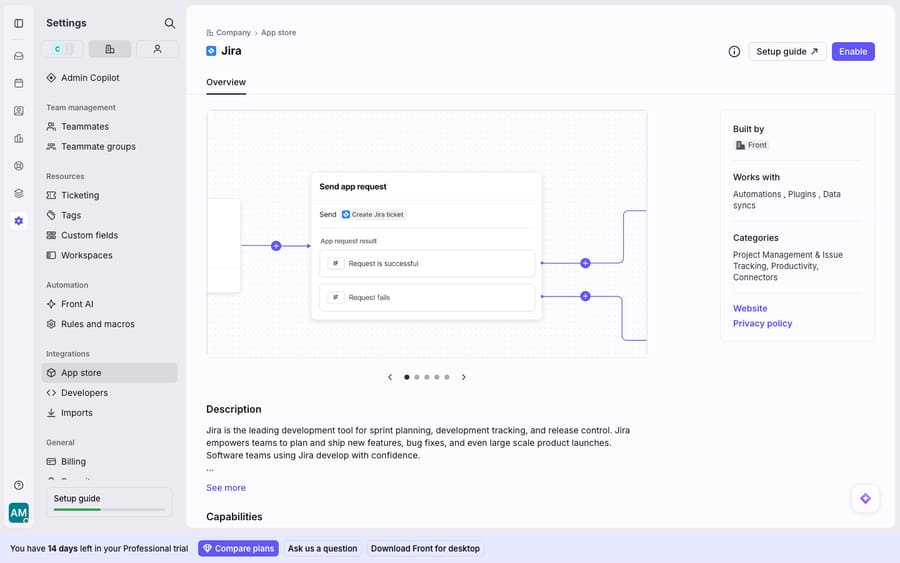
That connect page is where the relationship starts. It authorizes Front to talk to your Jira instance, but it doesn't yet map any fields or link any issues. The per-project configuration happens next, at the individual level.
How does each teammate set a default project and fields?
After the app is enabled company-wide, each teammate who wants to file issues sets themselves up once. Per Front's documentation:
- In Front, pin the Jira icon in the sidebar app switcher so it's always to hand.
- On first use, sign in with your own Jira credentials. The integration acts as you in Jira, so issues are created under your account.
- Click the gear icon in the Jira panel to configure your default project, default issue type, and the fields you want the create form to show.
- Click Save.
The create form starts from Project, Issue type, Summary and Description, and surfaces any custom fields associated with the project and issue type you chose. This is the closest thing to field mapping the native integration offers: you decide which Jira fields appear on the create form, so the person filing the issue captures the right data (severity, component, customer tier) at handoff time rather than in a follow-up.
How do you create or link a Jira issue from a Front conversation?
This is the payoff. Open any conversation that needs to reach engineering or ops, and use the Jira panel:
- To create a new issue: click Add issue in the This conversation tab, select the Project, choose New issue, fill in the configured fields (summary, description, and any custom fields), and click Create.
- To link an existing issue: use the Search tab, select the project, type the issue name or key, press Enter, click the matching result, and use the three-dot menu to attach it.
Either way, Front links the issue to the conversation and records the action in the conversation's activity history, so anyone in the shared inbox can see it was escalated. The detail that makes the handoff two-directional: Front notes that when a Jira issue is attached to a conversation, "a link back to all related conversations in Front will be added to the description of the Jira issue." An engineer opening that Jira ticket can click straight back to the customer thread that raised it.
How does Jira status sync back to the Front conversation?
The reason to link at all is so the loop closes. The most common sync teams rely on is status flowing from Jira back into Front: when the linked Jira issue is resolved, Front reopens the conversation so the agent knows it's time to reply to the customer. Per Front's Jira Connectors documentation, the connectors go further: they post Jira status changes into the Front conversation and support custom status reopening, where you pick which Jira statuses reopen the conversation.
There's a prerequisite worth flagging: Front tries to create a Jira webhook for issue updates when you authenticate, and that may need a Jira admin with webhook permissions. If closed issues stop reopening conversations, Front's guidance is to check that a webhook pointing at frontapp.com exists in Jira's settings and, if needed, have a Jira admin re-authenticate the integration.
For teams on Professional or above, the connectors can also send and receive comments between a Jira issue and its Front conversation, so a developer's note on the ticket lands in the conversation's comments and vice versa. That's the true two-way sync; the plugin alone is closer to create-and-link plus one-way status.
Should you use the Jira plugin or the connectors?
The table at the top of this page sets the two side by side, drawn from Front's Jira Connectors documentation. The short version: plugin for humans, connectors for automation. A support team that escalates a handful of bugs a week is well served by the plugin. A high-volume ops team that wants every conversation tagged bug to auto-file a Jira issue, and every Jira comment to appear in Front, needs the connectors and therefore Professional or above. On Front's annual pricing that's $65 a seat instead of $25, so the upgrade is priced per person on the team, not per Jira issue.
Where does the native integration stop, and where does an AI layer fit?
The native Front–Jira integration is good at what it's built for: giving a human a fast, in-context way to escalate a conversation into Jira and keep the two linked. The create form, the back-link in the Jira description, and the reopen-on-resolve status sync solve the real handoff problem cleanly.
But it's worth being clear about the edges. Status sync is effectively one-way for the plugin (Jira → Front reopening), and the fuller two-way comment sync is gated behind Professional-plus connectors, per Front's documentation. Deep configuration (webhooks, custom reopening rules, field-level behavior) often needs a Jira admin and lives in your Jira instance, not fully inside Front. Front's help articles describe Jira Cloud sign-in only and don't mention Jira Server or Data Center, so a self-hosted team should test before relying on it. And most importantly, the integration is mechanical, not judgmental: it will happily create a duplicate Jira issue for the tenth report of the same bug, because it has no idea the other nine exist.
That last gap is where an AI agent layer fits: not to replace the integration, but to add the reasoning a create-form can't. The broader category of AI agents for customer service exists for exactly this kind of judgment work. Macha is one such layer: it runs on top of the Front you already use through the live Macha–Front connector, and it doesn't replace Front, your shared inboxes, or your Jira link. Macha also has its own live Jira connector: the agent can search issues with JQL, read an issue with its comments and history, create issues, add comments, and move an issue through its workflow statuses, and a new-issue trigger lets an agent react to changes on a board. So the agent reads the incoming conversation, searches Jira for an existing issue before filing a duplicate, and either links the known bug or creates a new one with the right fields. A custom tool covers any Jira endpoint the connector doesn't. The native plugin puts a create button in the sidebar; the agent decides when to press it and what to write. If you want the mechanics of wiring Front to an AI layer, connecting Front to Macha to route conversations to AI walks through it. Macha bills per ticket, from $299 a month for up to 750 tickets: one conversation is charged once however many messages it takes, never per resolution. For the wider picture of what plugs into Front, see the best Front integrations and how the shared inbox fits together.
FAQ
How do I enable the Jira integration in Front? A company admin goes to the gear icon → Company settings → App store → Jira → See details → Enable app, then signs in with Jira credentials on the Authentication tab and clicks Save. After that, each teammate pins the Jira icon and signs in with their own Jira account to set a default project, issue type, and fields.
How do I create a Jira issue from a Front conversation? Open the conversation, click Add issue in the Jira panel's This conversation tab, select a Project, choose New issue, fill in the fields, and click Create. Front links the issue to the conversation and adds a link back to the conversation in the Jira issue's description.
Does the Front–Jira integration sync two ways? Partly. Status syncs from Jira back to Front: resolving a linked Jira issue reopens the Front conversation, and this relies on a Jira webhook that a Jira admin may need to enable. Full two-way comment sync requires Front's Jira connectors, which are on the Professional plan or above.
What's the difference between the Jira plugin and the connectors? The plugin is a sidebar panel for manually creating, linking, and viewing issues, and it's available on all plans. The connectors expose the Jira API to automate issue creation and comment and status sync through rules and macros, and they require Professional or above.
Which Front plan do I need for the Jira connectors? Professional or Enterprise. Front lists Professional at $65 a seat per month and Enterprise at $105 on annual billing; Starter ($25) gets the plugin but not the connectors.
Can I add AI to the Front–Jira handoff without replacing Front? Yes. An AI layer like Macha connects to Front as a live connector on top of your existing inboxes, and to Jira through its own Jira connector. The agent reads the conversation, searches Jira for an existing issue to avoid duplicates, and creates or links the issue with the right fields, while your team's inboxes, rules, and Jira setup stay exactly where they are.
Ready to turn a manual "file a Jira ticket" step into something an agent handles in context? Start a free trial of Macha with $50 of free usage and connect it to your Front.






